

In this guide, you will learn how to connect CloudTalk with Zoho CRM, make outbound calls with the Click-to-Call extension, review logged calls, access caller profiles before answering, and work with VoiceAgent calls recorded in Zoho.
Watch how it works
To see the CloudTalk + Zoho integration in action, watch this short overview:Calling from Zoho
Make Outbound Calls
As a first step, install the Click-to-Call Chrome extension. After this, all phone numbers in your Zoho account will be converted into a clickable format and you can easily initiate calls with a single click. After the call is initiated, you can learn more about your customer by accessing the most important caller’s detail with a single click. When you finish a call, you can evaluate customer satisfaction and add different tags, as well as notes.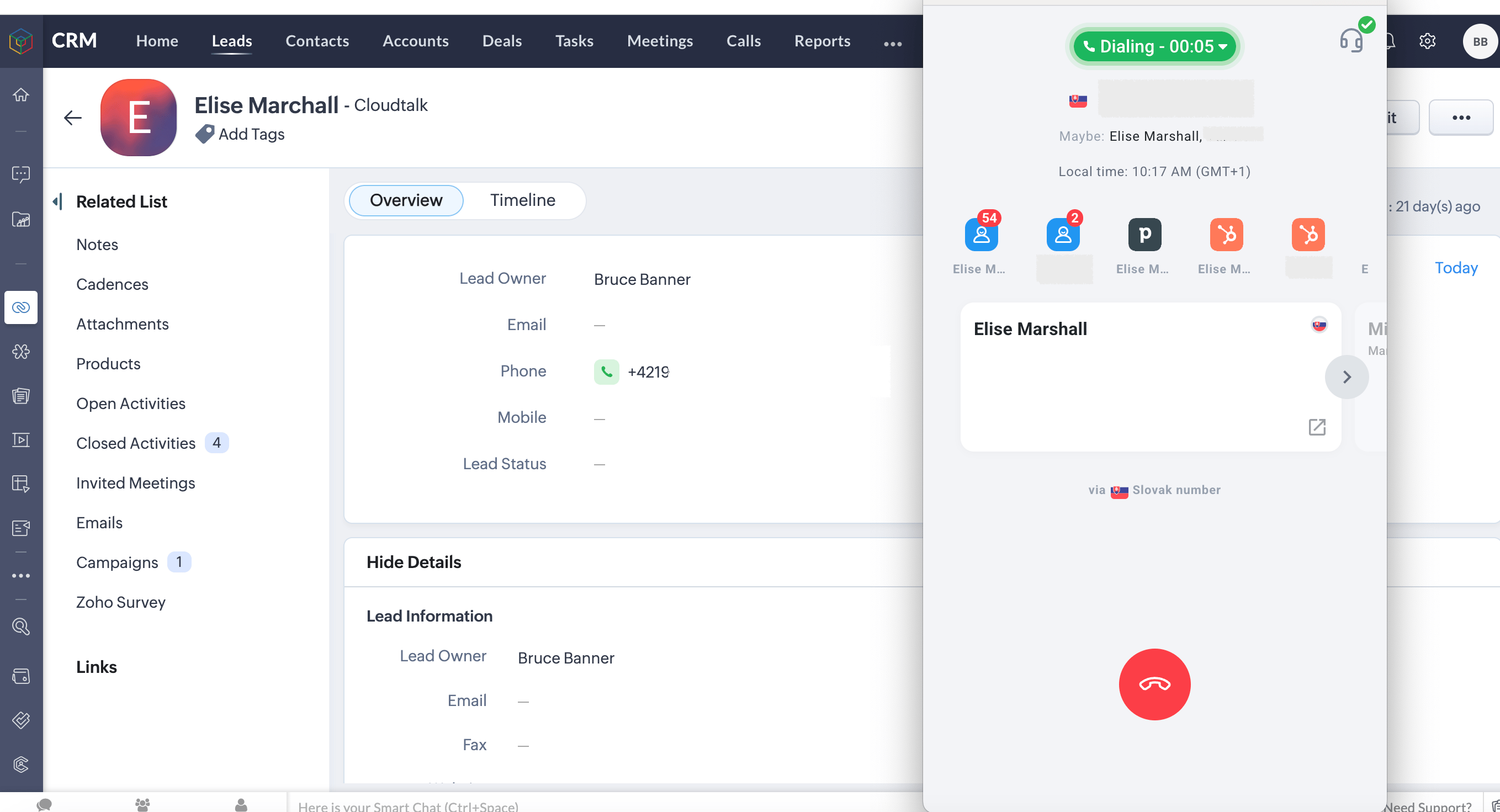
Receive Inbound Calls
When receiving an incoming call, you can access the caller’s Zoho profile with a single click even before answering. By checking stored information like notes, files, and previous interactions, you can offer a more personalized and efficient service. To categorize your inbound calls and leads, add customized tags during or after the call. All calls are automatically logged in the customer’s profile in Zoho CRM under the Calls module.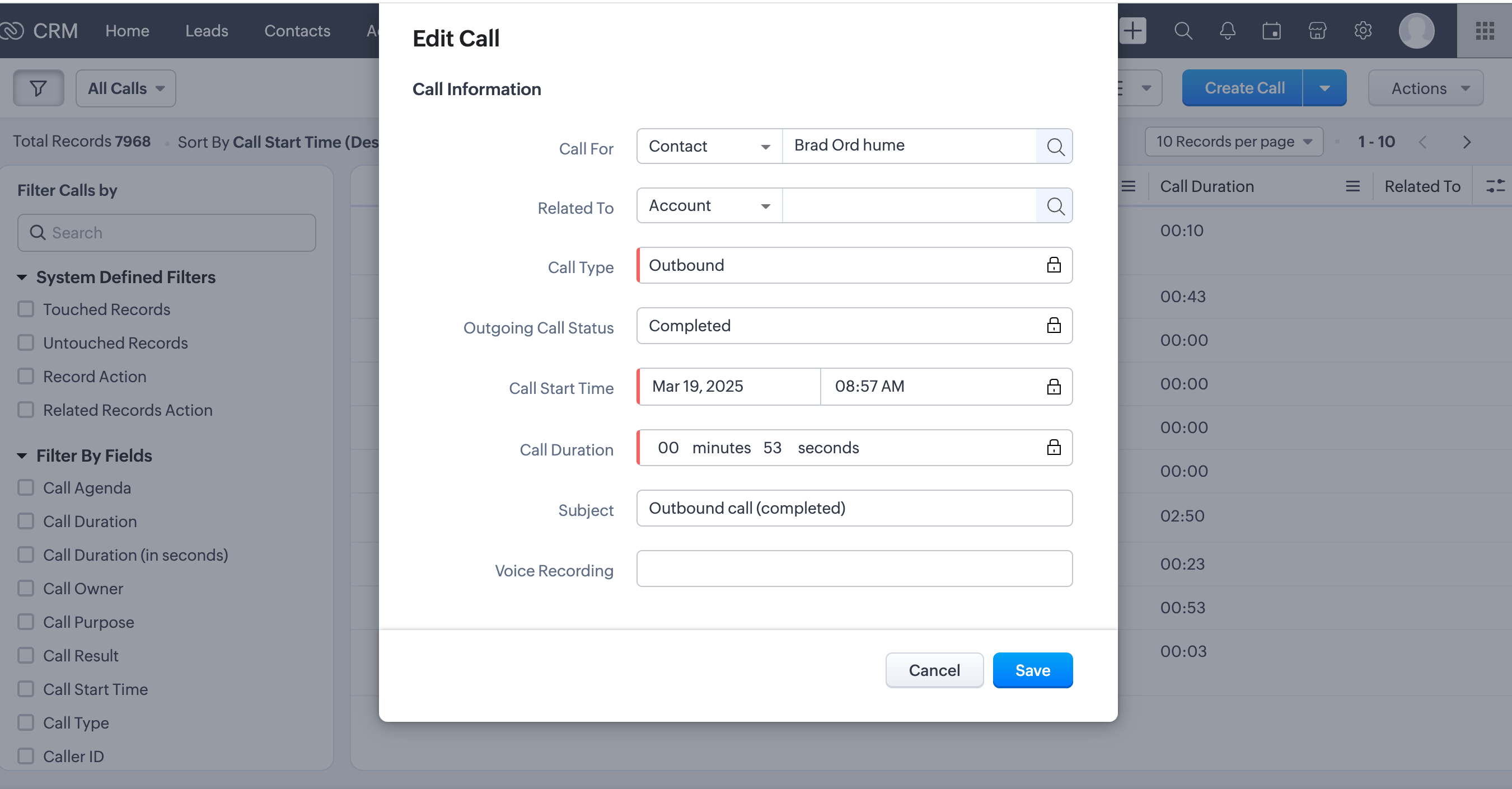
Call logging and data exchange
Contact Sync
Contacts are merged when multiple Zoho CRM Contacts share the same phone number, email address, or contact ID. See our article, Contact Merging, for further details. A new contact in Zoho CRM will automatically merge under an existing CloudTalk contact if it is created with any of the same phone numbers or emails.Workflow Settings in CloudTalk and Their Partnered Zoho CRM Events
| CloudTalk Setting | Zoho CRM Event |
| Log outbound answered calls | Create activities for outbound answered calls |
| Log outbound unanswered calls | Create activities for outbound unanswered calls |
| Log inbound answered calls | Create activities for inbound answered calls |
| Log missed calls | Create activities for missed calls |
| Log voicemails | Create activities for voicemails |
| Activity type of inbound answered call - Select activity type | Creates these calls as a specific type of activity. |
| Strategy for logging calls to ZOHO deals - Select type of deals | Adds call activities to:
|
| Create new leads in Zoho for unassociated call numbers → Enable/Disable | Creates a new Zoho lead with the first name ‘{number}@cloudtalk’ and a phone number.CloudTalk fills in only this name and the phone number. To set other fields automatically, such as Lead Source or Lead Status, create a workflow rule in Zoho CRM for new leads whose name contains @cloudtalk.💡 Doesn’t create a CloudTalk lead until the Zoho contact is updated. |
| Import contact owner as preferred agent → Enable/Disable | Imports & syncs contacts from Zoho with the ‘Favorite agent’ assigned.💡 Only works when the owner in Zoho is a CloudTalk agent. |
| Assign missed calls to - Select a CloudTalk user | Assigns missed call activities to a specific Zoho user.💡 Only Zoho users who are also CloudTalk users can be selected. |
| Business hours policy - Select when calls are logged in Zoho | Only adds activities for calls:
|
| Synchronize Zoho Account | Imports Zoho Accounts (Companies) to CloudTalk |
Calls in CloudTalk and Their Relative Zoho CRM Activities
How “Related To” works: When a call is logged, CloudTalk checks what type of Zoho record the caller is linked to. If the caller is linked to a Zoho Lead, the “Related To” field on the call activity links to that lead. If linked to a Zoho Account, it links to the account. If the caller is a Zoho Contact (not linked to a lead or account), the “Related To” field is left empty and the contact appears in the “Who” field instead.
Call Logging
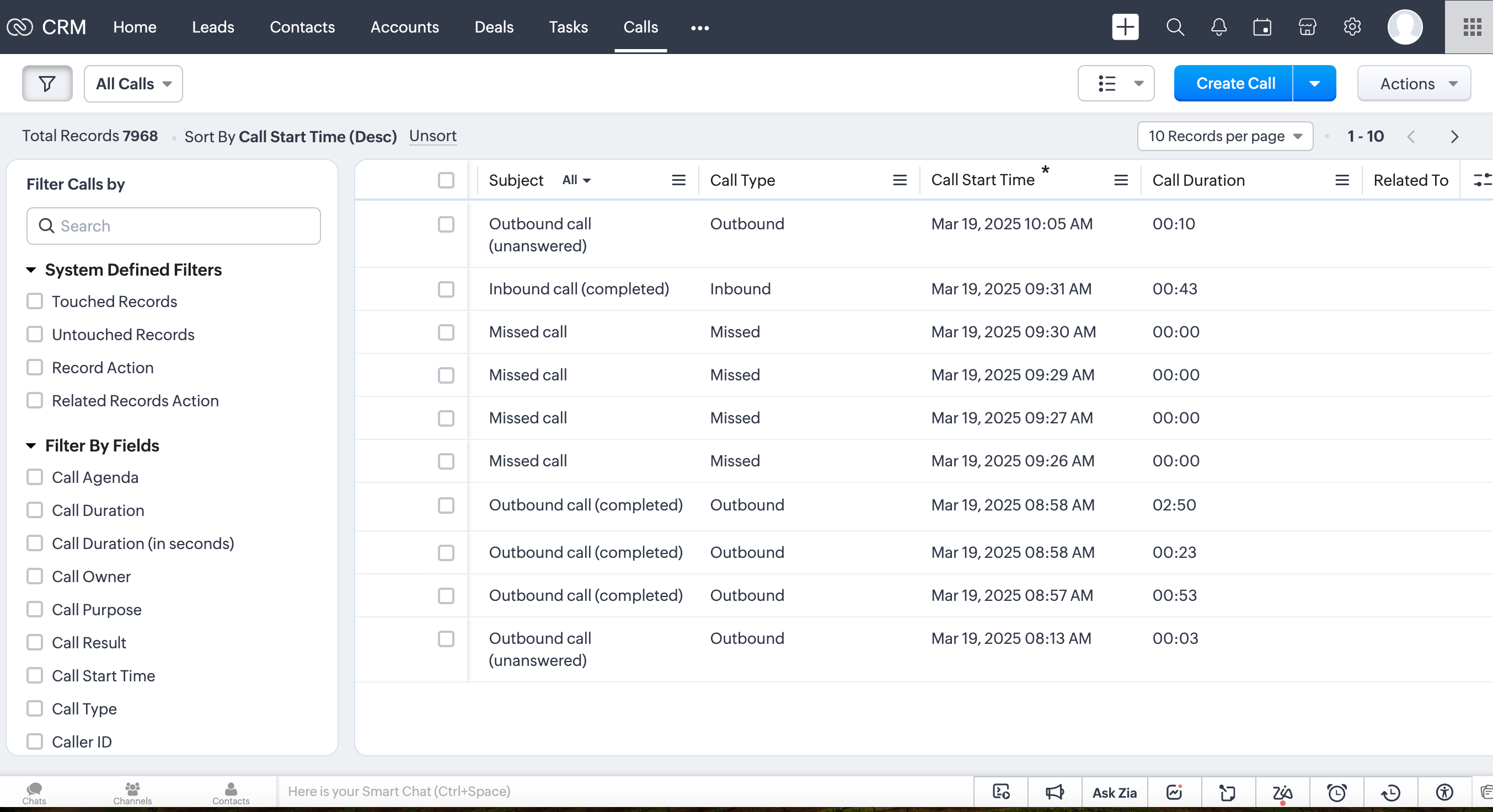
Your calls will be logged in the Calls module in Zoho CRM. To view details of a logged call:- Navigate to Calls in Zoho CRM.
- Locate the call you want to review.
-
Click on the call entry to see details, including:
- Agent’s name
- Call duration
- Call date
- Call recording (if enabled)
VoiceAgent Calls
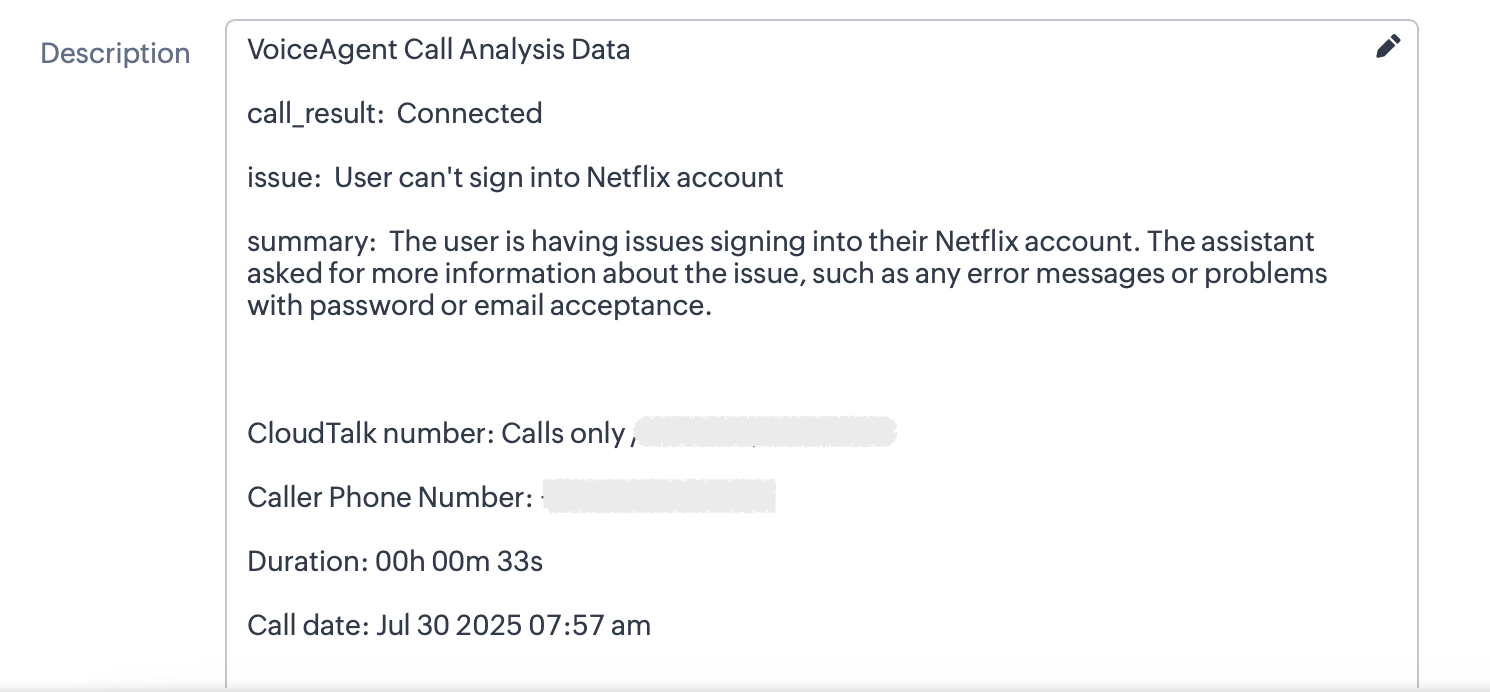
VoiceAgent calls are also logged in Zoho CRM as standard call activities. They are titled “VoiceAgent call” for easy identification and appear alongside other calls in the Calls module. In the call analysis prompt, you can define what information the VoiceAgent should extract during the call. CloudTalk will then capture the specified details, such as the customer’s issue, a brief summary, or custom data like an order number or preferred subscription plan.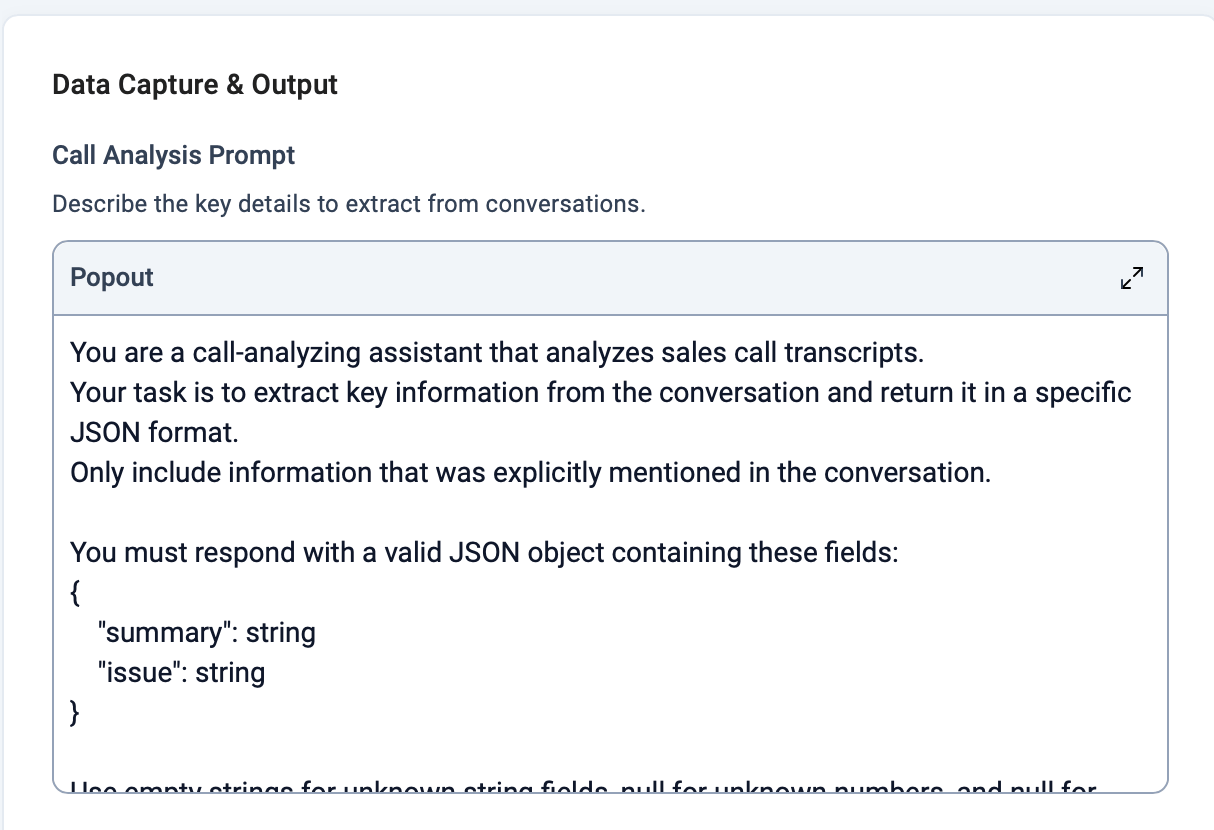
Need help or have a question? Just reach out through our Support portal — we’re here for you.