

This guide explains how to connect CloudTalk with noCRM so you can call leads, log call and SMS activity, and export AI-powered insights directly into your CRM.
- Admins, Agents, Supervisors
Calling from noCRM
Make Outbound Calls
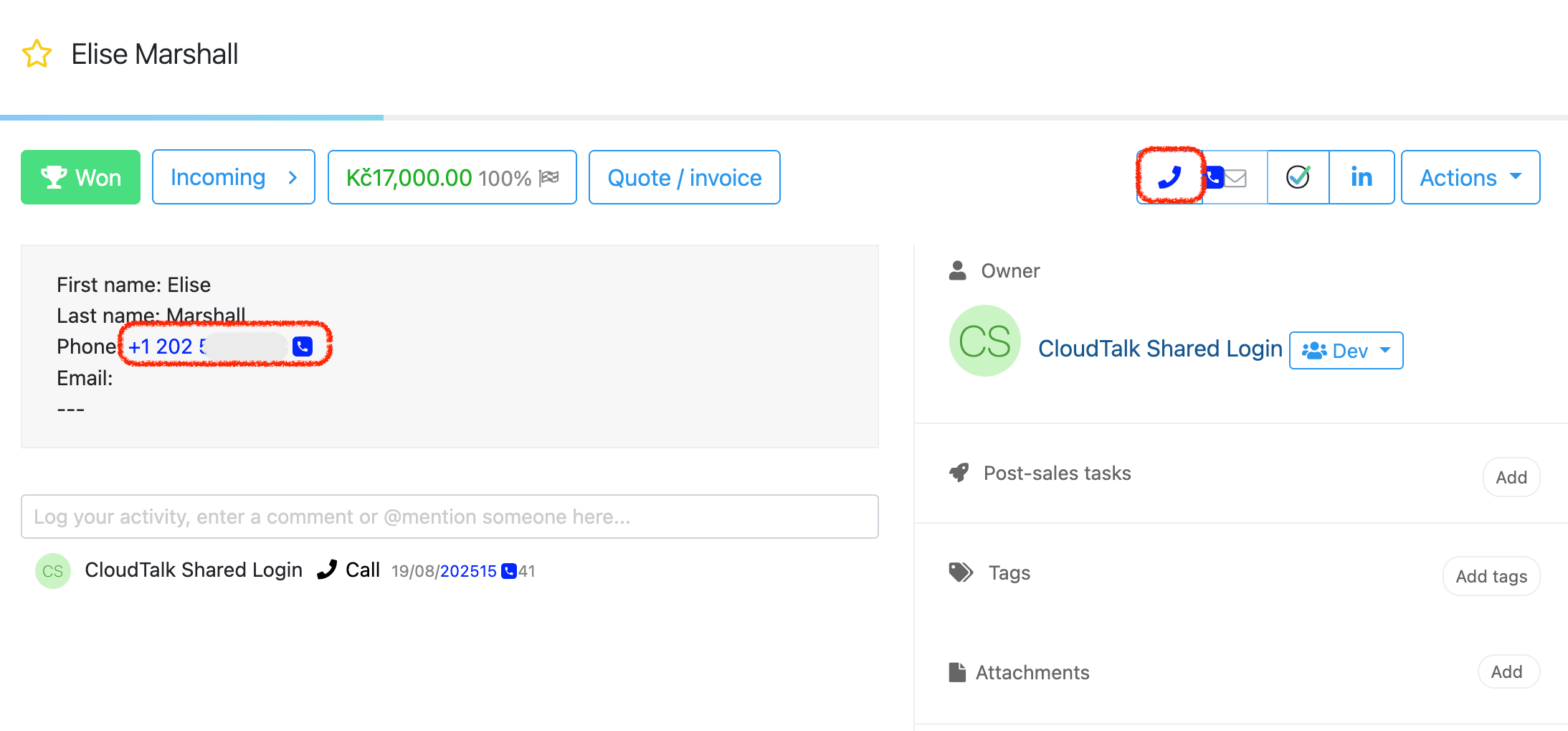
With the Click-to-Call enabled, all lead phone numbers in noCRM become clickable. Clicking a number opens the CloudTalk desktop dialer with the number pre-filled, so you can call leads directly from their profile or from prospecting lists.Calling from a lead profile
- Open a lead profile in noCRM.
- Click the phone number or Call button next to it.
- The CloudTalk desktop dialer will open with the number pre-filled.
- After the call ends, all details are automatically logged in the lead’s activity timeline.
Calling from a Prospecting List
- Open a Prospecting List in noCRM.
- Click the Call icon next to a prospect’s number.
- If the number isn’t linked to an existing lead, CloudTalk will create a new one automatically.
- Call details and outcomes are tracked in the lead’s history.
Receive Inbound Calls
When a lead calls your CloudTalk number, the incoming call appears in the CloudTalk app. Once the call is handled, it is automatically logged in the corresponding noCRM lead profile.Call Logging & Export
CloudTalk automatically exports call activity into the noCRM lead timeline, giving you a complete interaction history in one place. Logged call details include: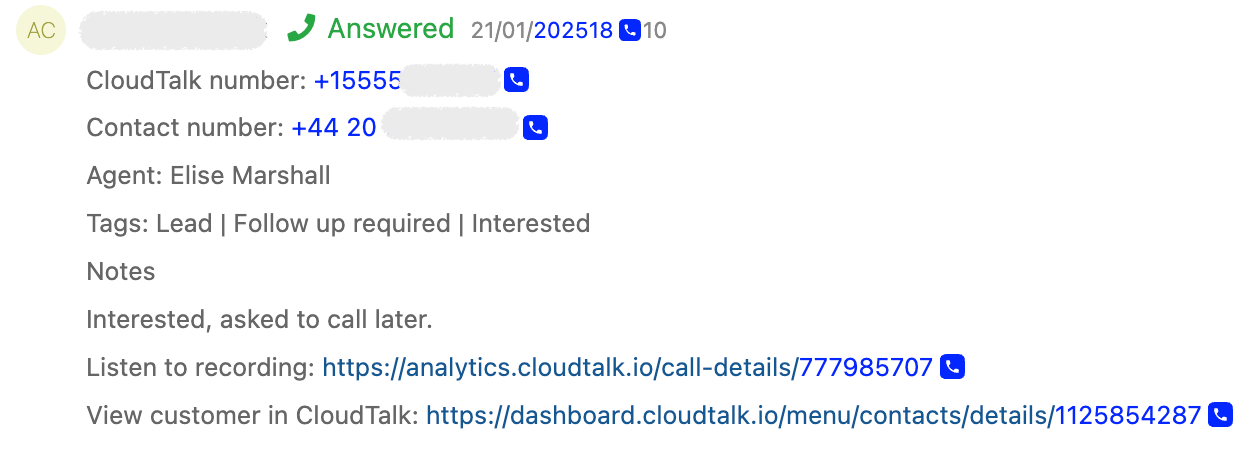
Conversation Intelligence
When Conversation Intelligence (CI) is enabled in CloudTalk, AI-powered insights are also exported into the noCRM call log. Exported CI data includes: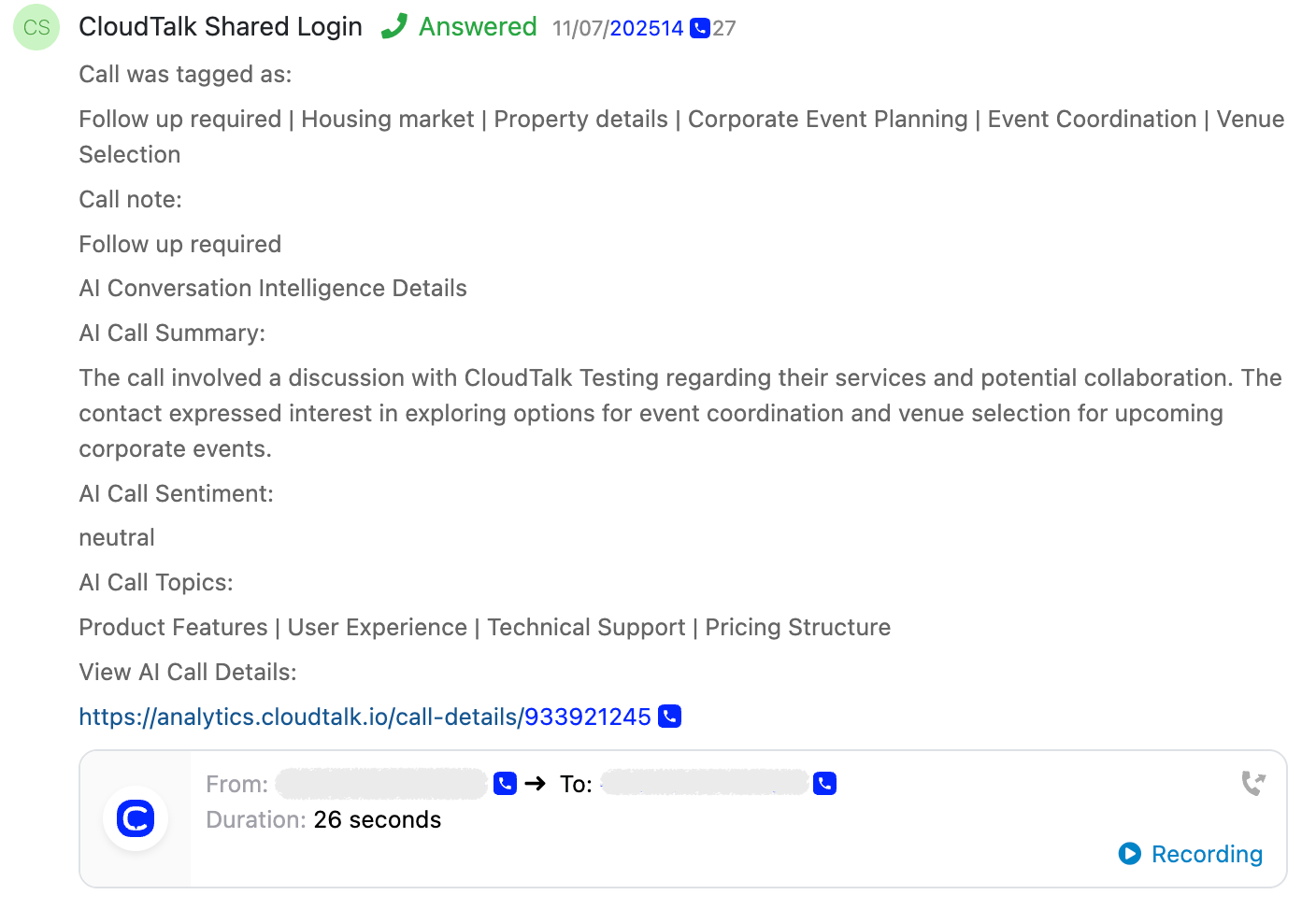
SMS Logging
Logged SMS details include direction (sent/received), from/to numbers, sending agent (for outbound), timestamp, and message body.Need help or have a question? Just reach out through our Support portal — we’re here for you.