

This guide walks you through connecting CloudTalk with Attio, so you can sync contacts, log calls and SMS, and keep your Attio workspace up to date with every conversation.
Prerequisites
Before you start, make sure you have:- Admin access in both CloudTalk and Attio.
- An active Attio workspace.
Configure Attio
1**. Log in** to your CloudTalk Dashboard.- Navigate to Settings > Integrations.
- Find Attio in the list and click ➕ Add.
- You will be redirected to Attio to authorize the connection. Log in and grant CloudTalk access to your workspace.
- Once authorized, you will be returned to CloudTalk. The integration should show Authentication completed.
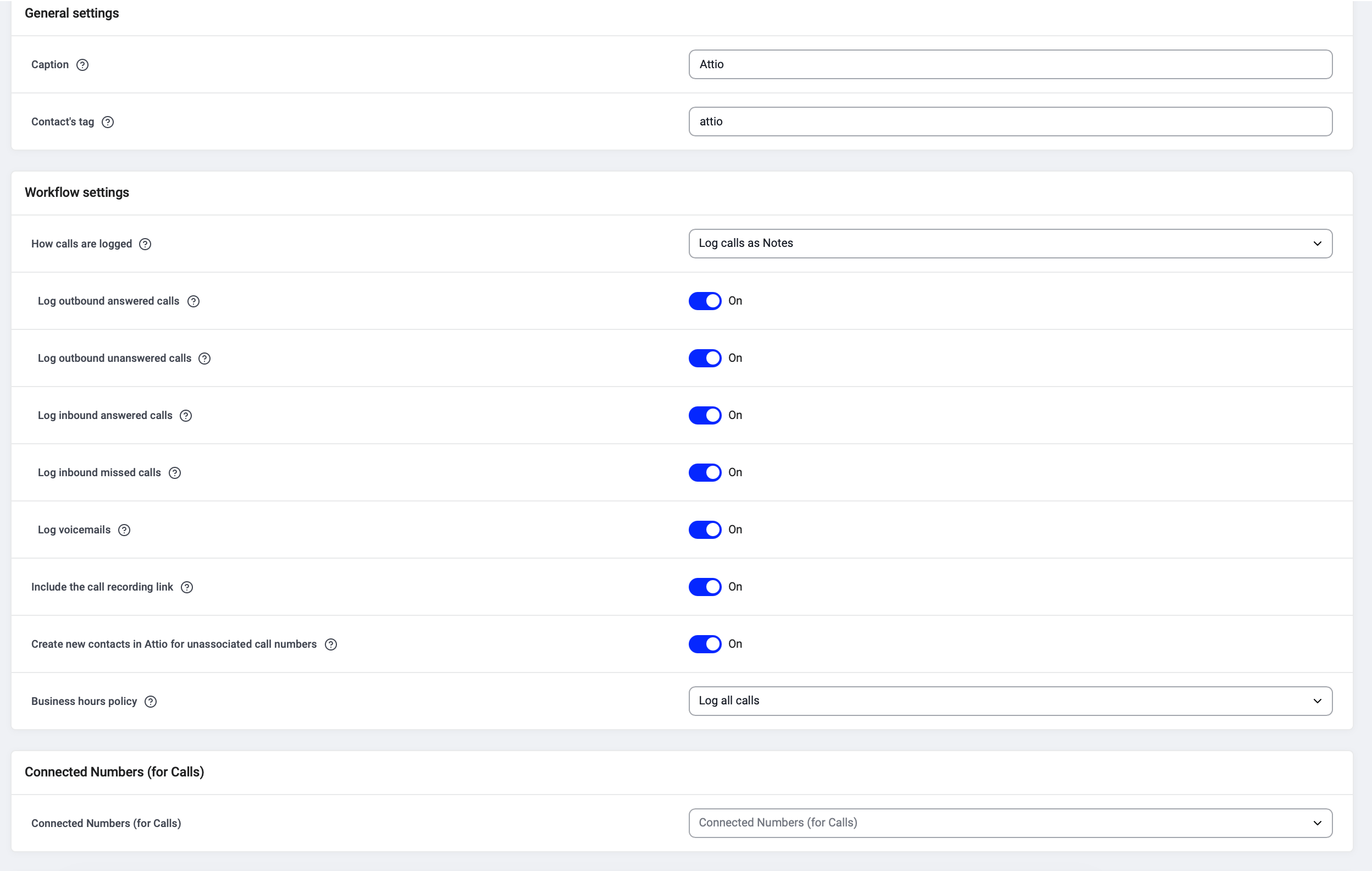
General settings
Configure the basic labels for your integration:- Caption: The internal name for this integration (e.g. “Attio”).
- Contact’s tag: All contacts synced from Attio will automatically receive this tag (e.g. “attio”), making them easy to filter later.
Workflow settings
Under Workflow settings, choose how calls are logged and which call types are exported. How calls are logged Use the dropdown to select between:- Log calls as Notes (default): Calls appear as notes on the contact’s person record. No additional setup needed.
- Log calls to a custom Call object: Calls become structured records on an object you create in Attio. See Setting up a call object in Attio below.

- Log outbound answered calls
- Log outbound unanswered calls
- Log inbound answered calls
- Log inbound missed calls
- Log voicemails
- Include the call recording link
- Create new contacts in Attio for unassociated call numbers
- Business hours policy (log all calls, or only calls during business hours)
Assign numbers
Under Connected Numbers (for Calls) and Connected Numbers for SMS, choose which CloudTalk numbers should be linked to Attio for call and SMS logging.- If you leave this empty, your default CloudTalk numbers will be used.
- This is useful if you only want Attio to log calls from specific teams or lines.
Activate the integration
Once your settings are complete, switch the integration from Inactive to Active. CloudTalk will begin syncing contacts and logging calls to Attio.Setting up a call object in Attio
If you selected Log calls to a custom Call object, create a custom object in Attio first. This only needs to be done once.Create the object
Go to Workspace settings > Objects in Attio and create a new object (e.g. “CloudTalk calls”). Set a plural and singular noun for the object.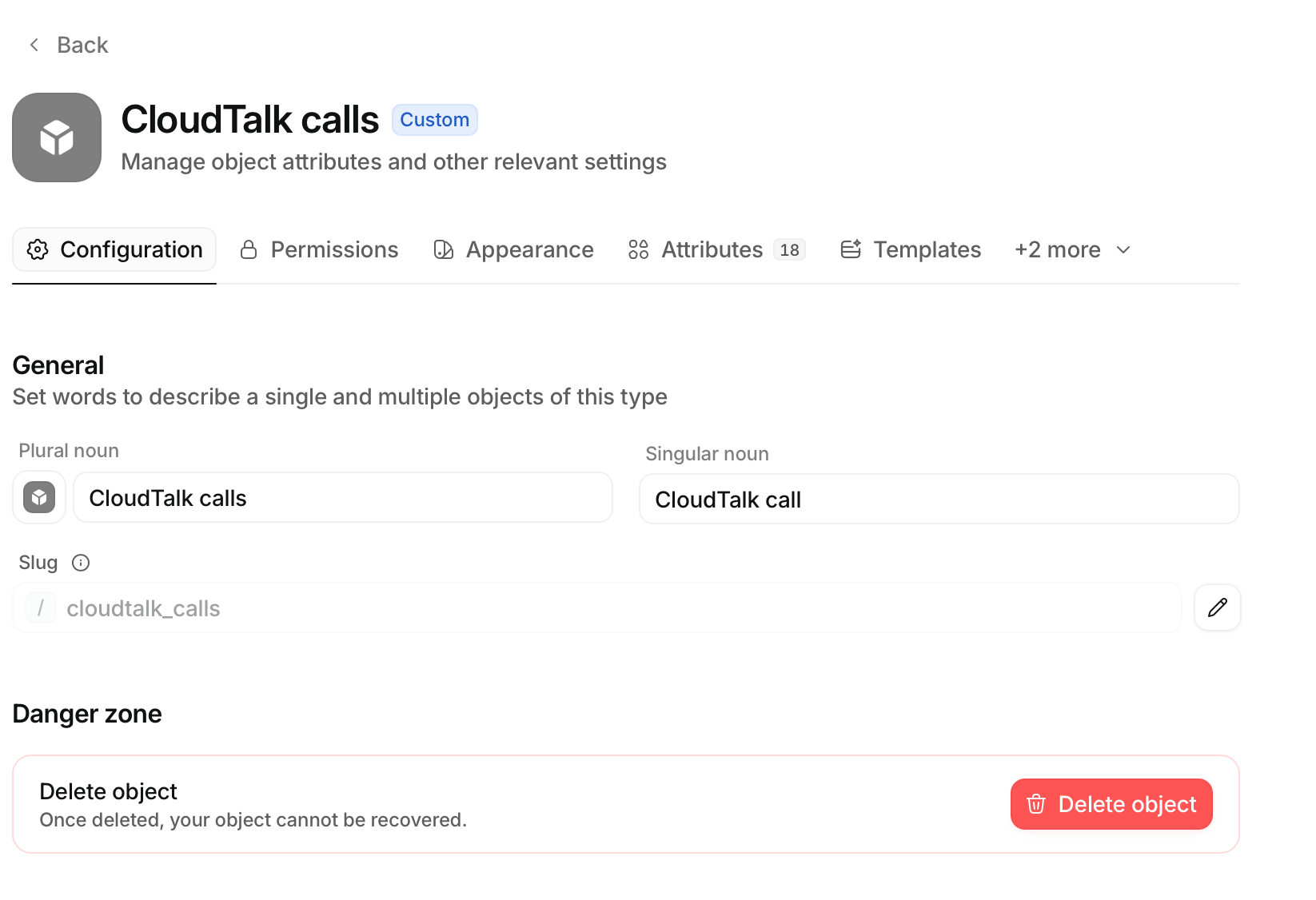
Add attributes
Add one attribute per piece of call data you want to track. Supported attribute types: text, number, timestamp, date, select, checkbox, rating, currency, phone number, email address, and domain.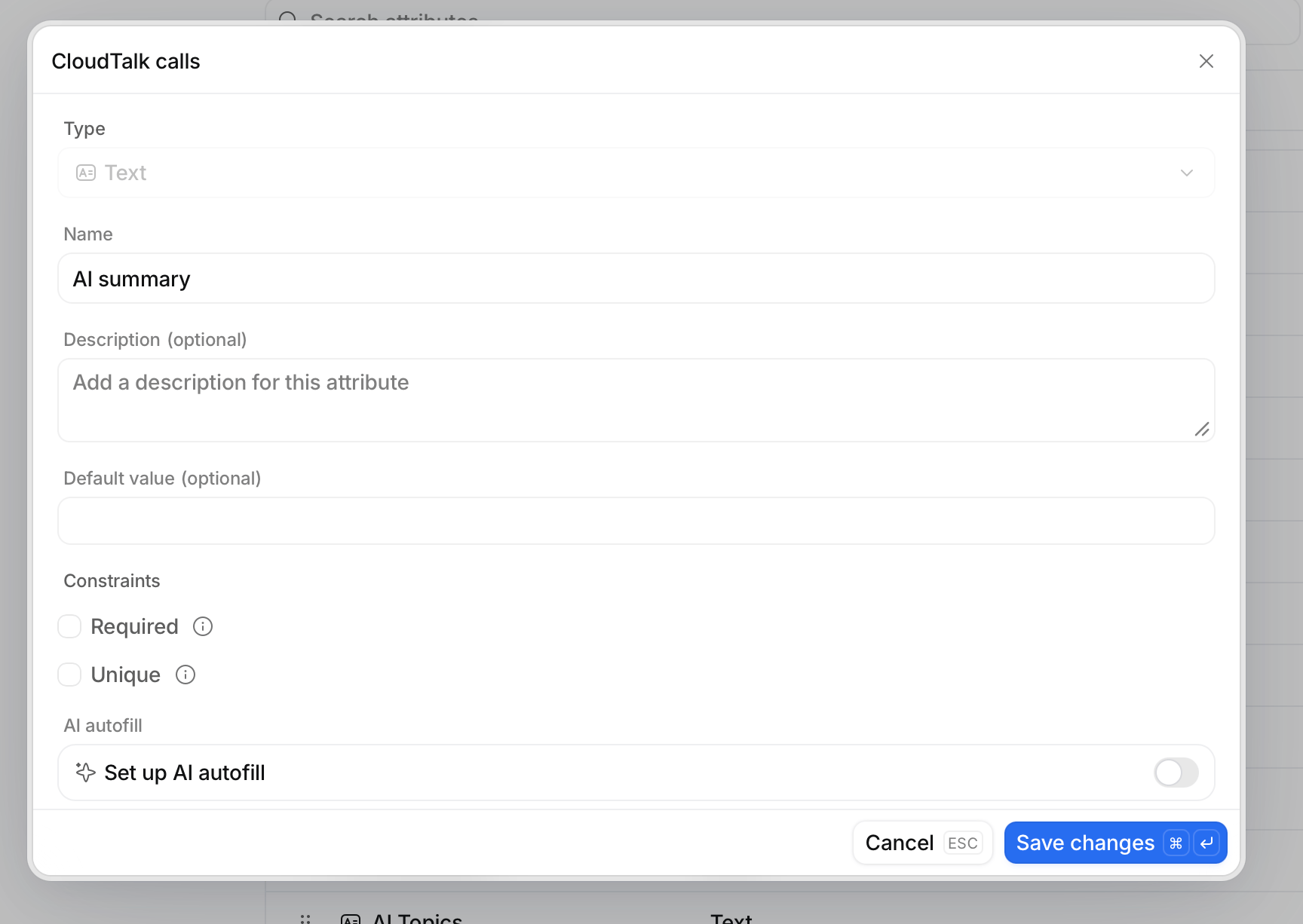
Add the link to People
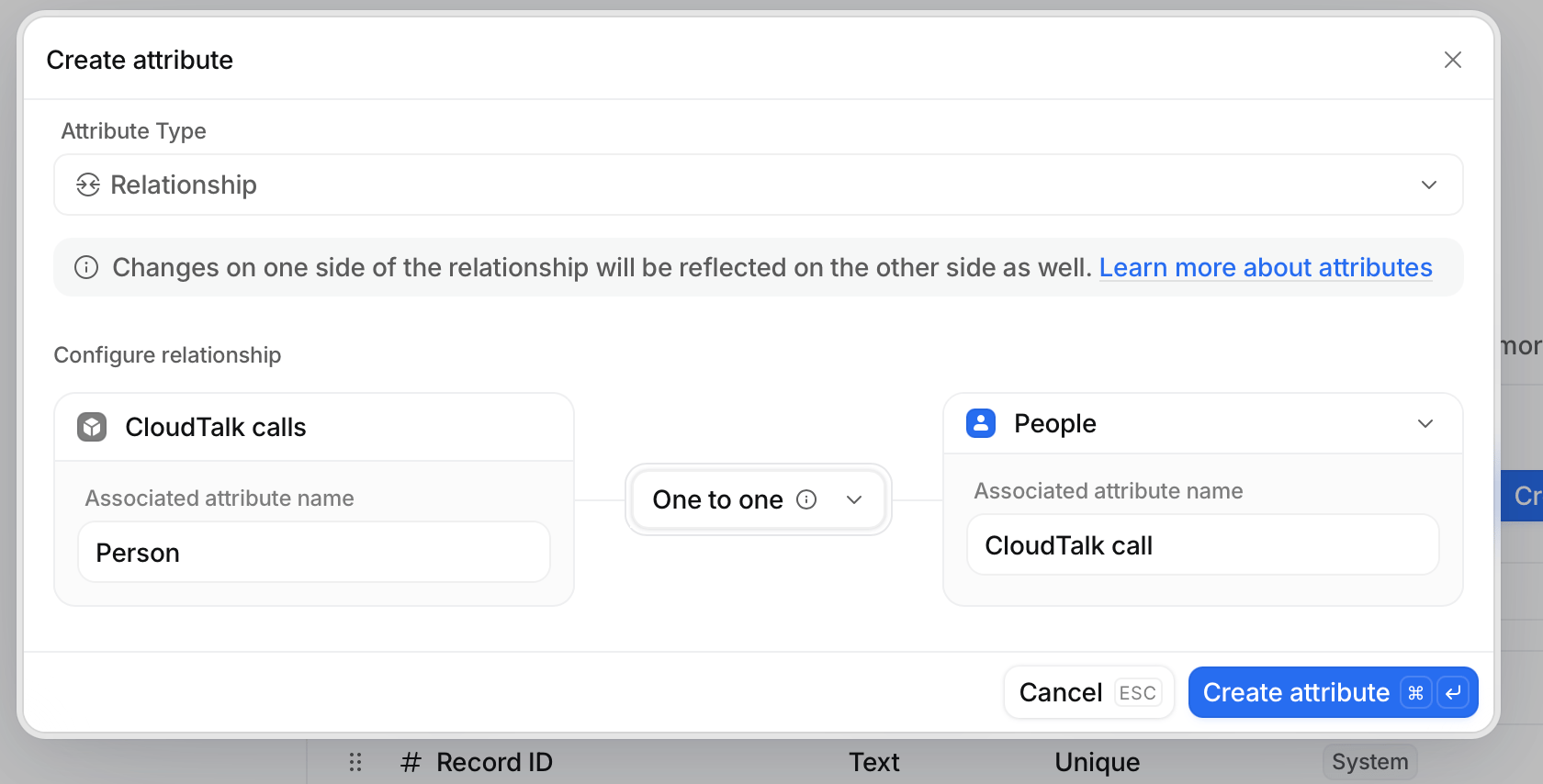
Add a Relationship attribute connecting your CloudTalk calls object to People. This is what makes calls appear on a contact’s record. Name the associated attributes anything you like (e.g. “Person” on the calls side, “CloudTalk call” on the People side). CloudTalk finds and fills this relationship automatically, so you do not need to map it.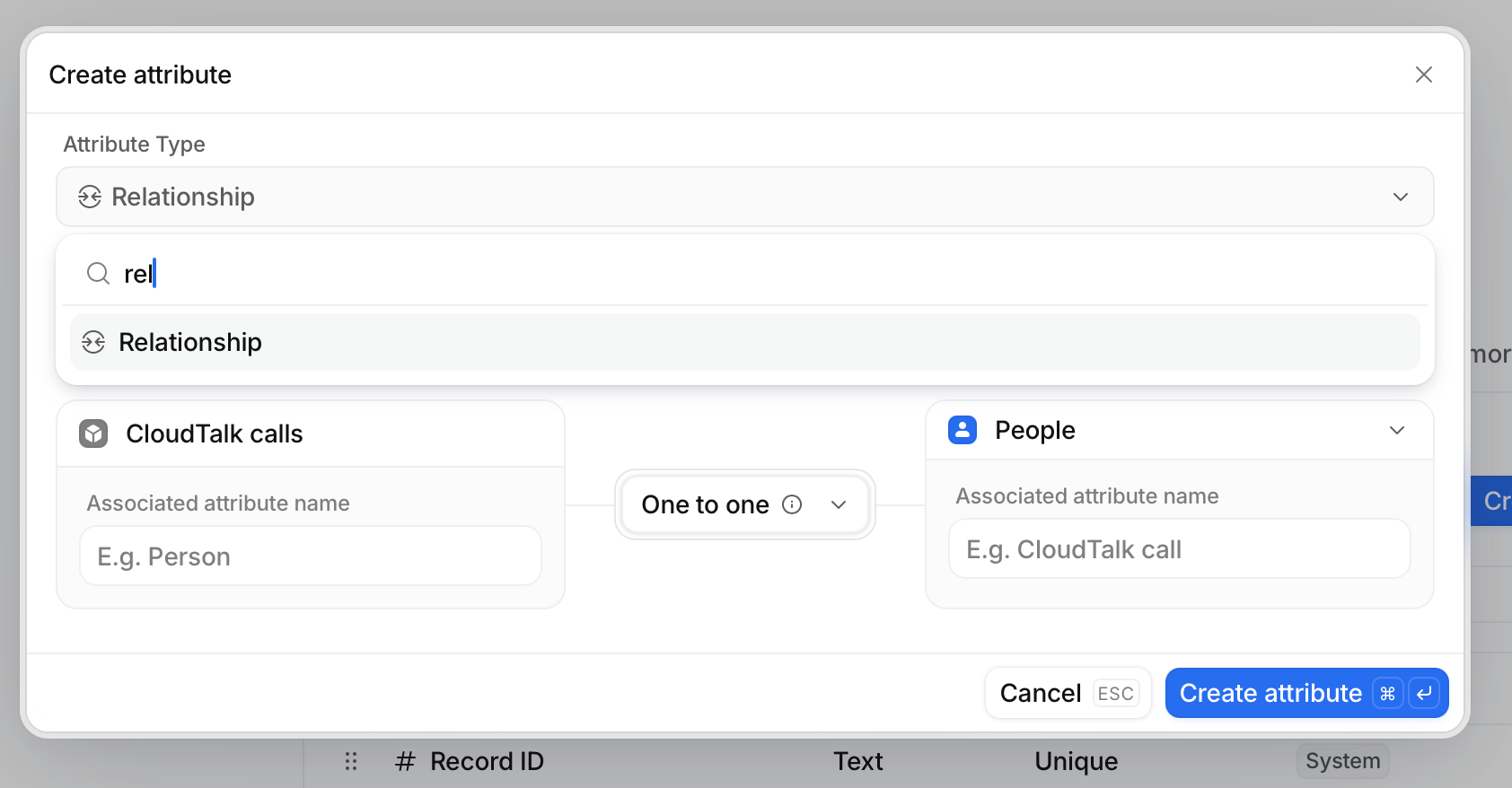
Give records a readable title
In the object’s Appearance tab, set the Record label to a text attribute (e.g. Call ID, Agent name). Otherwise records are listed by internal ID.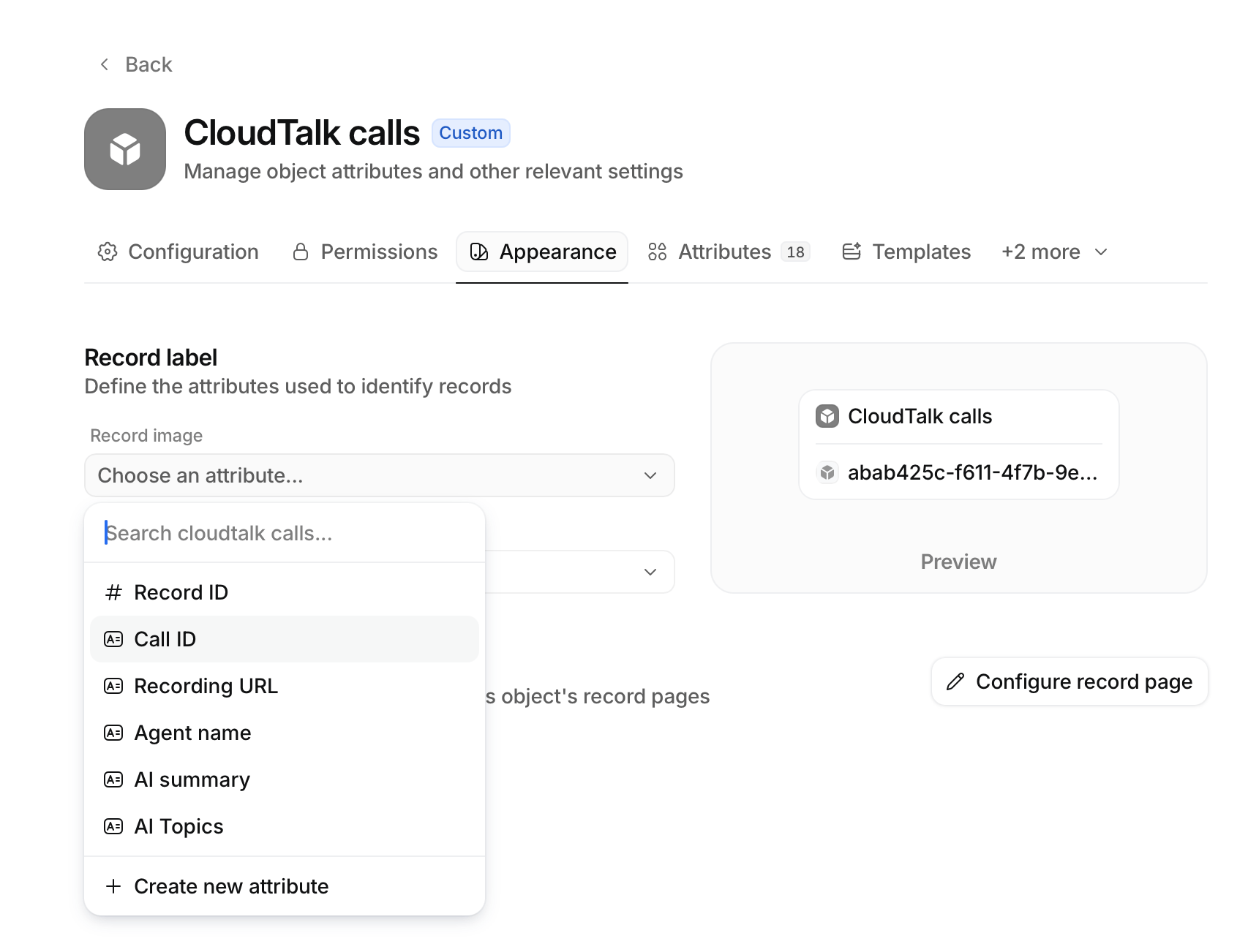
Pre-create select options
If you plan to map anything to a select attribute (for example, direction or disposition), add the options in Attio first. CloudTalk matches them by name.Map fields to Attio attributes
In the CloudTalk dashboard, open the Attio integration settings, pick your call object, and choose which CloudTalk fields map to which Attio attributes. You only need to map what you care about. Anything you leave out is not written. Click + Add custom mapping to add more rows.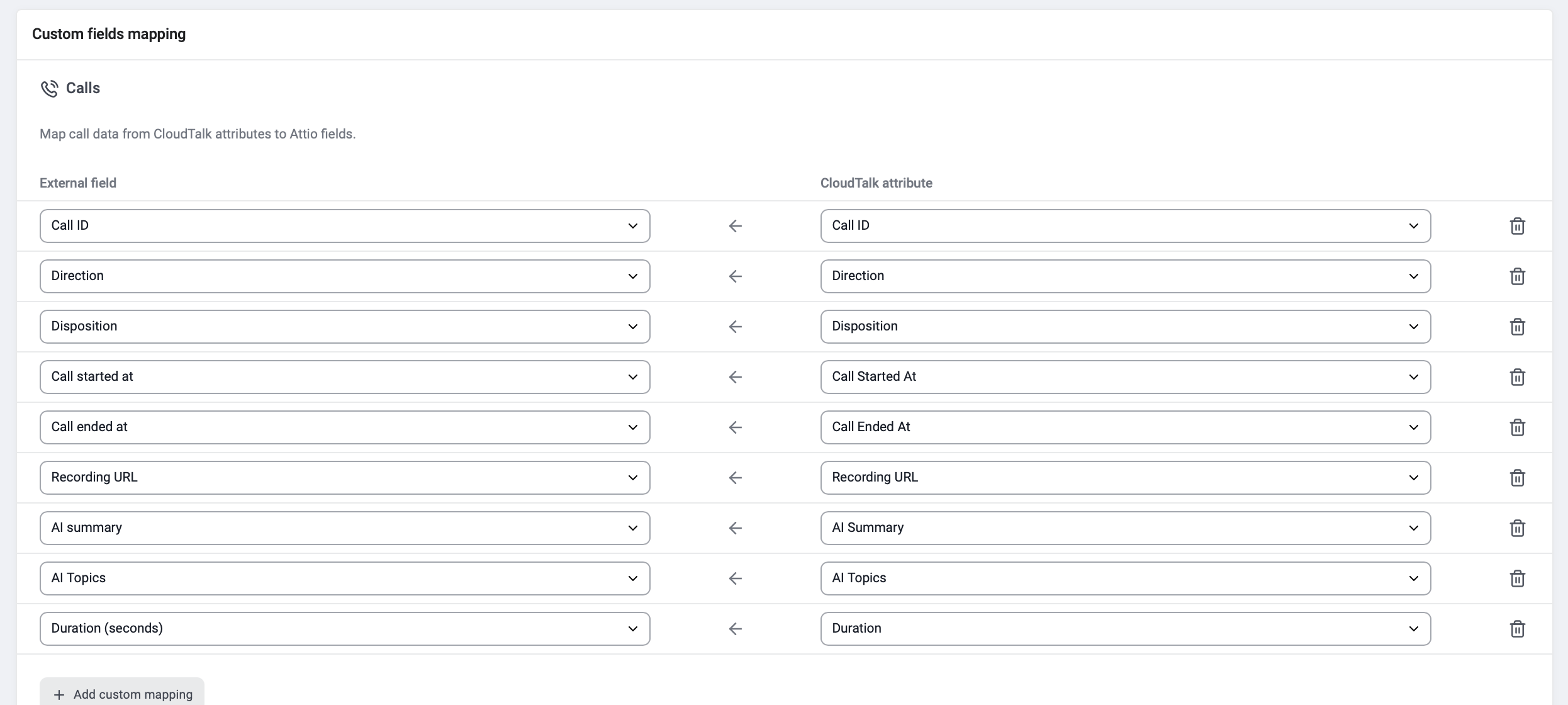
Attributing calls to the right agent
Add an Actor reference attribute to your object and map it to Agent Email. CloudTalk matches the agent to a member of your Attio workspace by email, so calls are credited to the real person and you can filter or group by them.Disconnect or remove the integration
To disable the integration, go to Settings > Integrations, locate the Attio integration, and toggle the status from Active to Inactive. To delete the integration permanently, open the Attio integration settings, scroll down, click Delete Integration, and type DELETE to confirm.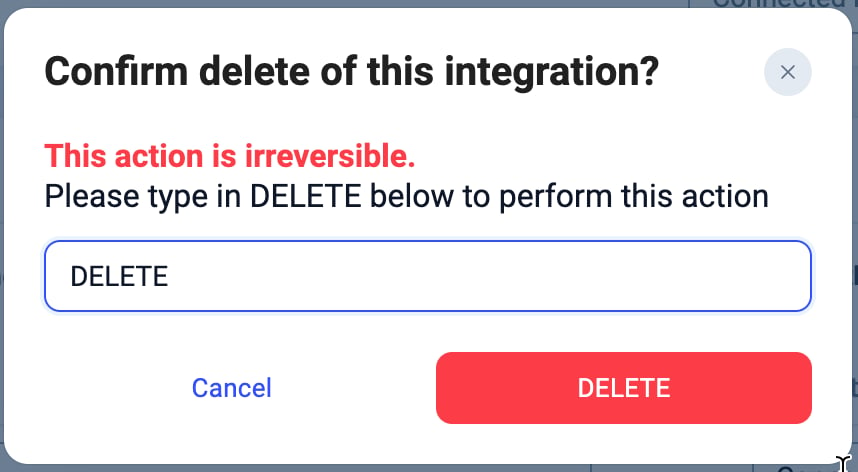
Need help or have a question? Just reach out through our Support portal — we’re here for you.