

A customer calls your support line, an agent picks up in HubSpot, and the ticket is already in Help Desk with the call logged on it. No second tab, no ticket to create by hand. This article shows you how to turn on Help Desk in your CloudTalk HubSpot integration, connect CloudTalk as the calling provider for a Help Desk channel, and confirm that tickets are being created.
Before You Start
- Your HubSpot integration is already set up in CloudTalk. If not, follow Configure HubSpot first.
- The CloudTalk CTI is installed in HubSpot and set as your calling provider. See CloudTalk Phone in HubSpot and HubSpot’s guide to third-party calling providers.
- You are an Admin in CloudTalk and have permission to edit Help Desk settings in HubSpot.
- Help Desk is turned on in your HubSpot account.
- Decide which CloudTalk numbers your support agents will use for Help Desk calls. For those numbers, HubSpot takes over ticket creation and updates.
Configure Help Desk
Turn on Help Desk in CloudTalk
- In your Dashboard, go to Settings > Integrations > Hubspot.
- Scroll to the Help Desk section and switch Enable Help Desk to On.
- In Help Desk Numbers, select every CloudTalk number you want to make available in HubSpot Help Desk.
- Click Save.
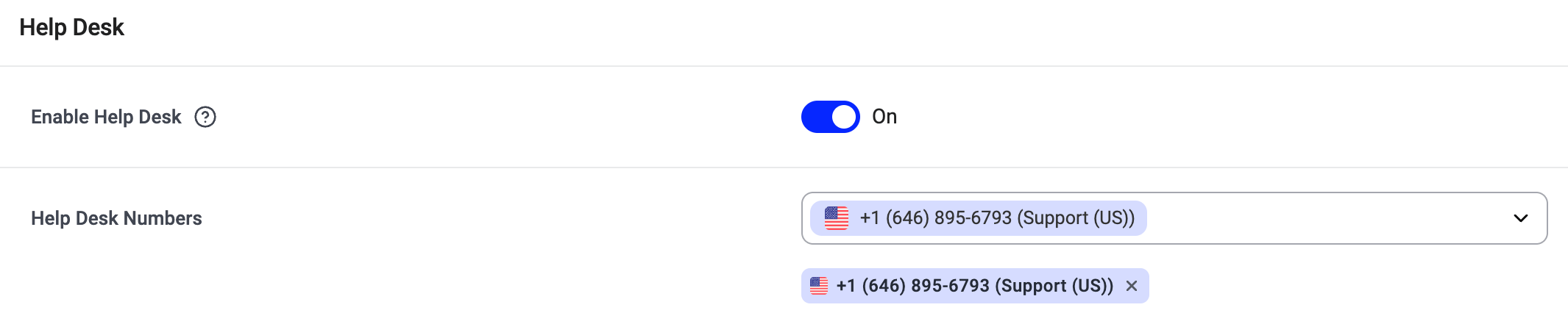
Connect CloudTalk as a Calling Channel in HubSpot
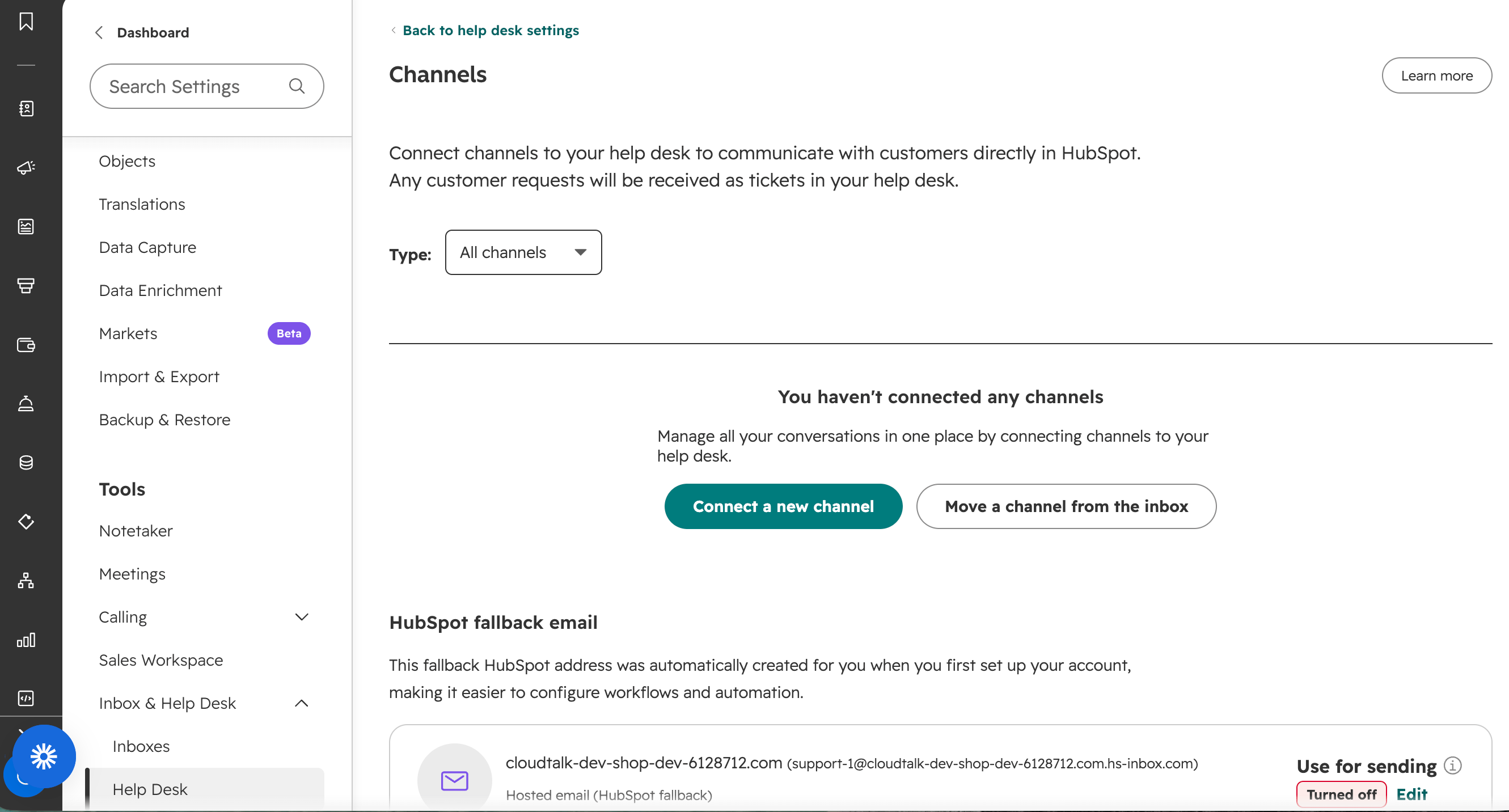
- In HubSpot, click the settings icon, then go to Inbox & Help Desk > Help Desk and open Channels. You can also type “Channels” into Search Settings.
- Click Connect a new channel.
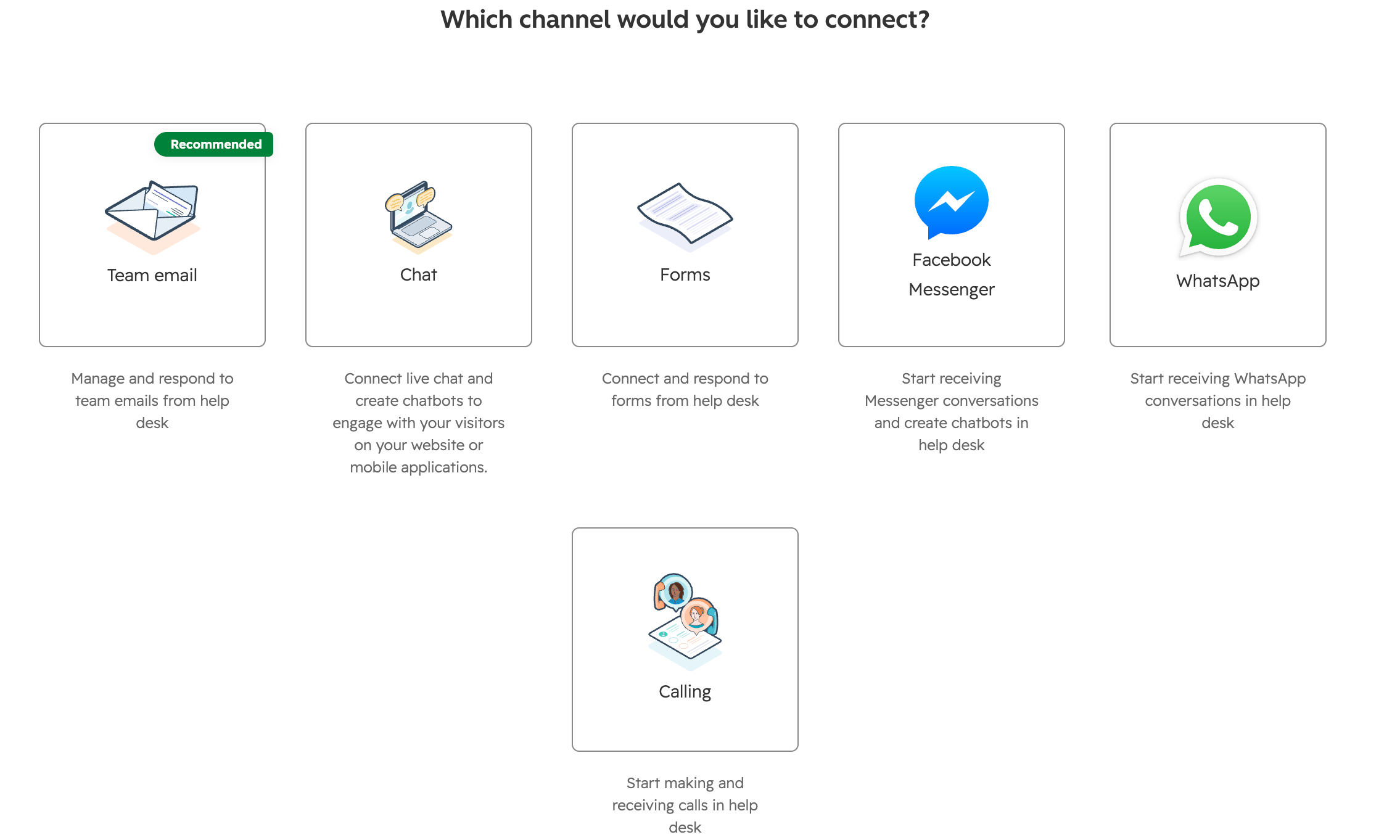
- Select Calling.
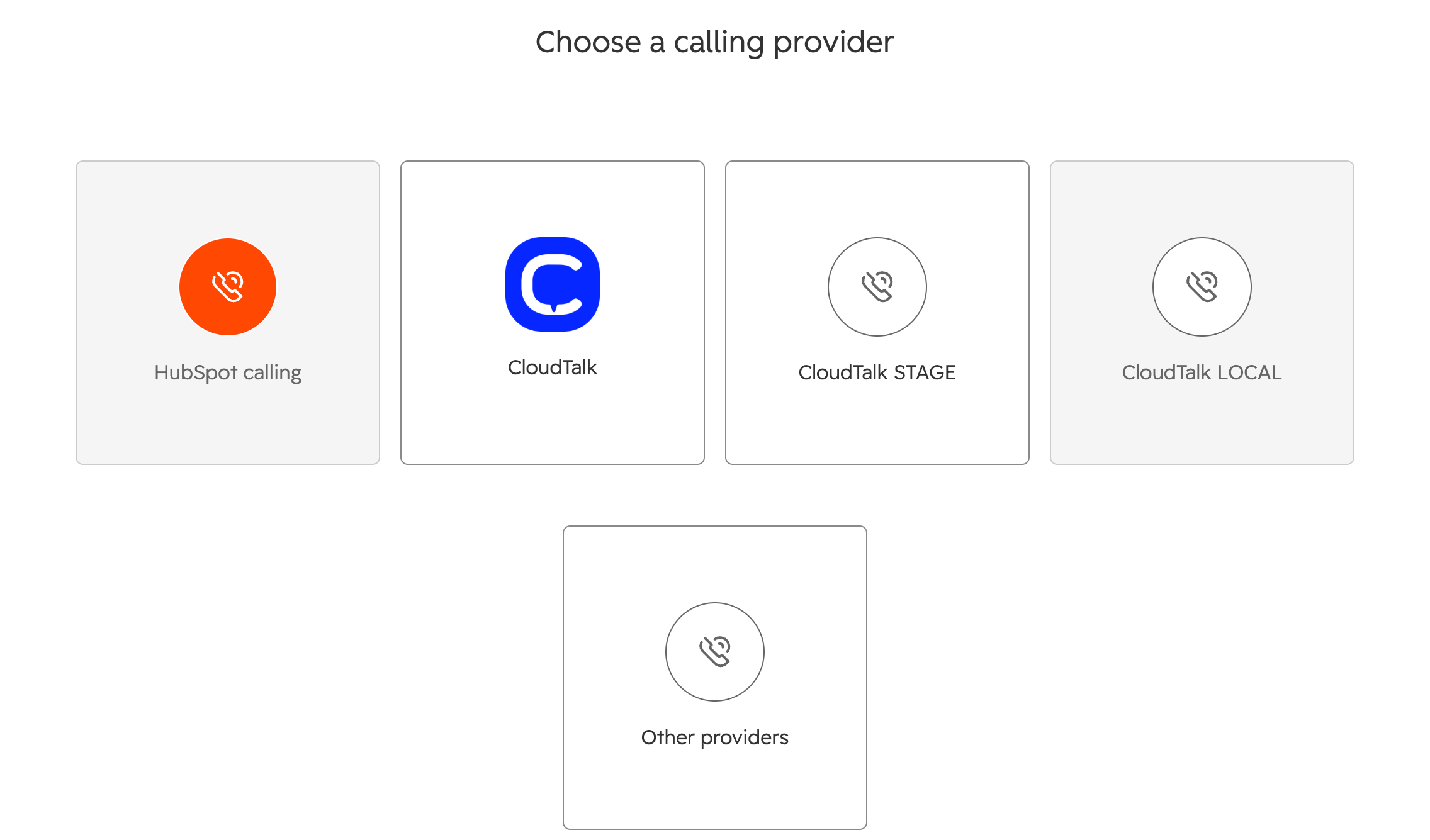
- Under Choose a calling provider, select CloudTalk.
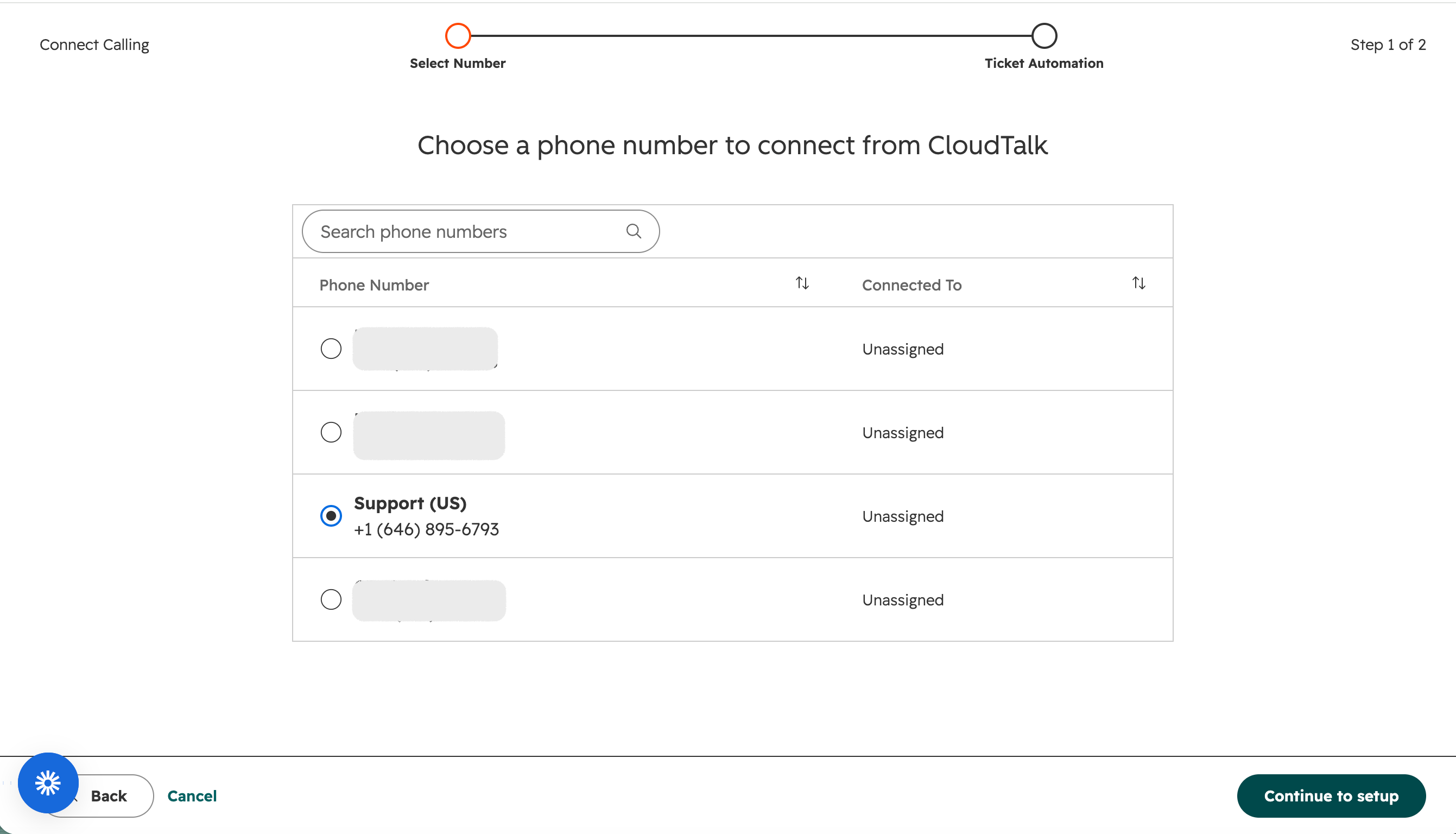
- Pick the phone number to connect. The list shows the numbers you selected as Help Desk Numbers in Step 1. The Connected To column tells you whether a number is already tied to another channel. Select one and click Continue to setup.
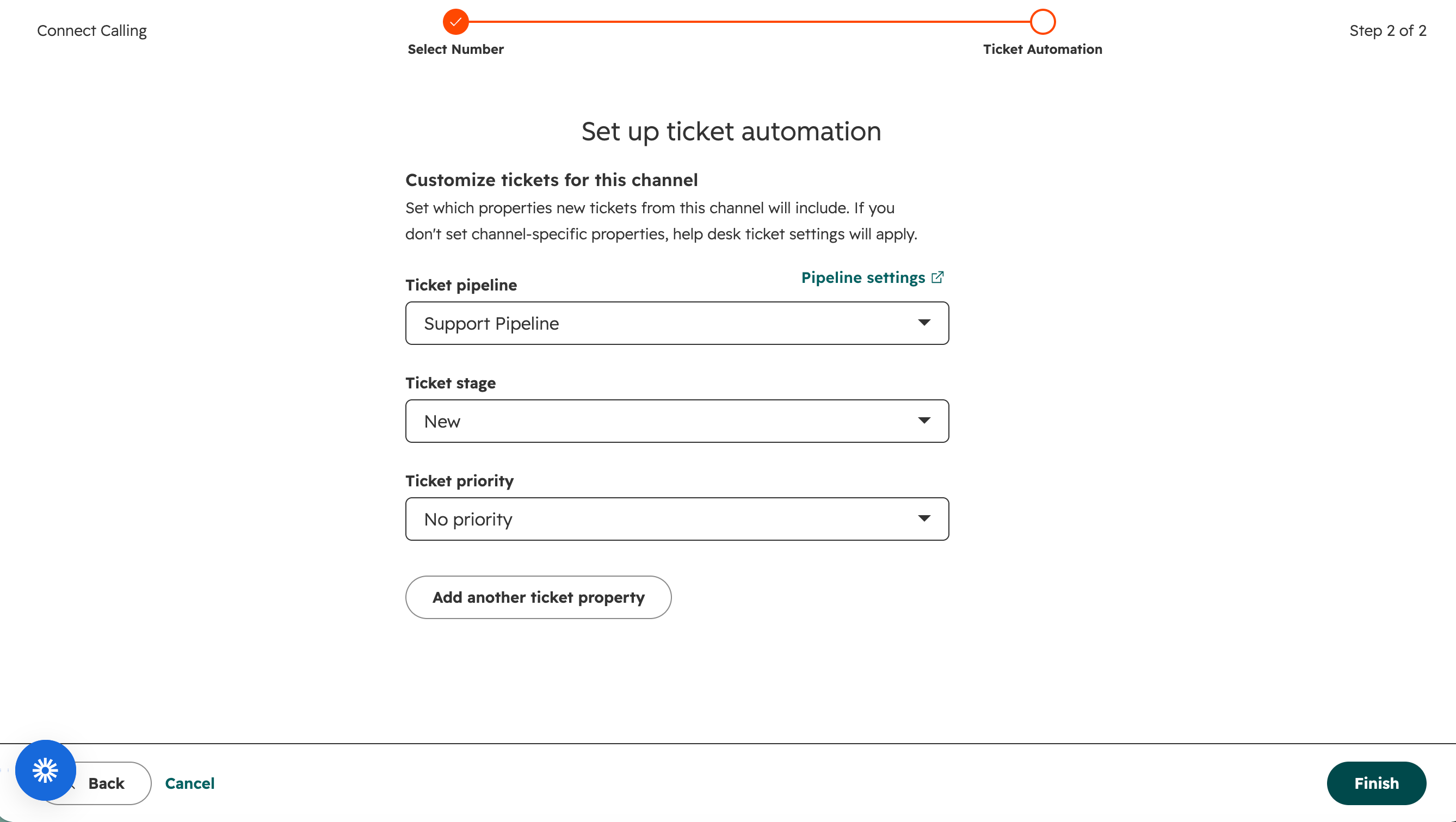
- Set up ticket automation. Every ticket HubSpot creates from a call on this number will get these properties:
- Ticket pipeline: the pipeline the ticket lands in.
- Ticket stage: the stage it starts in, for example New.
- Ticket priority: No priority, Low, Medium, High or Urgent.
- Click Add another ticket property to set more.
- Click Finish.
Test It
The ticket is created the moment an agent answers an inbound call in the CloudTalk CTI. Here is the quickest way to see it work.- In HubSpot, open Help Desk and make sure the CloudTalk CTI is open and you are logged in with your status set to Online.
- From another phone, call the number you connected in Step 2. The call has to come in to that number: an outbound call from the CTI dialpad will not create a ticket.
- The call rings in the CloudTalk CTI inside HubSpot as Incoming, showing the caller and the number it came in on (via Support (US) in the example below).
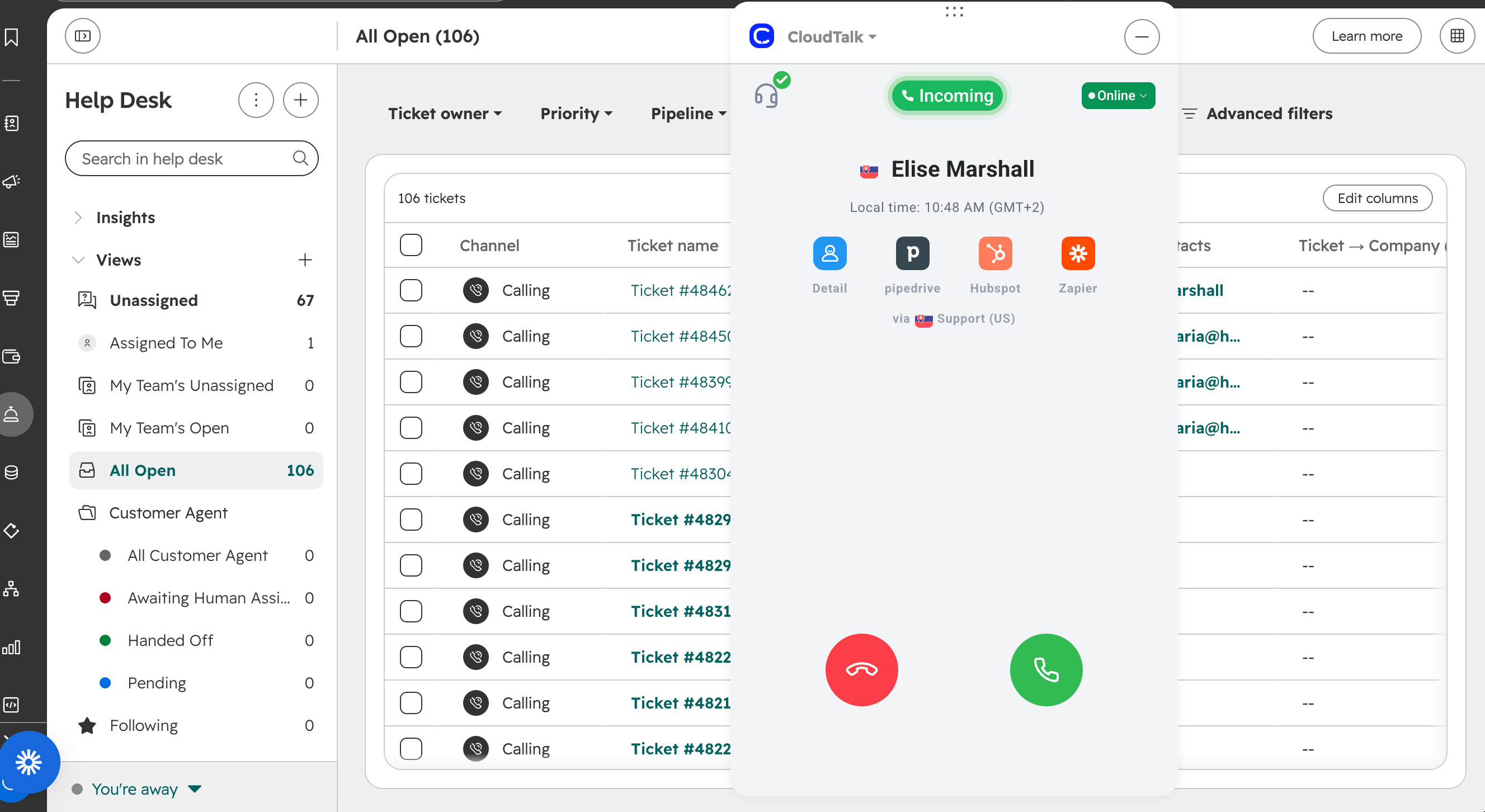
- Answer the call in the CTI. HubSpot creates the ticket right away.
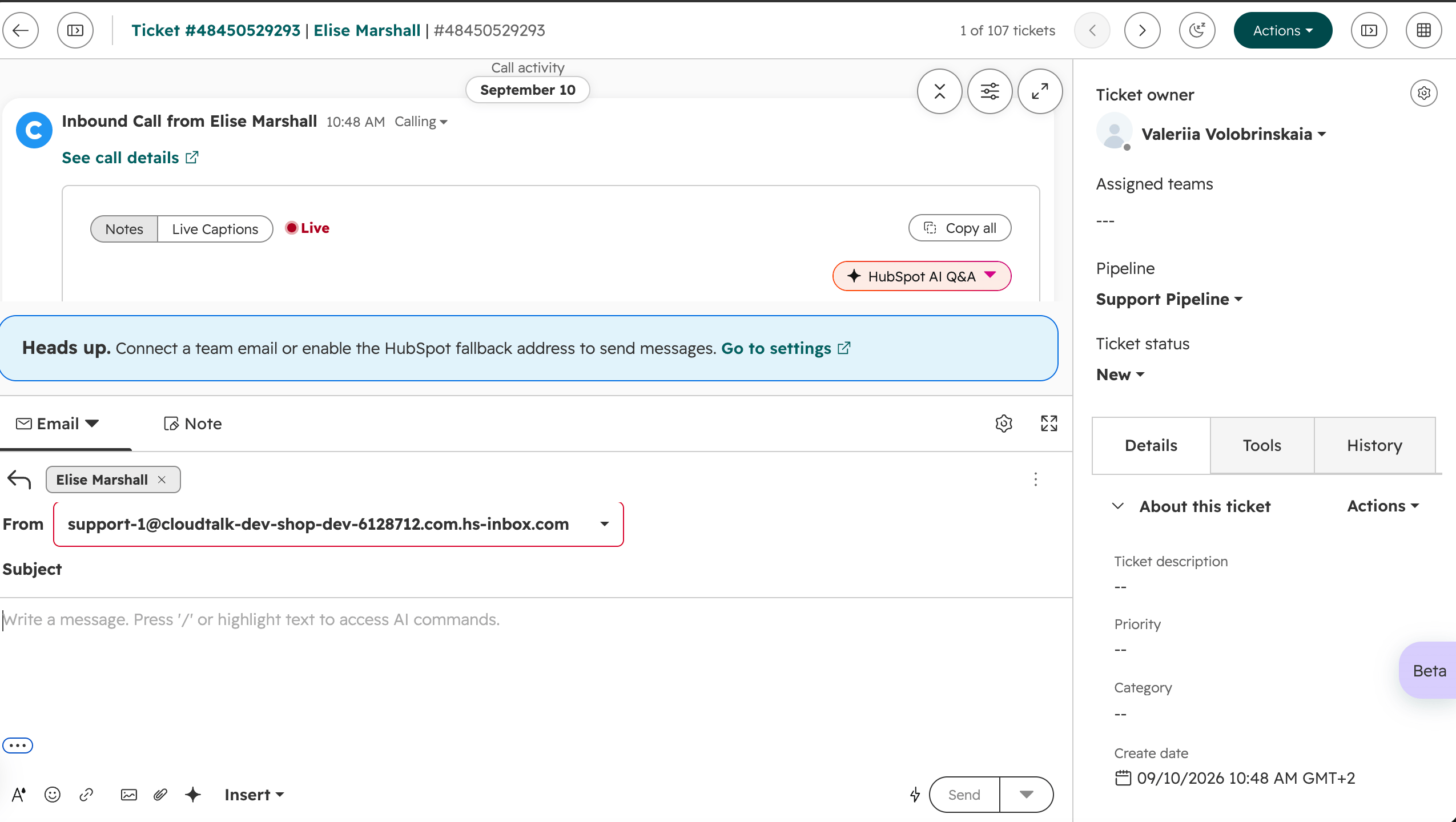
- Refresh your Help Desk view. The new ticket is at the top with the Calling channel, in the pipeline and stage you set during ticket automation. Open it and you will see the Inbound Call from [contact name] activity with a link to the call details.
How Ticket Creation Works for Help Desk Numbers
Once a number is connected to Help Desk, HubSpot decides when a ticket is created. CloudTalk’s own ticket rules in the HubSpot integration (create a new ticket or update an existing one, by call type) no longer apply to that number.Good to Know
- A number can’t be used both ways. Either it is a Help Desk Number and HubSpot handles the tickets, or it is a regular number and CloudTalk exports the calls under your Workflow Settings.
- HubSpot associates the new ticket with a contact when there is exactly one contact with that phone number. If several contacts share the same number, the ticket is still created, it just isn’t linked to any of them.
- Tickets created by HubSpot for Help Desk numbers are managed in Help Desk, so they don’t show in the ticket insight card in the CloudTalk CTI or the CloudTalk Phone app.
Need help or have a question? Just reach out through our Support portal — we’re here for you.