

In this guide we’ll show you how to get the most out of using CloudTalk together with Capsule CRM, including how to start calls with a single click, where to find call history, and how to use caller information to deliver more personalized conversations.
Calling from Capsule
Make Outbound Calls
With click-to-call enabled, you can call any contact in Capsule with a single click. Once set up, all phone numbers in Capsule become clickable and will open CloudTalk automatically. To enable click-to-call:- Follow Capsule’s official setup guide to turn on click-to-call.
- Once enabled, all phone numbers in Capsule will become clickable and open CloudTalk automatically.
Receive Inbound Calls
When a customer calls you, their Capsule contact profile will automatically pop up in CloudTalk, so you can see who’s calling before you answer.Call Logging and Data Exchange
Contact Sync
CloudTalk automatically imports contacts from Capsule at regular intervals, keeping your CloudTalk phone system updated with the latest records. You can find a link to the contact’s Capsule profile directly within their CloudTalk contact profile. How sync works:- New contacts added in Capsule are imported into CloudTalk.
- If a Capsule contact shares the same main phone number or email with an existing CloudTalk contact, the records are merged.
- Updates made in Capsule are reflected in CloudTalk.
- Updates made in CloudTalk are not pushed back to Capsule (one-way sync).
Contact Field Mapping
Call Logging & Export
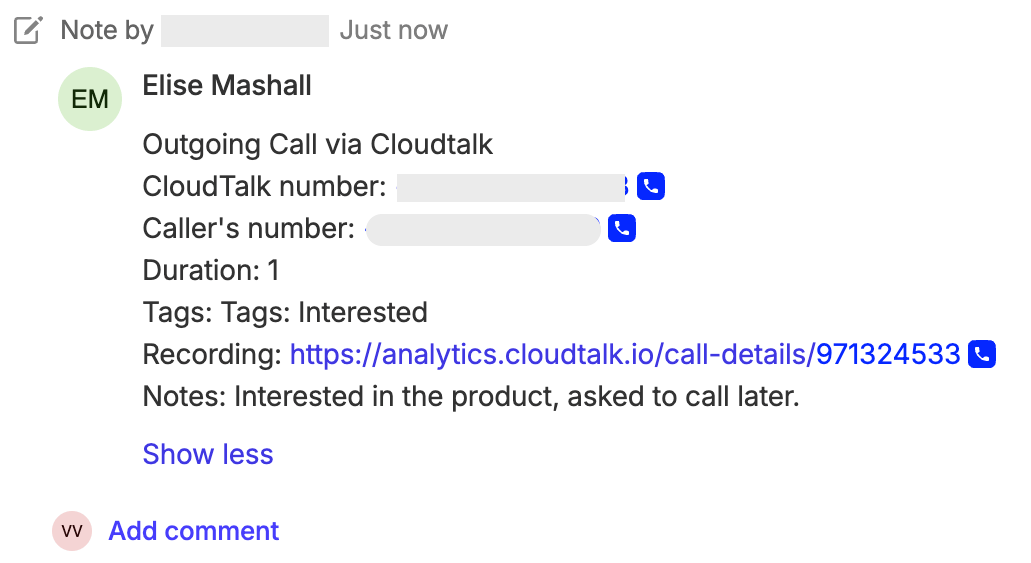
Every call handled in CloudTalk, whether inbound or outbound, is automatically logged in Capsule under the Recent Activity section of the contact’s profile and your Capsule dashboard.Call Field Mapping
SMS Logging
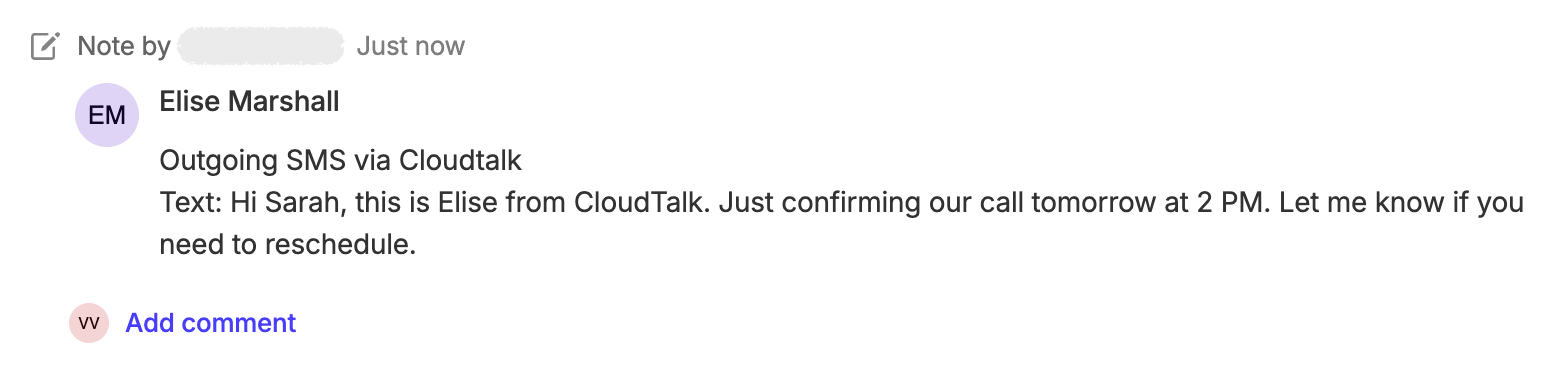
When you send or receive SMS messages through CloudTalk, the integration automatically creates an activity entry in Capsule, similar to call logs.SMS Field Mapping
Need help or have a question? Just reach out through our Support portal — we’re here for you.