

In this article, you’ll learn how to set up the Copper integration in CloudTalk, including how to authenticate your account, configure call and SMS activity settings, assign fallback owners, and manage which numbers are synced.
Requirements
- An Essential, Expert, or Custom plan with CloudTalk
- Account admin for Professional or Business Copper account
- Copper API Key and URL
- The email address you use in CloudTalk must match exactly with the email address in your Copper account. If the emails do not match, synchronization will not work correctly.
Configure Copper
- From the dashboard, navigate to Settings > Integrations.
- Hover over the Copper integration and select
+ Add. - Optional: Enter a Caption to give your integration a unique name (useful for companies with multiple Copper integrations).
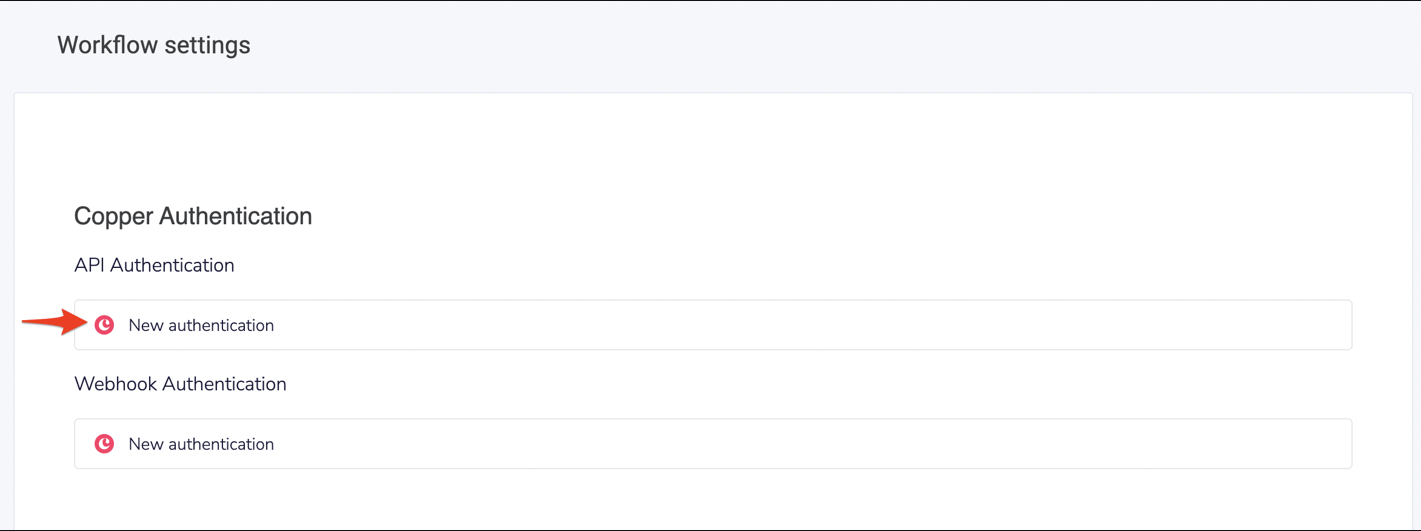
- In the Workflow settings section under API Authentication, select
New Authentication.
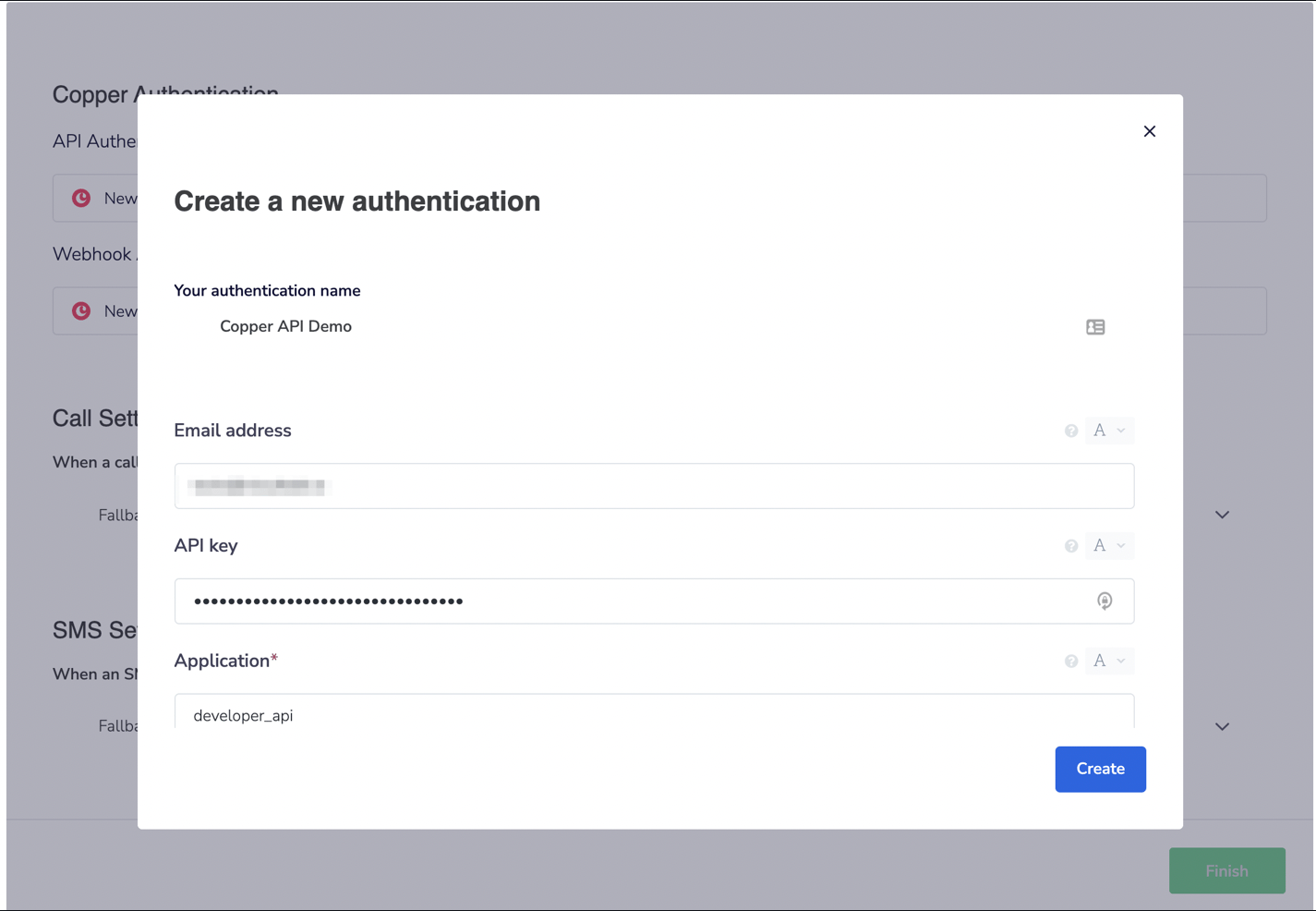
- Enter your first Copper API email address and API Key. Leave Application as developer-api.
Create.
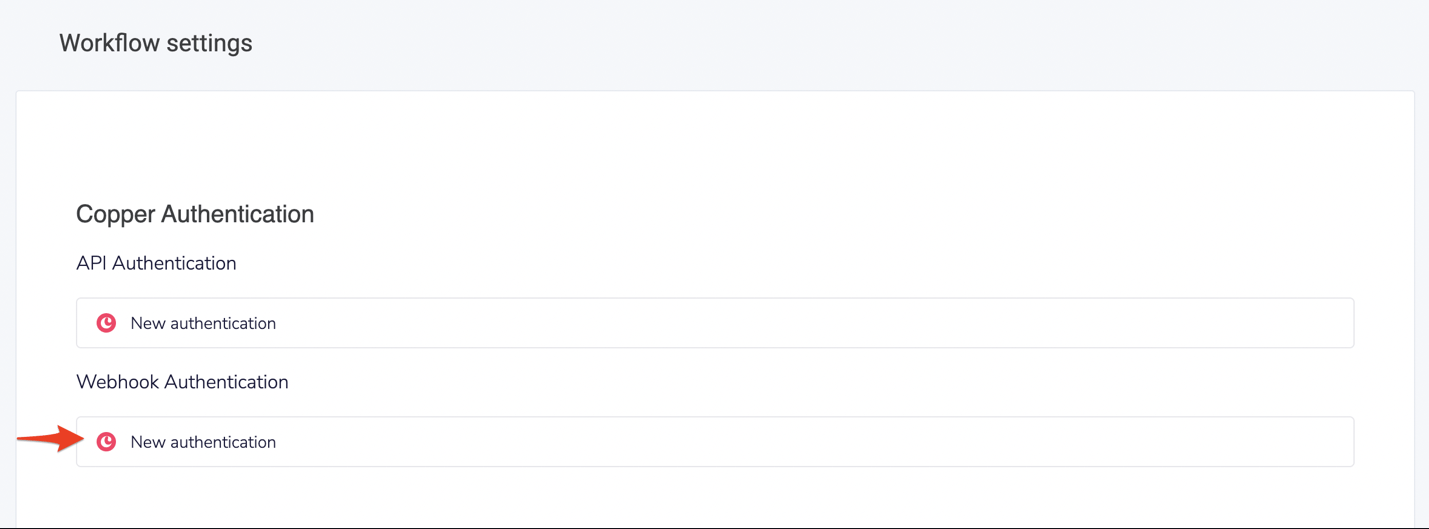
- In the Workflow settings section under Webhook Authentication, select
New Authentication.
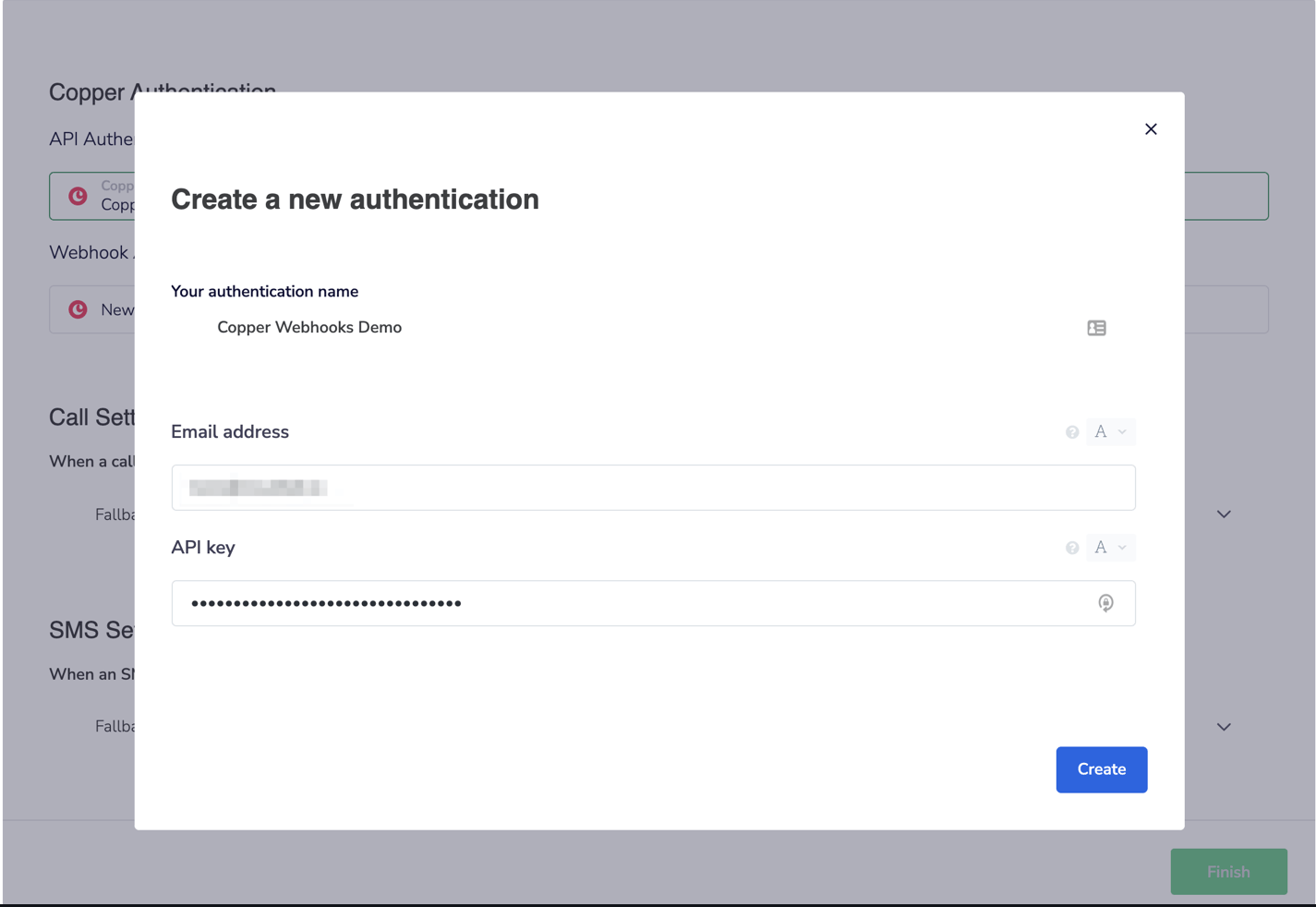
- Enter your second Copper API email address and API Key.
Create.
- For Call Activities, in the Workflow Settings section under API Authentication, select the Fallback Activity Owner. This will define the Copper user who is assigned the call activity when the CloudTalk agent who made the outbound call is not found in Copper.

- For SMS Activities, in the SMS Settings section under Workflow settings, select the Copper user you wish to assign SMS activities to, in cases where the agent who sent the SMS is not found in Copper.

- Select
FinishandSavewhen done changing settings**.** - To only log calls for specific CloudTalk numbers, add desired numbers to the Connected numbers section. You can also search and add numbers to the Connected numbers for SMS section when you only want to log SMS messages for those numbers.
Disconnect or Remove Integration
You have two options if you no longer want to use the integration:- Deactivate: In your CloudTalk Dashboard, go to Settings > Integrations > Copper and toggle the status to inactive. This pauses syncing but keeps your settings.
- Remove: To remove the integration completely, go to Configure > Delete Integration, type DELETE, and confirm.

Need help or have a question? Just reach out through our Support portal — we’re here for you.