

This article explains how CloudTalk works with Microsoft Dynamics 365 Sales, including calling, data sync, and activity logging.
Calling from Microsoft Dynamics 365 Sales
Make Outbound Calls

With Click-to-Call enabled, phone numbers in Microsoft Dynamics 365 Sales become clickable, allowing you to start calls with a single click. You can initiate outbound calls directly from:- Contact records
- Lead records
- Account records
Receive Inbound Calls
When receiving a call, CloudTalk identifies the caller based on their phone number. If the contact exists in Microsoft Dynamics 365 Sales, the call will be logged and linked to the corresponding contact or lead. You can open the related record directly from the CloudTalk app using the integration link.Call logging & Data exchange
Contact Sync
CloudTalk syncs Contacts, Leads, and Accounts (Companies) from Microsoft Dynamics 365. Contacts are automatically imported into CloudTalk and merged if they share the same phone number, email, or name.| CloudTalk Contact | MS Dynamics Contact | MS Dynamics Account (Company) |
| Name | First name Last name | |
| Contact link | Link to contact profile | |
| Phones | Imports:
| |
| Emails | ||
| Tags | microsoft_dynamics | |
| Company | Account Name | |
| Address | Address 1: Street 1 | |
| City | Address 1: City | |
| Zip | Address 1: Zip/Postal code | |
| State | Address 1: State/Province | |
| Country | 🚫 | |
| Favorite agent | Owneronly if owner’s email address is also a CloudTalk agent email address |
Create and Update Contacts (Two-way Sync)
Contacts are synced between CloudTalk and Microsoft Dynamics 365 using a two-way sync. When a contact is created or updated in one system, it is automatically created or updated in the other. CloudTalk first tries to match contacts by:- Phone number
- Email address
| CloudTalk Contact | Dynamics Contact |
| Name | First nameCharacters before the first space in the CloudTalk contact nameLast nameCharacters after the first space |
| Contact link | Link to contact profile |
| Phone numbersfirst and second only | Business phoneMobile phone |
| Emailfirst only | |
| Address | Address 1: Street 1 |
| City | Address 1: City |
| Zip | Address 1: Zip |
| State | Address 1: State |
| Country | 🚫 |
| Favorite agent | Contact Owneronly if owner’s email address is also a CloudTalk agent email address |
Call Logging & Export
CloudTalk logs calls as Phone Call tasks in Microsoft Dynamics 365, linked to the related contact or lead. You can control which calls are exported by selecting specific numbers in the Connected numbers settings.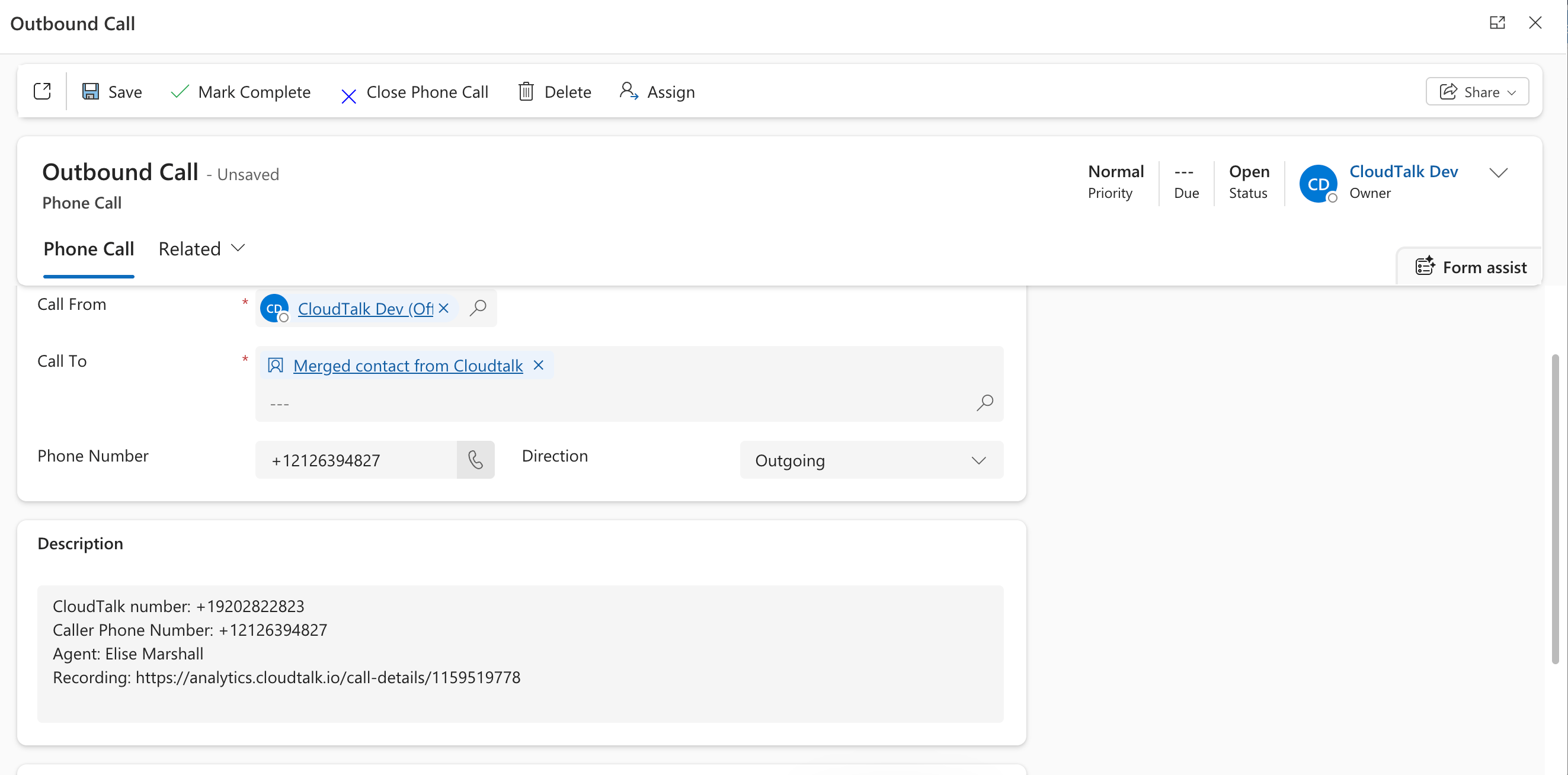
SMS Logging
SMS messages are logged as SMS tasks in Microsoft Dynamics 365. You can limit the SMS messages which are exported by assigning specific CloudTalk numbers in the Connected numbers for SMS section.| CloudTalk SMS | MS Dynamics SMS Task |
| direction | Subject |
| Format as: {direction} SMS | |
| Text | Description |
| Contact | Description |
| Agentonly for outbound SMS | Owner |
Deals Sync
During the initial sync, CloudTalk imports Opportunities (Deals) and displays them as activities within the contact.Need help or have a question? Just reach out through our Support portal — we’re here for you.