

This guide covers how to use CloudTalk with Salesloft, including how calls are handled and data is synced between the two platforms
Calling from Salesloft
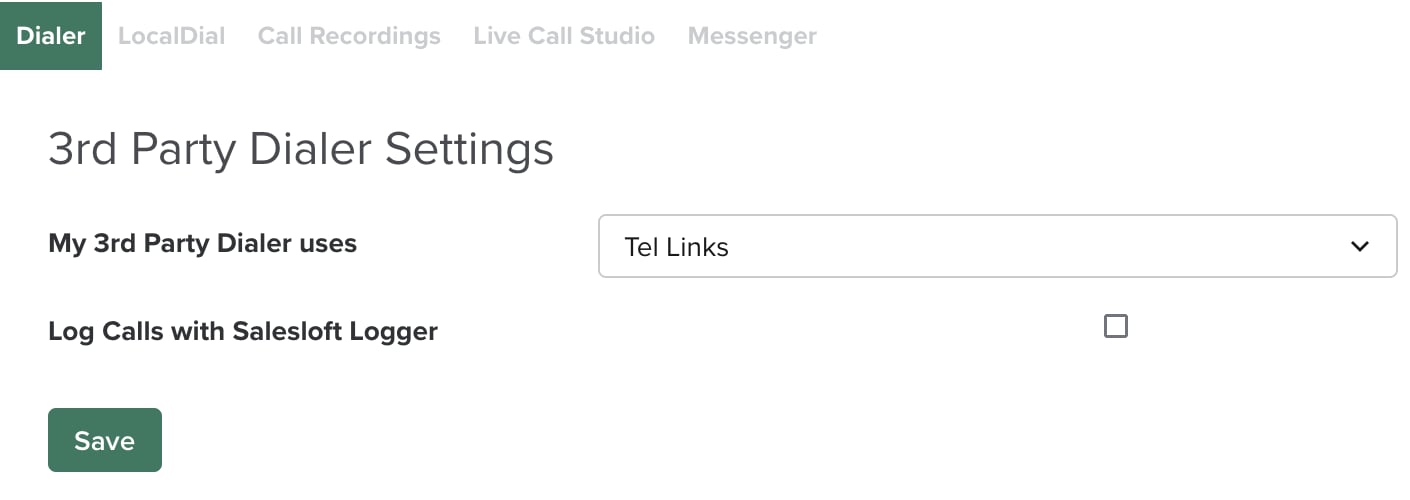
Before you begin, ensure that 3rd Party Dialer Settings are enabled in your Salesloft account. To do this, contact your Salesloft Customer Success Manager and request that the setting be activated. Once 3rd-Party Dialer Settings are enabled:- Log into your Salesloft account and navigate to Settings -> Dialer.
-
Configure your Settings in such a way that they match the below screenshot, afterwards clicking
Save.
Call Logging and Data Exchange
Contact Sync
Contacts are imported from Salesloft when you first connect the integration. After the initial import, any new or updated contacts in either CloudTalk or Salesloft are synchronized immediately when changes are saved. Each imported Salesloft contact receives asalesloft tag in CloudTalk, and a link to the Salesloft person profile is available directly from the CloudTalk contact profile.
Contacts are merged when multiple Salesloft persons share the same phone number, email address, or name. See Merging Contacts for details.
Field mapping: CloudTalk Call to Salesloft Call Activity
Call Logging and Export
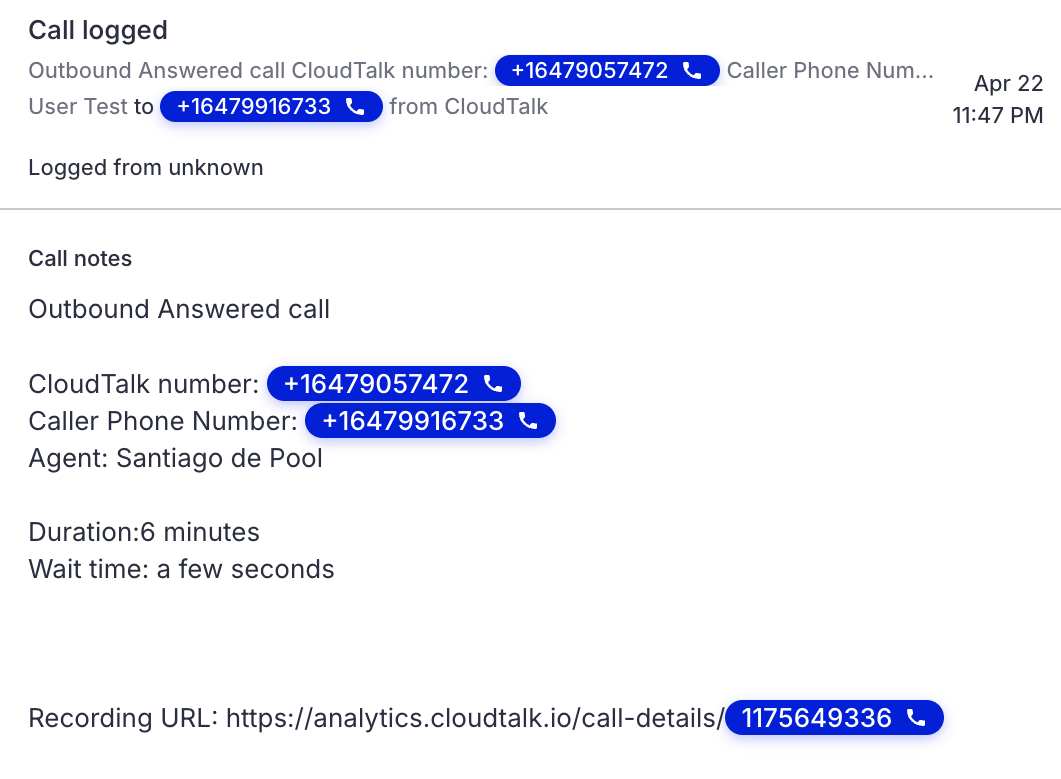
After a call ends in CloudTalk, a Call Activity is created in Salesloft and linked to the associated person and account. You can limit which calls are exported by assigning specific CloudTalk numbers in the Connected Numbers section of the integration settings.Field mapping: CloudTalk SMS to Salesloft Note
| CloudTalk Call | Salesloft Call Activity |
| Contact | Person |
| Agent | Owner |
| Inbound calls → CloudTalk numberOutbound calls → Contact’s number | To |
| Duration | Duration |
| Call information, including: → Call notes→ Call tags→ Call recordings | Notes |
SMS
After an SMS is sent or received in CloudTalk, a Note is created in Salesloft and linked to the associated person and account. You can limit which SMS messages are exported by assigning specific CloudTalk numbers in the Connected Numbers for SMS section of the integration settings. Inbound SMS notes are always assigned to the user who initially added the integration.Field mapping: CloudTalk SMS to Salesloft Note
If an SMS cannot be matched to a Salesloft person, it will be assigned to the user who initially added the integration.
Need help or have a question? Just reach out through our Support portal — we’re here for you.