

In this article, you will learn how to set up the integration and manage calls within Salesforce using Service Cloud Voice.
Salesforce Service Cloud Voice (SCV) with CloudTalk allows agents to handle calls directly inside Salesforce, combining telephony and CRM into a single workspace. With this integration, agents can:
- Make and receive calls without leaving Salesforce
- Access customer information in real time
- Automatically log interactions
- Manage workload through Omni-Channel
Prerequisites
- Admin access to Salesforce Service Cloud
- Active CloudTalk account
- Service Cloud Voice enabled in Salesforce
Using Salesforce Service Cloud voice
Step 1: Enable Service Cloud Voice
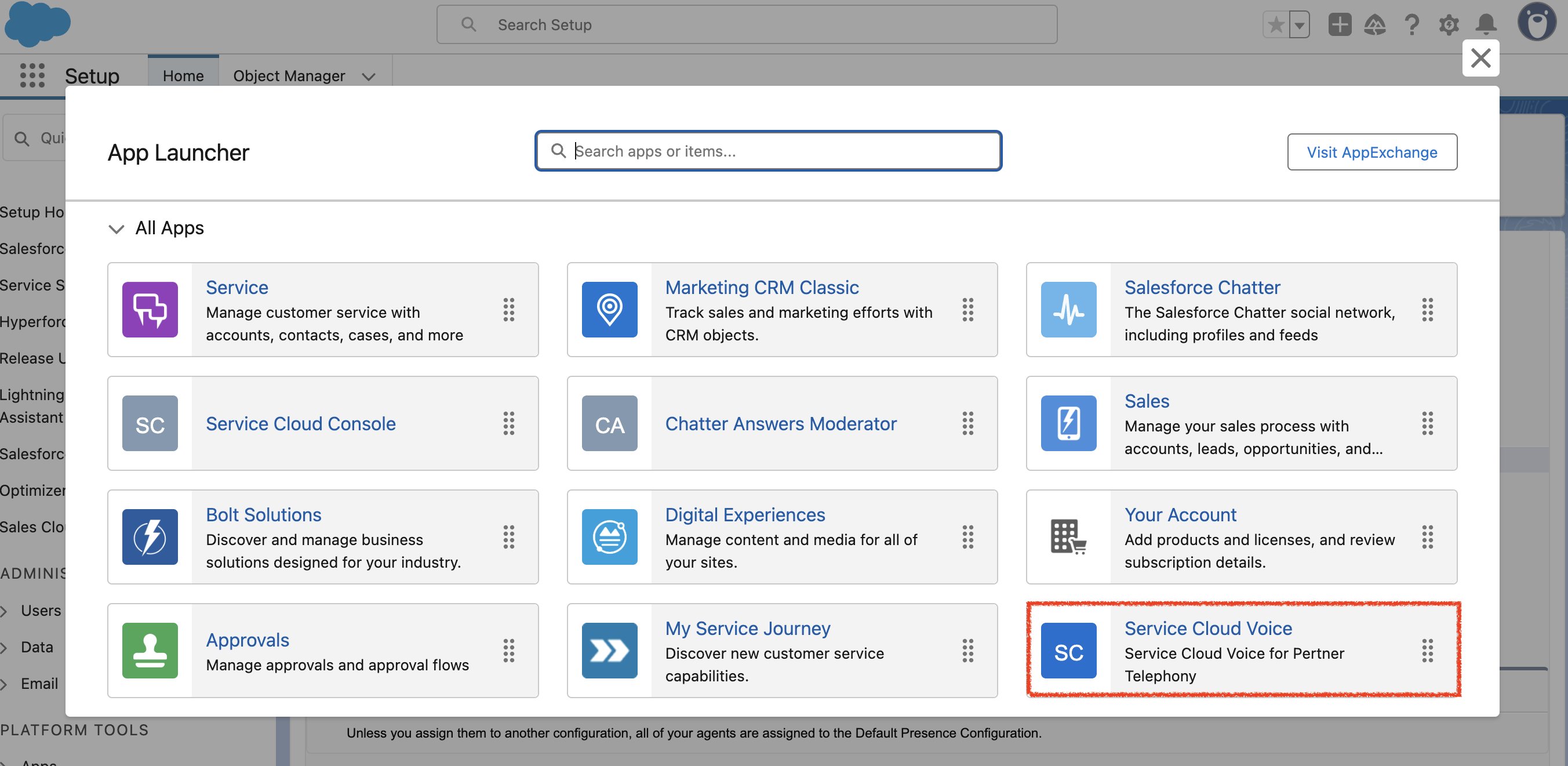
- Open App Launcher (grid icon) in Salesforce.
- Search for and select Service Cloud Voice.
Step 2: Connect CloudTalk
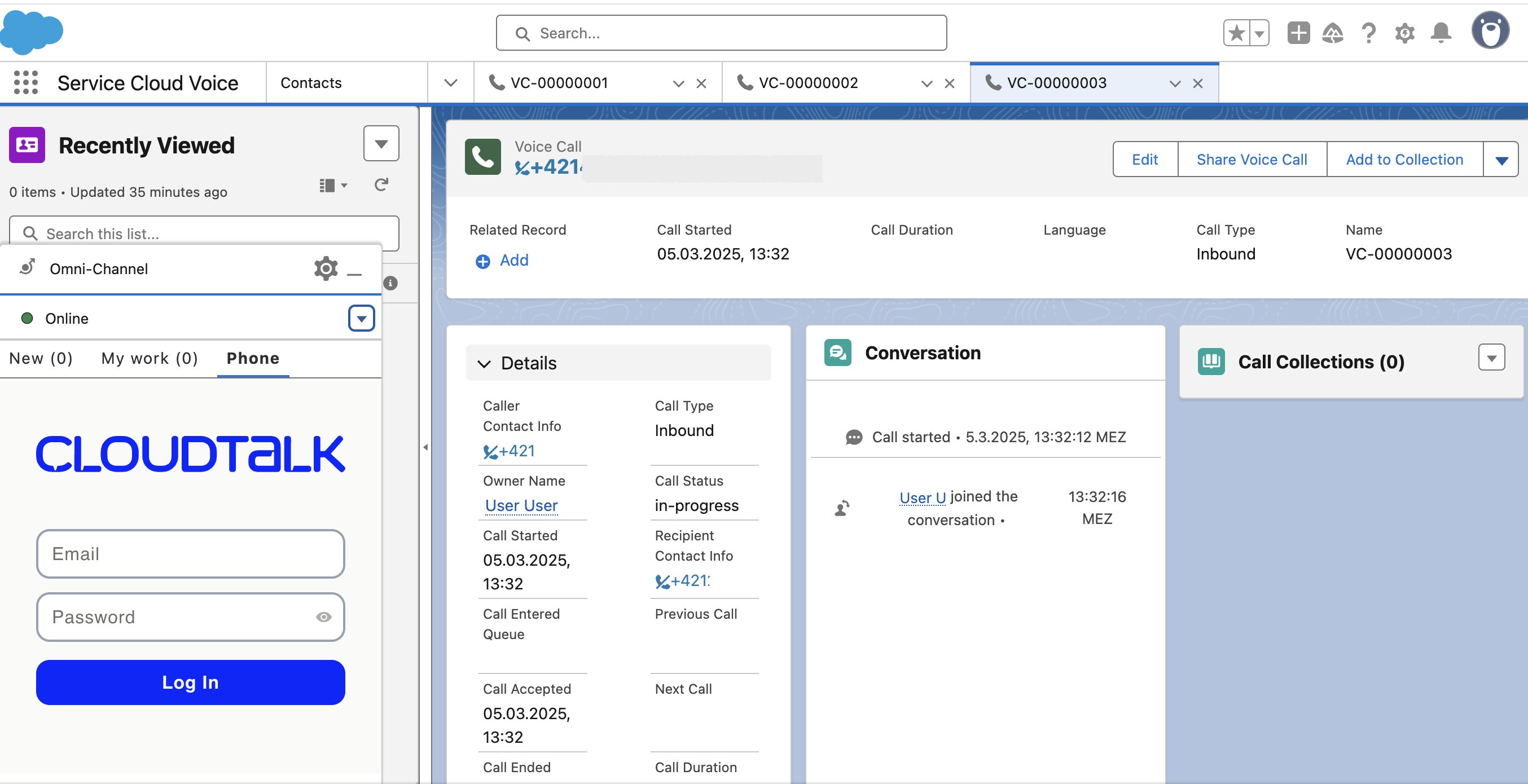
- The CloudTalk phone widget will appear in the Omni-Channel panel.
- Agents need to log in by entering their email and password.
Making and Receiving Calls
Outbound Calls
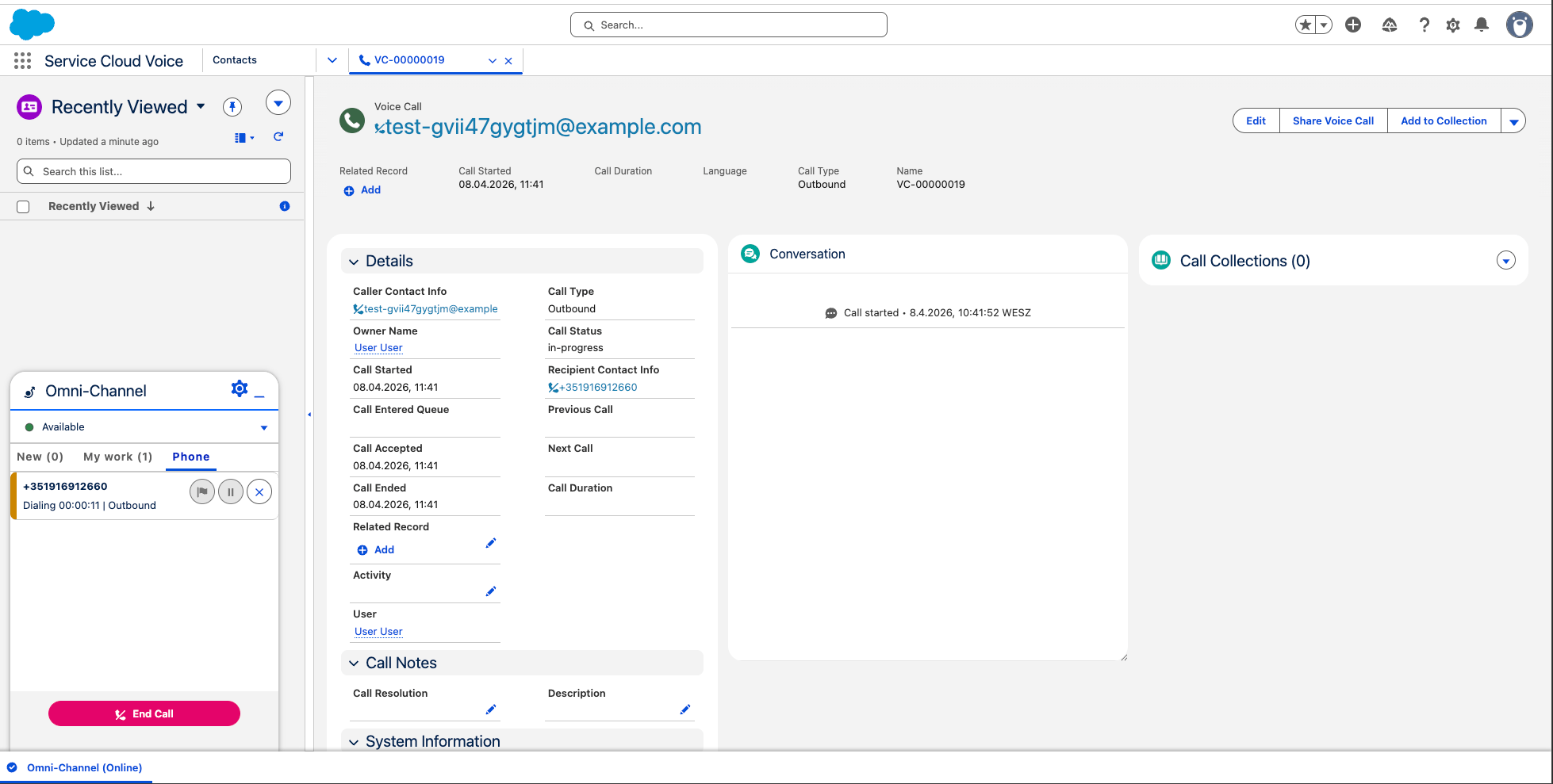
- Open the Phone tab
- Enter a number or select a contact or click the phone number on the page (eg: a number assigned to a contact)
- Click Call
Inbound Calls
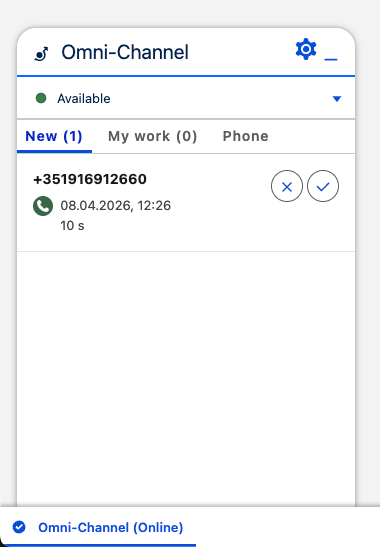
When receiving a call:- A notification appears in Salesforce
- Caller details are displayed automatically
- Agents can accept or decline the call
- Call activity is logged in real time
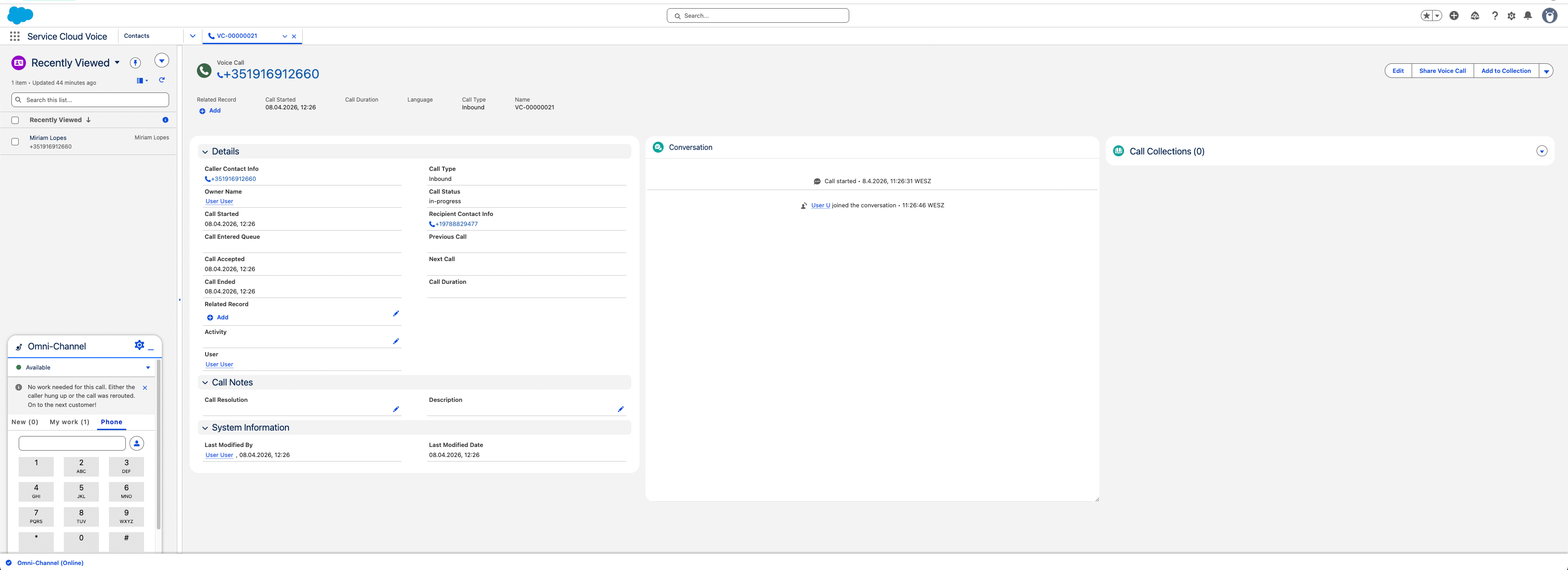
Managing Calls
During an active call, agents can:- Mute/unmute
- Put the call on hold
-
Transfer the call
- Blind Transfer
- Blind Transfer w/ Safe Mode
- Warm Transfer (via Add Call)
- End the call
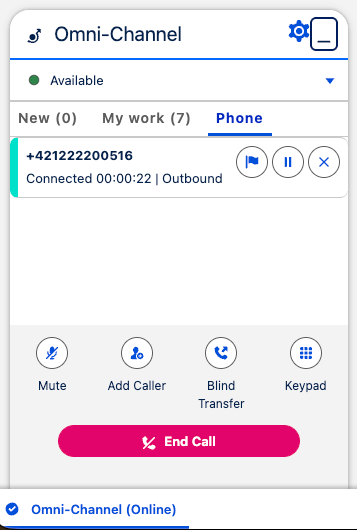
Call Transfers
CloudTalk enables agents to transfer calls directly within Salesforce.Blind Transfer
Blind transfer allows agents to immediately transfer a call without speaking to the receiving party.How it works:
- During a call, click Blind Transfer
- Select the target agent or number
- The call is transferred instantly

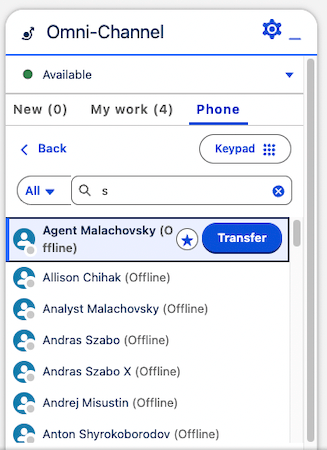
Warm Transfer (via Add Caller & Merge)
Due to Salesforce Service Cloud Voice limitations, warm transfer follows a slightly different flow. Instead of a single action, it is performed using Add Caller and Merge.Step 1: Add the receiving agent
- During the call, click Add Caller
- Select the agent or number you want to transfer the call to
- A second call is initiated
- The original call is placed on hold
- You are connected with the receiving agent
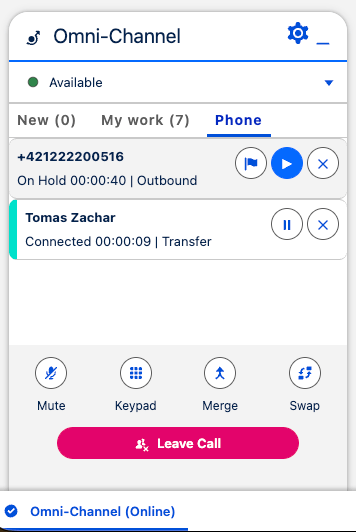
Step 2: Speak with the receiving agent
- Share context about the customer
- Confirm they are ready to take the call
Step 3: Complete the transfer (Merge)
- Click Merge
- The calls are combined, completing the transfer
- The receiving agent is connected with the caller
- The original agent can leave the call
Safe Transfer Mode (Blind Transfers Only)
Safe Transfer is an optional mode that enhances blind transfers by ensuring the call is successfully connected before the original agent disconnects. The admin can enable it in the Dashboard using the Enable Safe Mode setting.
How Safe Transfer Works
When Safe Transfer mode is used:- The agent initiates a blind transfer
- The system attempts to connect the call to the target agent
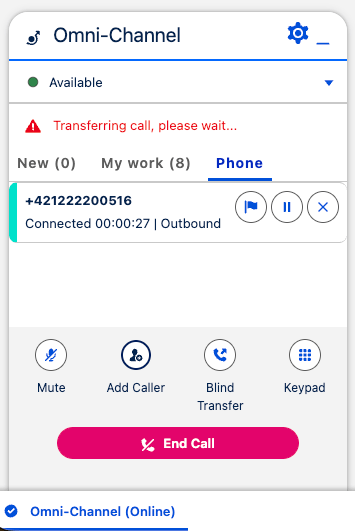
- A status message is displayed in the Omni-Channel panel
Transfer Status Messages
Because of Salesforce Service Cloud Voice limitations, transfer progress is communicated using system messages in the Omni-Channel panel. You may see messages such as:- “Transferring call, please wait…” – indicates that the transfer is in progress
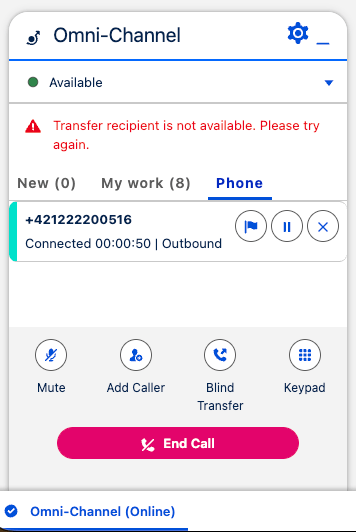
- “Transfer recipient is not available. Please try again.” – indicates that the transfer has failed
Contact Matching & Customer Context
Automatic contact matching
When a call comes in or is made, CloudTalk automatically matches it to existing Salesforce records. This helps agents quickly identify who they’re speaking with without manual search. Matching is supported for:- Contacts
- Leads
- Accounts
Customer context during calls
During the call, agents can see key customer information directly in Salesforce, including:- Customer details
- Related records
- Previous interactions
Call Logging & History
All calls are automatically logged in Salesforce, so your team always has a complete record of interactions. Each log includes details such as call duration, status, and linked records, and can be accessed through My Work and activity history.Need help or have a question? Just reach out through our Support portal — we’re here for you.