

This guide explains how to connect your Close account with CloudTalk. Once connected, your calls, SMS, and contact activities will automatically sync with Close.
Prerequisites
- An active Close account
- Admin permissions in CloudTalk and Close
- Your Close User ID
- A Close API key
Configure Close
- Log in to your CloudTalk Dashboard.
- Go to Settings > Integrations.
- Find Close in the list of available integrations.
- Click Add.
Find your Close User ID
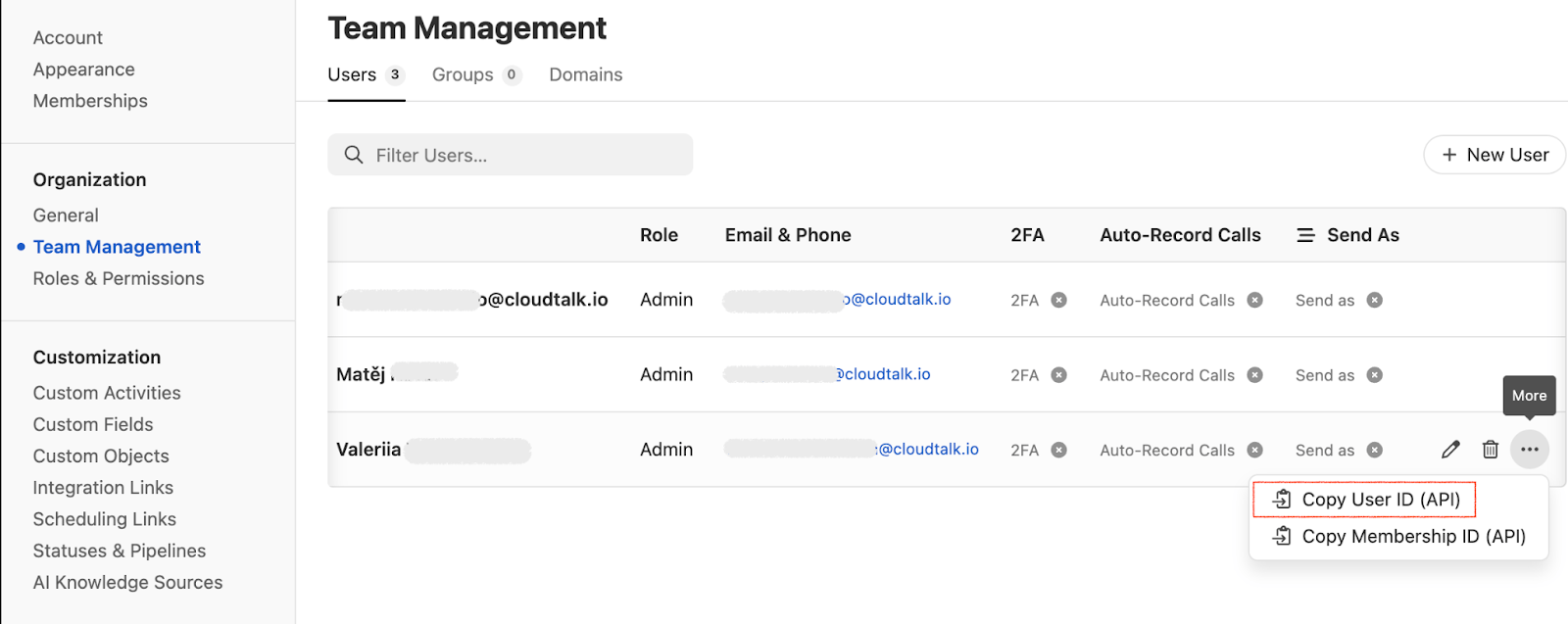
- Go to Close > Team Management.
- Locate the user whose ID will be used for integration.
- Click the More menu (three dots) next to the user.
- Select Copy User ID (API).
- Paste this ID into the close_user_id field in CloudTalk.
Create a Close API Key
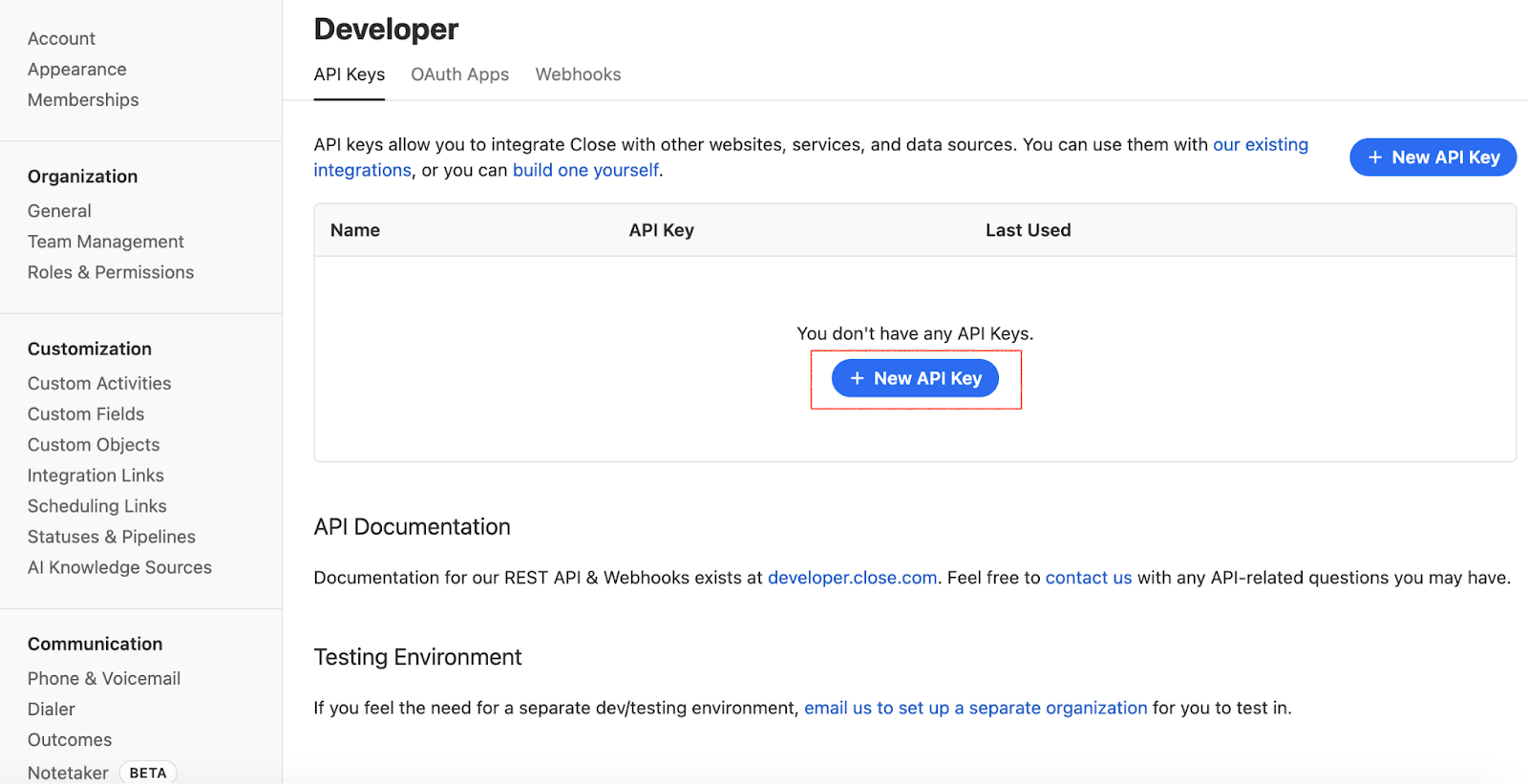
- In Close, go to Settings > Developer > API Keys.
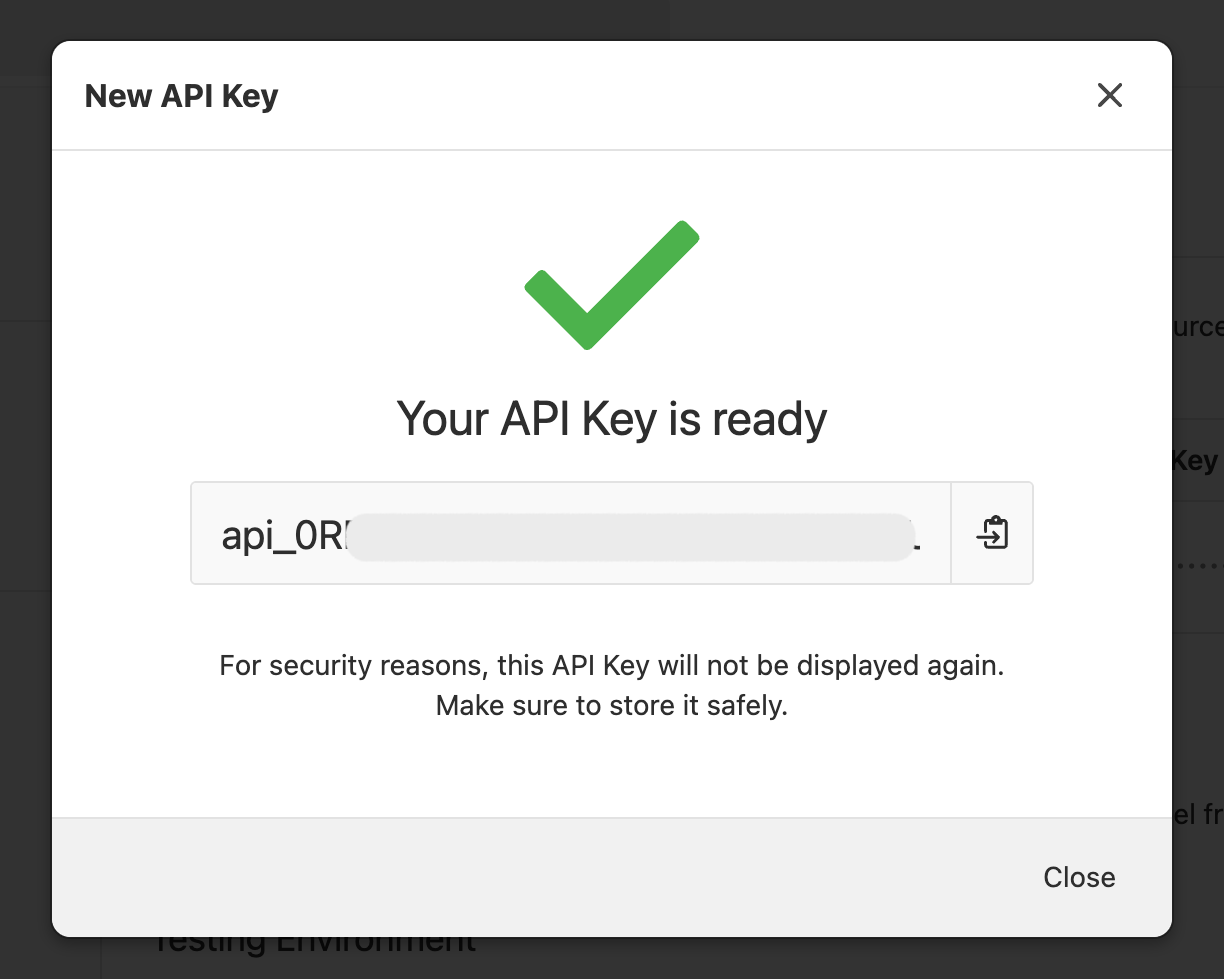
- Click New API Key.
- Give it a name.
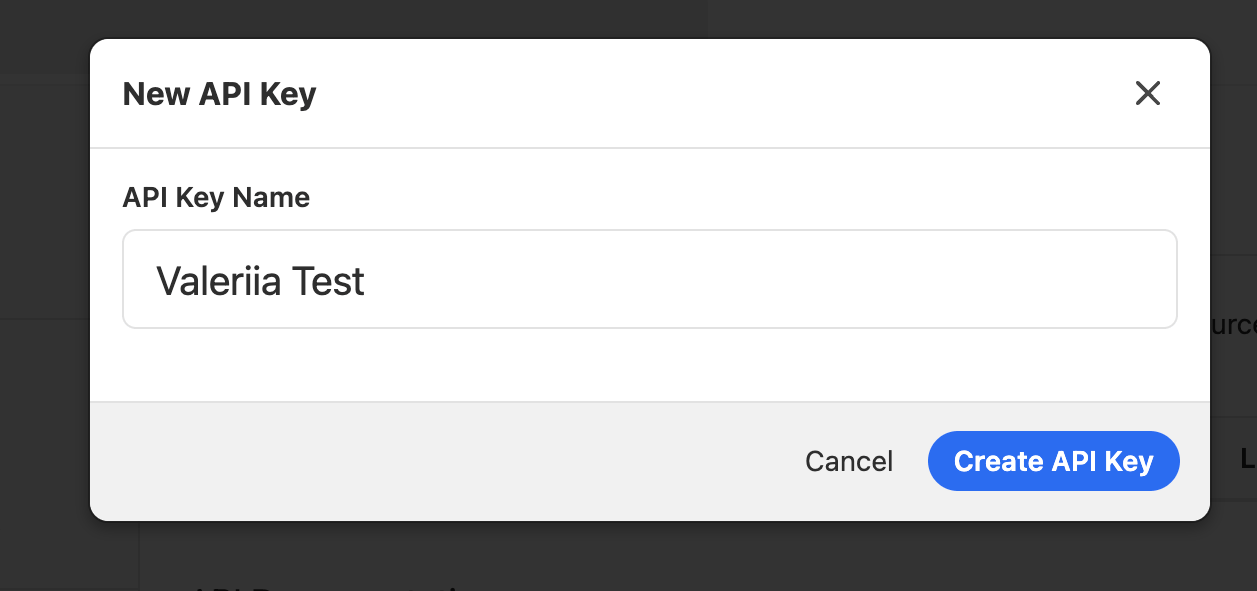
- Click Create API Key.
- Copy the generated key. It will only be displayed once.
Create the authentication in CloudTalk
- Return to the CloudTalk configuration window.
-
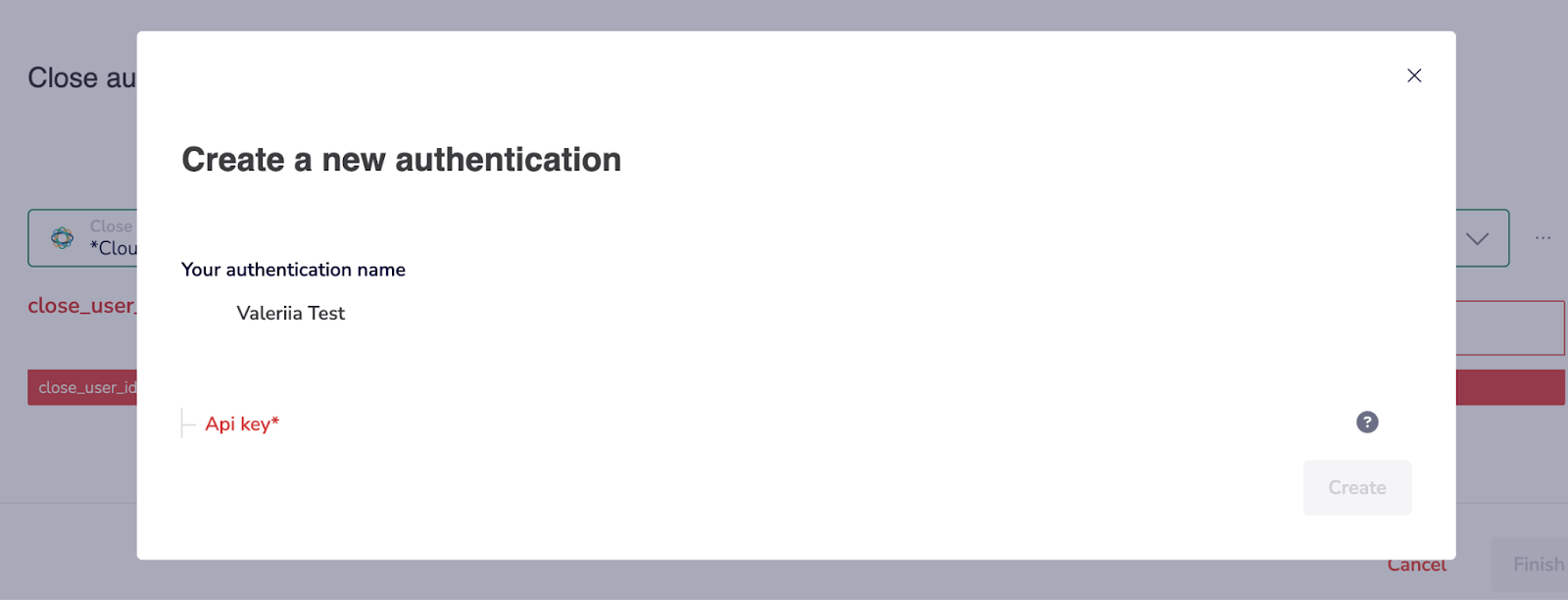
When prompted, enter:
- Authentication name: any name you prefer
- API key: the key created in Close
- Click Create.
Select connected numbers
Under Connected Numbers (for Calls) and Connected Numbers for SMS, choose which CloudTalk numbers will sync to Close. You can select one or multiple numbers.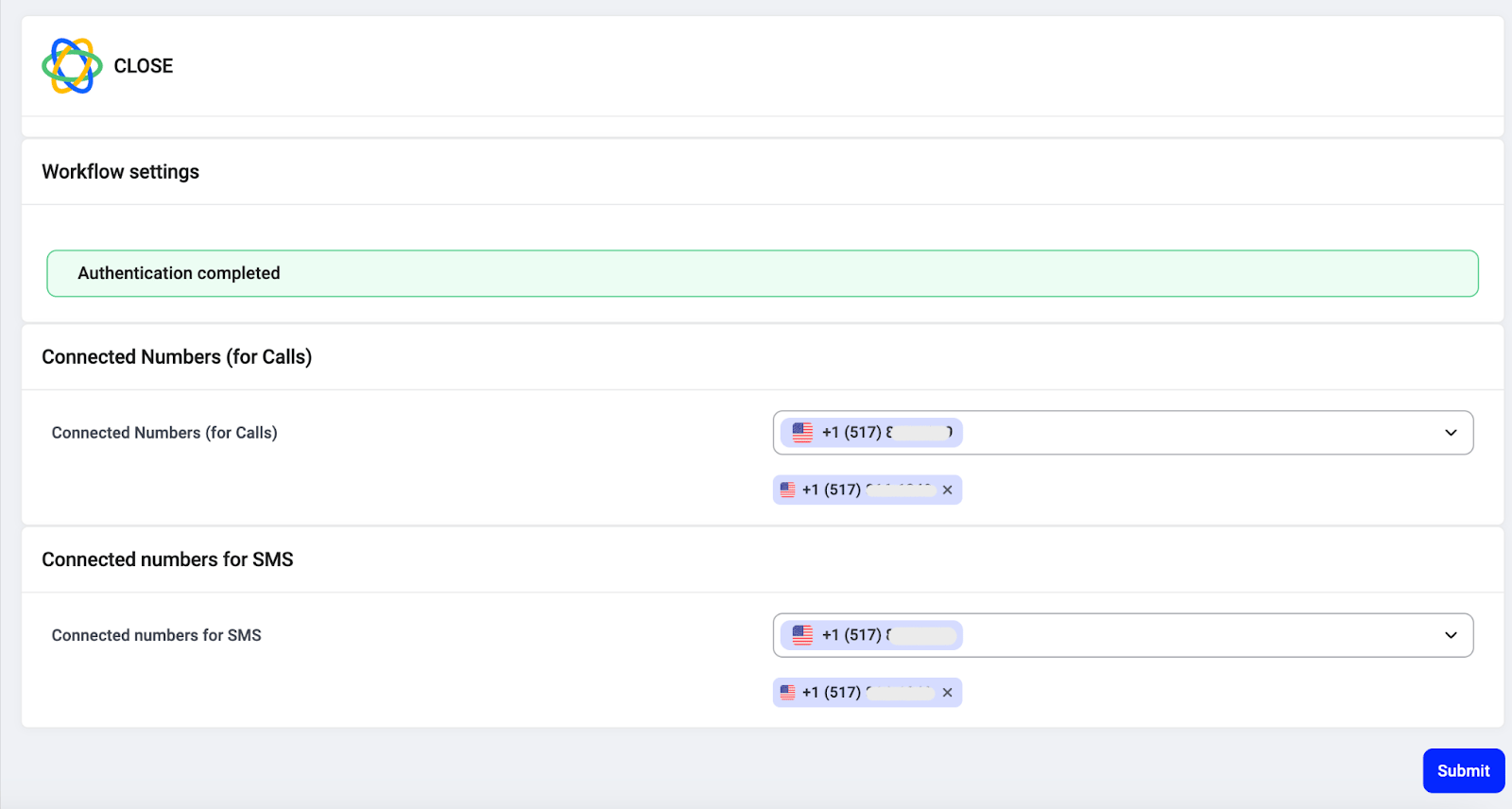
Activate the integration
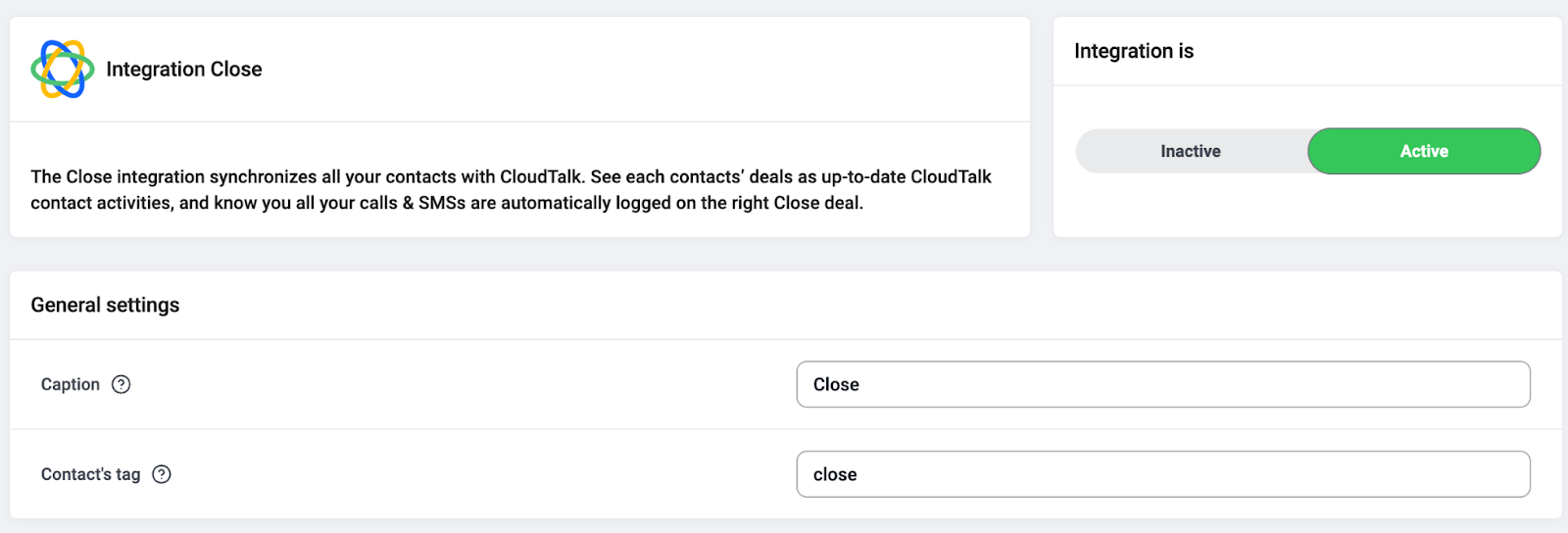
- Scroll to the Integration Close section.
- Switch the integration from Inactive to Active.
Disconnect or Remove the Integration
If you no longer want CloudTalk to synchronize data with Close, you can disable or permanently remove the integration. To disable the integration, go to Settings > Integrations, locate the Close integration, and toggle the status from Active to Inactive. To delete the integration permanently, open the Close integration settings, scroll down, click Delete Integration, and type DELETE to confirm.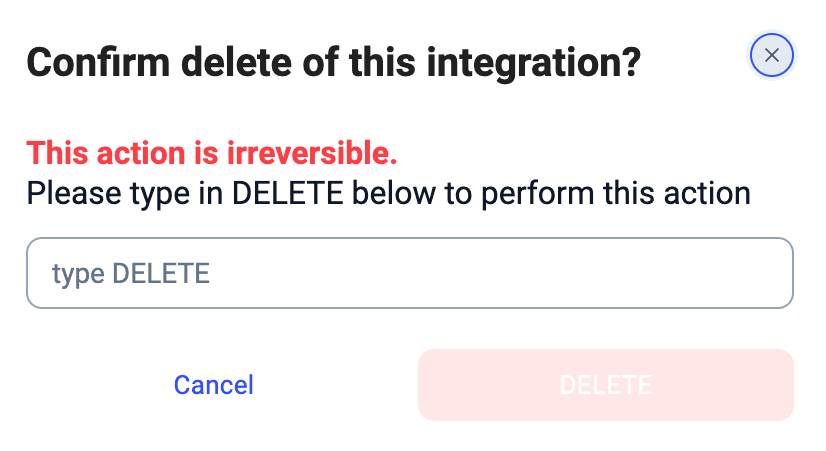
Need help or have a question? Just reach out through our Support portal — we’re here for you.