

This guide explains how CloudTalk works once your Close integration is connected. You’ll learn how calls, SMS messages, contact activities, and recording links sync between the two platforms, and how your team can use CloudTalk when placing calls from Close.
Calling from Close
Make Outbound Calls
With click-to-call enabled, all phone numbers inside Close become clickable. Clicking a number launches CloudTalk and places the call instantly, reducing manual dialing and speeding up your team’s daily workflows.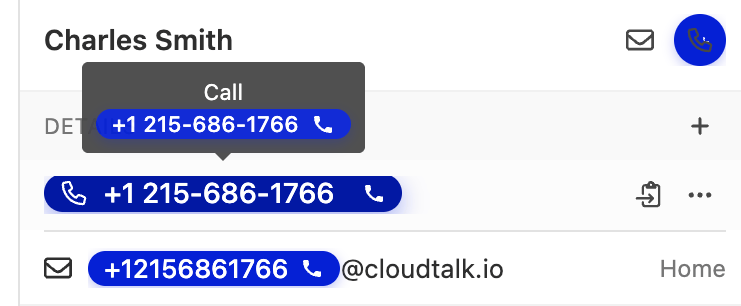
Receive Inbound Calls
When a customer calls you, their Close contact details are available in CloudTalk, so your team can see who’s calling before answering.Call Logging and Data Exchange
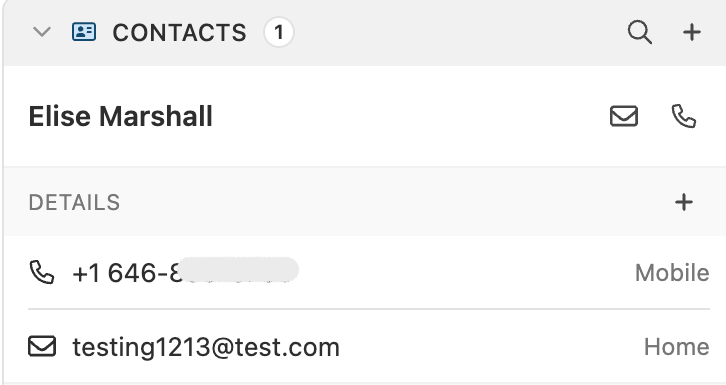
Contact Sync
CloudTalk performs an initial import of all your Close contacts once the integration is activated, and then checks for changes in Close every 15 minutes to keep records up to date. How sync works:- New contacts created in Close are imported into CloudTalk.
- Existing contacts that were edited in Close are updated in CloudTalk.
- Contacts are never removed during sync.
- Sync is one-way — updates made in CloudTalk are not pushed back to Close.
Call Logging & Export
Every call handled in CloudTalk, whether inbound or outbound, is automatically logged in Close as a call activity. Call Field Mapping
SMS Logging
SMS messages sent or received through CloudTalk are automatically logged in Close as SMS activities. SMS Field Mapping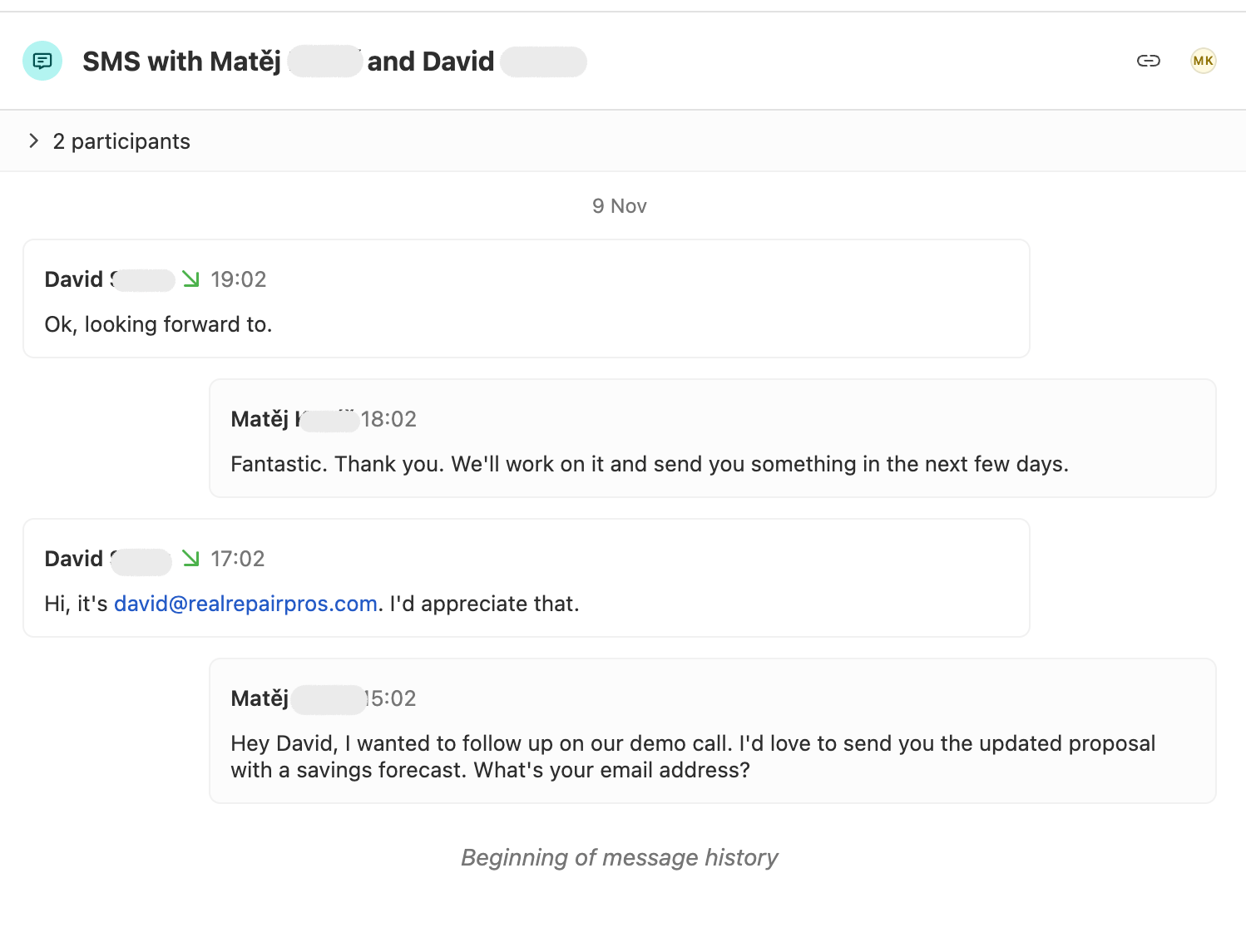
Need help or have a question? Just reach out through our Support portal — we’re here for you.