

The standard CloudTalk summary covers every call the same way. With CI Plus you can write your own summary templates, keep up to 10 of them, and assign them to groups or Voice Agents, so a support call and a discovery call each get a summary written for the job the call was doing. This article explains how templates work, how to create and assign them, and where the custom summary appears.
How it works
- Each summary template has one prompt that tells the AI what to capture and how to write the summary.
- You can keep up to 10 templates per account.
- One template is the default. New accounts start with the Default CloudTalk summary as the default template. It covers every call that matches nothing else.
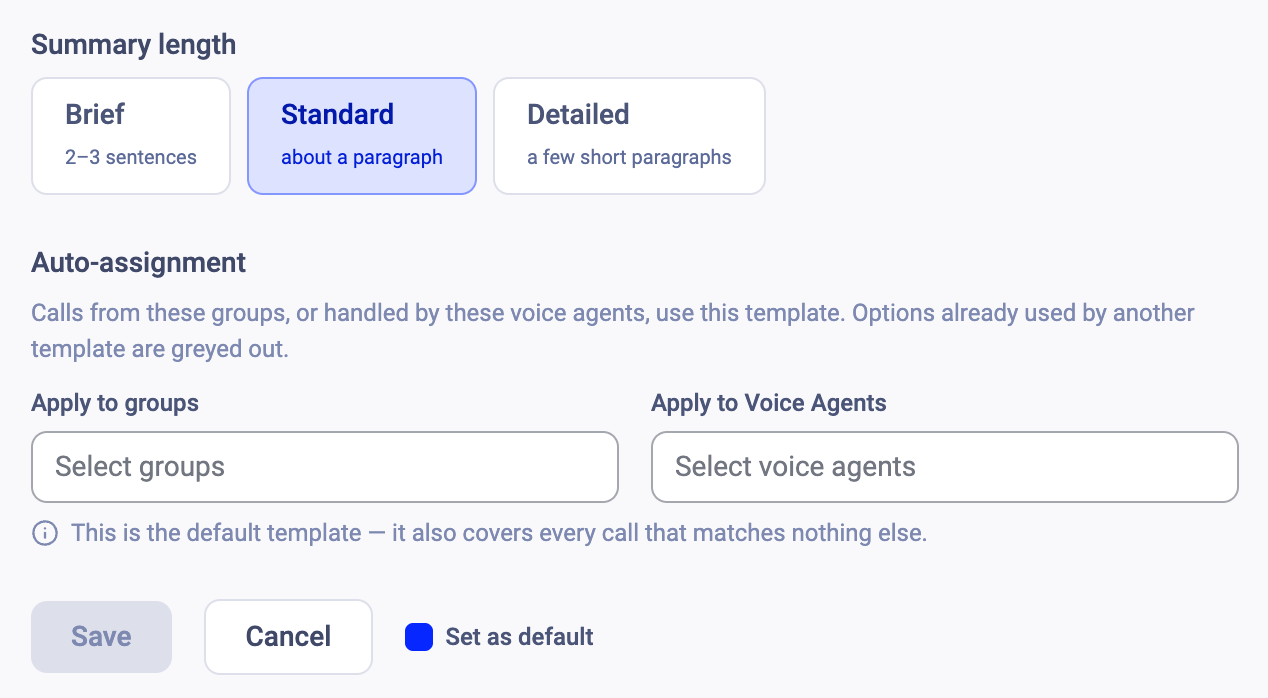
- Templates are assigned to groups or Voice Agents. Calls from those groups, or handled by those Voice Agents, use that template. A group or Voice Agent can only belong to one template at a time. Anything unmatched uses the default.
- When a template applies to a call, the custom summary replaces the standard summary in Call Details. Smart Notes and tags are unchanged. Calls with no matching template keep the standard summary.
Where to find it
- From the dashboard, go to Settings > Conversation Intelligence.
- Scroll down to AI Summaries.
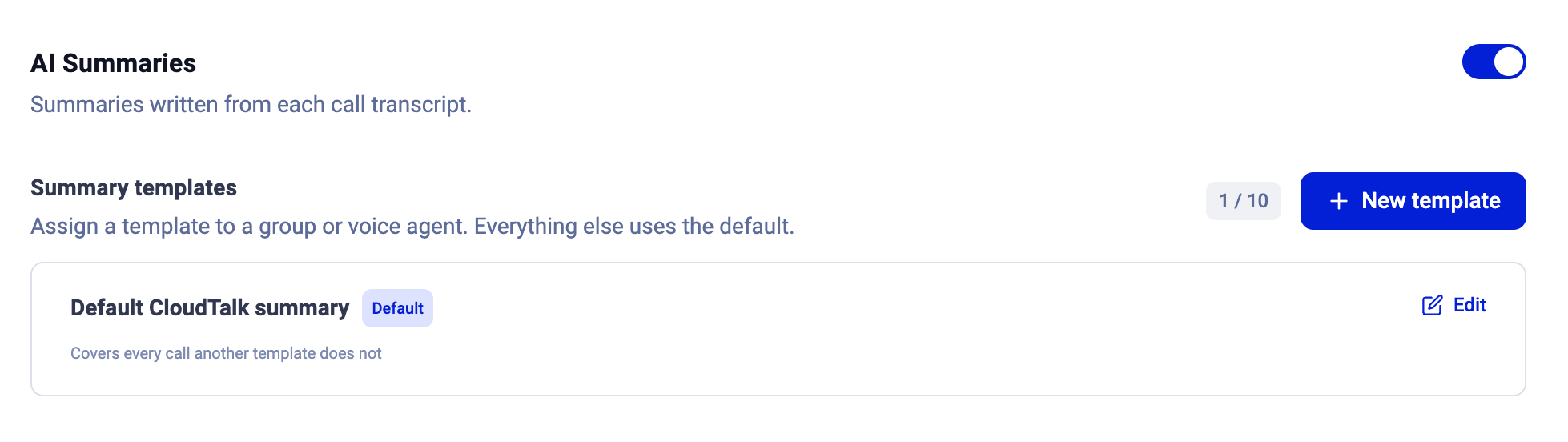
- AI Summaries toggle: summaries written from each call transcript.
- Summary templates: the list of your templates with a counter (for example 1 / 10) and the New template button. Each row shows the template name, a Default badge on the default template, and Edit. The default template is marked “Covers every call another template does not”.
Create a summary template
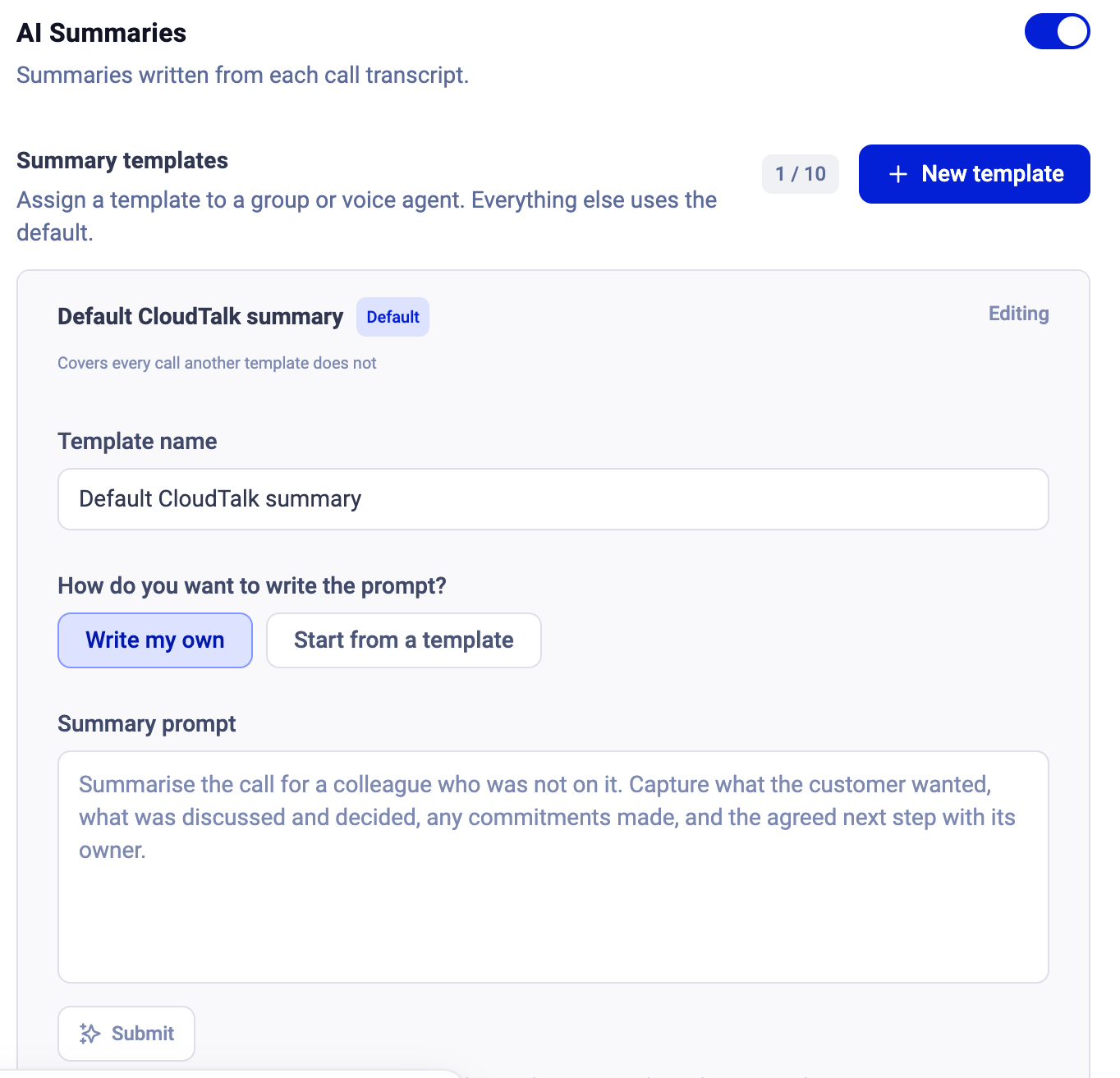
1. Open Settings > Conversation Intelligence > Custom Summary. 2. Click New template. 3. Enter a Template name. 4. Under How do you want to write the prompt?, choose one:- Write my own: type your prompt in Summary prompt.
- Start from a template: pick a Starter prompt and edit it. Available starter prompts: Support focused, Sales discovery, Objection handling, Complaint & escalation, Account review, Lead qualification, Collections / AR, Renewal / cancellation. For example, Support focused covers the issue and any error messages, the troubleshooting steps, whether it was resolved, and the agreed next step with its owner.
- Brief (2 to 3 sentences, up to 450 characters)
- Standard (one paragraph of 4 to 6 sentences, up to 900 characters)
- Detailed (3 to 4 short paragraphs, the last one being next steps, up to 2,000 characters). The limit is a ceiling, not a target: a short call produces a short summary even on Detailed, and a summary that would run over is trimmed at the last full sentence.
Edit a template
- Click Edit on a template in the list to change its name, prompt, length, assignments or default setting, then Save.
- Templates cannot be deleted in this release. To stop using one, remove its group and Voice Agent assignments; the calls it covered then use the default template.
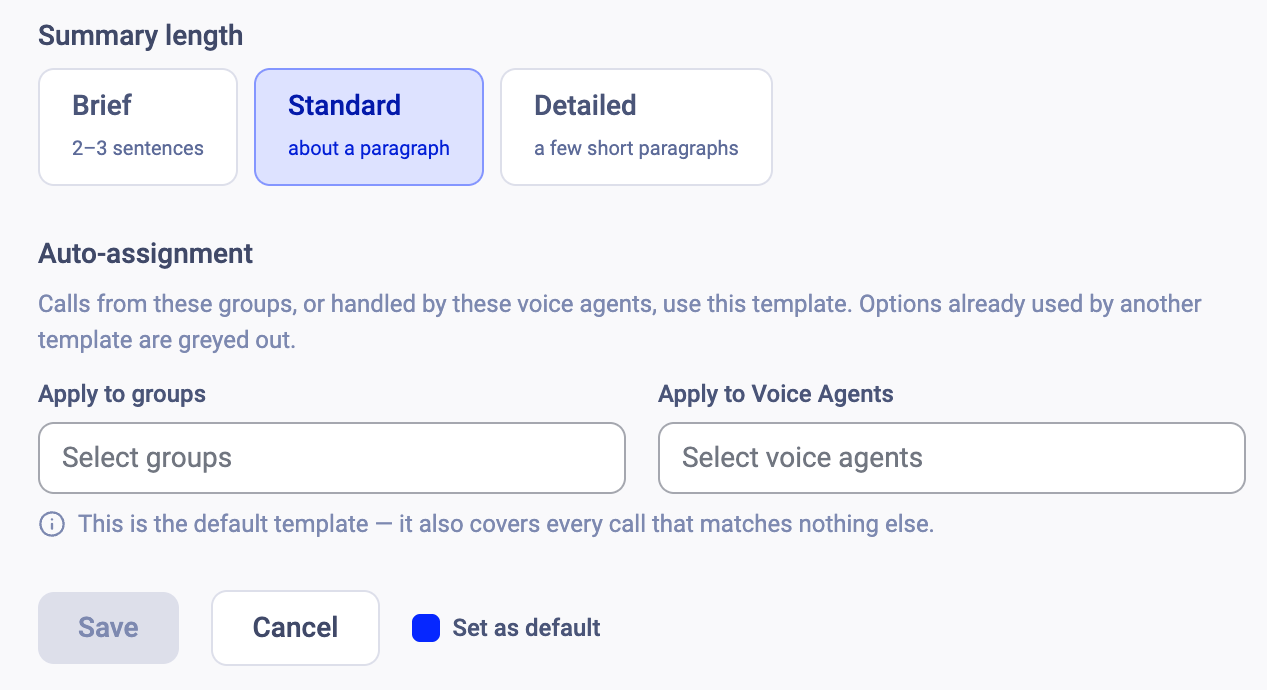
- The default template also covers every call that matches nothing else. Only one template can be the default at a time.
Where the custom summary appears
Open Call Details for a call handled by an assigned group or Voice Agent. The custom summary replaces the standard summary field; Smart Notes and tags are unchanged. Calls with no matching template keep the standard summary. Templates apply to calls made after they are saved, not to past calls.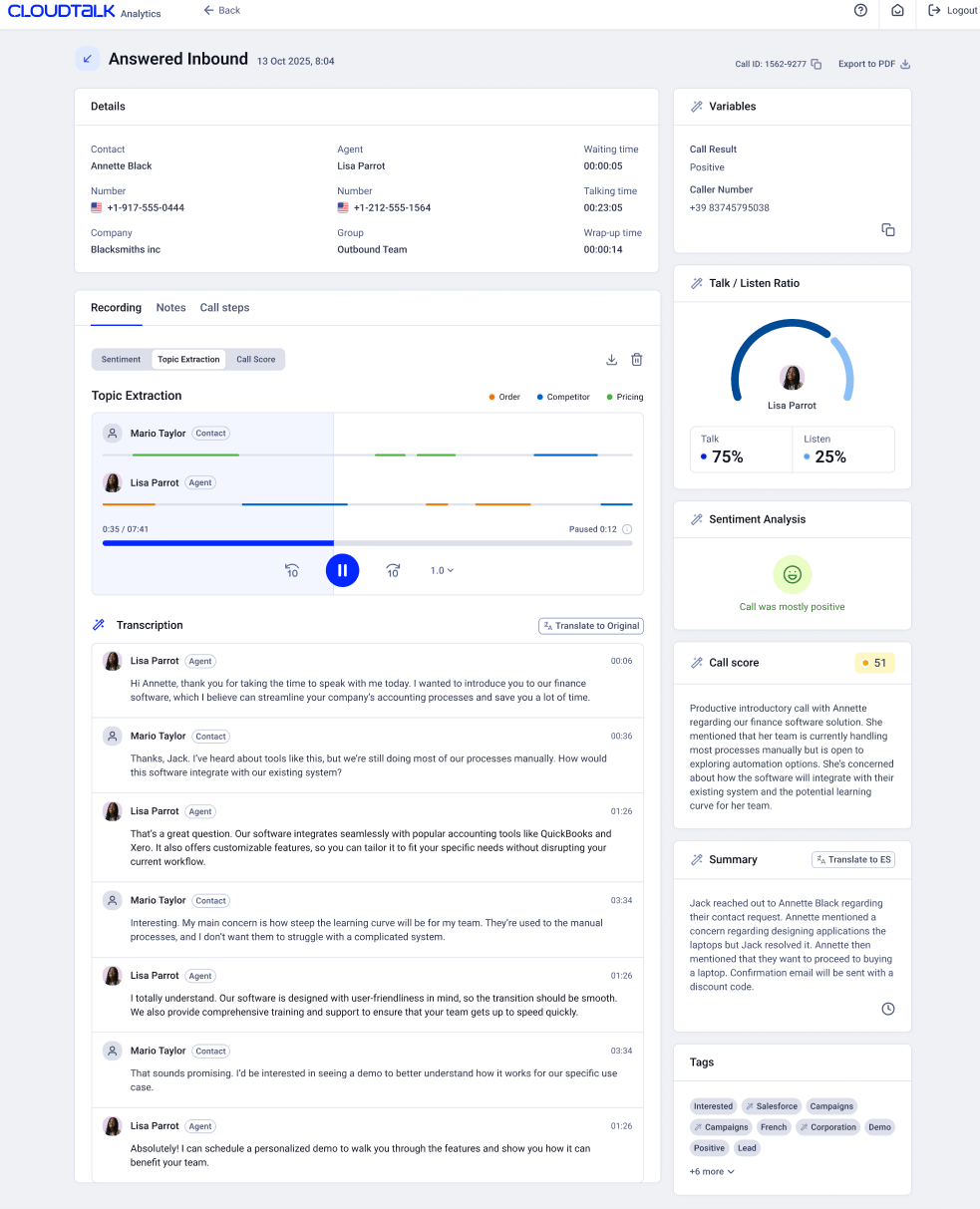
FAQ
- Does a custom summary replace the standard summary? Yes. When a template applies to a call, the custom summary takes the place of the standard summary in Call Details. Smart Notes and tags stay as they are, and calls with no matching template keep the standard summary.
- Can one group use more than one template? No. A group or Voice Agent can belong to only one template at a time. Options already used by another template are greyed out when you assign.
- Can I change a starter prompt after picking it? Yes. A starter prompt only pre-fills the editor. Edit it as much as you like; once changed, it behaves like a prompt you wrote yourself.
- How many templates can I have? Up to 10 per account, including the default.
- What happens to my templates if I switch back to CI Basic? They are kept and paused, and every call goes back to the standard CloudTalk summary. Upgrade again and your templates come back as you left them.
Need help or have a question? Just reach out through our Support portal — we’re here for you.