

When you need to follow up on a call, CloudTalk drafts the email for you from the call itself: a subject and a body covering what was discussed, what was agreed and the next steps. You generate the draft from the call’s details page, edit it, and copy it into your own email tool. Nothing is generated or sent automatically.
What you get
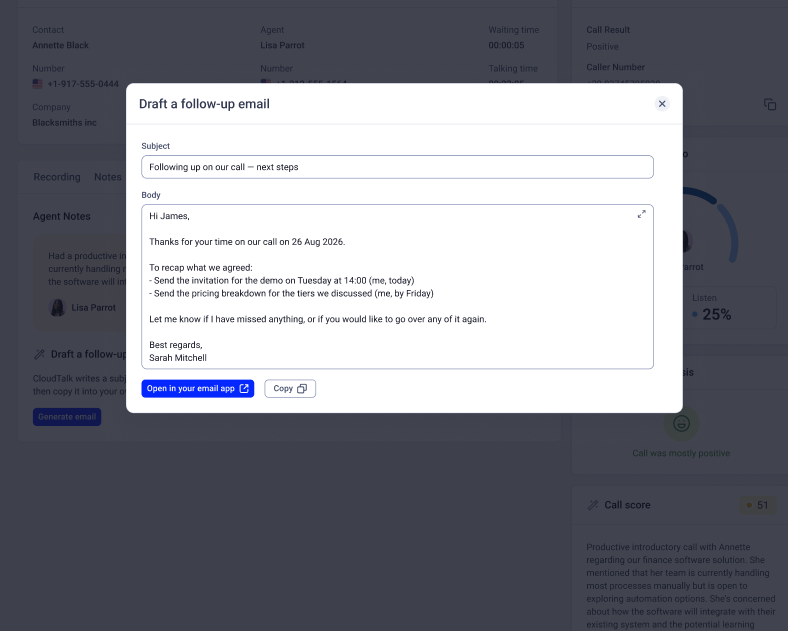
On any call with a transcript, you can ask CloudTalk to draft the follow-up email. The draft has two parts:- A subject line.
- A body covering what the call was about, what was agreed, what you will do next and what the customer needs to do.
Turn on follow-up emails
1. From the dashboard, go to Settings > Conversation Intelligence. 2. Open Notes & Tagging. 3. Switch on Auto-Generated Follow-up Emails. 4. Save changes.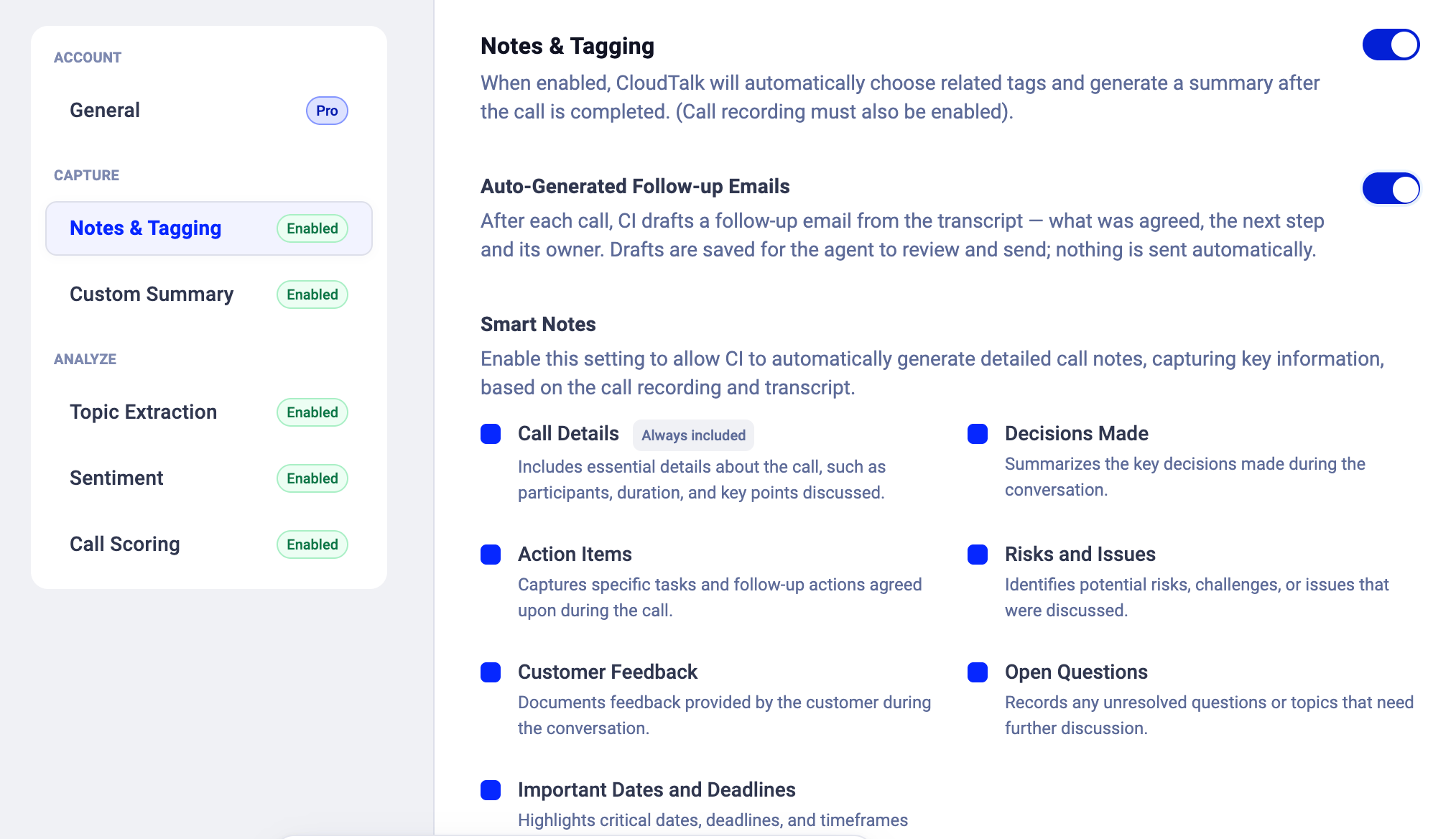
Draft and send a follow-up email
1. Go to Analytics > AI Analytics. 2. Click the three dots on the right of the call and choose Call details 3. Open the Notes tab. Under Draft a follow-up email, click Generate email. The Draft a follow-up email window opens with the subject and body filled in. If the call has too little content for an email (a voicemail, a wrong number, a call cut off after a few seconds), the window shows There isn’t enough content in this call to draft a follow-up. instead. If generation fails, click Generate email again; you never get a half-finished draft.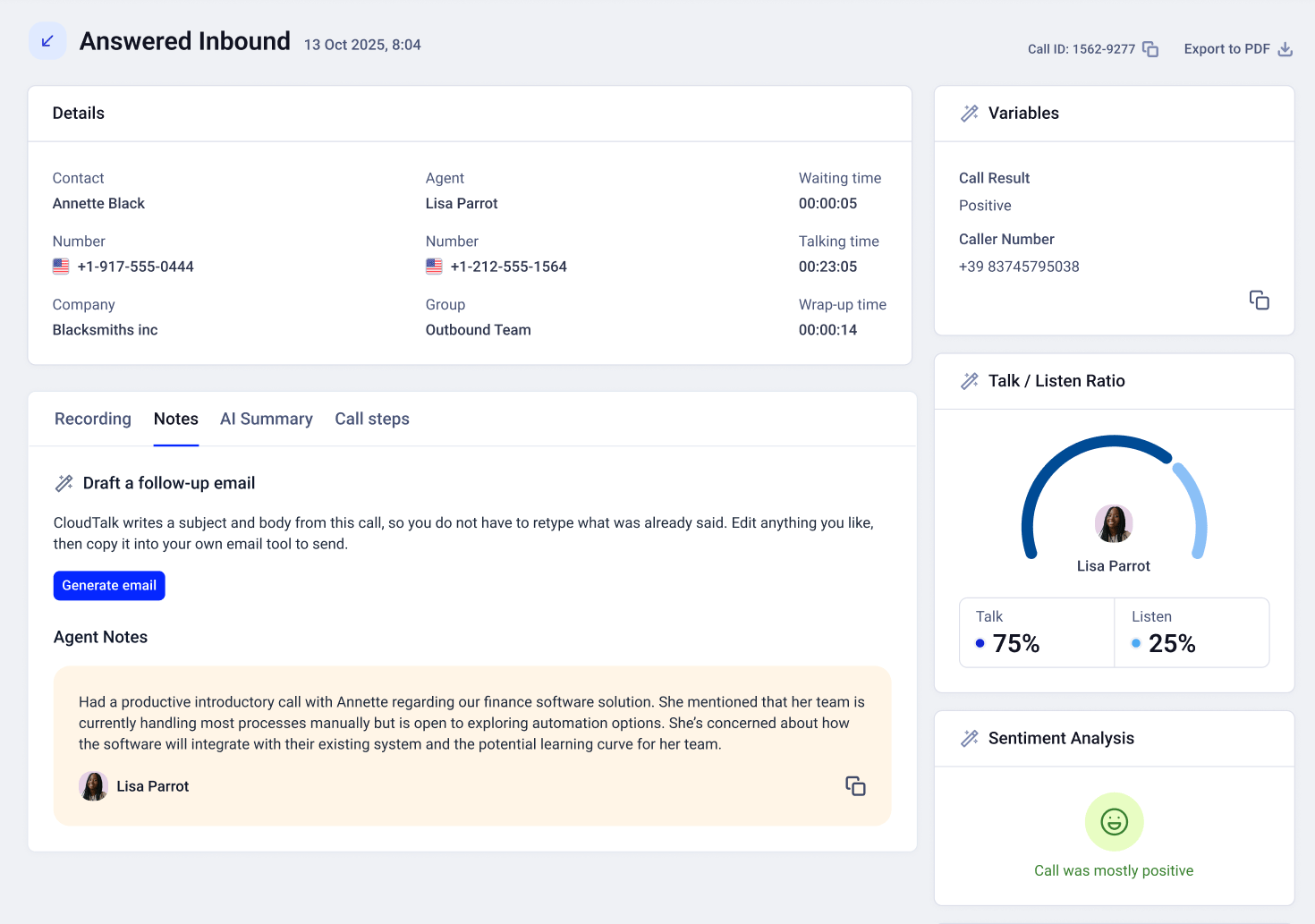
FAQ
- Does CloudTalk send the email for me? No. You copy the draft, or open it in your email app, and send it yourself.
- What is the draft based on? Only the call itself: the transcript, the AI summary and the action items. If something was not said on the call, it is not in the draft; where a detail is missing you get a placeholder to fill in.
- Can I turn drafts off without leaving CI Plus? Yes. Switch off Auto-Generated Follow-up Emails under Notes & Tagging.
- What happens if I switch back to CI Basic? Follow-up emails are part of CI Plus and are no longer available on CI Basic. Upgrade again to get them back.
Need help or have a question? Just reach out through our Support portal — we’re here for you.