

Three-way calling lets an agent bring a third person into an active call: a colleague, a supervisor, an interpreter, or an external contact. Everyone hears everyone, and the agent who started the call can step out while the other two keep talking.This article explains how to start a three-way call, what happens when you leave or end it, and how recording works.
Three-way calling in CloudTalk Phone (desktop) and CloudTalk Go (mobile) runs on CloudTalk’s conference infrastructure, which is being enabled per account. If you do not see the Merge option described below, contact our Support team and we will switch it on for you.
How to Start a Three-Way Call
CloudTalk Phone (desktop)
- During an active call, open the on-call actions menu at the bottom of the app and click Add Call.
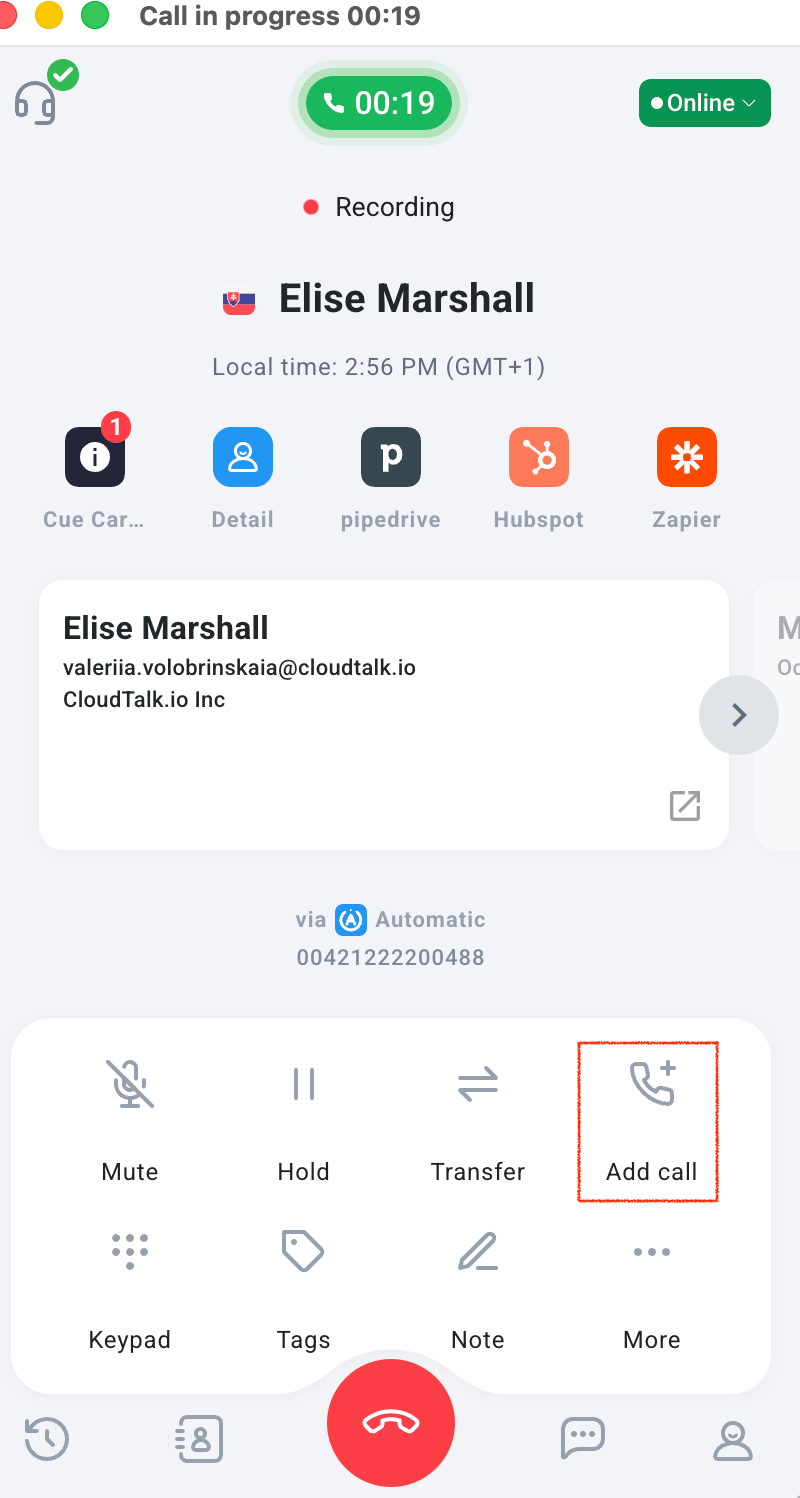
- Pick who to add. The list is organized the same way as for transfers: available agents and groups first, then external contacts.
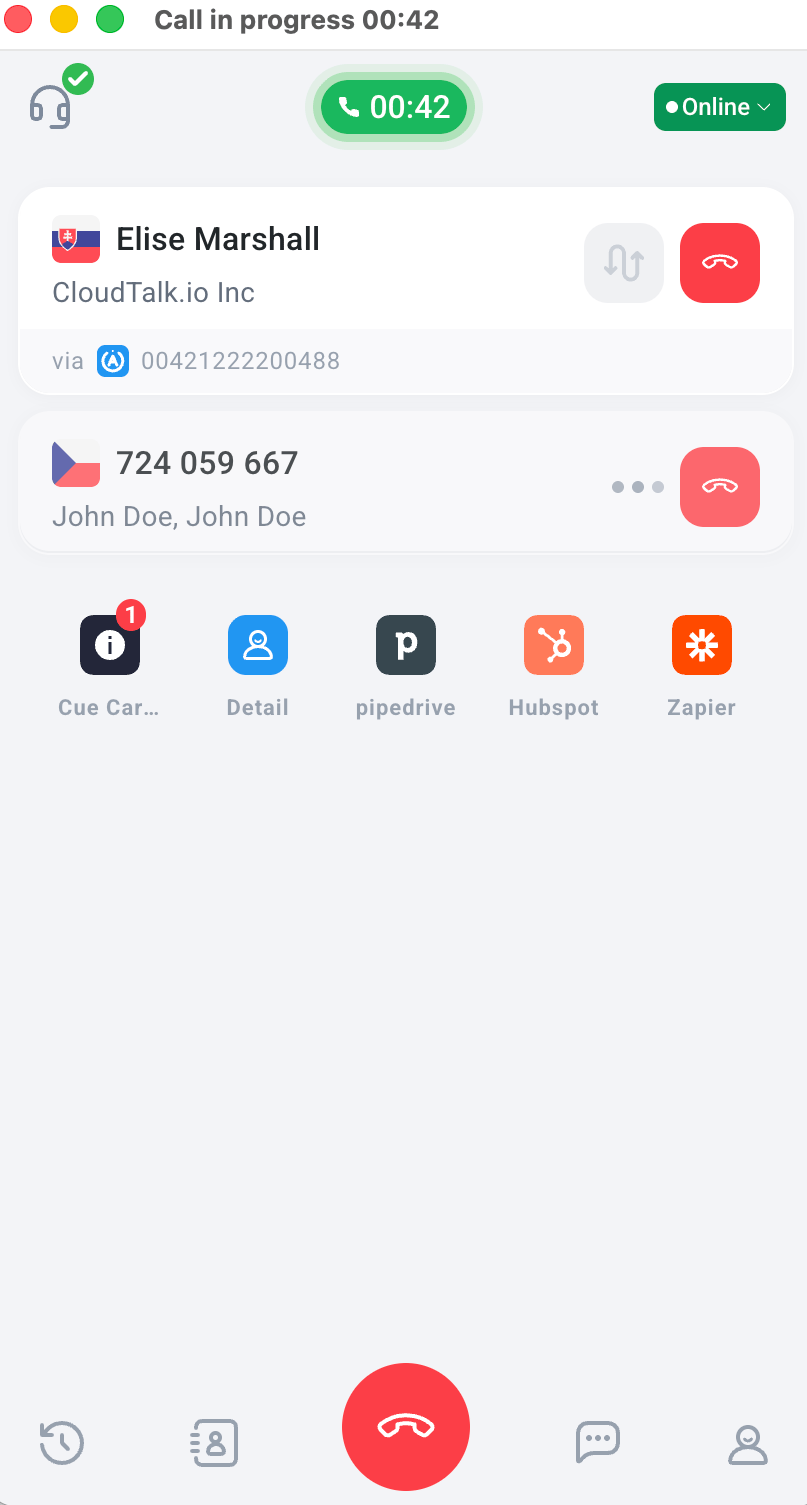
- The original caller is placed on hold while the second call connects.
- When the second call is answered, click Merge. All three participants are joined into one conversation.
CloudTalk Go (mobile)
- During an active call, tap Add Call and choose the participant.
- When the second call connects, tap Merge.
Who Is in the Call
Once the calls are merged, the app shows a live list of everyone in the conversation. The participant who is speaking is highlighted, so you can always see who is in the room and who is talking right now. On CloudTalk Go, the participants are also named in the call header and in the call summary.Leaving the Call vs. Ending It
When you started the three-way call, you have two ways out:- Leave Call: you drop off and the other participants stay connected and keep talking. Use this for handoffs, for example once you have introduced the customer to a colleague.
- End Call for Everyone: the conversation ends for all participants at once.
Mute and Hold
- Mute silences your own microphone. You still hear everyone else.
- Hold isn’t available in a three-way call. Once the calls are merged, the Hold button shows “Not available in a conference”.
Recording
- In Call History, the merged conversation appears as one entry labelled Conference, with its own recording. The recording covers the merged conversation, including any time after you leave.
- The calls you made before merging also appear in Call History as separate entries, each with its own recording.
- In Analytics, the Call Log also shows the merged conversation as one Conference entry.
- Recording follows consent. If a participant joins who has call recording switched off, recording stops for the whole conversation and does not restart on its own.
- Pausing or resuming recording during the call applies to the whole conversation, not to one participant.
- Notes and tags you add stay attached to the call after the merge.
FAQ
I am on a call with a customer and add a supplier. If I leave, is the rest of the conversation recorded? Yes. The recording continues until the last participant hangs up, as long as recording was not stopped by a participant who has it disabled. Can the person I added transfer the call somewhere else? Not yet. Only the agent who started the three-way call can merge, leave, or end it. Can I mute one specific participant? Not yet. Mute currently applies to your own microphone only. Does three-way calling work during a campaign in the AI Sales Dialer? Not yet. It works on regular inbound and outbound calls. Can I transfer the call while I am in a three-way conference? Not during the conference. Transfer is turned off while you are in a conference, and the button shows “Not available in a conference”. Leave the call or end it for everyone instead.Need help or have a question? Just reach out through our Support portal, we are here for you.