

The Network Diagnostics feature helps you understand how your internet connection and audio devices affect call quality in real time.In this article, you’ll learn how to access Network Diagnostics, what the different metrics mean, and how to use this information to troubleshoot call quality issues
Network Diagnostics is especially useful if:
- You experience choppy audio, robotic sound, call delays, or dropped calls
- You want to check your connection before starting your shift
- You manage a team and need better visibility into recurring call quality issues
- You want to confirm whether a problem is related to your internet connection
Two Ways to Access Network Diagnostics
You can open Network Diagnostics in two different ways, depending on whether you are on a call or not.From Settings (Before or Between Calls)
If you want to check your setup before making calls:- Open the Desktop app
- Go to Settings
- Select Troubleshooting
- Click Check your network status under Network Diagnostics
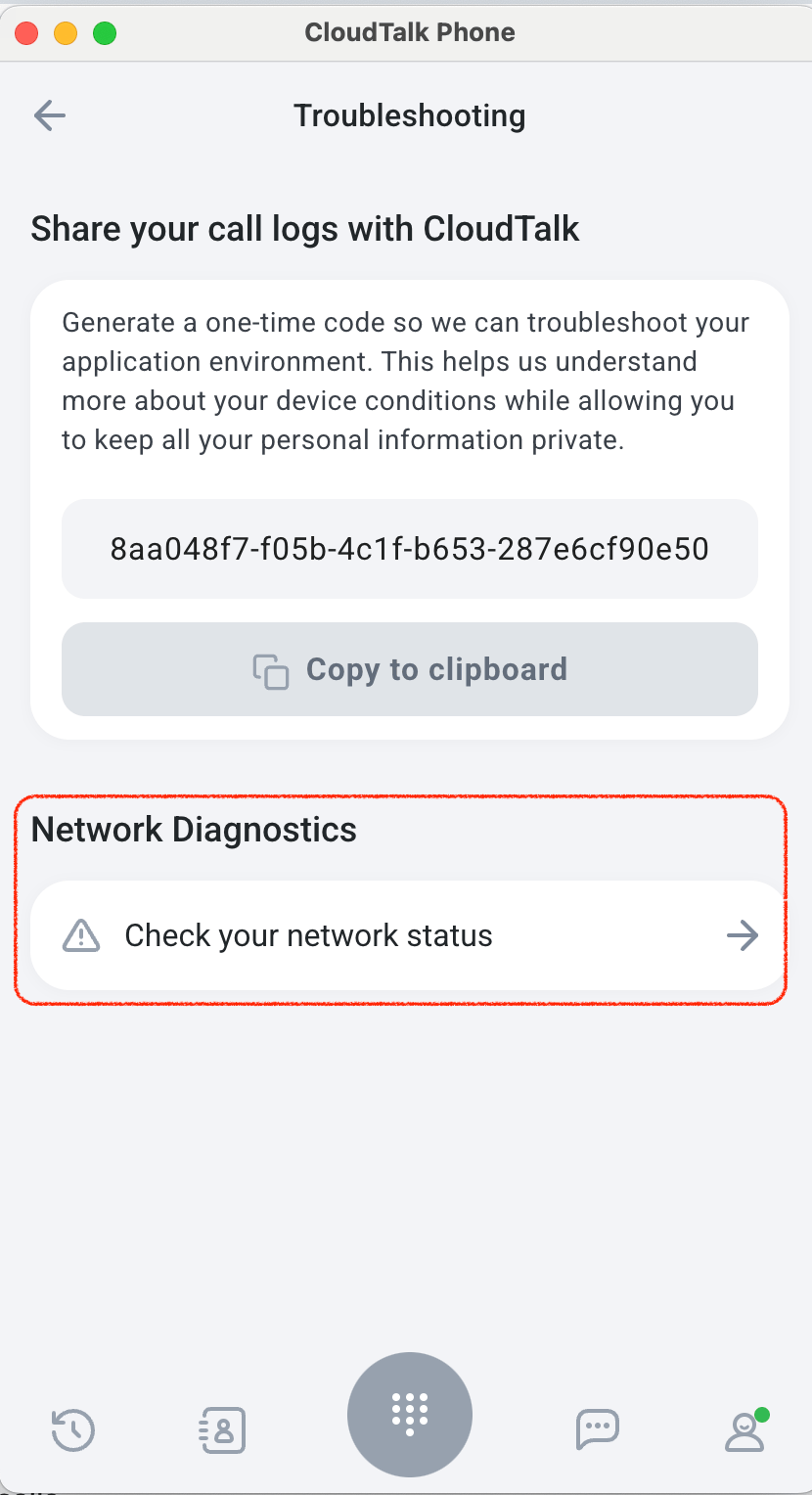
During a Live Call
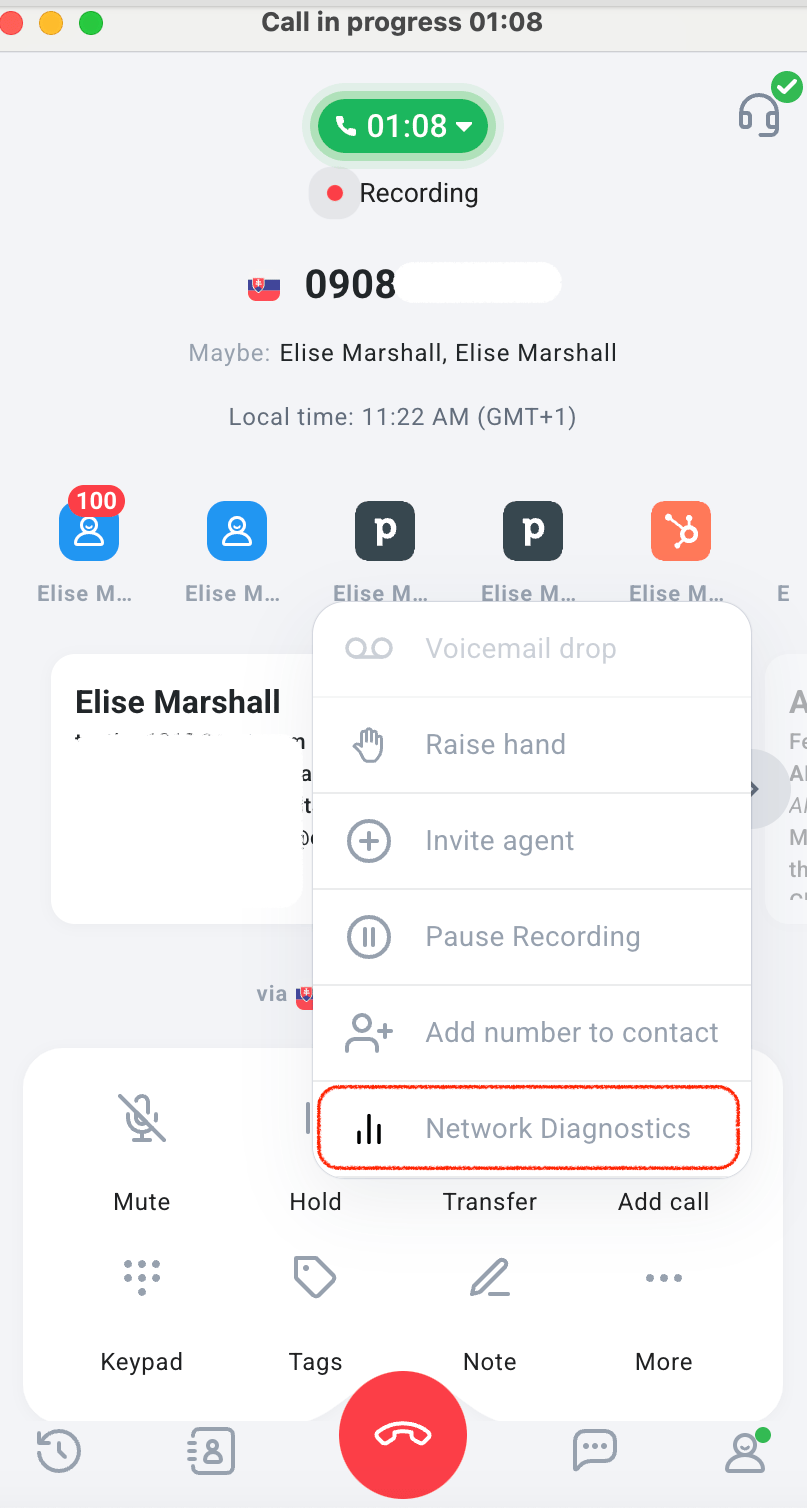
If you are already on a call, you can open Network Diagnostics directly from the call screen:- Click More
- Select Network Diagnostics
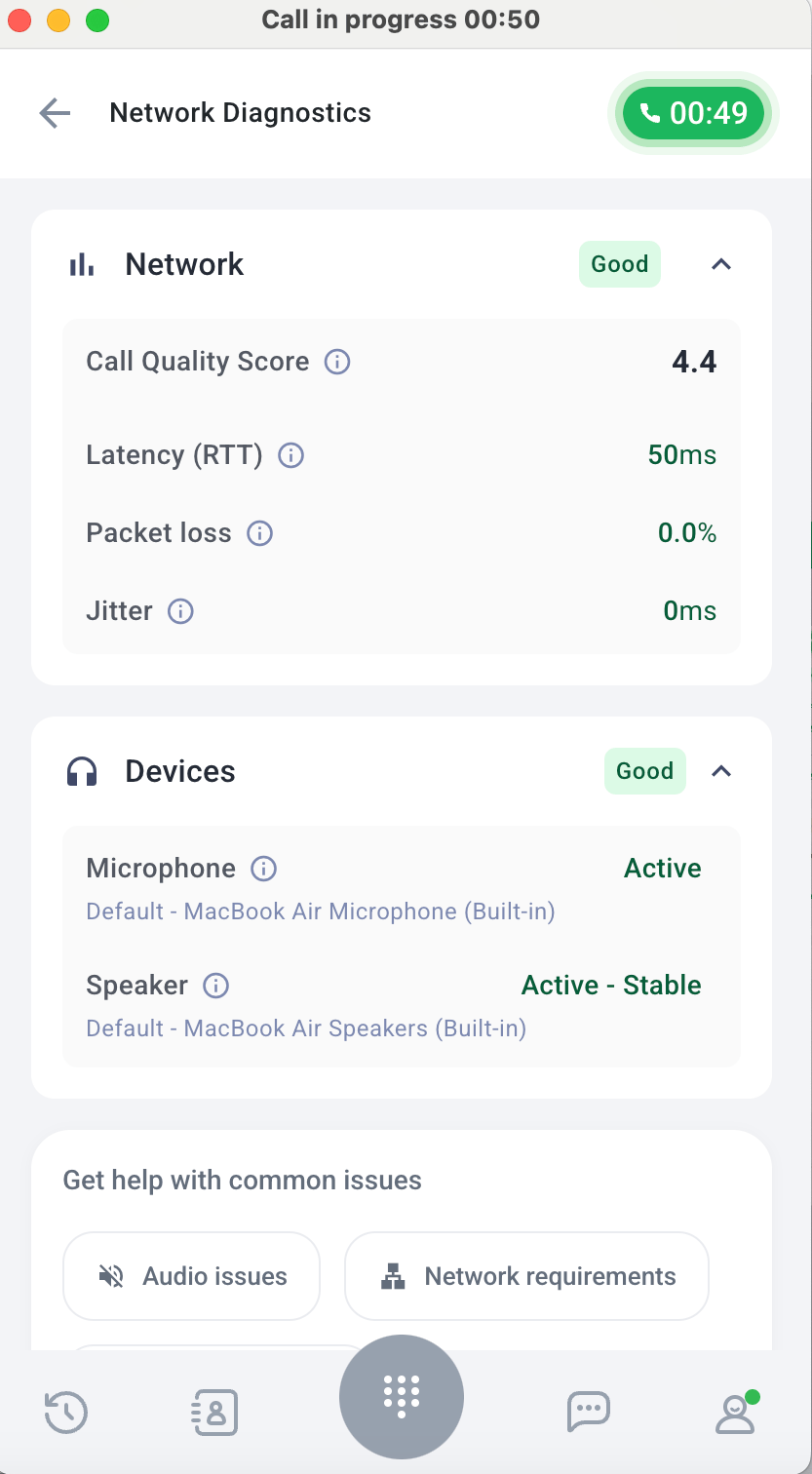
- Real-time network metrics
- Audio device status
- The Call Quality Score for the current call
What You Can See in Network Diagnostics
Network Section
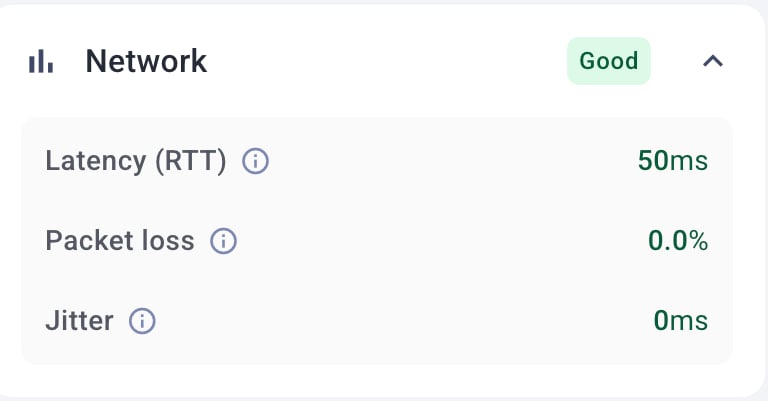
The Network section gives you a real-time view of how your internet connection is performing. At the top, you’ll see an overall status label such as Good, which provides a quick summary of your current connection quality. Below that, you’ll find three key metrics that directly affect call quality.- Latency (RTT) is measured in milliseconds and shows how long it takes for data to travel to the server and back. If latency is too high, you may notice delays in conversation, where people start talking over each other or responses feel slightly out of sync.
- Packet loss is shown as a percentage and represents how much audio data fails to reach its destination. When packet loss increases, parts of the conversation may cut out, sound distorted, or become robotic.
- Jitter, also measured in milliseconds, reflects how much your latency fluctuates. Even if latency is acceptable overall, high jitter can make audio sound choppy or unstable.
Devices Section
The Devices section shows the current status of your audio hardware, so you can confirm everything is set up correctly before or during a call. Here, you’ll see the status of your microphone and speaker, along with the exact devices currently selected in the app. For example, your microphone may show as Active, and your speaker may show as Active – Stable. If a device becomes disconnected or unstable, the status will update accordingly, helping you quickly identify and resolve the issue.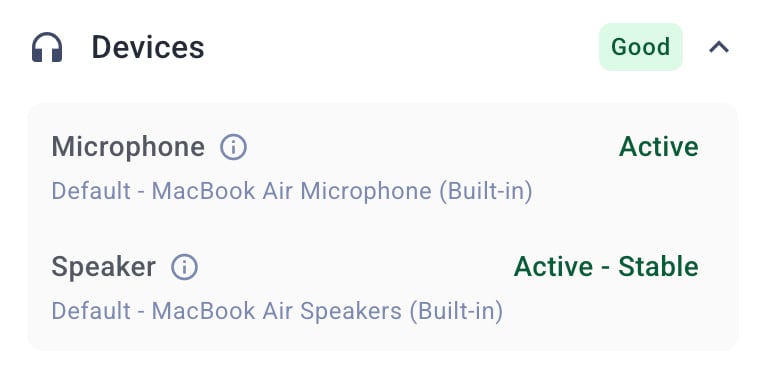

What Happens If There’s a Problem?
If your network performance drops during a call, you may see a warning banner at the top of the screen. When this happens, a warning message appears below the metrics explaining what is affecting the call.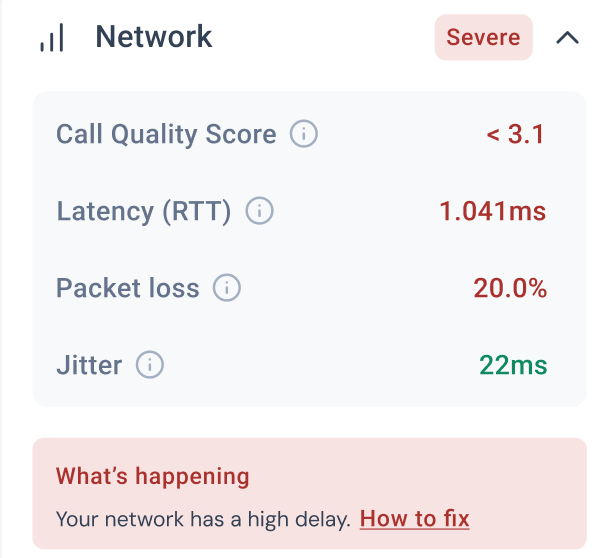
Need help or have a question? Just reach out through our Support portal — we’re here for you.