

This article explains the basic requirements for making and receiving calls in CloudTalk and walks you through the available calling options so you can get started smoothly.
Before You Start
To make or receive calls in CloudTalk, make sure the following requirements are met:- At least one CloudTalk phone number is added to your account
- At least one user is assigned to that phone number
- You are logged in to your CloudTalk account
- Your status in the CloudTalk Phone app is set to Online
How You Can Make and Receive Calls
CloudTalk gives you three ways to handle calls. You can choose the option that best fits your workflow.CloudTalk Desktop App (Recommended)
The CloudTalk desktop app provides the best performance and calling experience. It supports all calling features and offers the most stable audio quality. Use the desktop app if you:- Make or receive calls frequently
- Work in sales or customer support
- Need the most reliable call quality
CloudTalk Mobile App (CloudTalk Go)
The CloudTalk Mobile app lets you make and receive calls from your mobile device. It’s ideal if you need to stay reachable while away from your desk. Use the CloudTalk Go app if you:- Work remotely or on the go
- Need mobility and flexibility
- Want to receive calls on your mobile device
CloudTalk Go for Android: Requirements and Setup.
CloudTalk Web Interface
You can also make and receive calls directly from your browser using the CloudTalk web interface. This option is useful if you cannot install the desktop app or need temporary access. Keep in mind that call quality in the web interface depends heavily on:- Your browser
- Your internet connection
- Your microphone and audio settings
CloudTalk CTI (Embedded Calling)
CloudTalk also offers CTI (Computer Telephony Integration), which allows you to make and receive calls directly inside supported CRMs and helpdesk tools. The CTI provides a lightweight embedded calling interface without needing to switch between apps. Learn more about supported CTIs and how they work here: CloudTalk CTI.Making Your First Call
-
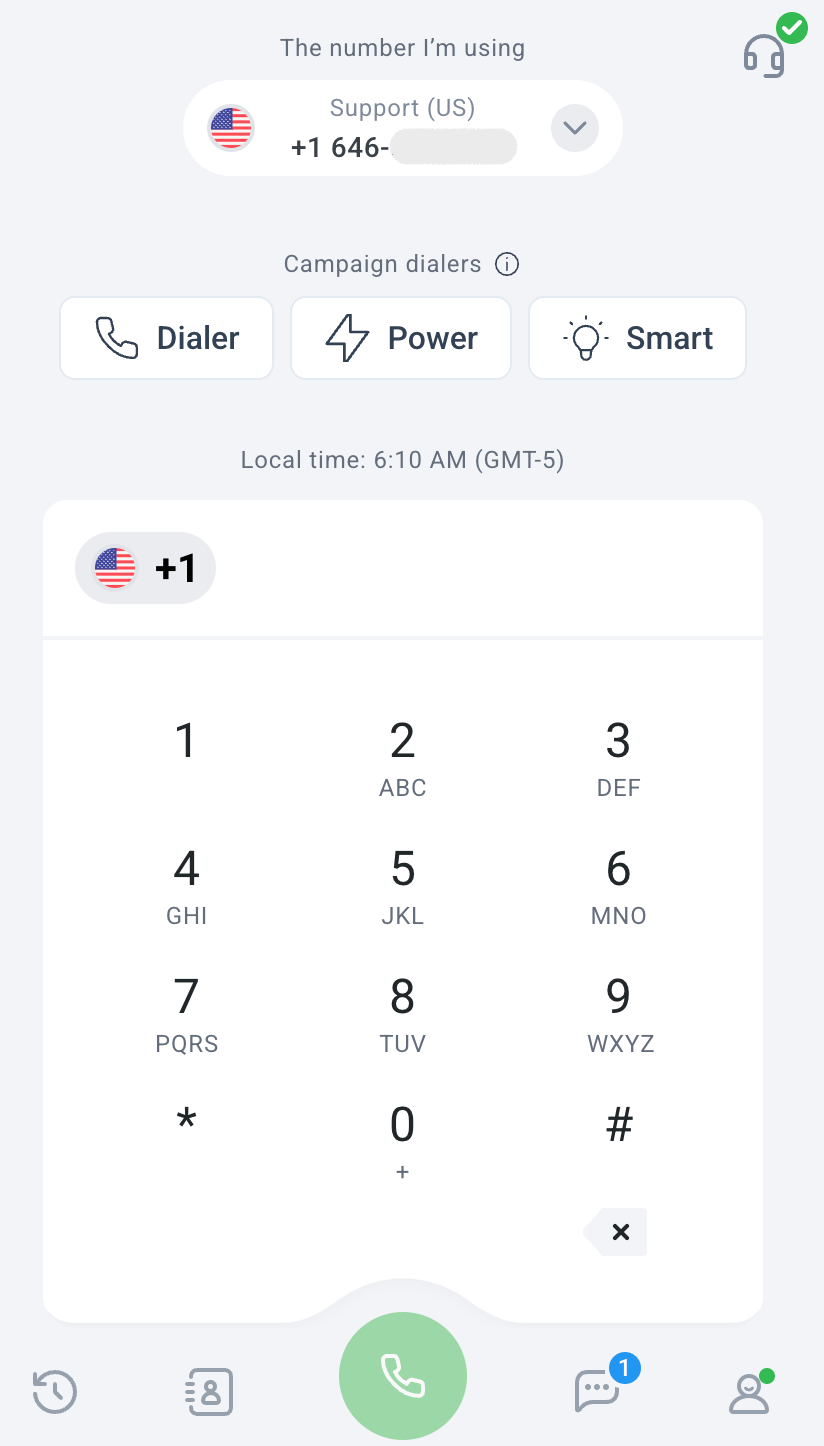
Open CloudTalk Phone
Sign in to the CloudTalk Desktop app, CloudTalk Phone (mobile) app, or the web interface.
-
Make sure your status is Online
in the bottom-right corner, make sure your status is set to Online.
If your status is Offline, you won’t be able to make or receive calls.
-
Check which number you’re calling from
At the top of the calling screen, you’ll see The number I’m using.
Click or tap it to select a different CloudTalk number if more than one is available.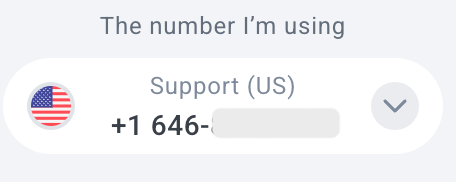
-
Enter or select a phone number
You can:
- Type a phone number directly using the on-screen keypad, or
-
Click the Contacts icon in the bottom-right corner of the app to open your contact list. From there, you can search for an existing contact and place a call directly.

- Start the call Click or tap the green Call button at the bottom of the screen to place the call.
Tip: For your first test call, we recommend calling a teammate to confirm your audio and connection are working correctly.All calls made between CloudTalk users within the same company are free of charge.You can call your teammates by:
- Selecting them from your Contacts > List, or
- Dialing their extension number (for example: 1001, 1002, 1035)
Receiving Calls
Incoming calls will ring automatically when:- You are online
- You are assigned to the number or group receiving the call
- The call falls within configured business hours
- Your online status
- Number and group assignments
- Business hours and call routing settings
Recommended Next Steps
To improve call quality and avoid common issues, we strongly recommend reviewing these guides:- System & Network Requirements
- Configuring your microphone and speakers
- Quality of Service (QoS) configuration
Need help or have a question? Just reach out through our Support portal — we’re here for you.