

This article covers how to use the main features of the CloudTalk-Intercom integration.
Calling from Intercom
Make outbound calls
You can initiate calls to Intercom contacts directly from CloudTalk Phone using the Click-to-Call Chrome extension. When installed, all phone numbers displayed in Intercom are converted into clickable links — a single click opens a call in CloudTalk Phone without any manual dialing. Note: We recommend disabling other Chrome extensions or telephony providers, as these may interfere with Click-to-Call.Call logging and data exchange
Contact sync
Contacts are synced two-ways between CloudTalk and Intercom. The tables below describe field mapping for new contacts and for updates to existing contacts.New contacts
Updating existing contacts
Call logging and export
Calls can be logged in Intercom either as Conversations or as Events. The option you select affects whether a conversation dialogue is opened with the contact and how missed calls are handled. Configure this in Settings > Integrations > Intercom > Workflow Settings.Calls as Conversations
Logging calls as conversations allows agents to open a conversation dialogue with Intercom clients who call in, and this includes options for missed calls. The opened conversation provides convenient tracking and access of necessary client information.Call Recordings
By toggling on the option to Export recording and customer links as notes in Integration Settings, a link to both a CloudTalk call recording and CloudTalk contact will be saved as a note for the calls of all Intercom conversations. You can access the call recording by clicking the button to Listen to recording. Access the CloudTalk contact profile by clicking View customer in CloudTalk.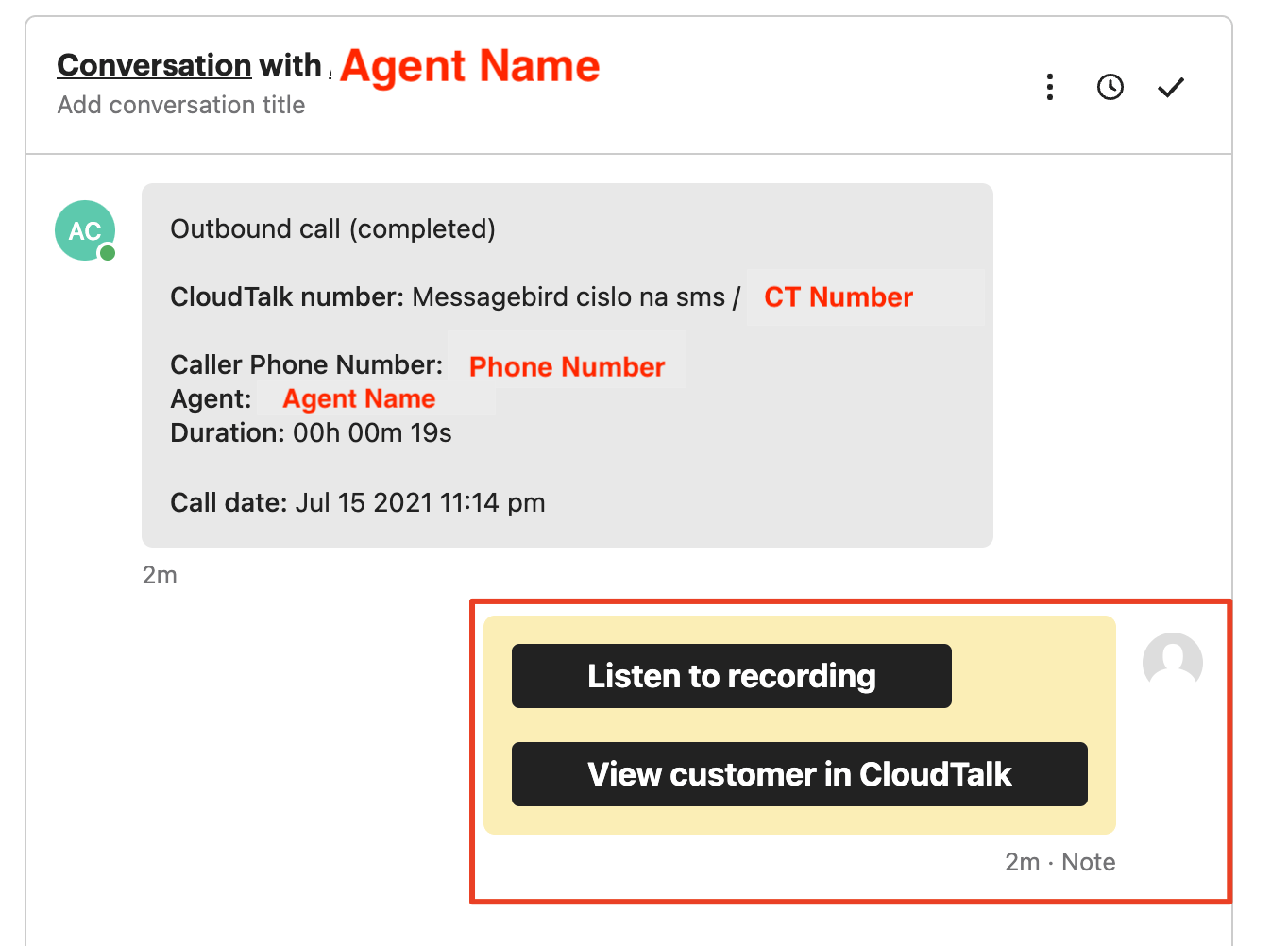
Answered Calls
At the completion of a call in your CloudTalk Phone, a new conversation is created in Intercom. The caller is added to this conversation, which will include a message with all call information. Notes with any CloudTalk tags or call notes are generated automatically.What Happens
Imagine a client named Jane Jones who has just called CloudTalk support. The agent she connects with adds the Support tag to her call and makes a note as the call is in session. Then, on the post-call wrap-up screen, the agent adds more notes and a Support ticket created tag before moving on to the next caller.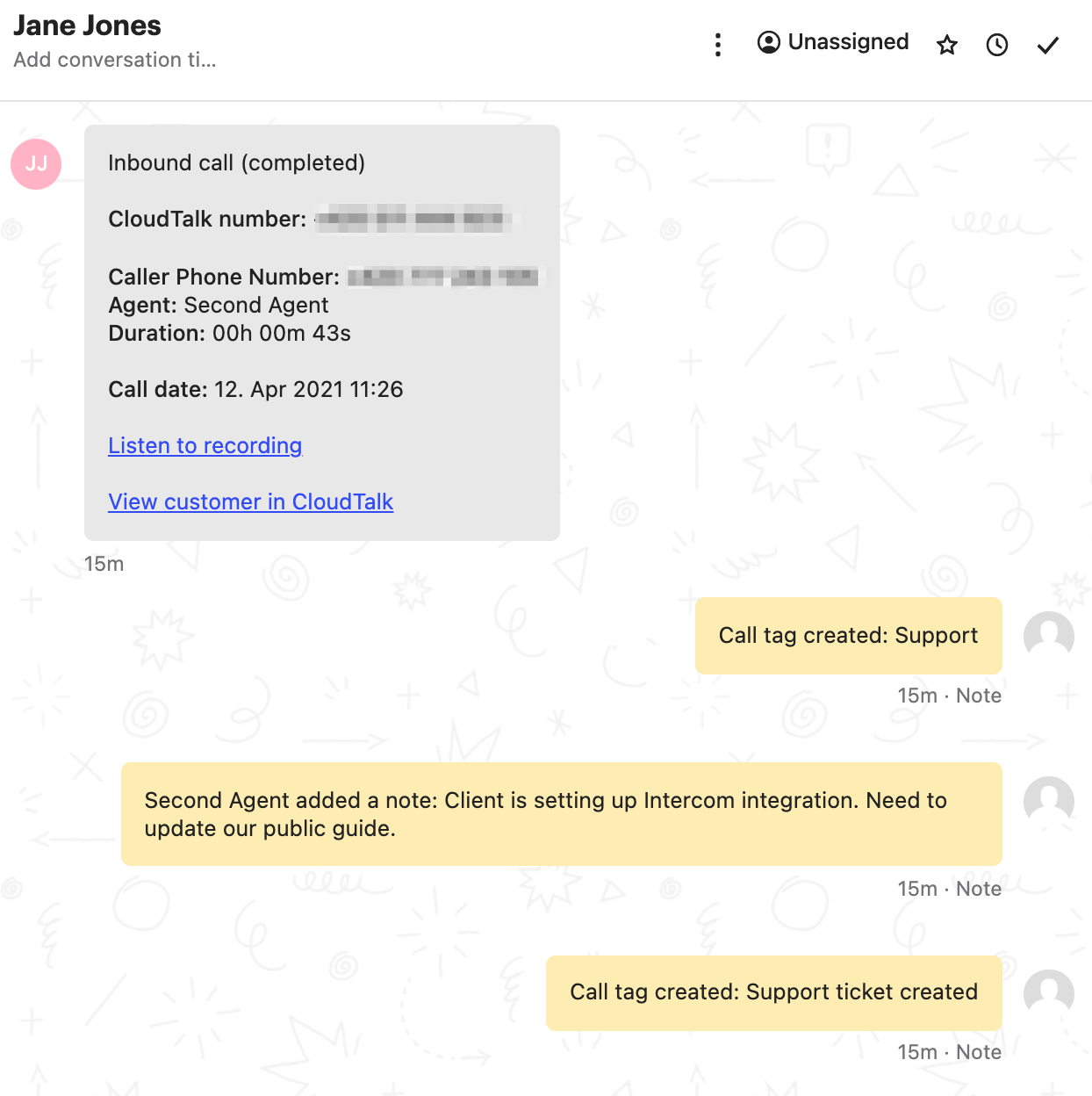
- A new conversation will be created within Intercom, with Jane Jones added
-
Three notes will be added to this conversation -
- The Support tag added
- the notes written during and after the call
- and the Support ticket created tag
-
Finally, there will be a message, including -
- Call type > Inbound call (completed)
- CloudTalk number > number reached by Jane
- Caller Phone number > Jane’s phone
- CloudTalk agent > Who answered the call
- Call duration
- Call date > Start date and time
- Call Recording
- Link to contact > on CloudTalk
Missed Calls
In the case of a CloudTalk call going unanswered, a new conversation will be created in Intercom with the caller added. Just as with received calls, a message with call information will be generated within the conversation.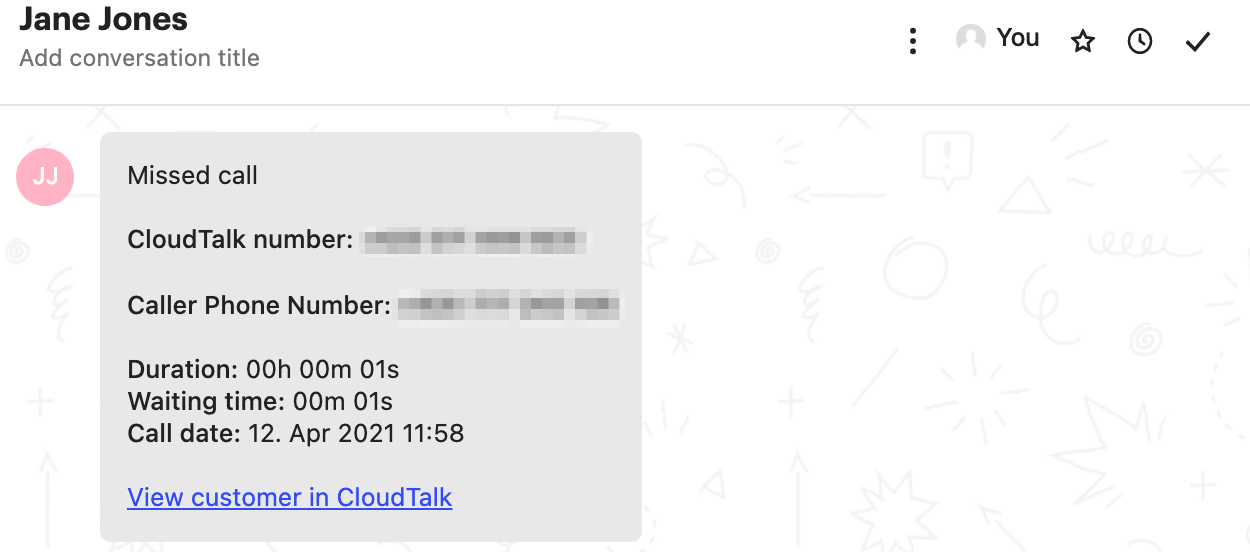
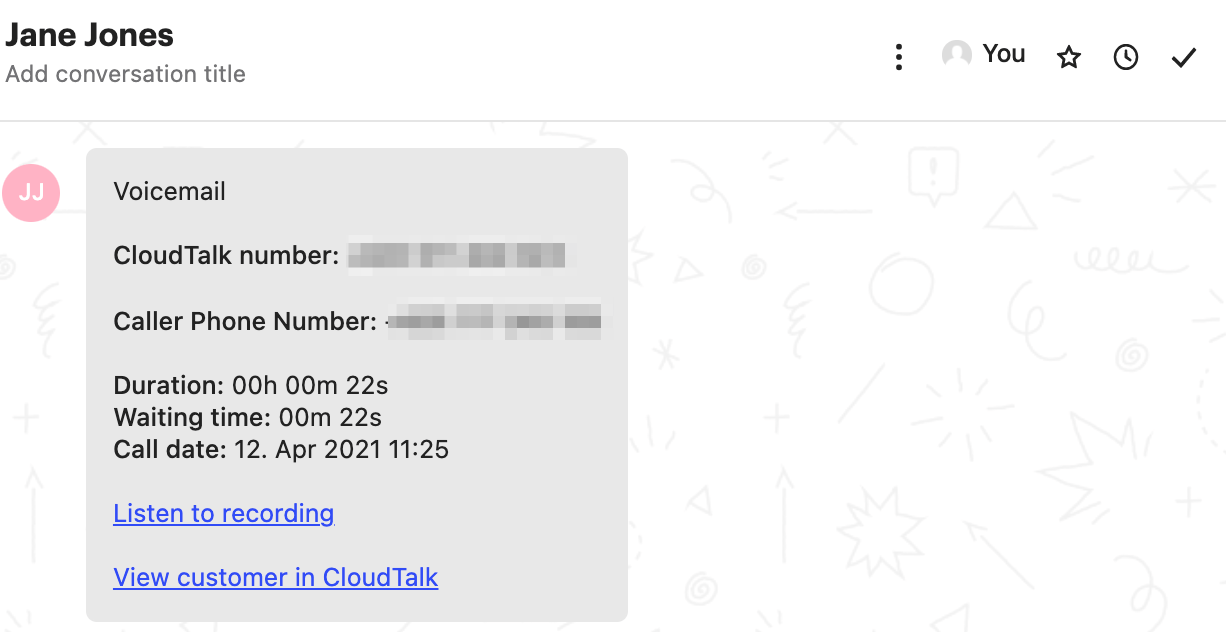
Calls as Events
Though this option will take away some of the benefits offered with logging calls as conversations, there may be a few cases in which it is the preferred option. Namely, in any situation where we do not want a conversation dialogue to be opened. An example of this would be if a business did not care to be notified when a missed call or voicemail was added to Intercom.Outbound Calls
Calls will still include the standard CloudTalk integration features, such as tagging, writing notes, evaluating customer mood, and rating call quality. During or after the call, tags may be added by the agent. After wrap-up tasks are completed, the call will be logged as an event within Intercom. By clicking on the Recent event detail, you can see all additional information, such as the call date, duration, and agent name.VoiceAgent Calls
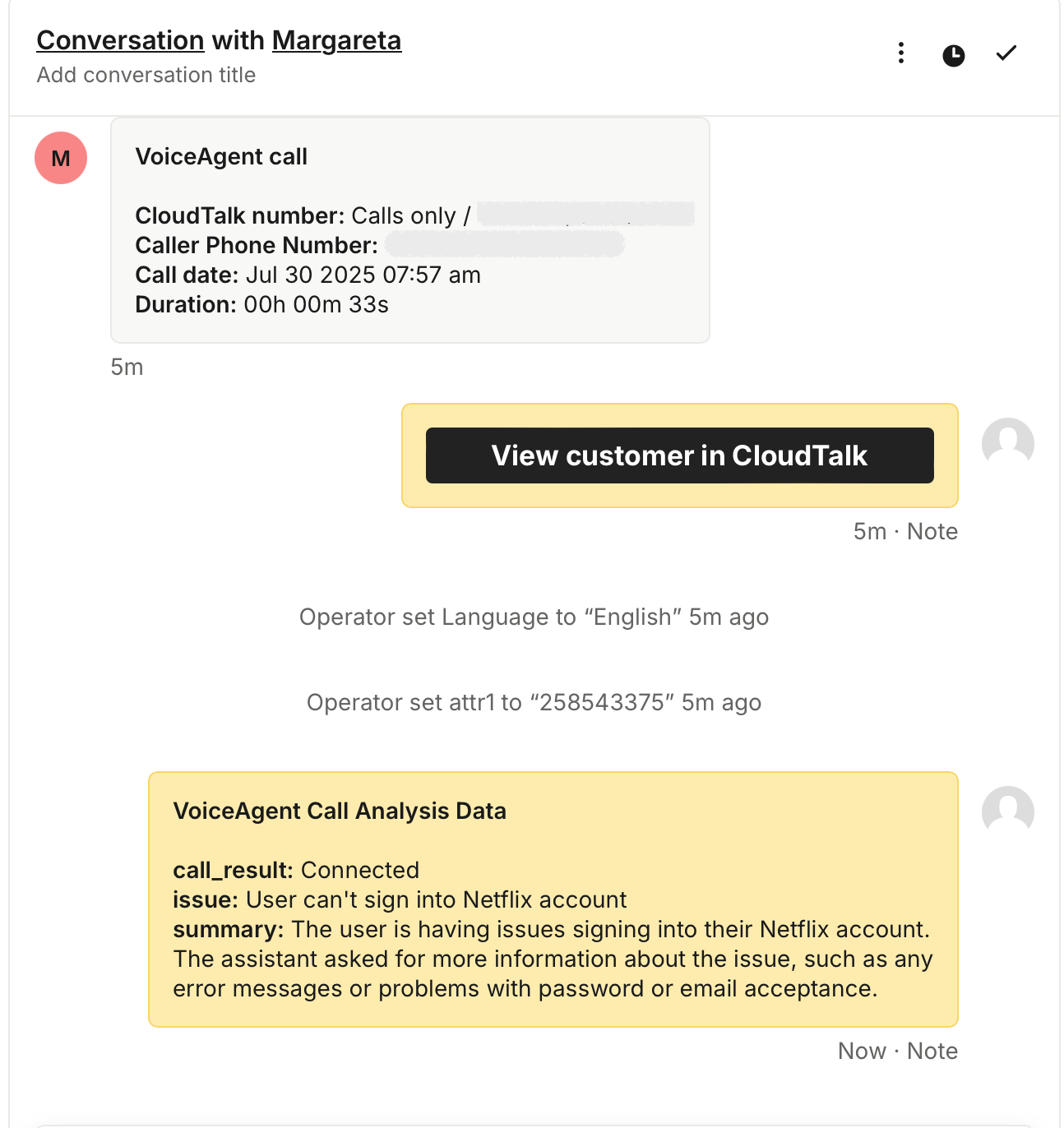
VoiceAgent calls are logged in Intercom just like any other calls, with the title “VoiceAgent call” for quick identification. When you configure a VoiceAgent with a call analysis prompt, CloudTalk extracts key details from the conversation, such as the issue described by the customer, a summary of the exchange, or custom data like language or order number.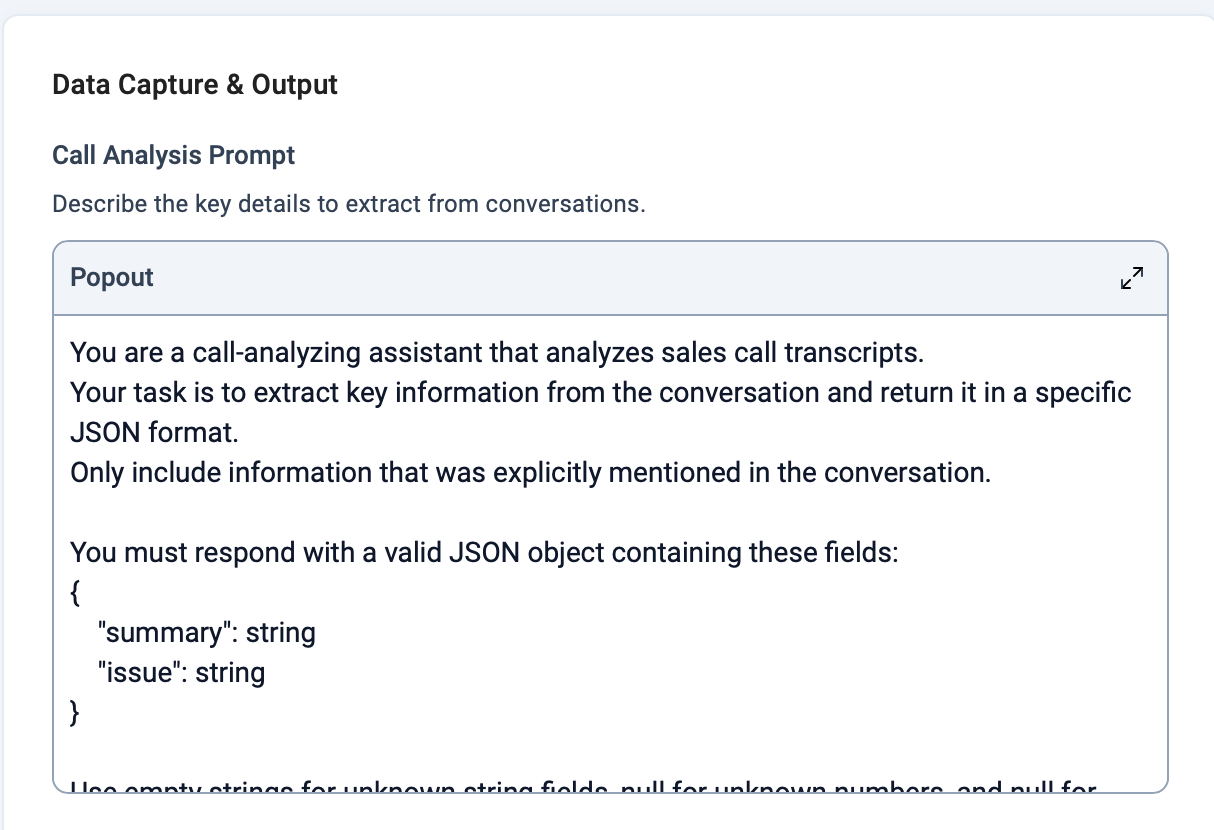
Export Conversation Intelligence data to Intercom
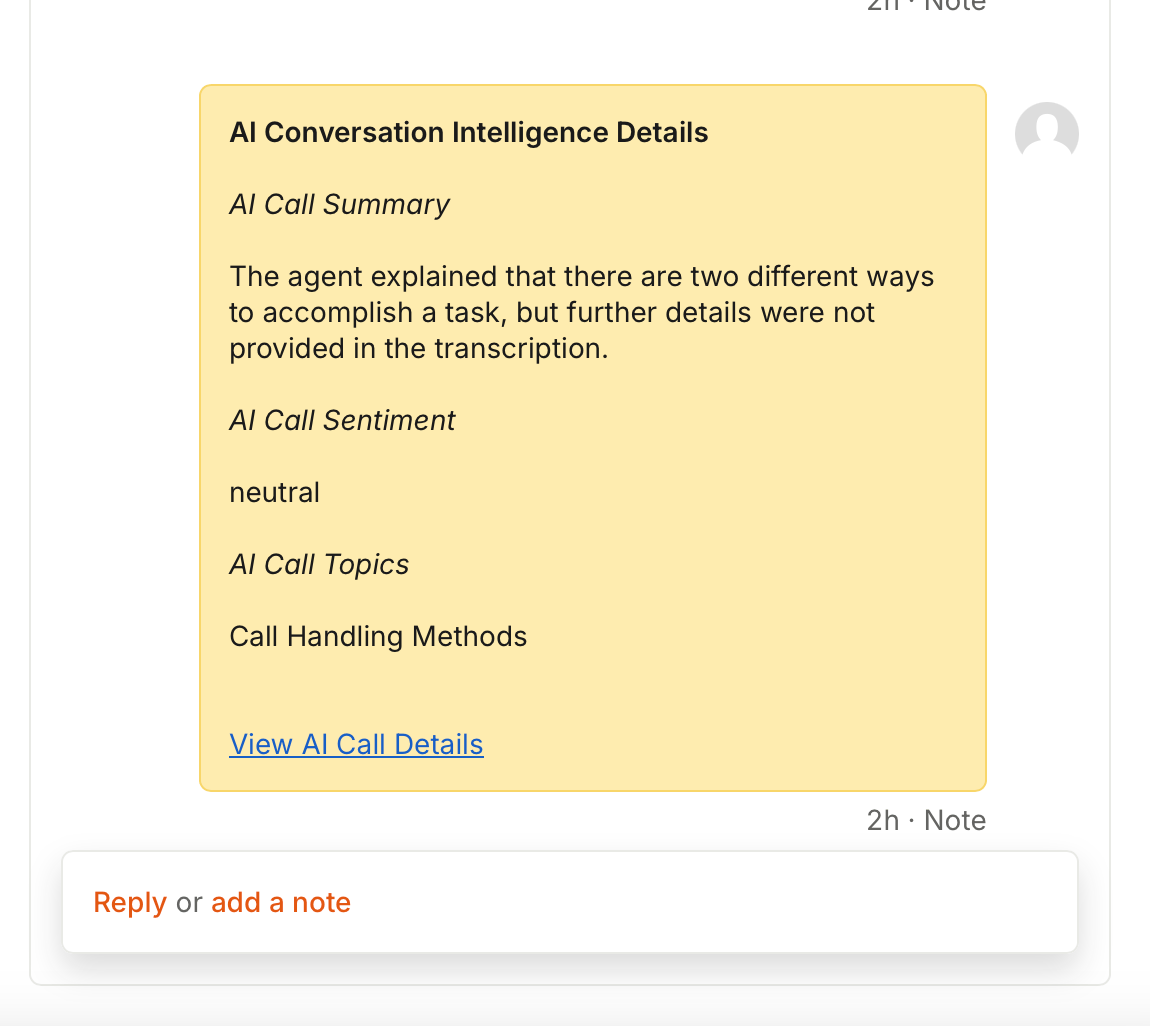
If you have Conversation Intelligence enabled, CloudTalk automatically exports AI insights to Intercom for supported integrations. CI data is automatically included when a call is logged in Intercom. The following data appears as part of the call record in the conversation:- Call summary
- Call sentiment
- Call topics
- A link to View AI Call Details
Need help or have a question? Just reach out through our Support portal — we’re here for you.