

This article explains how to use Zendesk together with CloudTalk to easily initiate calls and access customer information.
Watch how it works
To see the CloudTalk + Zendesk integration in action, watch this short overview:Calling from Zendesk
Make Outbound Calls
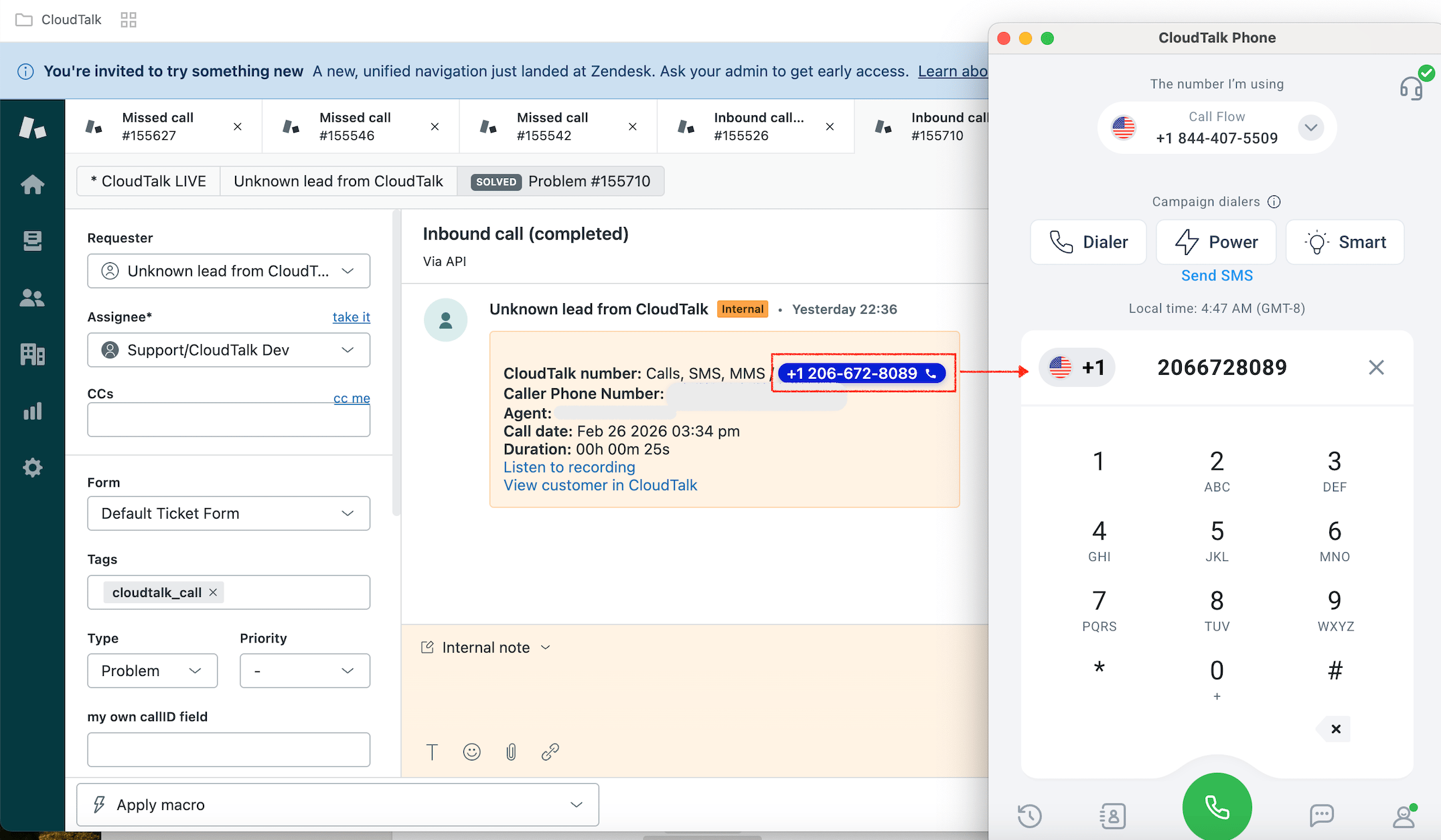
With CloudTalk CTI installed, agents can still initiate calls using Zendesk’s native call option. To place a call:- Right-click the phone number.
- Select Call this number.
- The CloudTalk CTI will automatically initiate the call.

- Contact profiles
- Ticket views
- Other supported Zendesk objects
Receive Inbound Calls
When an inbound call rings, CloudTalk’s CTI can automatically bring up the corresponding contact and their recent ticket history in Zendesk.- The CTI matches contacts based on phone number and integration data.
- If a match is found, CloudTalk opens the corresponding Zendesk entity based on your popup preference.
- If multiple matches are found, the contact with the most recently created CloudTalk call ticket is shown.
- If no contact can be identified, no ticket or page is opened.
What Opens in Zendesk on a Call
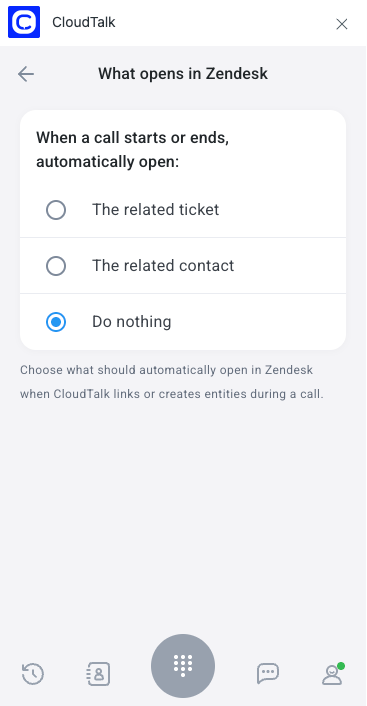
Each agent can configure what CloudTalk automatically opens in Zendesk when a call is linked or a ticket is created. This setting is personal, so every agent sets their own preference independently. To configure it, open the CloudTalk CTI in Zendesk, go to Profile > Zendesk CTI Settings, and select your preferred option under What opens in Zendesk.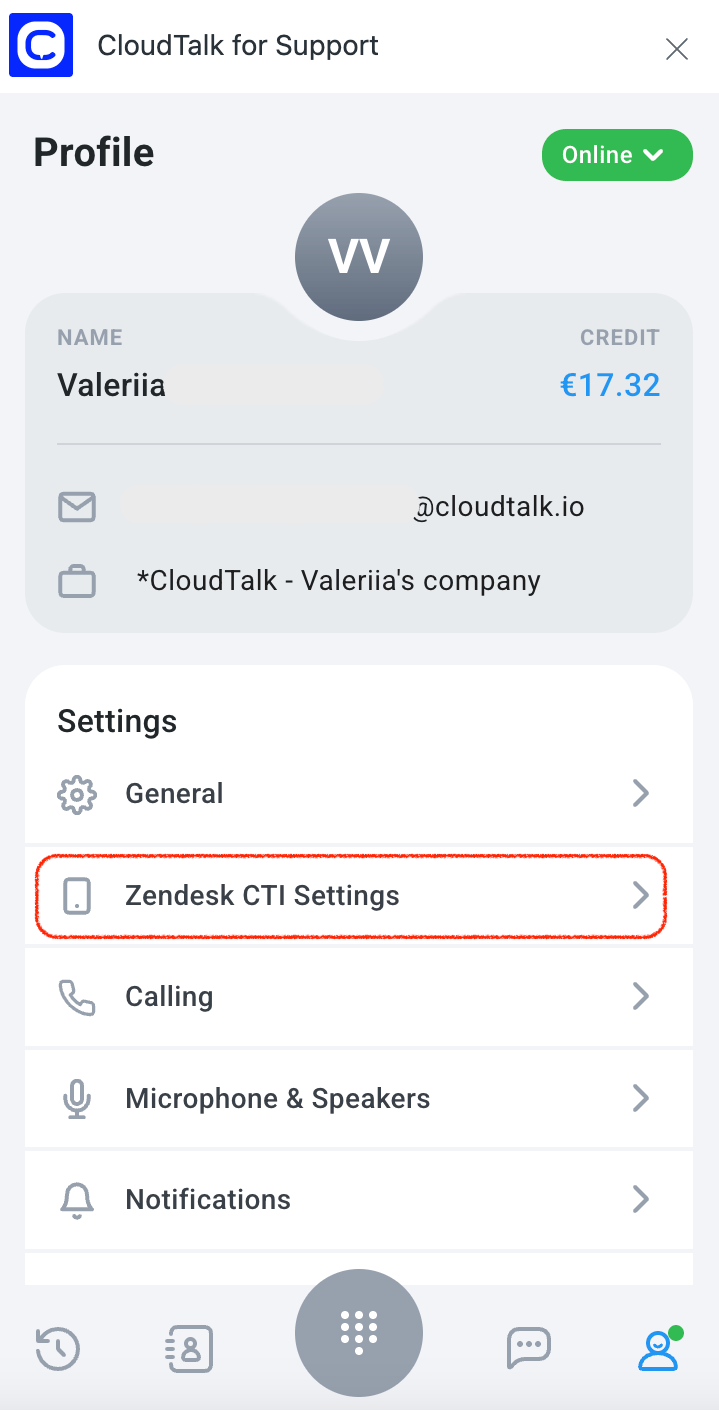
- The related ticket: opens the Zendesk ticket created or linked to the call (default)
- The related contact: opens the contact profile associated with the caller
- Do nothing: no page opens automatically
Call Logging and Data Exchange
Contact Sync
CloudTalk and Zendesk synchronize contact information to ensure proper call and message association. Contacts are matched based on phone number. When a match is found:- The Zendesk contact is linked to the CloudTalk contact.
- A direct link to the Zendesk profile is available inside the CloudTalk contact detail.
- The Zendesk integration tag is added to the contact in CloudTalk.
Call Logging & Export
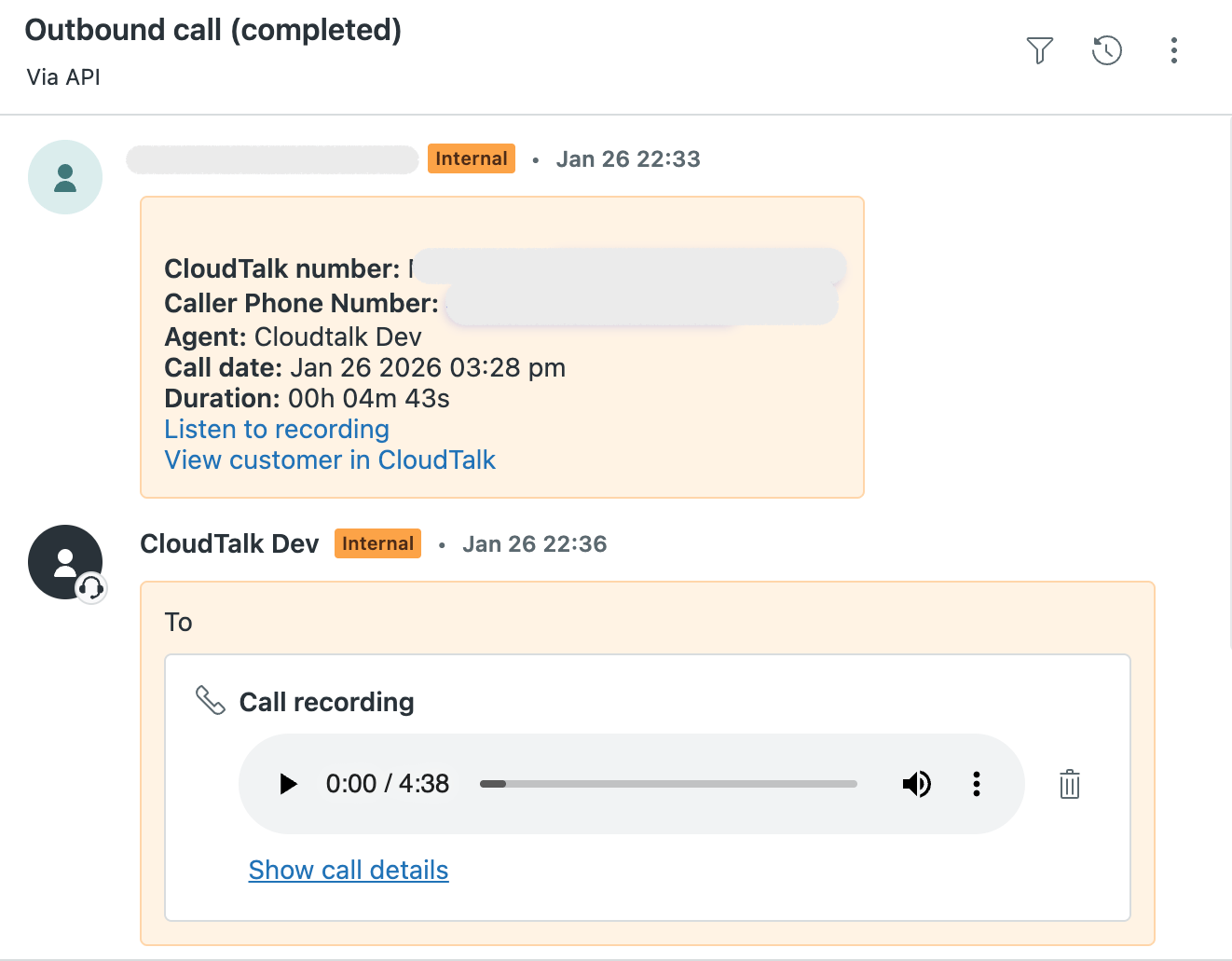
All calls handled via CloudTalk are logged as Zendesk tickets. Each logged call includes:- Call date and time
- Call direction
- Call duration
- Agent name
- Internal number (CloudTalk number)
- External number (customer number)
- Call result
- Call recording link (if enabled)
VoiceAgent Data Export
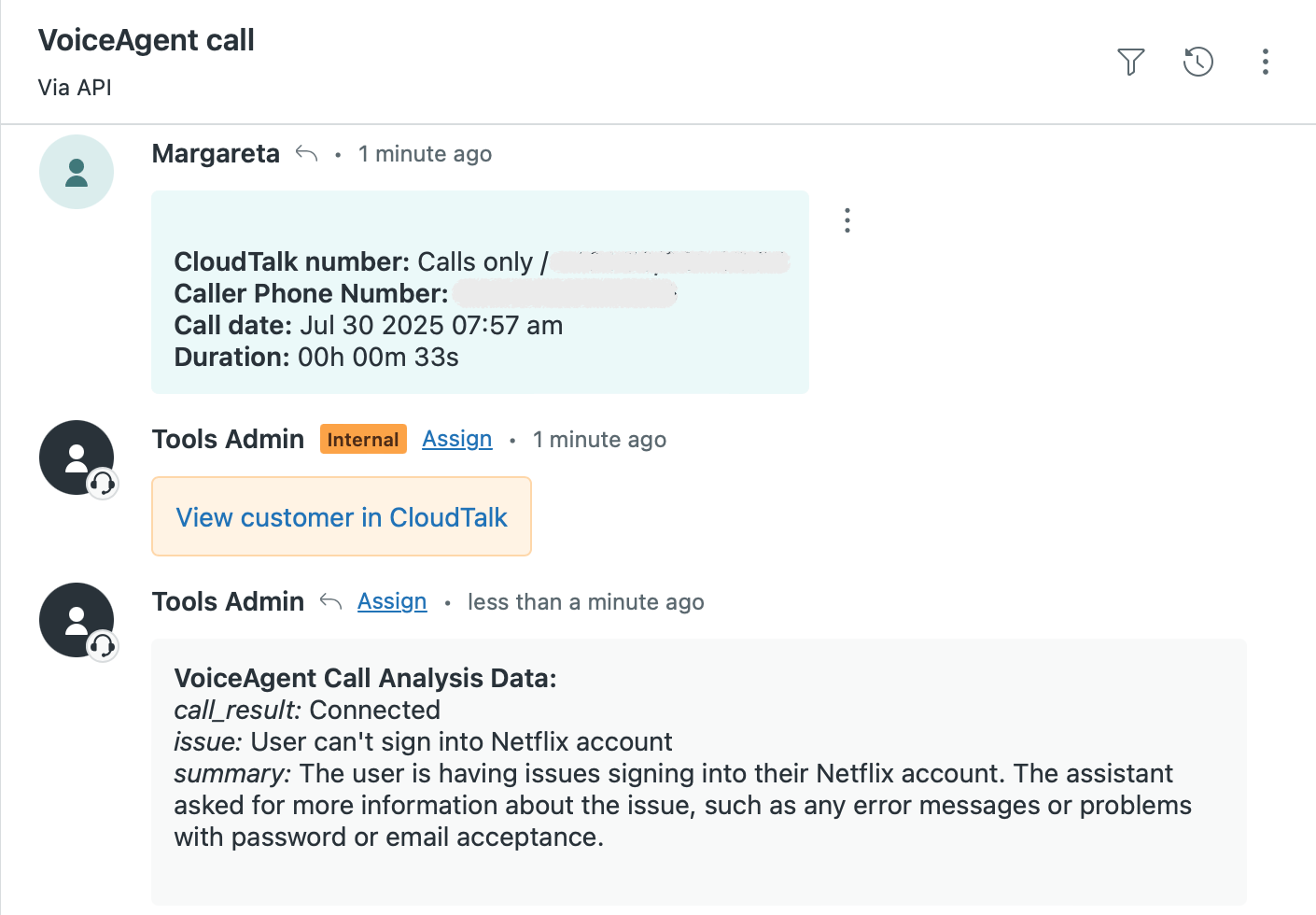
VoiceAgent calls are also logged as tickets in Zendesk and are clearly labeled with the title “VoiceAgent call” for easy recognition. In the call analysis prompt, you can specify which details the VoiceAgent should extract from the conversation. CloudTalk will then log the information you’ve defined, such as a summary of the issue, a specific problem the customer described, or custom data like an order number or preferred subscription plan.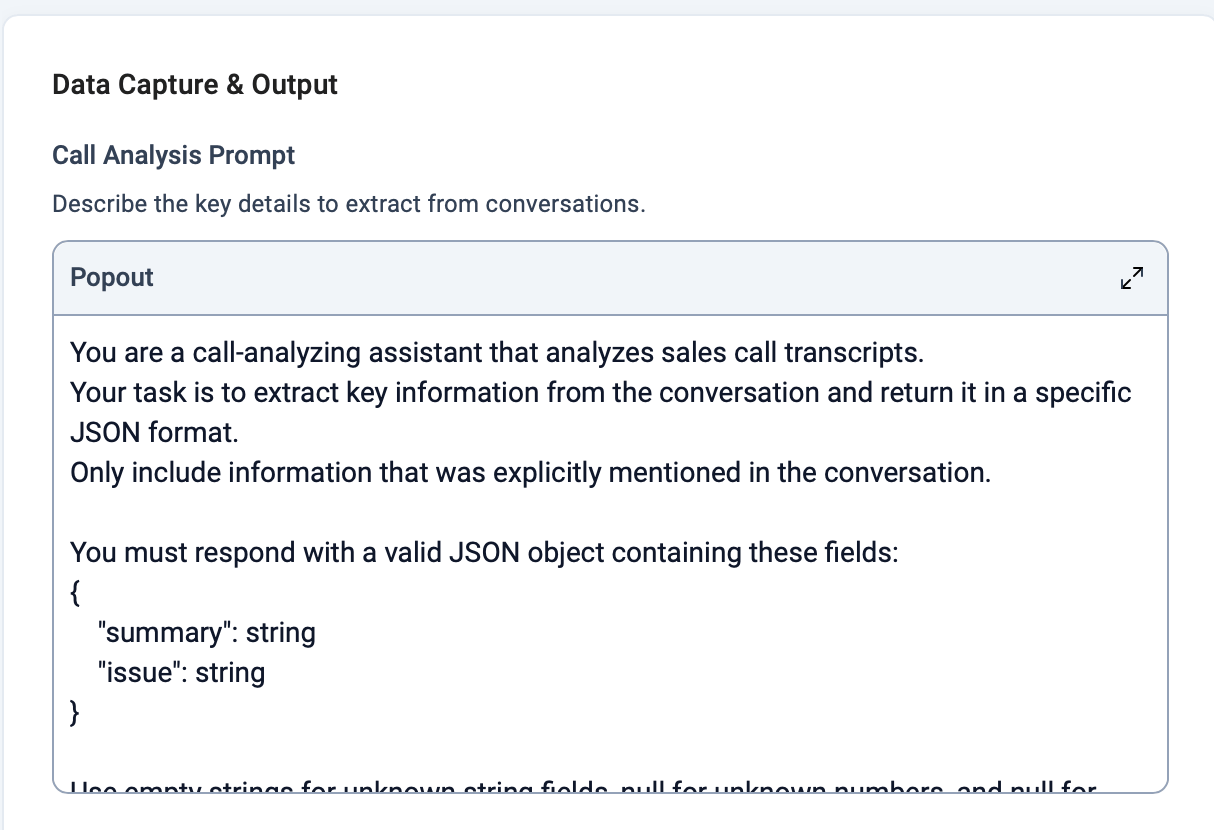
Conversation Intelligence Data Export
If Conversation Intelligence is enabled, AI-generated insights are automatically exported to Zendesk tickets. The following AI data may be included:- AI Call Summary: a structured summary of the conversation
- AI Call Sentiment: overall sentiment detected during the call
- AI Call Topics: detected discussion topics
- Link to AI Call Details: redirects to the full AI analysis in CloudTalk
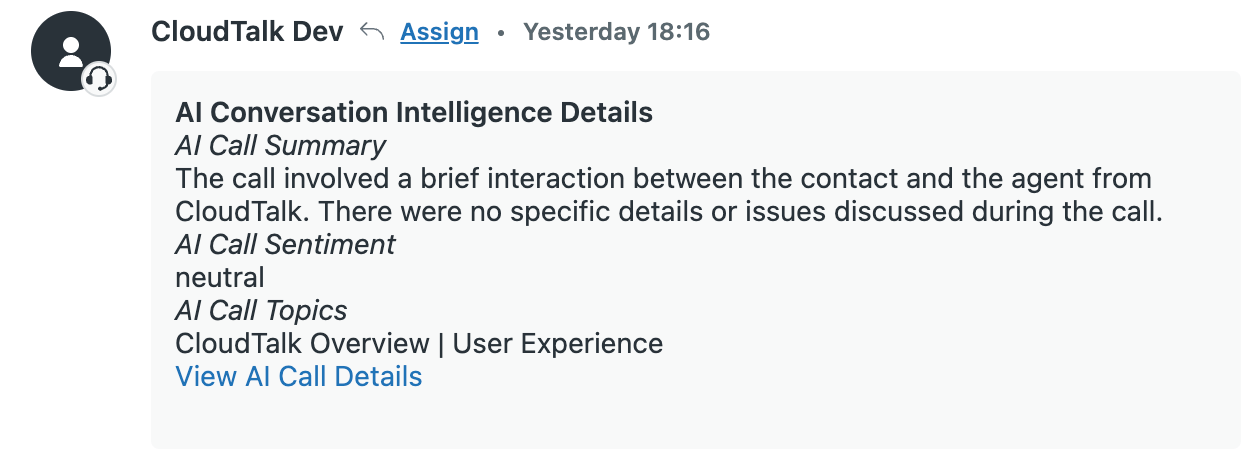
How Call Export Works in Zendesk
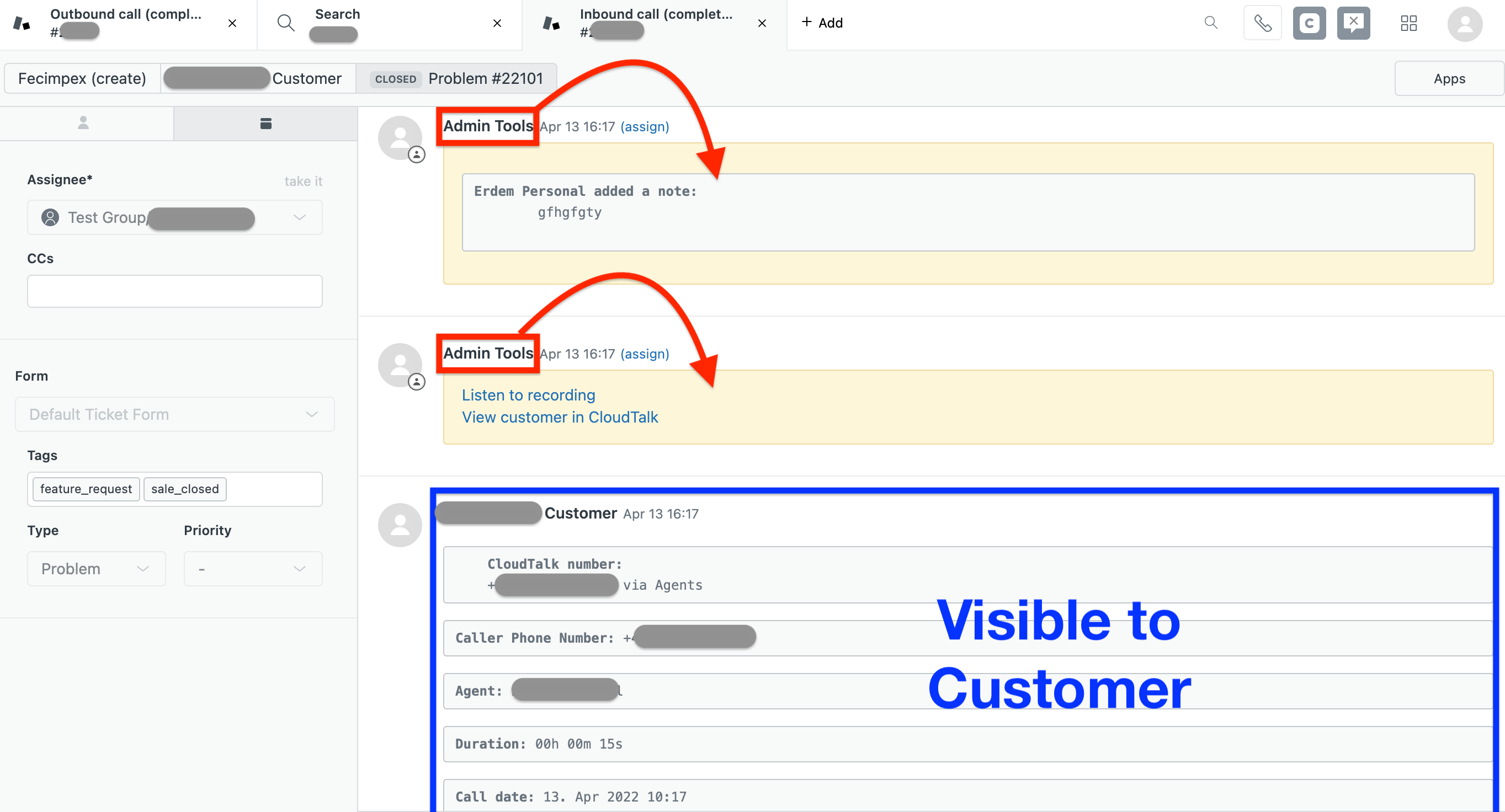
When you choose how call data should be exported, CloudTalk sends this information into Zendesk as internal notes. Internal notes do not notify the requester. This helps teams keep call data inside Zendesk for reporting and workflow automation without triggering customer notifications. Ticket creation behavior:- If a ticket is created when the call is answered, the ticket opens first and the call end information appears in a second internal note.
- If a ticket is created when the call ends, all call data is combined into one internal comment.
- If notes or tags are added after the call and the ticket is still open, these edits are exported as additional internal comments due to Zendesk API limits.
SMS Logging
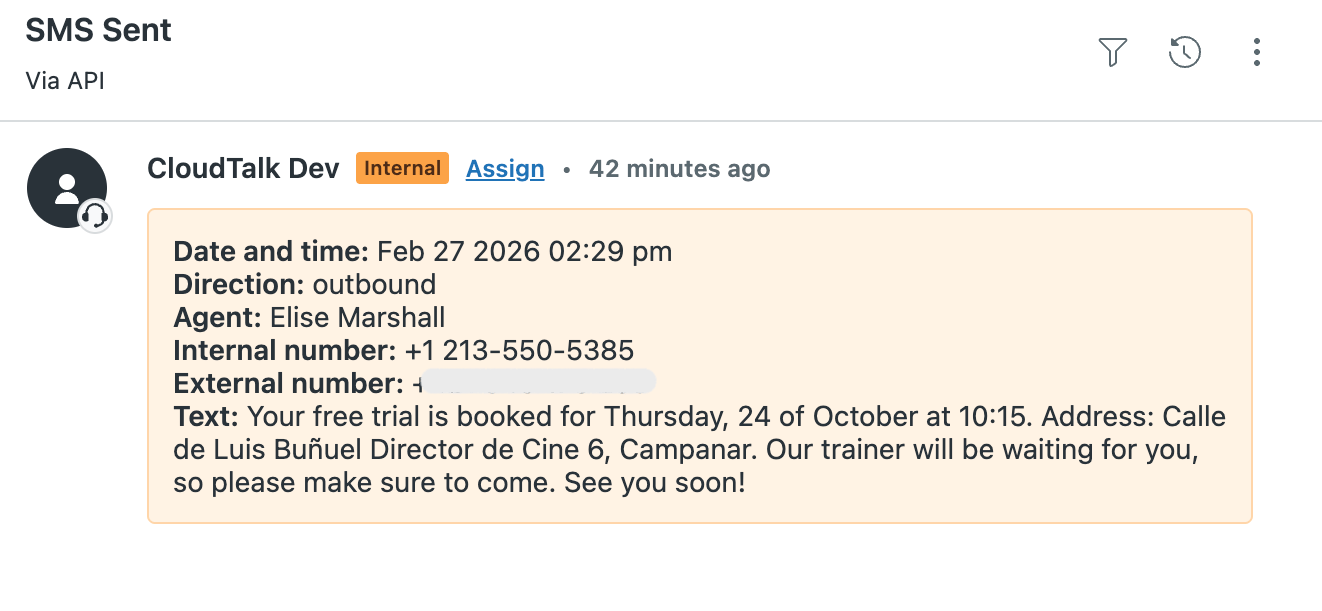
If SMS messaging is enabled, SMS conversations handled via CloudTalk are automatically logged in Zendesk. Each SMS message is recorded as an update within the related Zendesk ticket. Logged SMS details include:- Date and time
- Direction (inbound or outbound)
- Agent name (for outbound messages)
- Internal number (CloudTalk number)
- External number (customer number)
- Message content
Need help or have a question? Just reach out through our Support portal — we’re here for you.