

In this article, you will learn how calls are handled and how data is synced between CloudTalk and Freshdesk.
Calling from Freshdesk
Make outbound calls
You can start calls instantly using the Click-to-Call feature, which turns phone numbers in Freshdesk into clickable links.
- Hover over a phone number in Freshdesk
- Click the number
- The CloudTalk Phone will open and automatically start dialing
Receive Inbound Calls
When you receive an inbound call, CloudTalk automatically searches for a matching contact in Freshdesk based on the phone number. If a match is found:- You can open the related contact or ticket
- Full ticket history, including open cases, is available in Freshdesk
- A new contact and ticket can be created
Call logging and data exchange
Contact Sync
CloudTalk synchronizes Freshdesk contacts automatically. Behavior:- Two-way sync between CloudTalk and Freshdesk
- Updates in either system are reflected in the other
- Contacts synced from Freshdesk are tagged with “freshdesk” in CloudTalk
- A direct link to the Freshdesk profile is stored in the CloudTalk contact
Field Mapping
Freshdesk → CloudTalk
CloudTalk → Freshdesk
Call Logging & Export
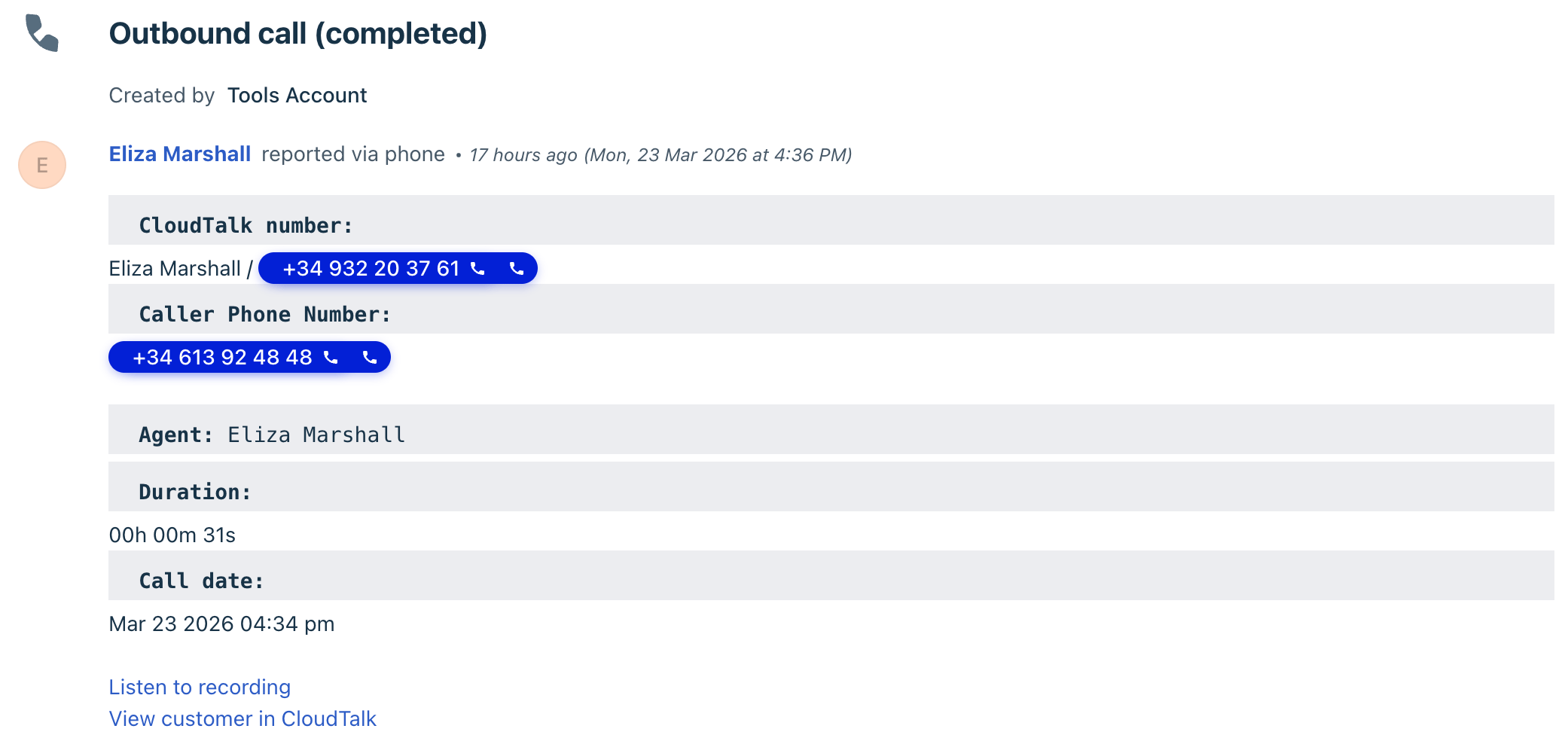
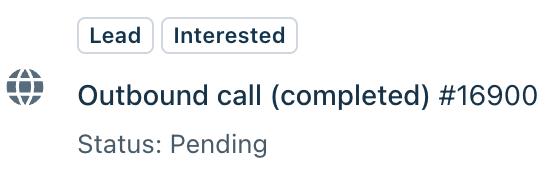
CloudTalk automatically creates a Freshdesk ticket for each call.Call Field Mapping
Missed Calls
- Outbound missed calls are assigned to the calling agent
- Inbound missed calls and voicemails are assigned based on the Assign missed calls to setting
- Calls are not assigned to a Freshdesk user
Unassociated Contacts
If no matching contact exists:- A new Freshdesk contact is created automatically
- The call is logged under this new contact

SMS and WhatsApp Logging
SMS and WhatsApp messages are logged as tickets or ticket updates in Freshdesk. Behavior:- Messages are linked to existing contacts
- If no contact exists, a new one is created
Need help or have a question? Just reach out through our Support portal — we’re here for you.