

This article explains how to connect Zendesk Sell to CloudTalk, configure data synchronization, install the CTI, and manage the integration.
Before You Start
Make sure you meet the following requirements before setting up the integration:- An active CloudTalk account
- An active Zendesk Sell account
- Admin access in CloudTalk
- Permissions to install and authorize apps in Zendesk Sell
- Access to the CloudTalk Dashboard
- Valid Zendesk Sell login credentials
Connect Zendesk Sell to CloudTalk
Log into your CloudTalk dashboard. From there:- Go to Settings > Integrations in the left menu.
-
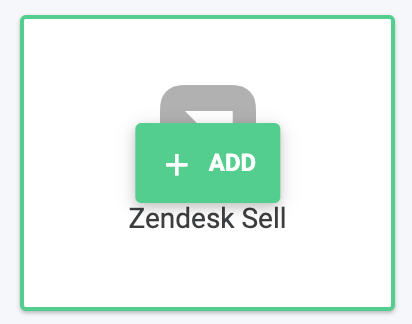
Hover over the Zendesk Sell integration and click +Add.
-
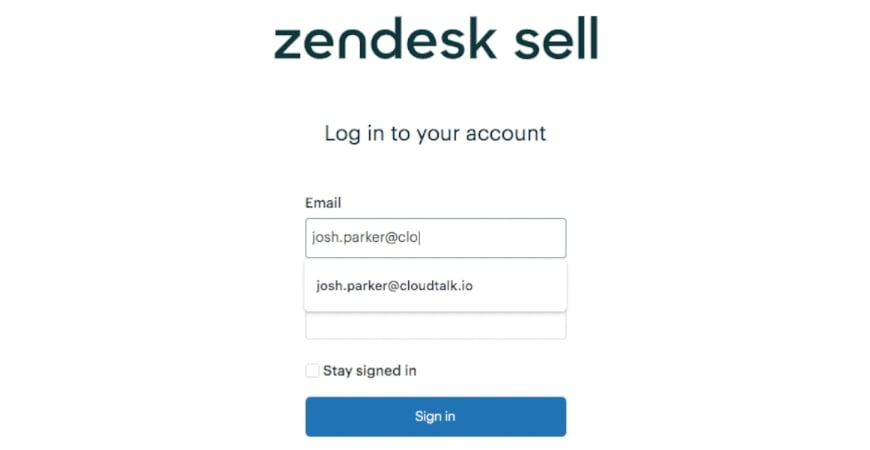
You will be redirected to a Zendesk login page to log into your account.
-
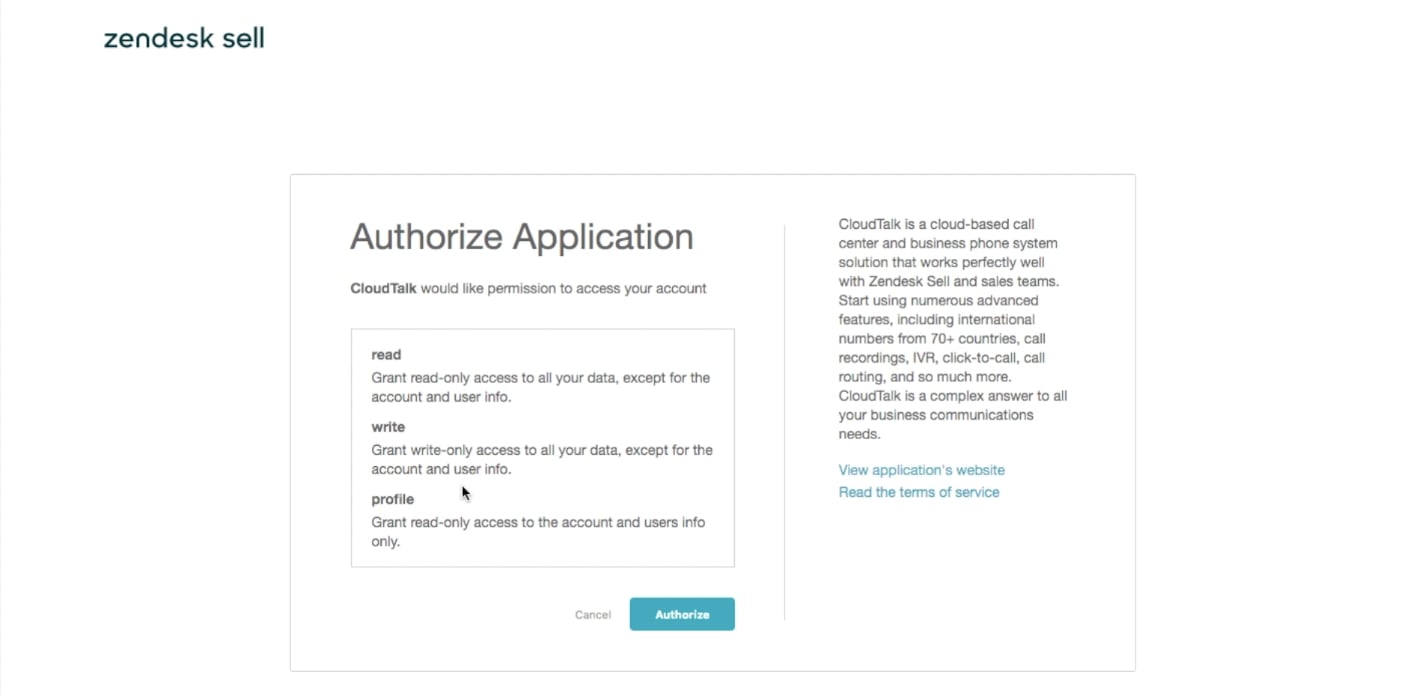
Select Authorize and follow the authorization flow.
-
After a successful login, you’ll be redirected back to your CloudTalk dashboard, where your integration will be ready to customize:
- Choose how to tag your Zendesk Sell contacts in CloudTalk.
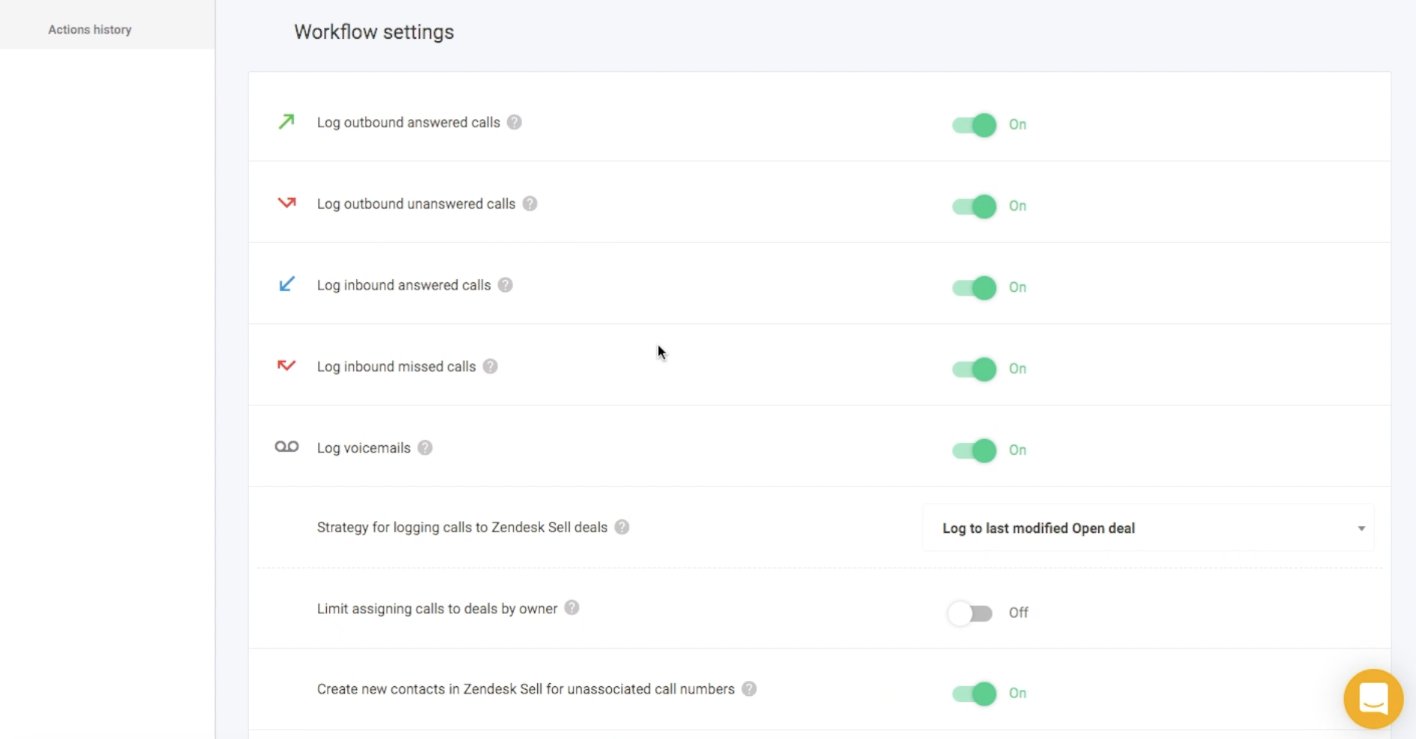
- Choose which calls will be logged to Zendesk Sell**.** You can define which calls to log (inbound, outbound, missed calls and voicemails). Logged calls will be logged as closed activities.
-
Decide whether you want to log all calls or only calls made during business hours, as well as when your lines will be closed.
- Use the Connected numbers section if you only want certain CloudTalk numbers should be linked to your Zendesk Sell integration. If no number is specified, all numbers will be synced to Zendesk Sell.
- When you’re done making changes, you can Save the integration to start synchronization.
Install CloudTalk CTI
Our Zendesk CTI supports both inbound and outbound use cases, and you don’t need the Click-to-Call extension. SMS messaging is also available through the Messages section of the CTI.You can click a provided phone number directly from Zendesk Sell and select the option to
Call this number. Based on your phone configuration, the number will be automatically called or pasted into the dial pad.Steps from Zendesk
-
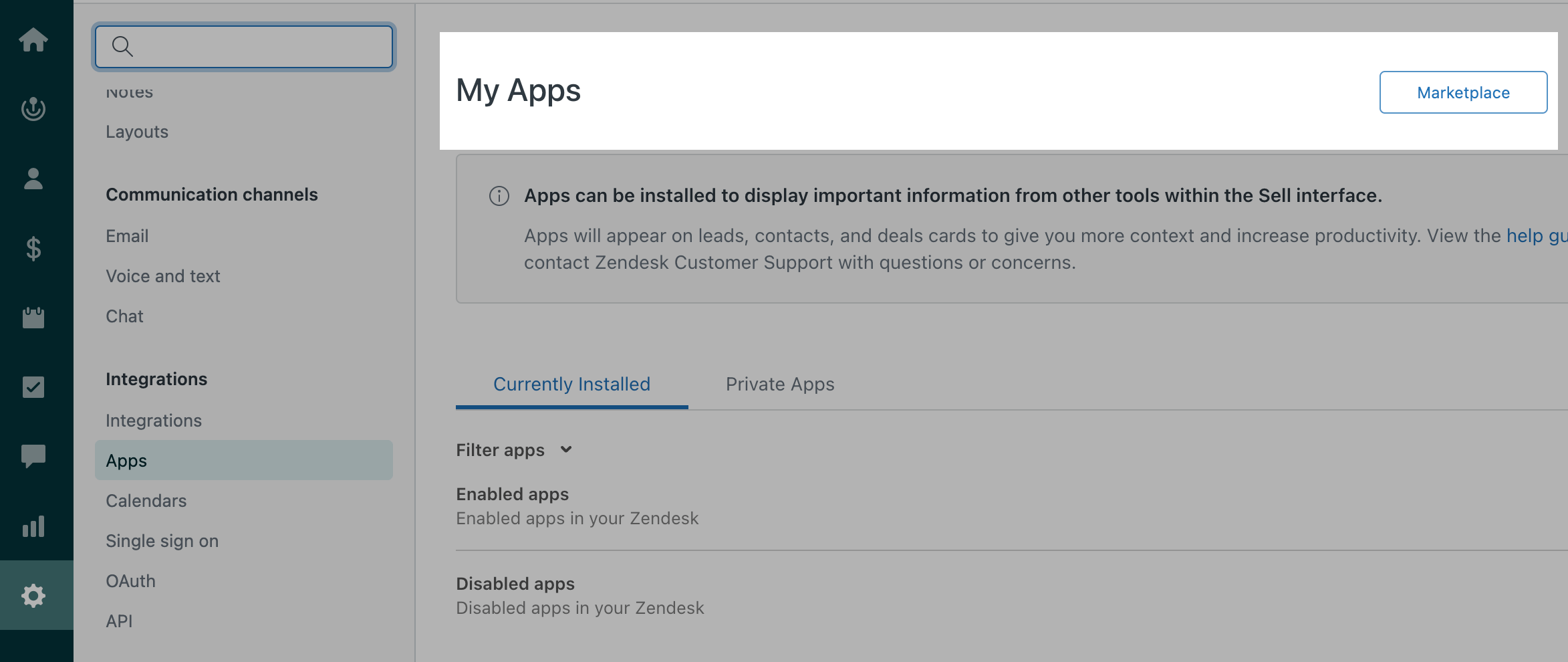
Navigate to the Zendesk marketplace and search for CloudTalk.
-
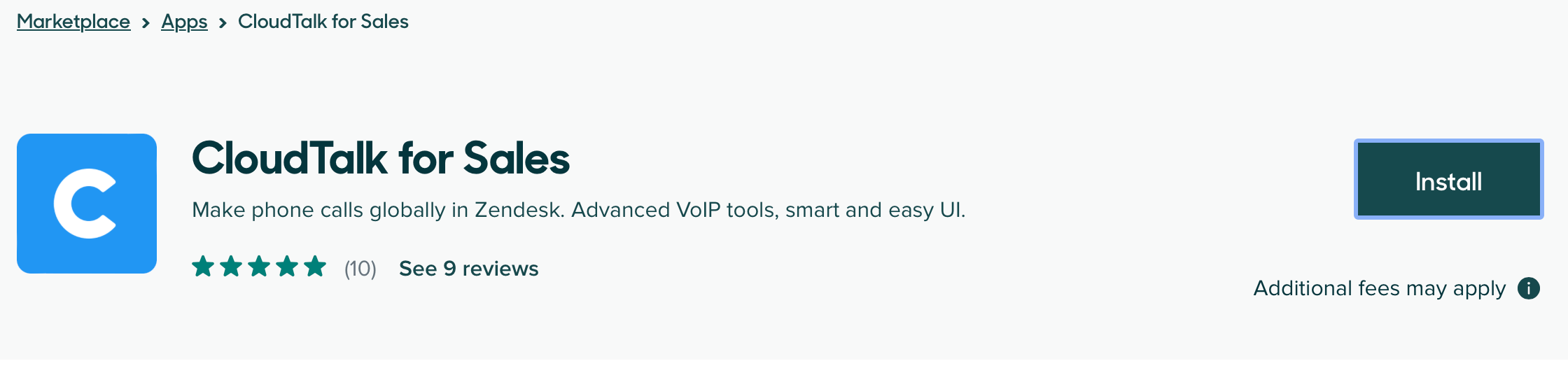
Select the CloudTalk for Sales app. Install.
- Select which Zendesk account you would like to install the app to. (If relevant, make sure this is the same account for which you set up your data integration.)
-
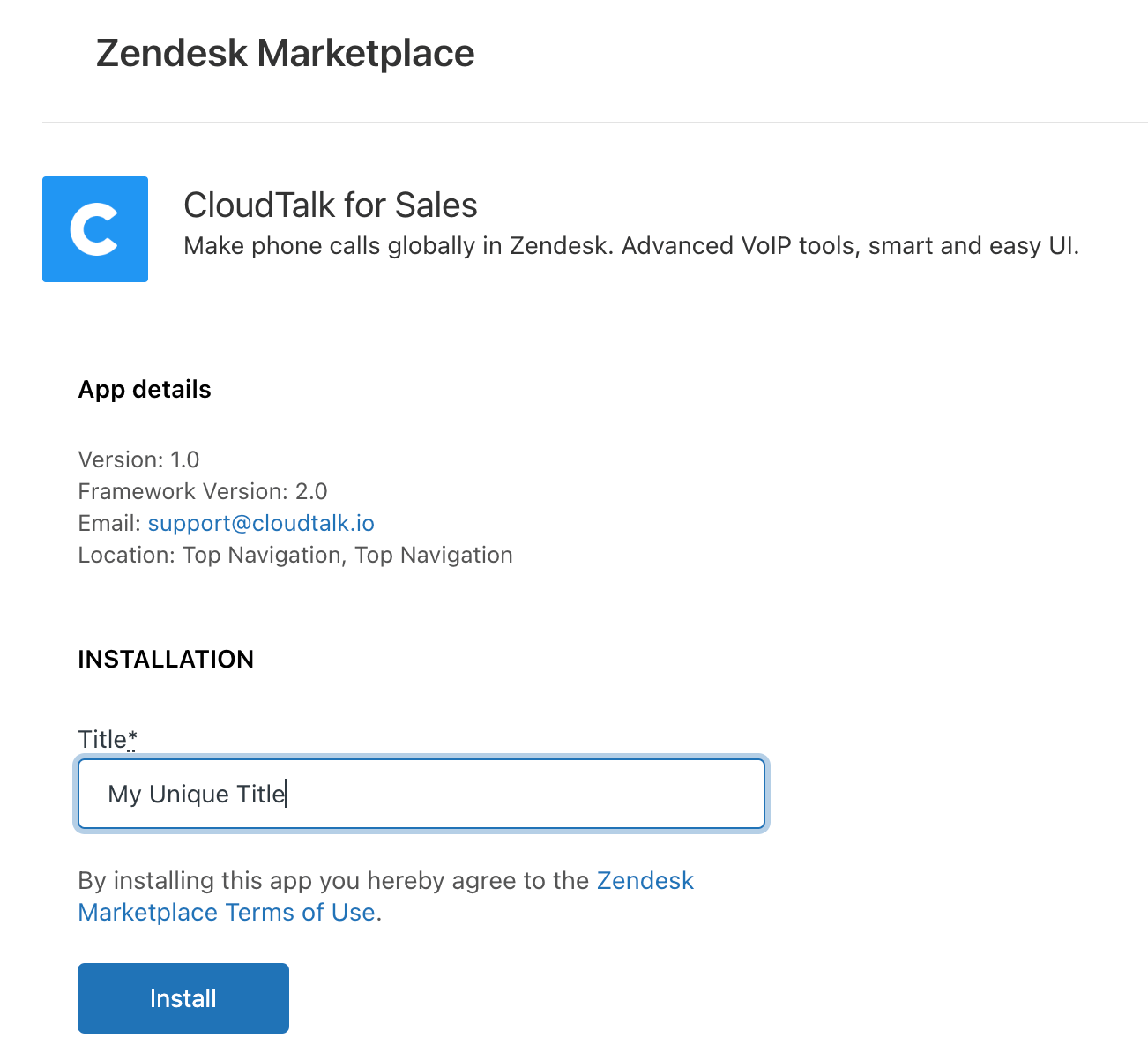
Enter an installation Title and select Install.
-
Once the CloudTalk for Sales app is installed, you will see the CloudTalk logo in the toolbar.

-
Select this logo to log into your CloudTalk Phone if it is your first use, or if you were previously logged in somewhere else.
- You may need to allow microphone or notification permissions on your browser.
- During the initial setup, you can select the options for how you want your CloudTalk Phone to behave within Zendesk Sell.
-
When signed in, your CloudTalk Phone is ready to use within Zendesk Sell:
-
Select a number and choose Call directly. (Your CloudTalk Phone settings will determine whether this option starts a call or pastes the number into your dialer.)
Call directly will start the call or paste the number into your phone, depending on chosen settings.
 Select the CloudTalk logo anytime during your outgoing call to display or hide your phone.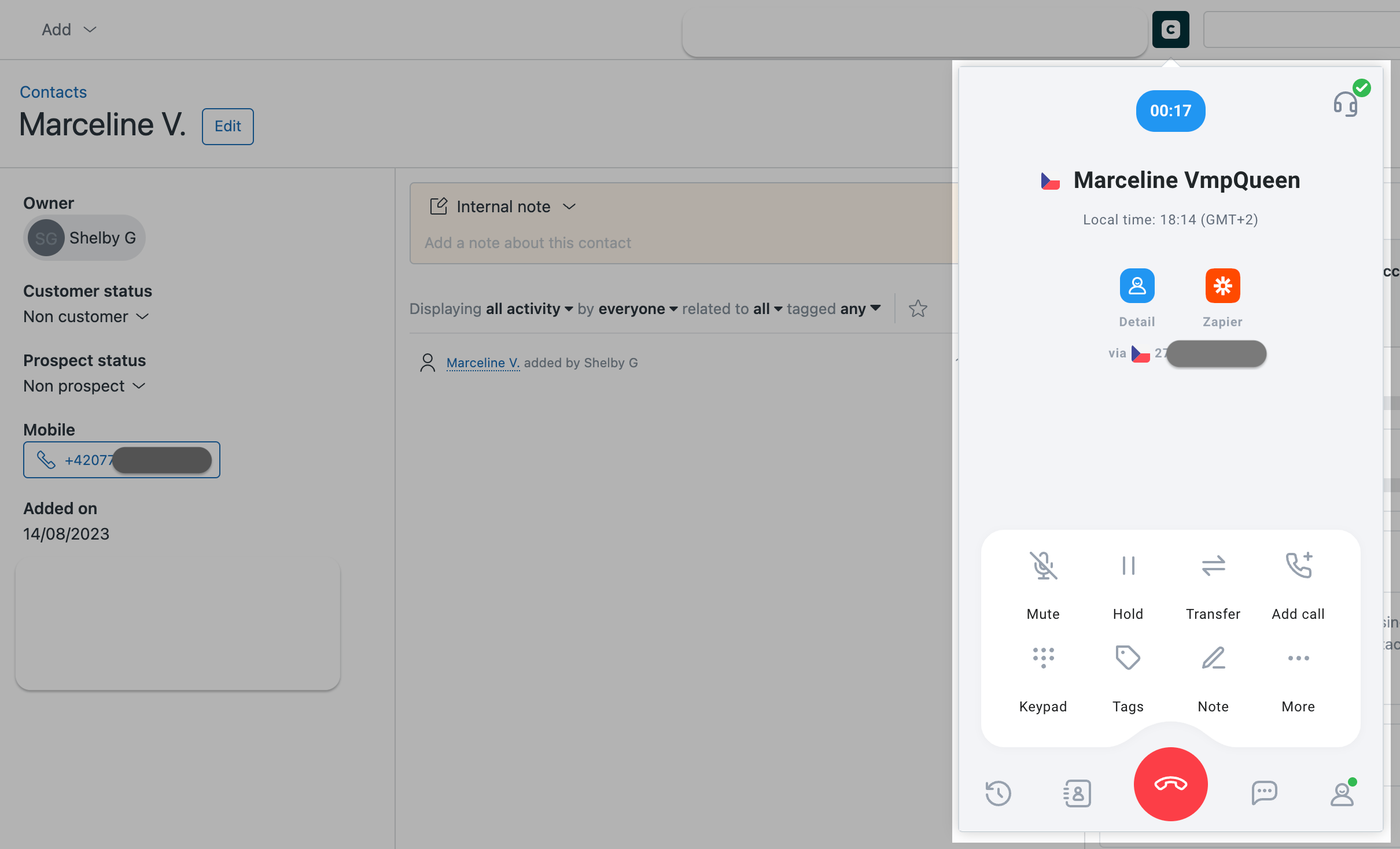
-
Select a number and choose Call directly. (Your CloudTalk Phone settings will determine whether this option starts a call or pastes the number into your dialer.)
Disconnect or Remove the Integration
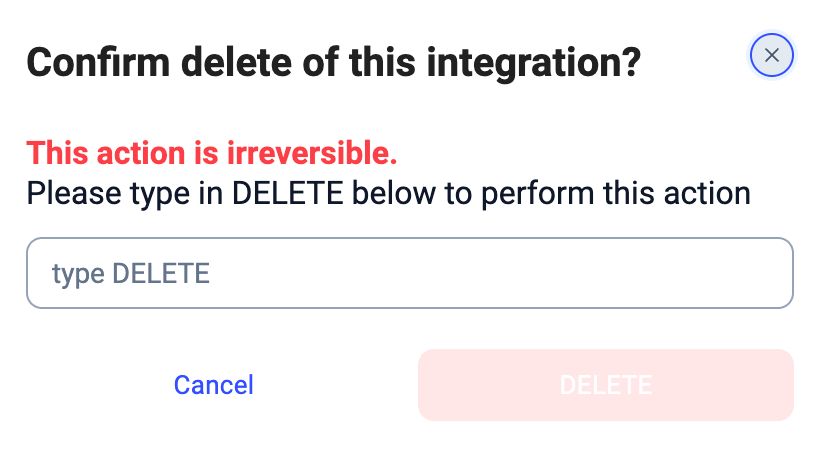
If you no longer want CloudTalk to synchronize data with Zendesk Sell, you can disable or permanently remove the integration. To disable the integration, go to Settings > Integrations, locate the Zendesk Sell integration, and toggle the status from Active to Inactive.
Need help or have a question? Just reach out through our Support portal — we’re here for you.