

The guide covers how to view Help Scout profiles during calls, make calls with Click-to-Call, add tags and notes, and ensure that every interaction is logged as an activity in Help Scout.
Calling from Help Scout
Make Outbound Calls
When logged into Help Scout, phone numbers automatically appear in a clickable format. Click any phone number to initiate a call. The call will be placed through CloudTalk using the Click-to-Call feature. Once the call starts, you can access the associated Help Scout profile directly from the CloudTalk Phone app, giving you immediate access to relevant customer context during the conversation.
Receive Inbound Calls
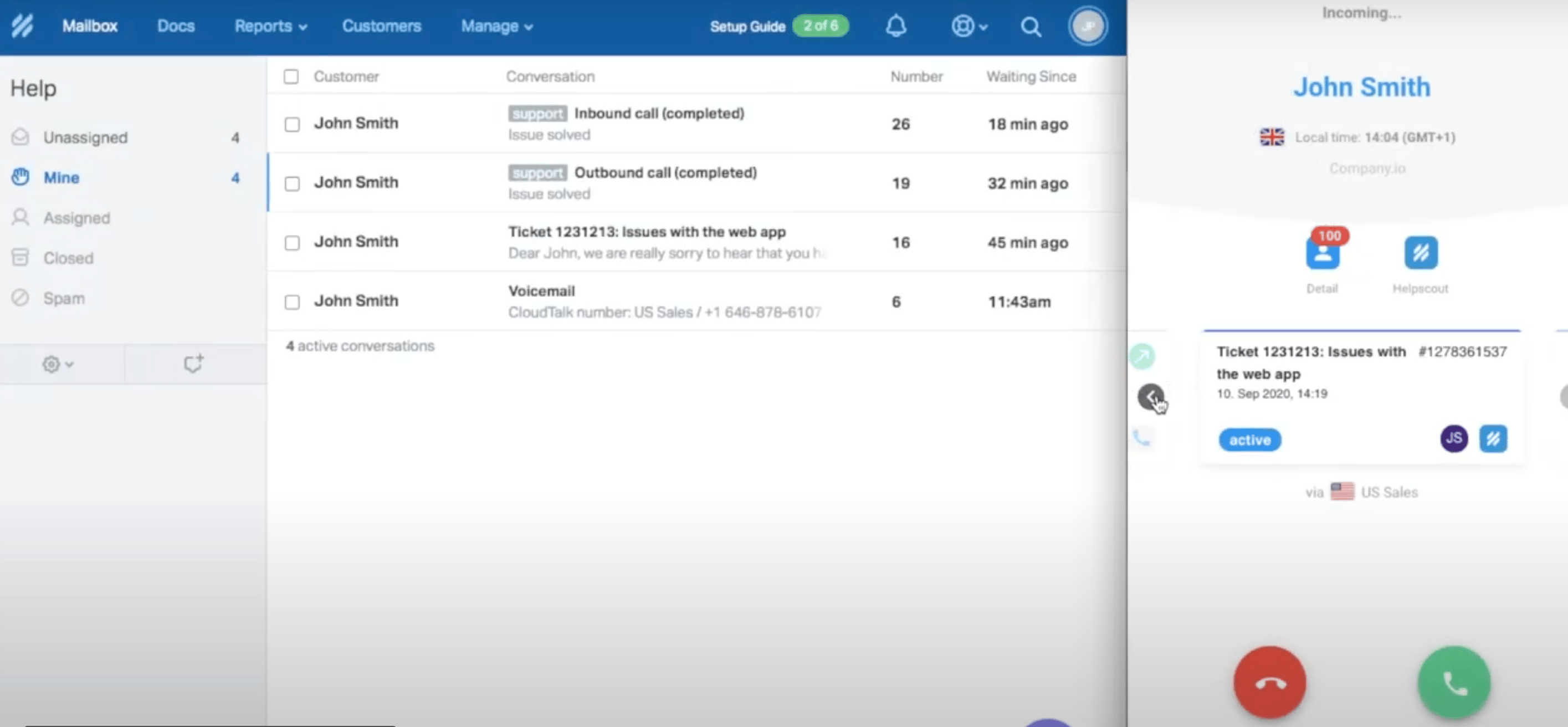
When an inbound call is received, agents can open the customer’s Help Scout profile directly from the CloudTalk Phone app by clicking the Help Scout button. This provides instant access to:- Previous conversations
- Notes
- Attachments
- Customer details
Call Logging and Data Exchange
Call Logging in Help Scout
When a call is logged to Help Scout, it is created as a phone-type conversation. Who creates the conversation and who it’s assigned to depends on the Conversation author and Conversation assignment settings in the integration’s Workflow settings (see Configure Help Scout). Each logged call includes:- The call direction (for example, Outbound call (completed))
- The call status (Active, Closed, or Pending, depending on your configuration)
- The CloudTalk number used for the call
- The caller’s phone number
- The assigned CloudTalk agent
- Call duration
- Call date and time
- A link to recording
- A link to View customer in CloudTalk
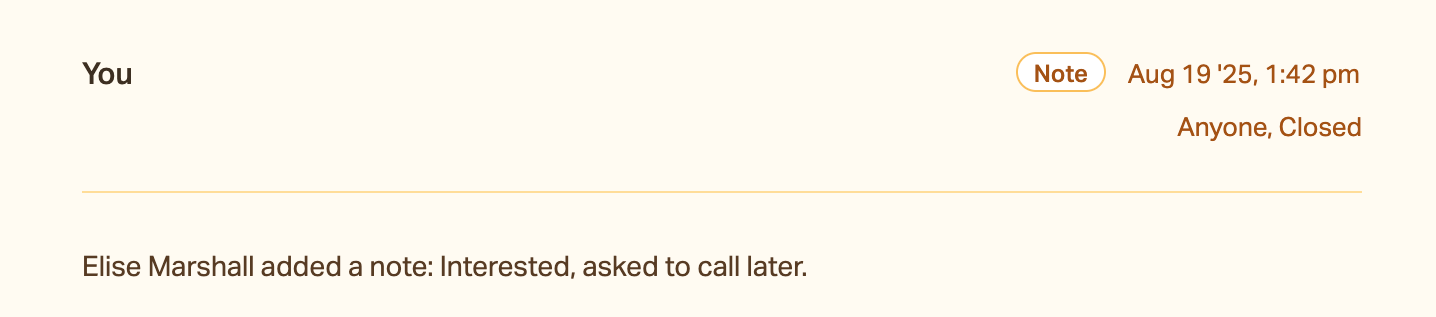
In the example below, “Interested” is a call tag synced from CloudTalk.

Need help or have a question? Just reach out through our Support portal — we’re here for you.