

This guide covers how to set up and customize the CloudTalk + LiveAgent integration.
Before You Start
Make sure the following requirements are met before setting up the integration:- You have an active CloudTalk account and access to your LiveAgent account
- You have Admin permissions in LiveAgent to generate an API key and configure integrations
- You have your LiveAgent API key with read and write permissions for Agents, Users, Tags, and Tickets
- You have your LiveAgent domain URL ready
- The email address used in CloudTalk exactly matches the one used in LiveAgent; otherwise, the integration will not sync correctly
Configure LiveAgent
- Log in to CloudTalk Dashboard.
- Click on Settings > Integrations in the left sidebar menu.
-
Select LiveAgent integration and click on the
+Addbutton to install the integration. -
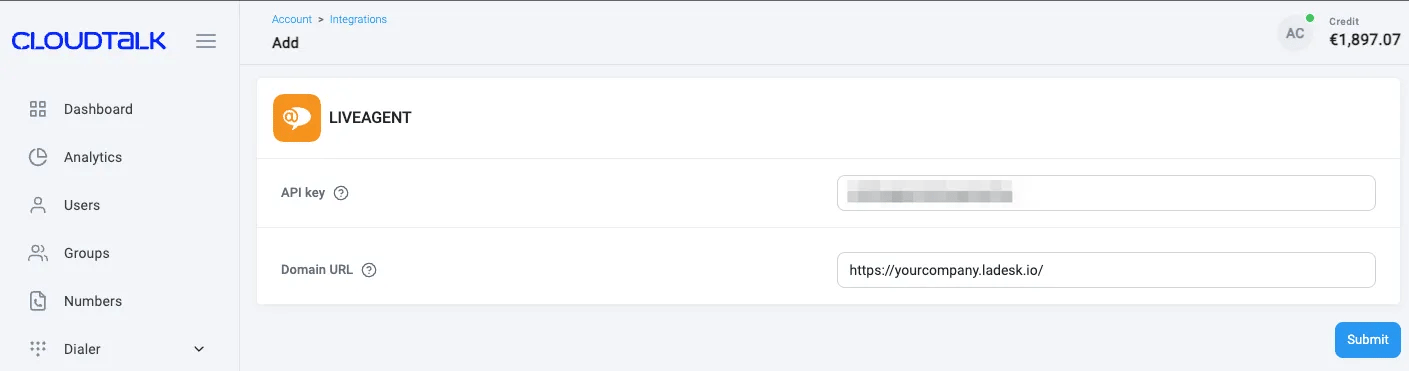
To connect CloudTalk with LiveAgent, you need to fill the API key and URL address.
-
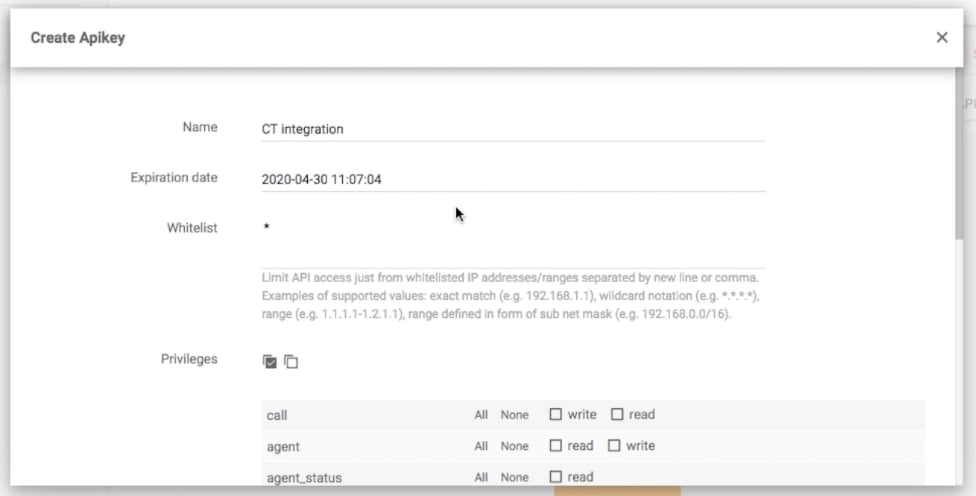
To find your API key, go to your LiveAgent account and type API into the search bar. Then, go to Add API Key.

-
Write the Name. For instance, CloudTalk integration. If needed, choose the Expiration date (Your integration will stop working after the expiration date).
-
Make sure that your API key has
readandwritepermissions for following scopes: Agent, User, Tags and Tickets.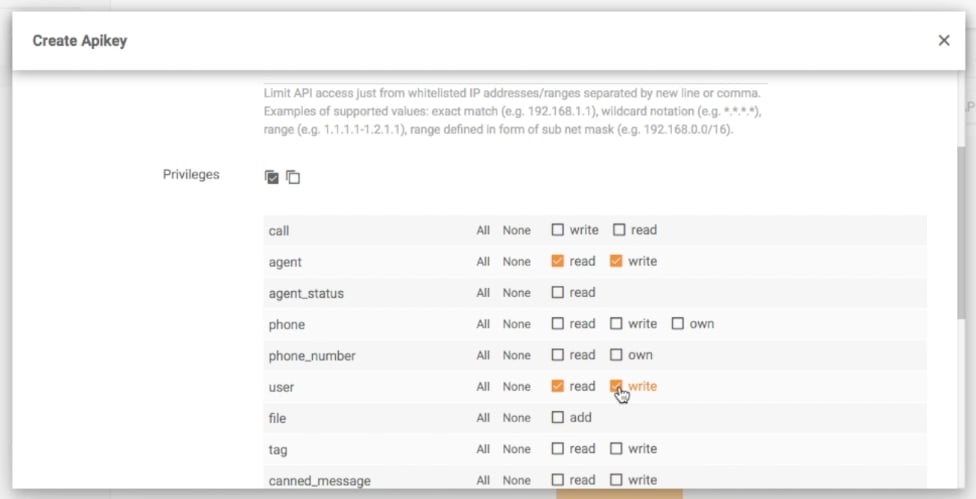
- Your API key is now ready, so just copy it and paste it into CloudTalk.
-
As the next step, insert the domain URL address in the right format, for instance -
https://XYYXXXXX.ladesk.com/ - Once you have completed these steps, your integration is ready. Now you can customize your integration according to your business needs.
- Finally, click on the Save button to activate the integration.
- Once the integration is set up, all your LiveAgent contacts will be synchronized with CloudTalk.
Integration customization
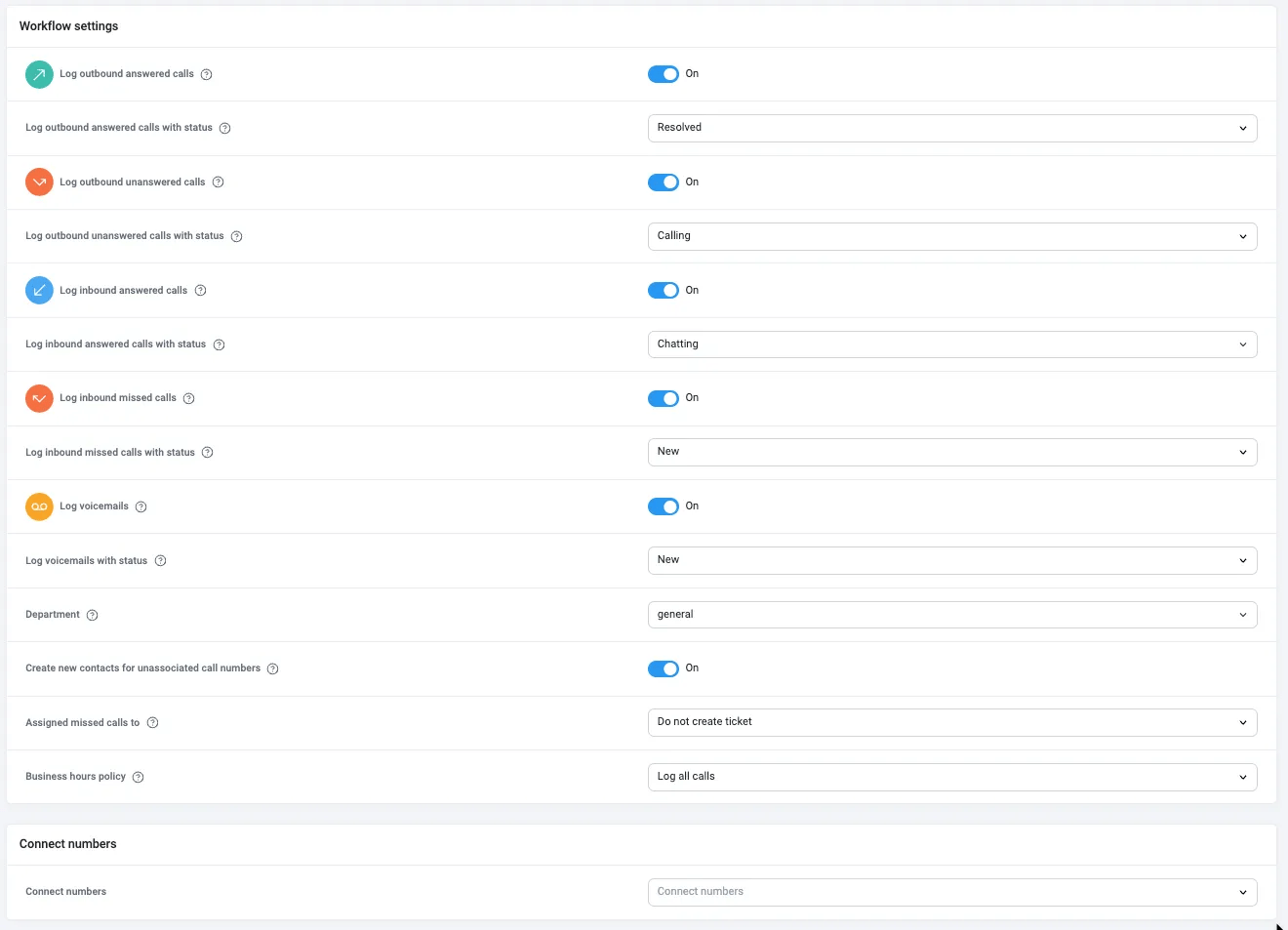
- You can define which calls (inbound, outbound, missed calls and voicemails) to log into LiveAgent and what status should be assigned to the ticket.
- Pick which CloudTalk numbers should get linked to your LiveAgent integration. It will help you better organize your data. If no number is selected, all numbers get synced to LiveAgent.
- Choose whether you want to log all calls or only calls made during business hours or when your lines are closed.
- Define an agent you want to assign missed calls to.
Need help or have a question? Just reach out through our Support portal — we’re here for you.