

Need to import contacts into CloudTalk? Learn how to upload them via CSV, connect integrations, or use our public API for automation.
Managing Contact Imports in CloudTalk
CloudTalk offers multiple ways to import and manage your contacts, whether you’re migrating data or integrating with external tools. Choose the method that best fits your workflow:- Manual Creation: Add individual contacts directly from the CloudTalk dashboard or Cloudtalk Phone App.
- Integrations: Automatically sync contacts from CRM platforms like HubSpot, Salesforce, Pipedrive, and more.
- CSV File Upload: Upload a CSV file to quickly import multiple contacts at once.
- Public API: Use CloudTalk’s API to import or sync contacts programmatically from your own systems.
Manual entry
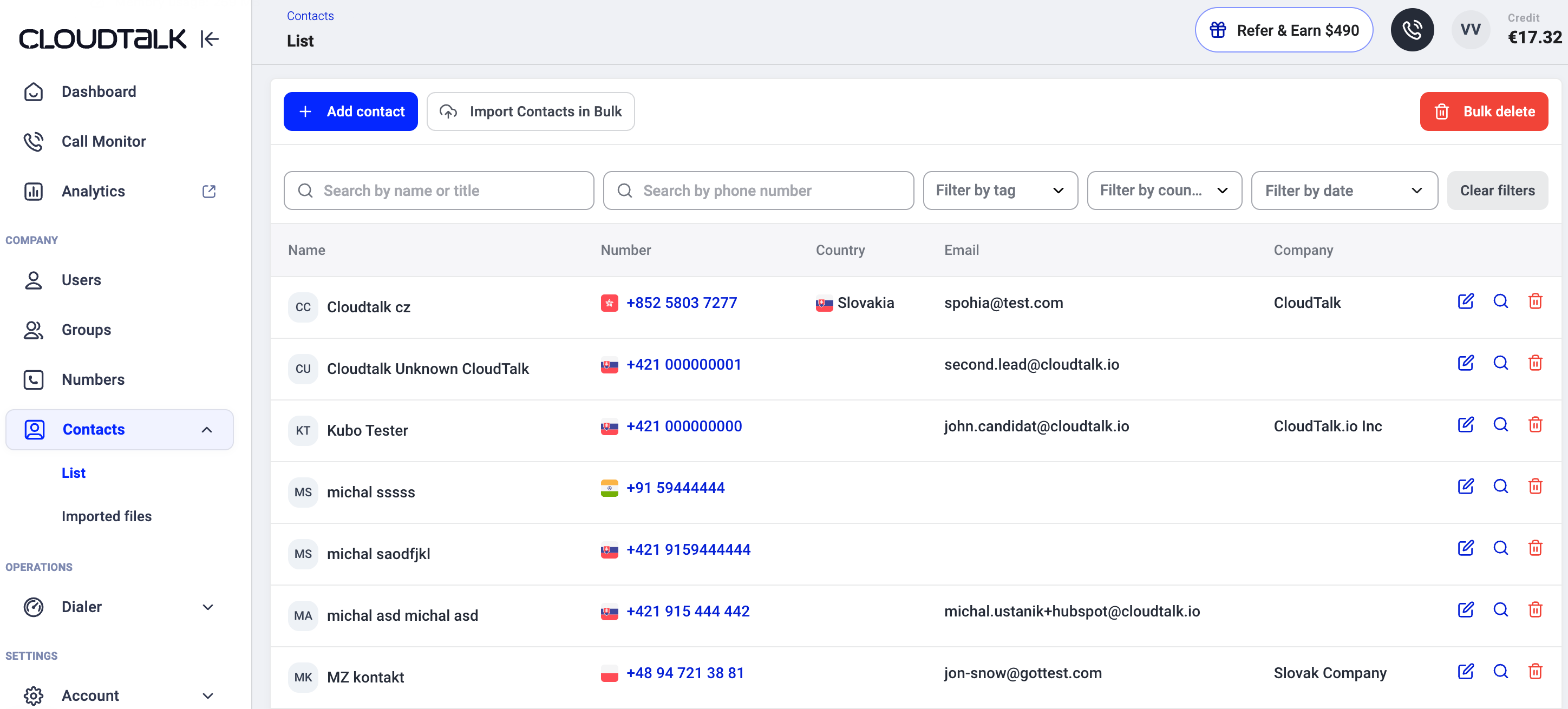
You can manually create new contacts and add relevant client details in both the CloudTalk Dashboard and the CloudTalk Phone App. To manually create contact:- Open Contacts in the CloudTalk Dashboard, or the Contacts > List tab in the CloudTalk Phone App.
-
Click
+ Add Contactto create a new entry. - Fill in the contact’s details, including name, phone number, email, and other default attributes. In the Dashboard, pick the country for each phone number in the Country field and enter the number without the country code. Spaces, hyphens, brackets and dots are removed when you leave the field. In the Dashboard, the fields are split into Details, Phone & Email and Company in the menu on the left: pick a section to see its fields.
- (Optional) If custom attributes are created for your account, you can fill them in under Custom fields when creating a contact through the CloudTalk Dashboard.
- (Optional) Assign a favorite agent to ensure incoming calls are routed directly to them. In the Dashboard, this is the Favorite user field in Details.
- Click Save to apply the changes. In the Dashboard, click Create contact in the bar at the bottom of the page, and the new contact’s profile opens.
Integration-Based Import
CloudTalk connects with popular CRMs and helpdesk tools like HubSpot, Salesforce, Pipedrive, and others to keep your contact list up to date automatically. When you activate an integration, CloudTalk regularly syncs your contact data behind the scenes:- New contacts from the connected platform are added to your CloudTalk contact list.
- Existing contacts are updated if their details change.
- Contact tags and other fields may be synced, depending on the integration.
CSV Import
This method lets you import a list of contacts into CloudTalk by uploading a CSV file - ideal if you’re migrating from another tool, working with exported data, or maintaining contact lists in spreadsheets. It’s a quick way to add multiple contacts in bulk and is especially useful for prepping outbound call lists or tagging customers for campaigns. To ensure smooth import, use CloudTalk’s CSV template and follow basic formatting rules (e.g. required columns like name and phone number). You’ll also have the option to apply tags during import for better organization and filtering.API Integration
CloudTalk’s public API offers a flexible, scalable way to connect with your own systems or third-party tools and create or update contacts making it ideal for custom workflows, internal CRMs, or automation at scale. CloudTalk’s API is fully documented at developers.cloudtalk.io, where you’ll find guides, authentication instructions, and reference docs for working with contacts, calls, agents, and other key resources.Need help or have a question? Just reach out through our Support portal — we’re here for you.