

In this guide, you will learn how to automatically trigger a CloudTalk VoiceAgent call from Microsoft Dynamics 365 using Power Automate. The built-in HTTP action supports any method, URL, headers, and body, so calls can be initiated directly from Dataverse record events with no additional middleware required.
Before you start
You will need:- A CloudTalk VoiceAgent already created (note the VoiceAgent ID)
- CloudTalk API credentials (API Key and Secret) found in Company Settings > Integrations > API (How to access and generate your CloudTalk API keys)
- A Microsoft 365 / Dynamics 365 subscription with a Power Automate Premium license (the HTTP action is a Premium connector and it requires a paid Power Automate per-user or per-flow plan, not included in free or seeded licenses)
- Contact or Lead records with phone numbers in Dataverse
Generate the Authorization header
CloudTalk uses Basic Authentication for API requests. 1. Open https://www.debugbear.com/basic-auth-header-generator 2. Enter your CloudTalk API Key as Username and your API Secret as Password 3. Copy the generated value. It looks like:Basic XXXXXXXXX
Set up the integration
Create the Power Automate Cloud Flow
1. Open make.powerautomate.com (or access it via the Dynamics 365 app) and make sure you are in the correct environment in the top-right corner (e.g. “Sales Trial”)
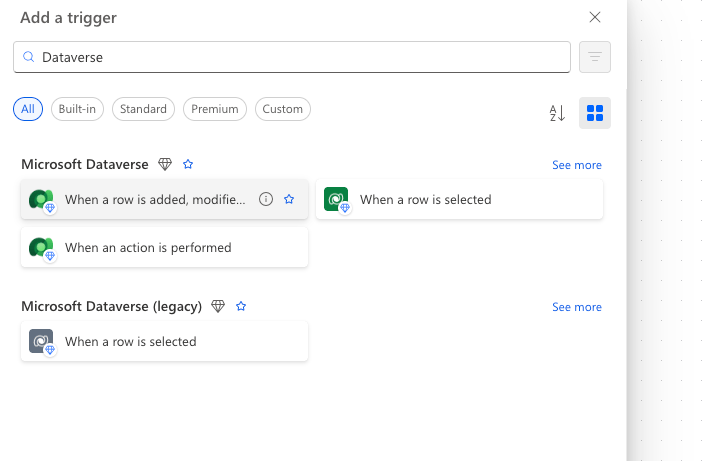
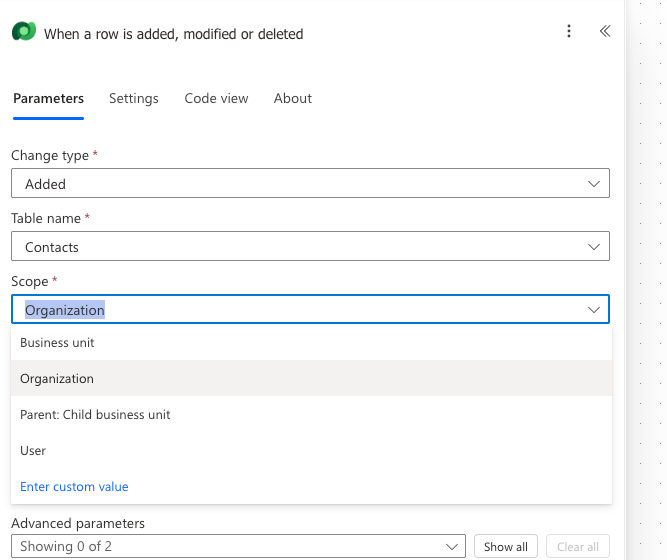
Add the HTTP Action
1. Click + New step 2. Search for and select HTTP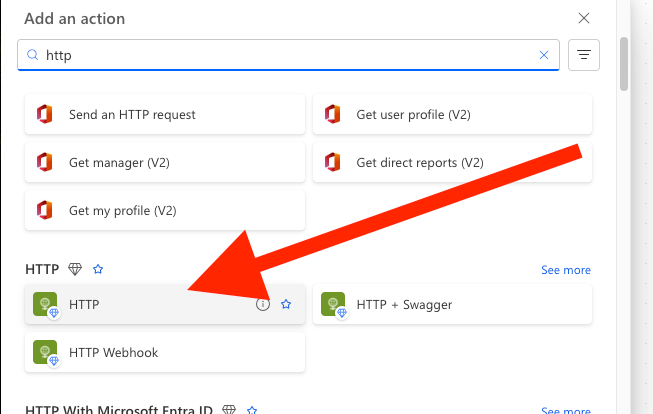
4. Under Body, paste the following:
Test and verify
- Run the flow in Test mode with a record that has a phone number
-
Check Run history for a green HTTP action status (response code
200) - Verify in CloudTalk that the VoiceAgent call was initiated
💡 API Limits to Keep in MindTo avoid failures or throttling, make sure your flow handles call distribution carefully. Use delays or scheduling logic where needed, as the standard API rate limit (60 requests per minute) applies to the VoiceAgent endpoint.
Troubleshooting
Need help or have a question? Reach out through our Support portal. We’re here for you.