

This guide walks you through how to trigger a CloudTalk VoiceAgent call using Zapier and the Webhooks by Zapier app. This lets you launch automated voice calls based on real-time events in your tools - without writing any code.
- Admin
CloudTalk VoiceAgents in Zapier
Zapier connects your favorite tools and automates tasks between them. By Zapier helps you connect your tools and automate tasks between them. When you connect it with CloudTalk VoiceAgent, you can trigger voice calls based on live data from tools like CRMs, forms, or helpdesk systems. This allows you to confirm appointments, follow up on leads, or send voice reminders using the data you already collect. It brings voice automation directly into your existing workflows. To trigger a VoiceAgent call from Zapier, use the Webhooks app to send an API request to the CloudTalk VoiceAgent endpoint as one of the steps in your Zap.Prerequisites
Before setting up the Webhook Custom Request in Zapier, make sure you have:-
CloudTalk API Credentials
- Go to CloudTalk Dashboard → Settings → API Keys
- Copy both the API Key ID and API Key Secret
-
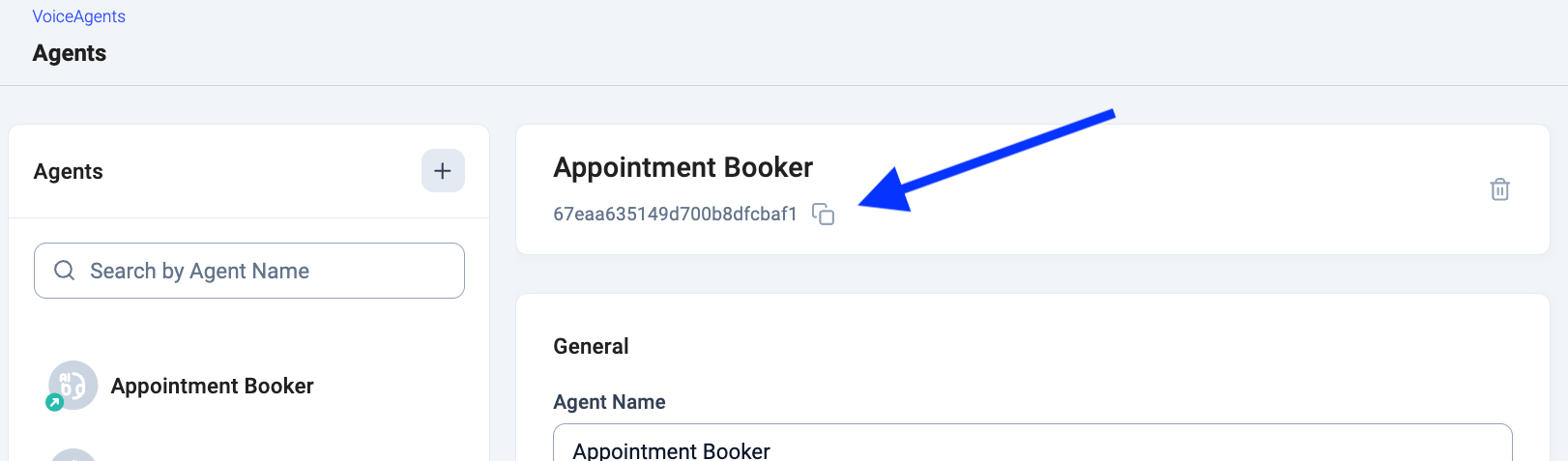
VoiceAgent ID
- VoiceAgent ID can be retrieved from Cloudtalk Dashboard > AI Voice Agents
Setup Instructions
Follow these steps to set up trigger a VoiceAgent call from Zapier:- In the Zap of your choice, add an Action step and choose Webhooks by Zapier.
- Choose Custom Request as the action event.
- For Method select POST
-
For API Endpoint use this URL:
https://api.cloudtalk.io/v1/voice-agent/calls -
In Data configure body of request according to API documentation
-
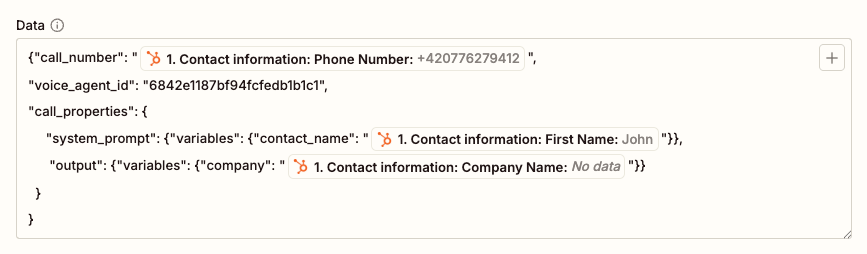
Create a JSON payload using the following format:
-
Replace the variables (
#{{...}}) with data from earlier steps in your scenario. -
In
call_number, insert a reference to the phone number (e.164) to be called, extracted from previous steps. -
In
voice_agent_id, insert the ID of the VoiceAgent obtained from the CloudTalk Dashboard. -
If necessary, configure
call_properties, where:-
Data in
call_properties.system_prompt.variablesincludes request-specific information the VoiceAgent should use during the call (e.g. the contact’s name). -
Data in
call_properties.output.variablesdefines the values VoiceAgent should pass to the external endpoint after the call, in addition to information extracted during the conversation.
-
Data in
-
Create a JSON payload using the following format:
- In the Headers field, add the header
"Content-Type": "application/json" - Set up Basic Authentication using your API Key ID as the username and API Key Secret as the password, both taken from the CloudTalk Dashboard.
- Click Continue, and if you’d like to verify the setup, use Test Step to send a test call.
⚠️ Caution: Testing the step will trigger a real VoiceAgent call. Make sure the
call_number used during testing is a number you intend to call at this stage.💡 API Limits to Keep in MindTo avoid failures or throttling, make sure your Make scenario handles call distribution carefully. Use delays, queues, or scheduling logic where needed, as the standard API Rate limit (60 requests per minute) applies to VoiceAgent endpoint.
Need help or have a question? Just reach out through our Support portal — we’re here for you.