

You can automatically trigger a CloudTalk VoiceAgent call using HubSpot Workflows. This guide shows you how to set up the trigger, pass contact data into CloudTalk, and view enrollment results in HubSpot.
Before you start
You will need:- A CloudTalk VoiceAgent already created
- CloudTalk API credentials (API Key and Secret)
- A HubSpot account with access to Workflows
- Contact properties that include at least a phone number
Create a HubSpot Workflow Trigger
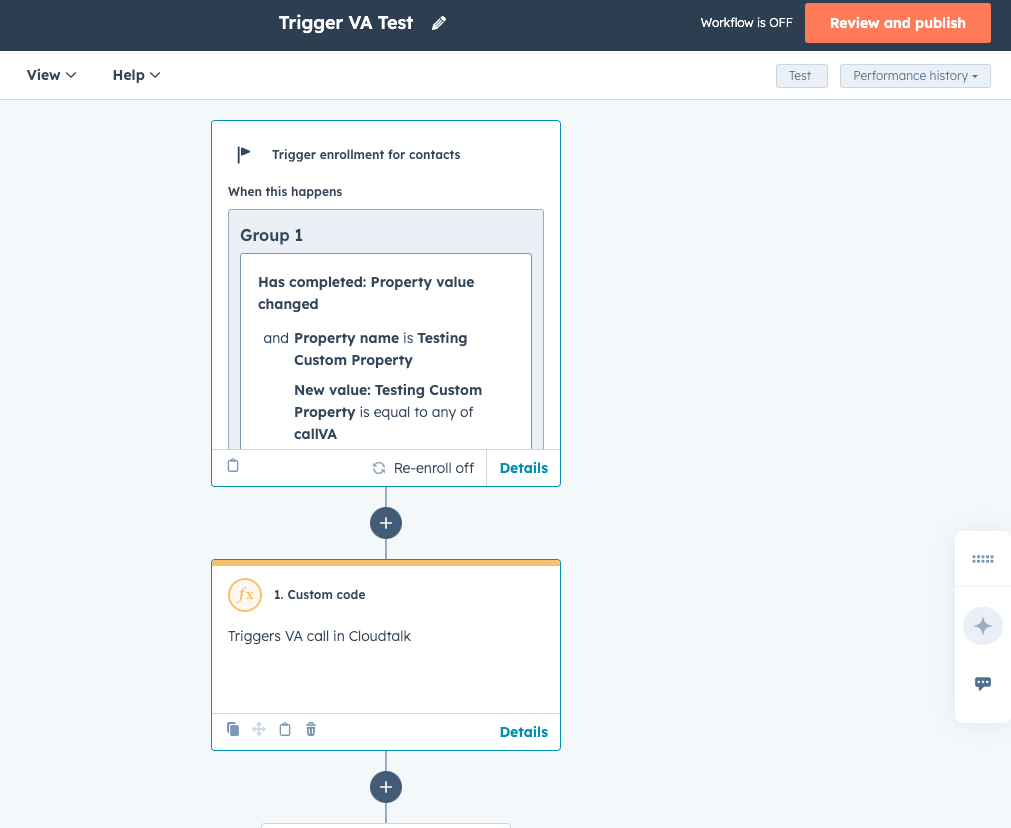
- Open HubSpot > Workflows.
- Create a new Contact-based workflow.
-
Choose a trigger type, for example:
- Property value changed
-
List membership changed
(Custom fields are also supported.)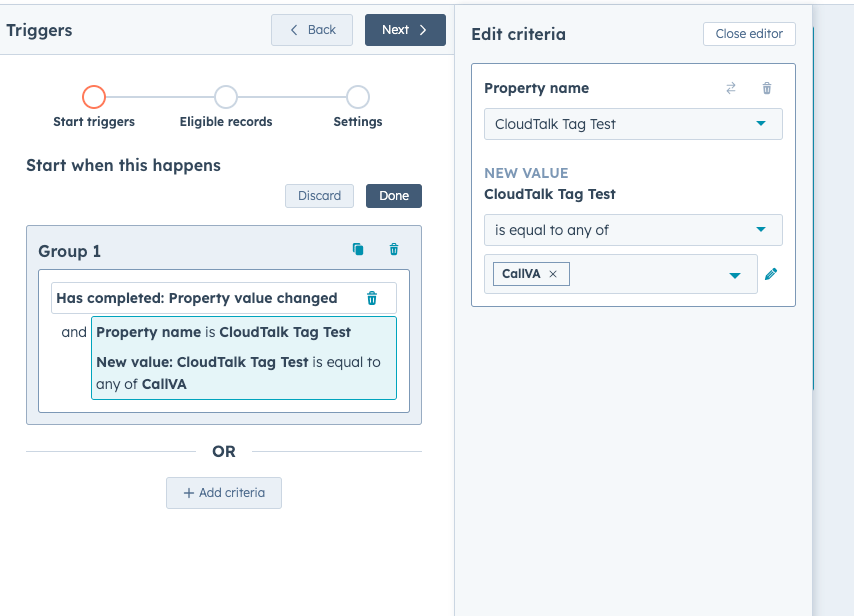
-
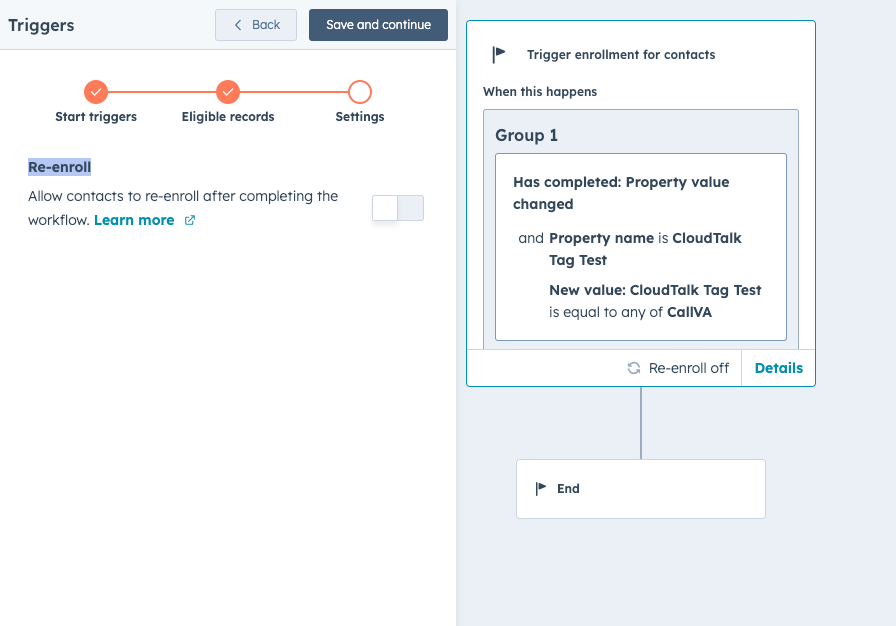
Optional: Enable Re-enrollment if you want the same contact to be called multiple times whenever the conditions are met.
Add the Custom Code Action
After setting your trigger:-
Click
+ Add action - Select Data ops > Custom code
-
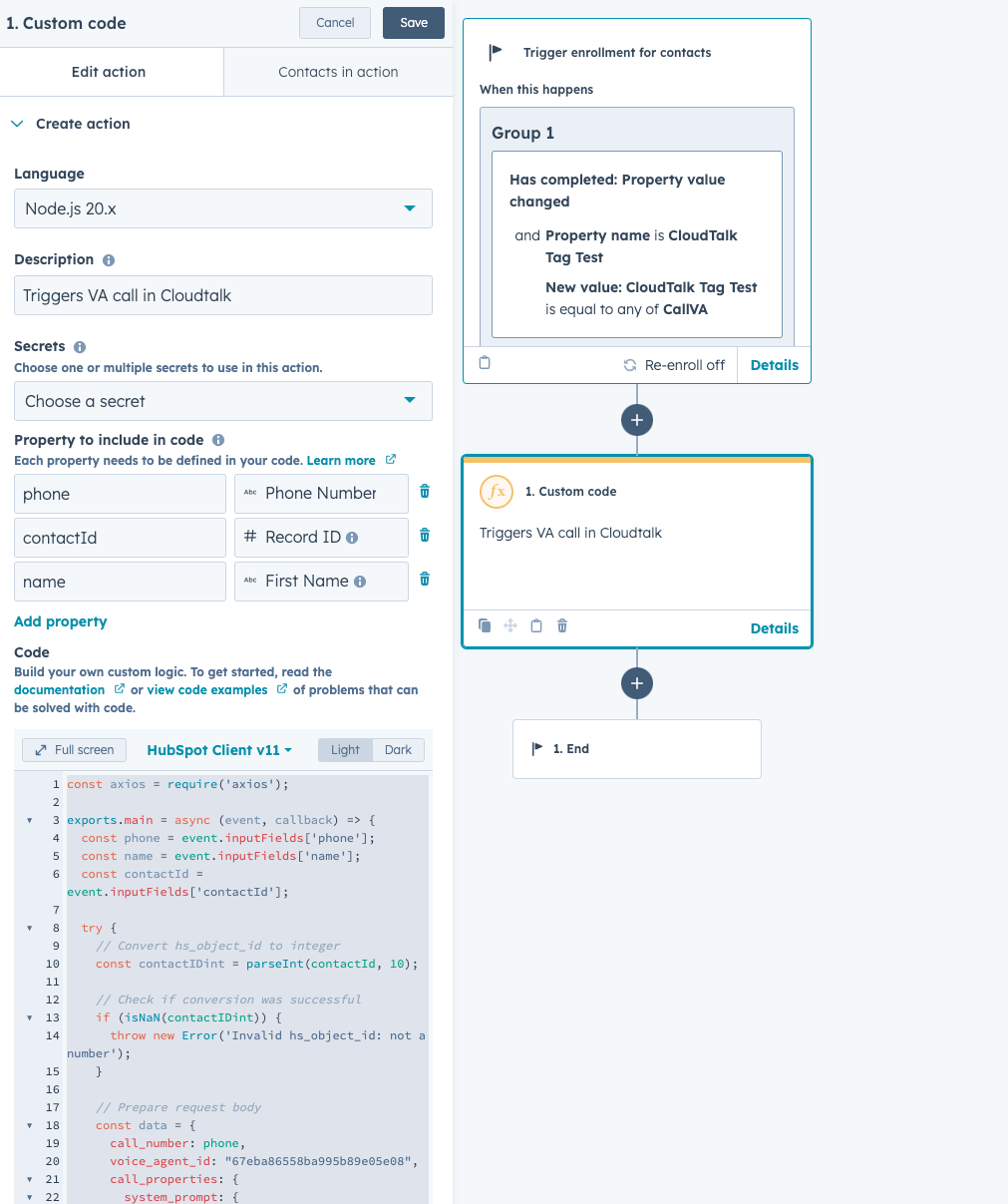
Configure the action:
- Language: Node.js 20.x
- Secrets: Leave empty
-
Properties to include in code:
-
phone(required) -
Additional fields as needed, such as
nameorcontactId
-
event.inputFields[...] inside the script.
Paste the Code Snippet
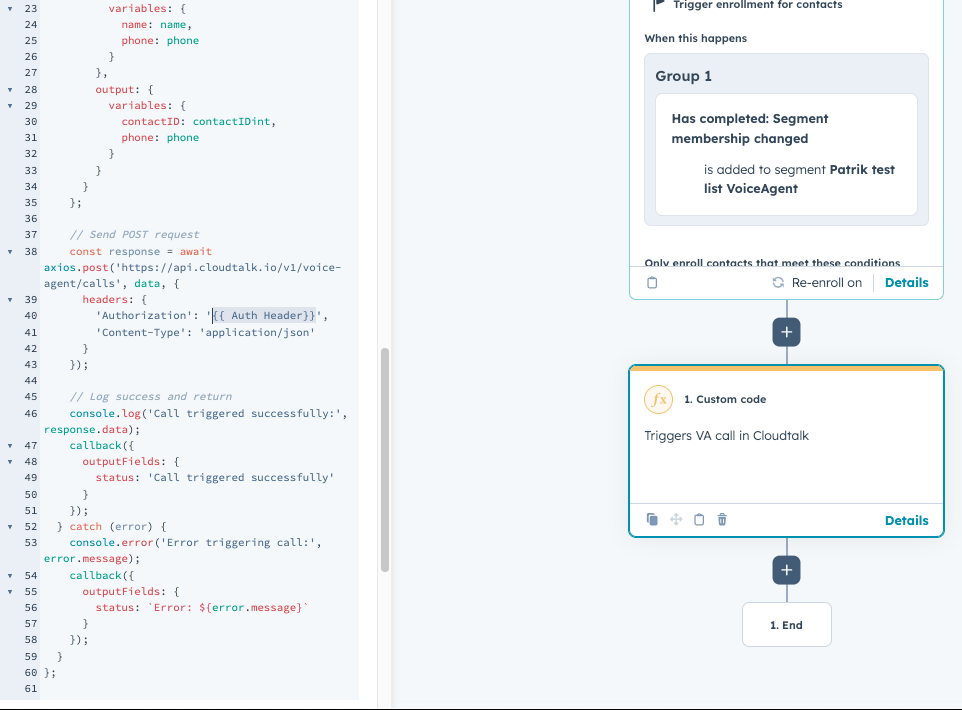
- Sends a POST request to the CloudTalk VoiceAgent API
- Passes the contact’s phone number
- Optionally passes variables such as first name or Record ID
- Receives the VoiceAgent output back to your selected endpoint in CloudTalk
Generate the Authorization Header
CloudTalk uses Basic Authentication for API requests.To generate your encoded value:
- Go to https://www.debugbear.com/basic-auth-header-generator
-
Enter your CloudTalk API Key and CloudTalk API Secret
(found in your CloudTalk Company Settings). -
Copy the generated header. It will look similar to:
Basic XXXXXXXXX
#{{ Auth Header }} in the script with this value.
Publish and Test the Workflow
- Save the custom code step.
- Click Review and publish.
-
Decide whether the workflow should:
- Only run for new contacts matching conditions, or
- Also run for contacts that already match when the workflow is activated.
- Trigger the workflow by updating a property or list membership for a test contact.
Check Enrollment History
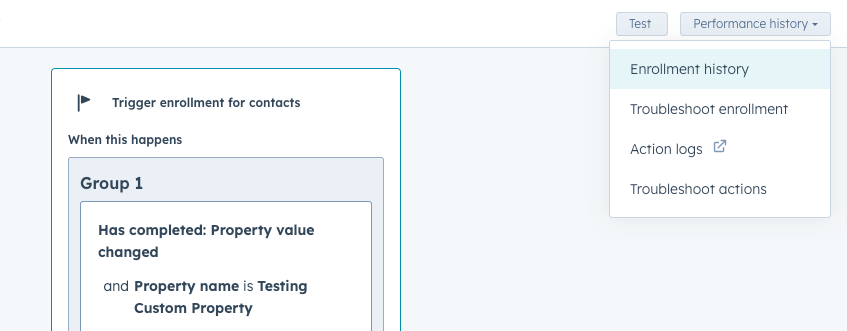
To confirm your VoiceAgent call was triggered:- Open the workflow
- Go to Performance history > Enrollment history
-
Find your test contact in the list
Need help or have a question? Just reach out through our Support portal — we’re here for you.