

In this article you will learn how to create, manage, assign, and review responses from campaign surveys.
Surveys give agents a set of structured questions to work through during a campaign call. Answers are saved against the campaign and can be reviewed, filtered, and exported from the dashboard. They are useful for qualifying leads, collecting feedback, or building a profile on prospective clients.
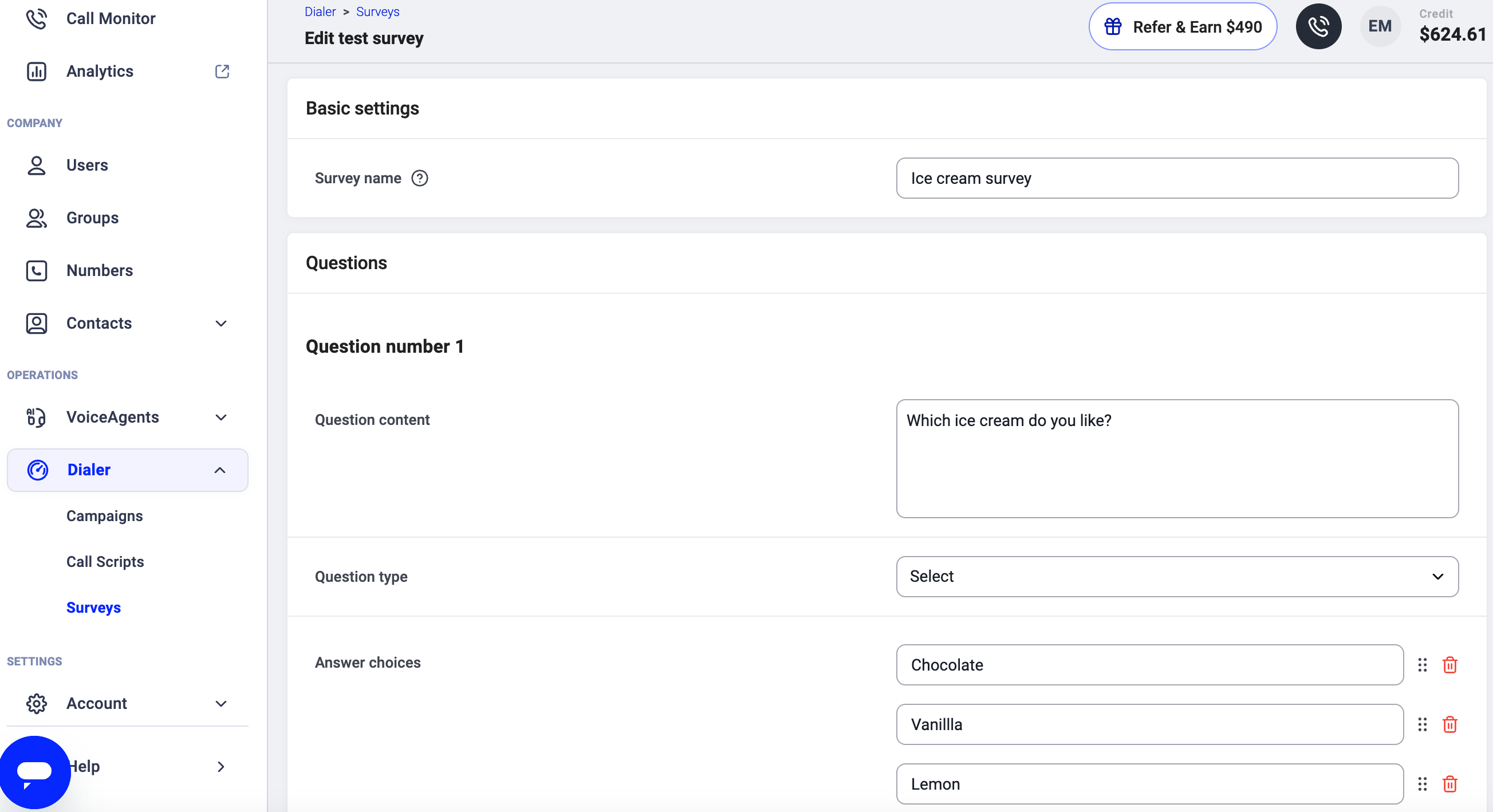
Add a new survey
- Go to Dialer > Surveys.
-
Click
+ Add Survey. - Enter a name for your survey and add at least one question.
- Question content: the text agents will ask the contact.
-
Question type: determines the kind of answer allowed.
- Short text (up to 255 characters): for brief free-form responses.
- Long text (up to 65,535 characters): for longer free-form responses.
- Checkbox: yes/no answer (checked = yes, unchecked = no).
- Radio options: multiple options, single selection. Best when you have just a few choices.
- Select: multiple options, single selection. Ideal for longer lists (e.g. countries, colors).
Create survey.
Edit or delete a survey
- Go to Dialer > Surveys.
- Find the survey you want to update.
- Click the pencil icon to edit or the trash icon to delete.
Assign a survey to a campaign
Surveys are assigned during campaign setup or when editing an existing campaign.- Go to Dialer > Campaigns and open the campaign you want to update.
-
Under Assign survey, search for and select the survey.

- Save your changes.
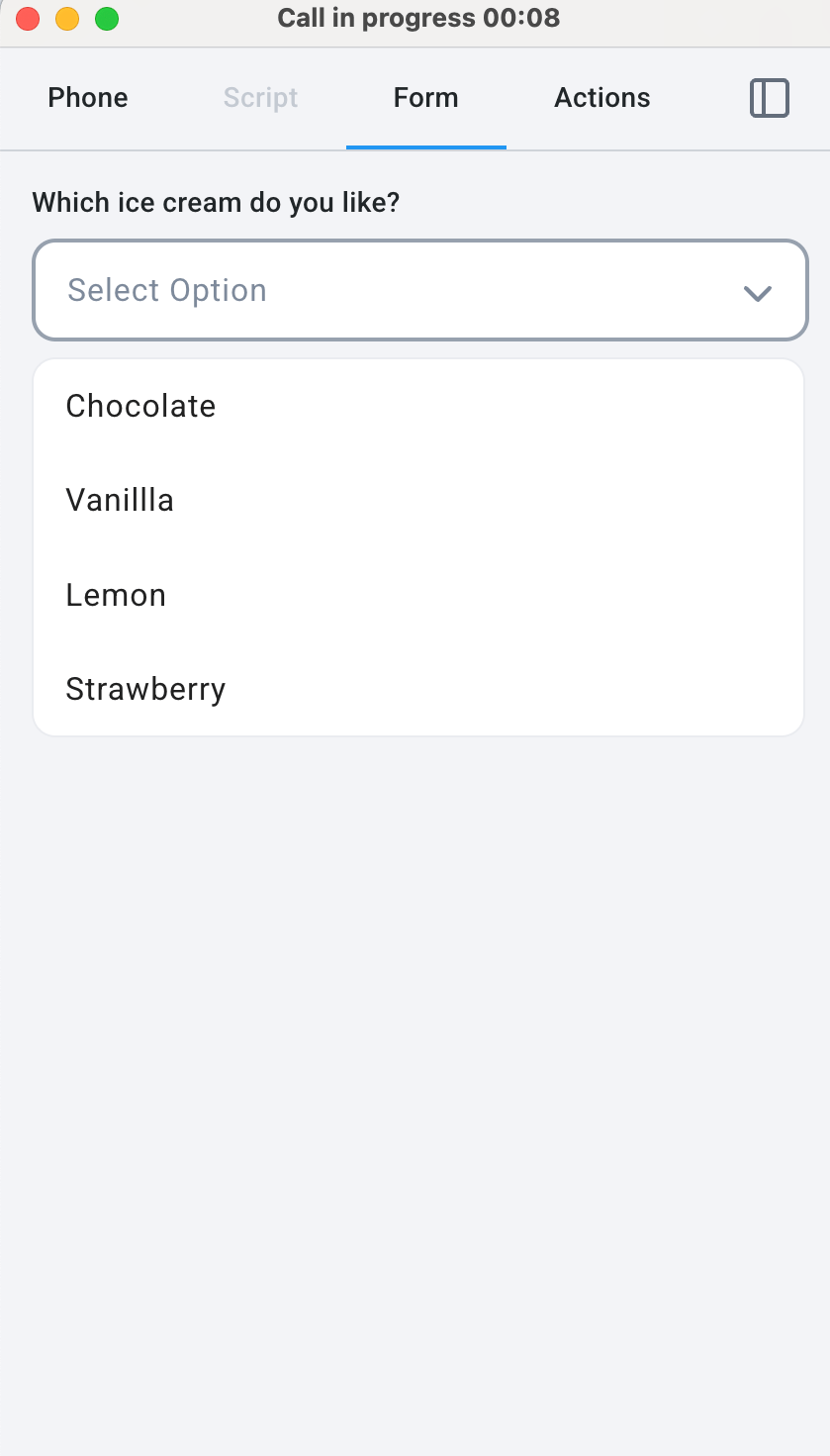
View and export survey answers
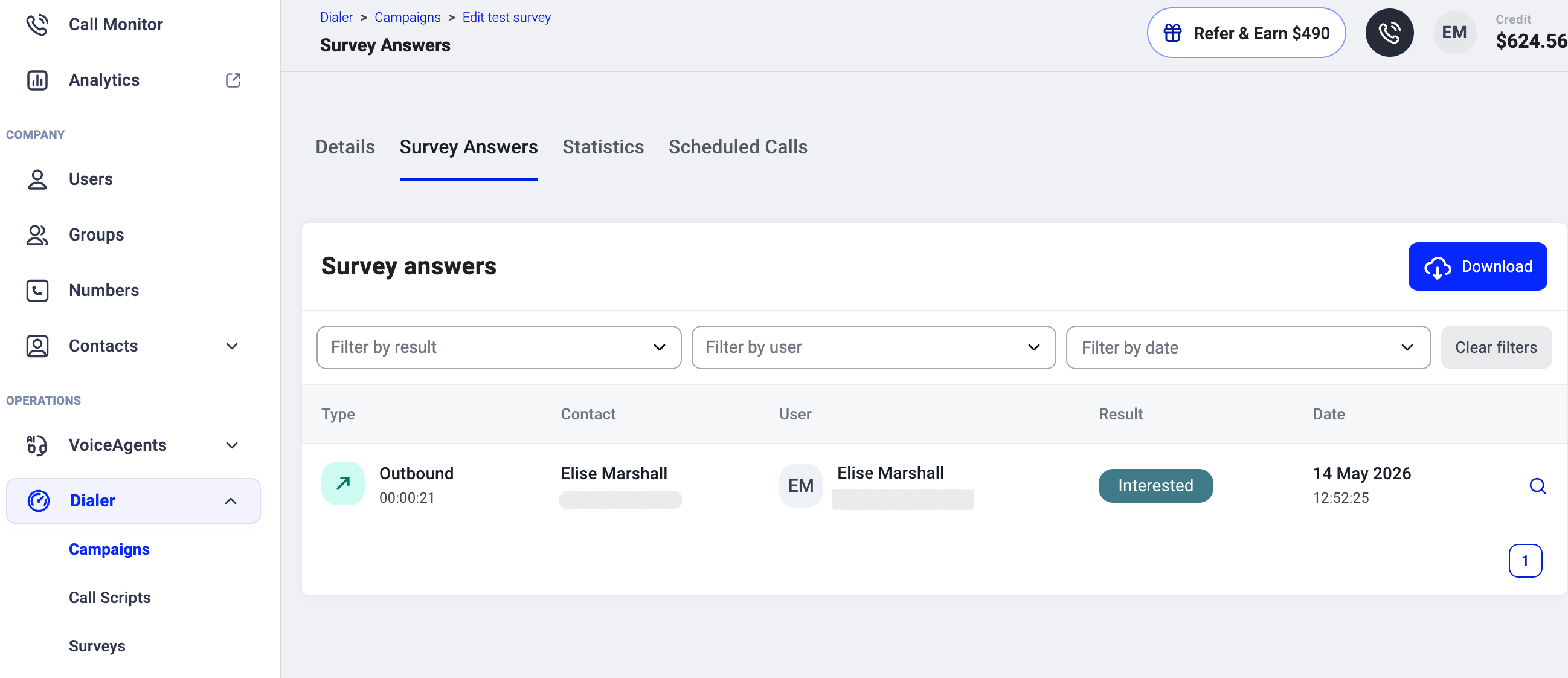
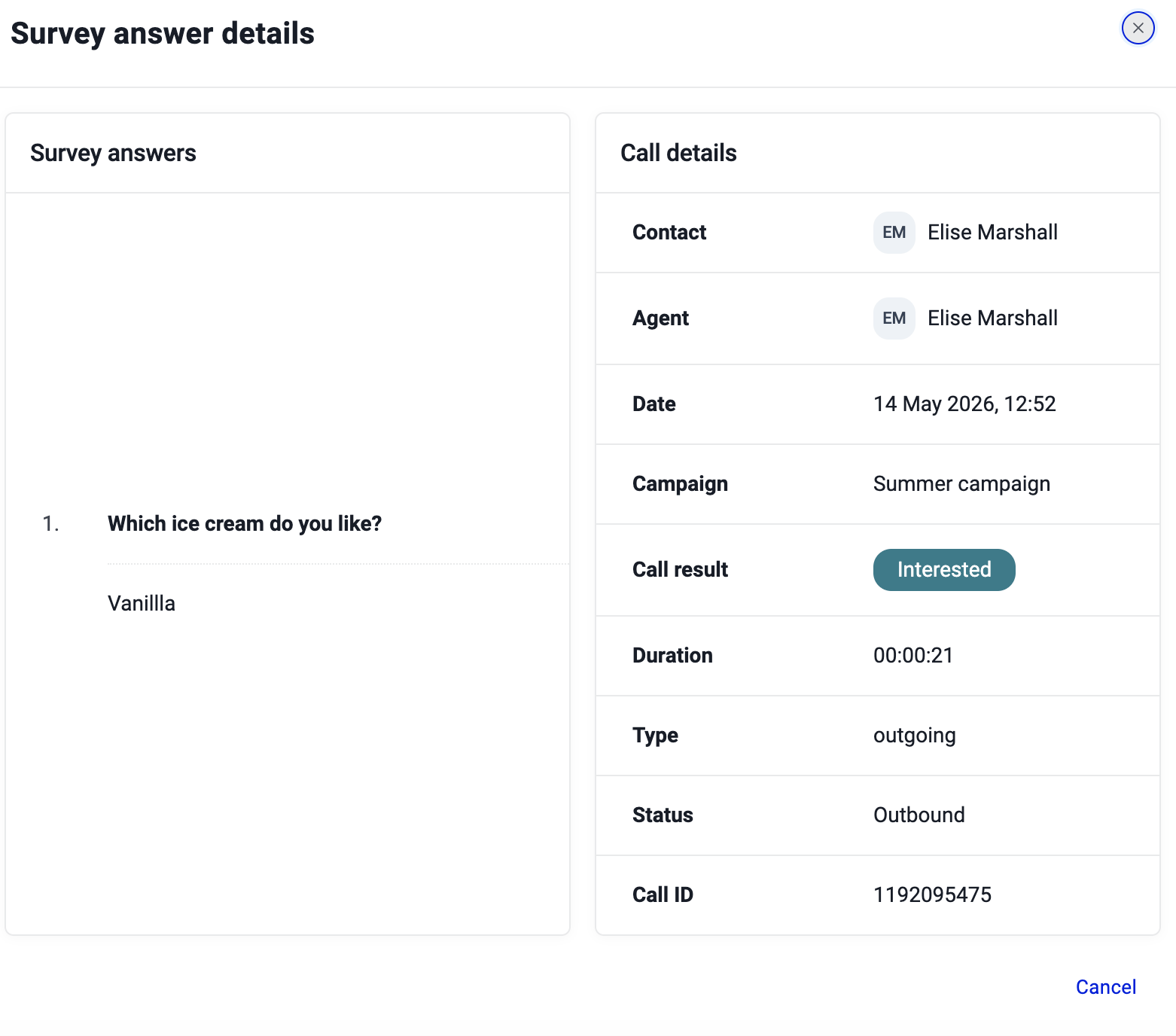
Survey responses are stored against the campaign and can be reviewed after calls have been made.- Go to Dialer > Campaigns.
- Click the magnifier icon next to the relevant campaign.
- Open the Survey Answers tab.
Need help or have a question? Just reach out through our Support portal — we’re here for you.