

In this article you will learn how to create, manage, and assign call scripts to your campaigns.
Call scripts give agents a structured guide to follow during campaign calls. They can include suggested dialogue, talking points, objection handling, or any other content that helps agents stay consistent and confident on the call.
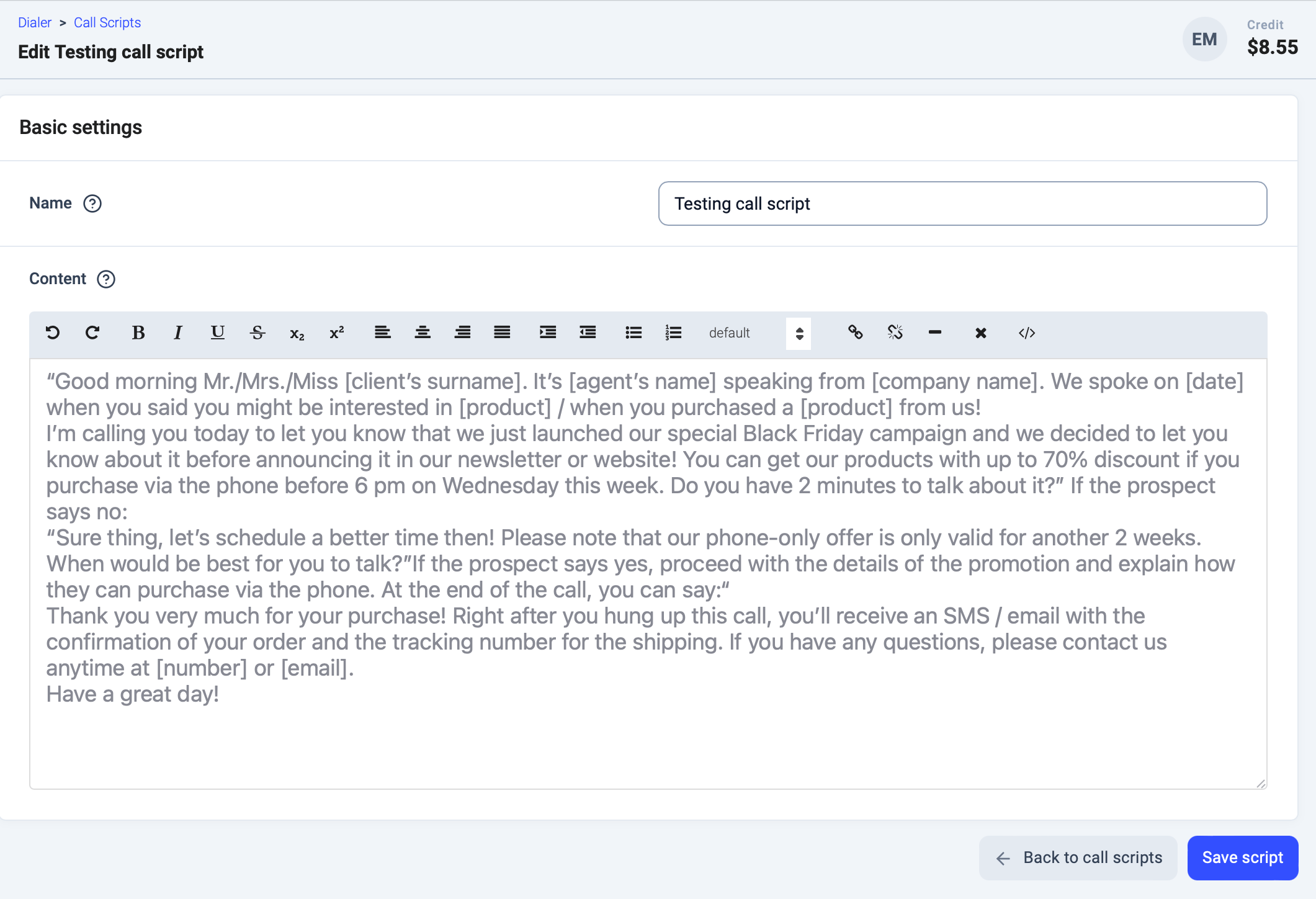
Create a call script
- In the dashboard, go to Dialer > Call Scripts.
-
Click
+ Add Call Script. - Enter a name for your script.
-
Add your content using the editor. You can:
-
Type directly, paste text, or format it with the built-in tools.
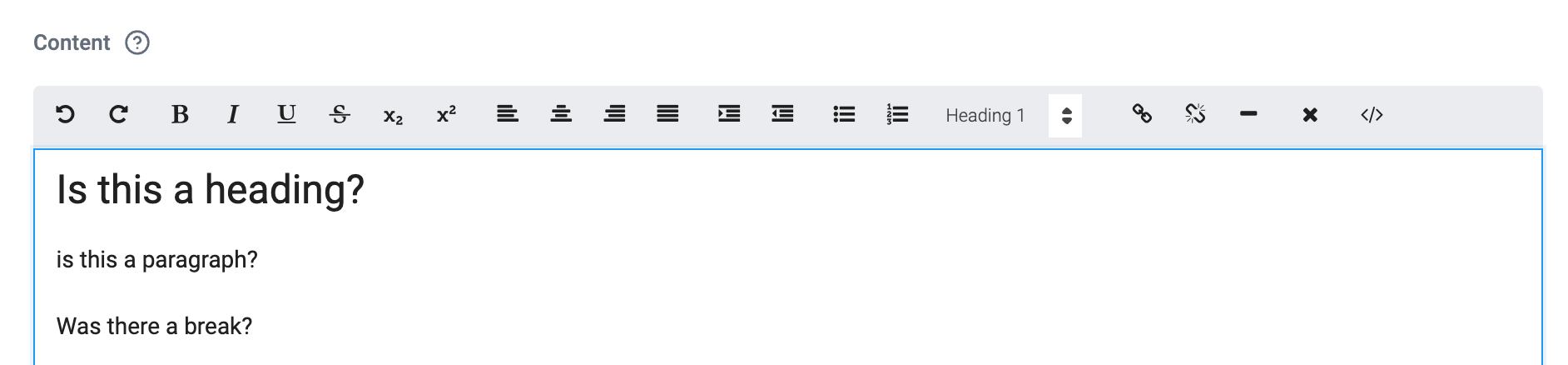
-
Switch to HTML mode by clicking the
</>icon and pasting your own HTML template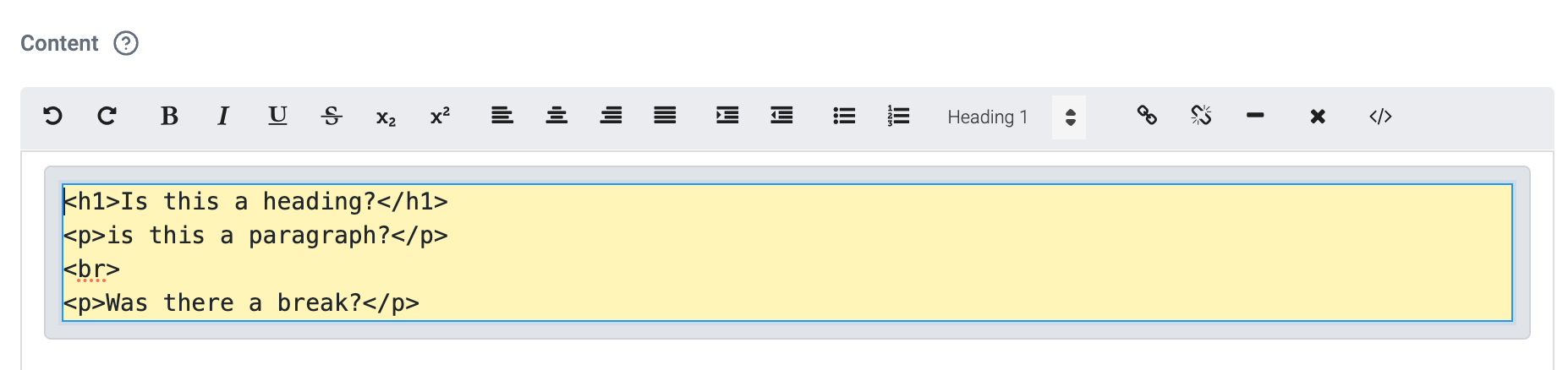
-
Type directly, paste text, or format it with the built-in tools.
-
Click
Create script.
Edit or delete a script
- Go to Dialer > Call Scripts.
- Find the script you want to update.
- Click the pencil icon to edit or the trash icon to delete.
Assign a script to a campaign
Scripts are assigned during campaign setup or when editing an existing campaign.- Go to Dialer > Campaigns and open the campaign you want to update.
-
Under Assign call script, search for and select the script.

- Save your changes.
How agents use scripts
During a campaign call, agents can access the script from the Script tab at the top of the calling screen in the CloudTalk Phone desktop app. The script is visible throughout the call and does not need to be opened separately.
Need help or have a question? Just reach out through our Support portal — we’re here for you.