

Learn how to create, manage, and assign surveys, and how to review and export the answers from AI Sales Dialer campaigns.
Surveys give agents a set of structured questions to work through during a campaign call. Answers are saved against the campaign and can be reviewed and exported from the Dashboard. They are useful for qualifying leads, collecting feedback, or building a profile on prospective clients.
💡 Surveys work with the AI Sales Dialer in both sequential and parallel mode. You assign a survey per campaign, and agents fill it in from the Survey tab during or after each call.
Create a survey
- In the Dashboard, go to Dialer (new) > Surveys.
- Click + Add Survey.
-
Enter a name for your survey and add at least one question. For each question, set:
- Question content: the text agents will ask the contact.
- Question type: the kind of answer allowed (see below).
- Click Create survey.

Edit or delete a survey
- Go to Dialer > Surveys.
- Find the survey you want to update.
- Click the pencil icon to edit or the trash icon to delete.
Assign a survey to a campaign
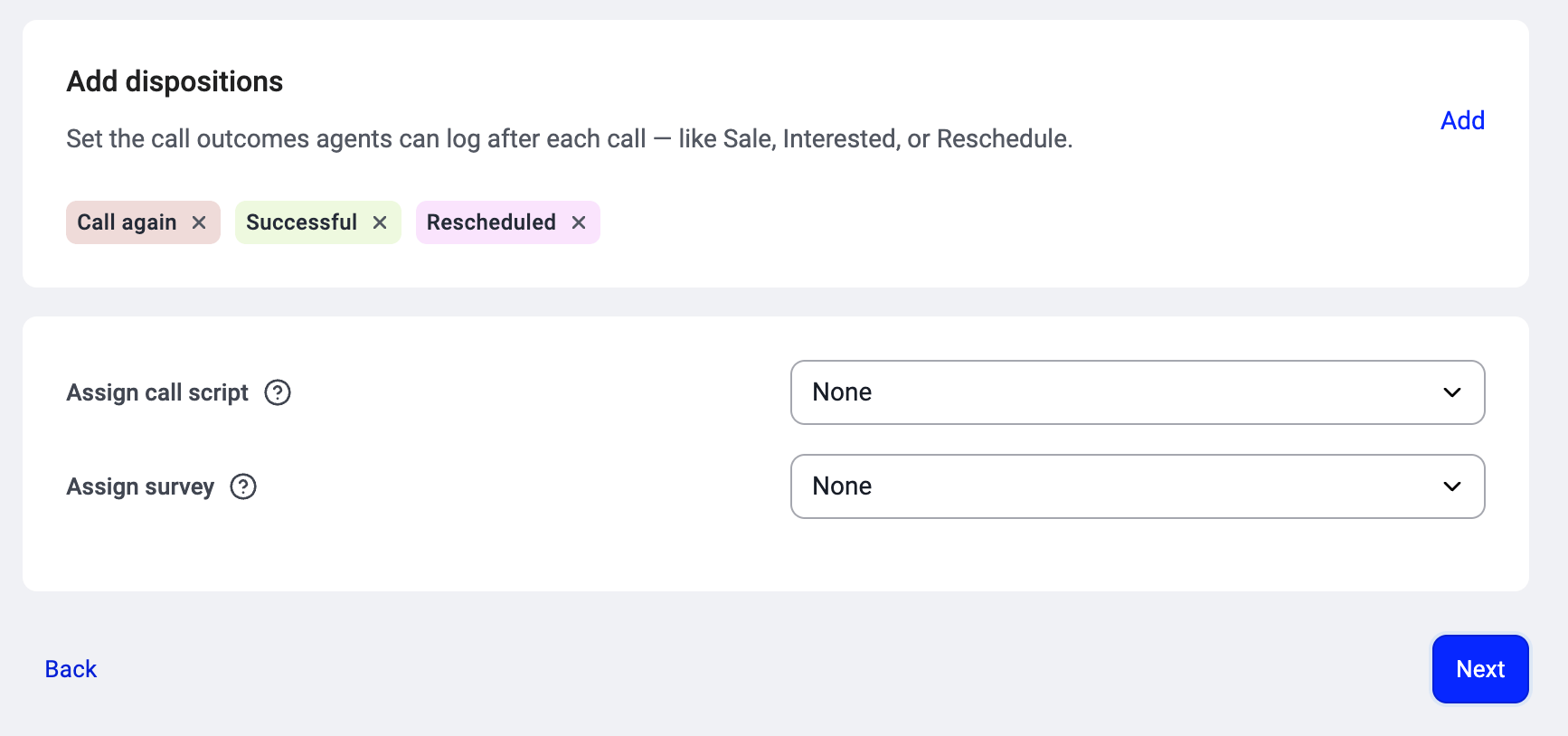
Surveys are assigned in Step 3: Calling setup when you create a campaign, or when editing an existing one.- Go to Dialer (new) > Campaigns and open the campaign, or start a new one.
- In Calling setup, find Assign survey and pick the survey from the list. You can search by name.
- Save your changes.
How agents fill in the survey
During a campaign call, the survey appears in the Survey tab of the Call summary panel on the right side of the dialer screen. Agents can fill it in during the call or right after, then click Submit survey. The answers are saved against that call and contact. See Running a campaign in the AI Sales Dialer for the agent view.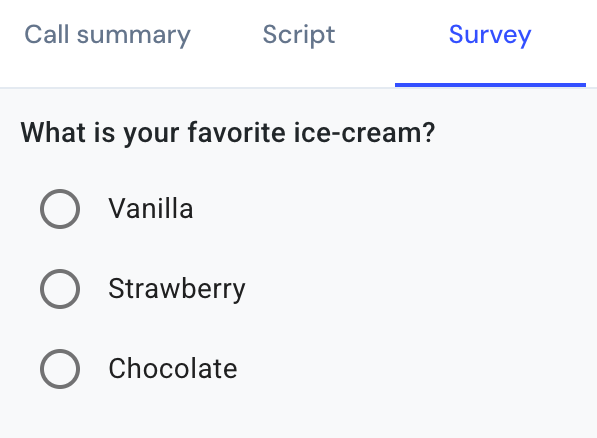
View and export survey answers
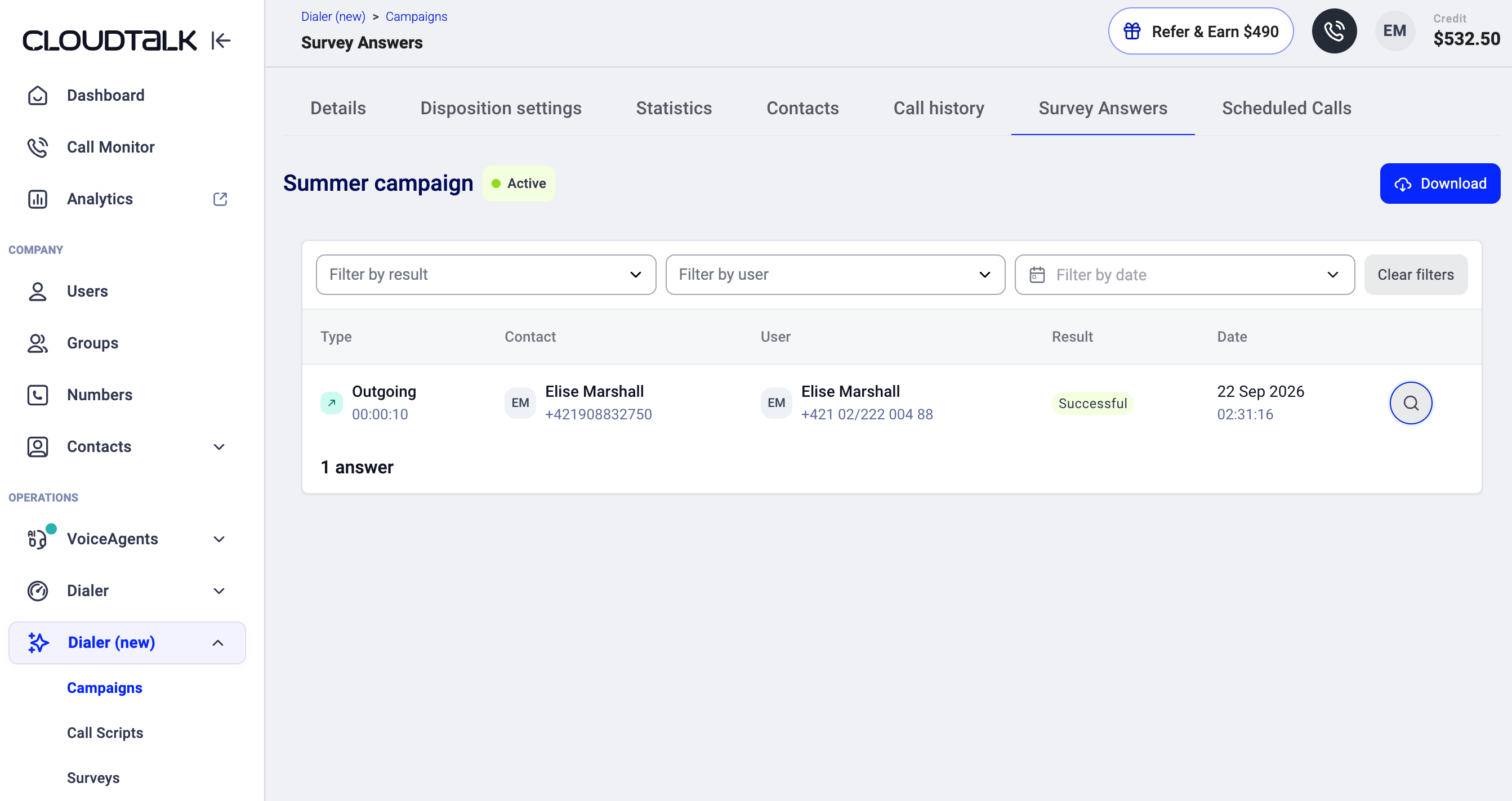
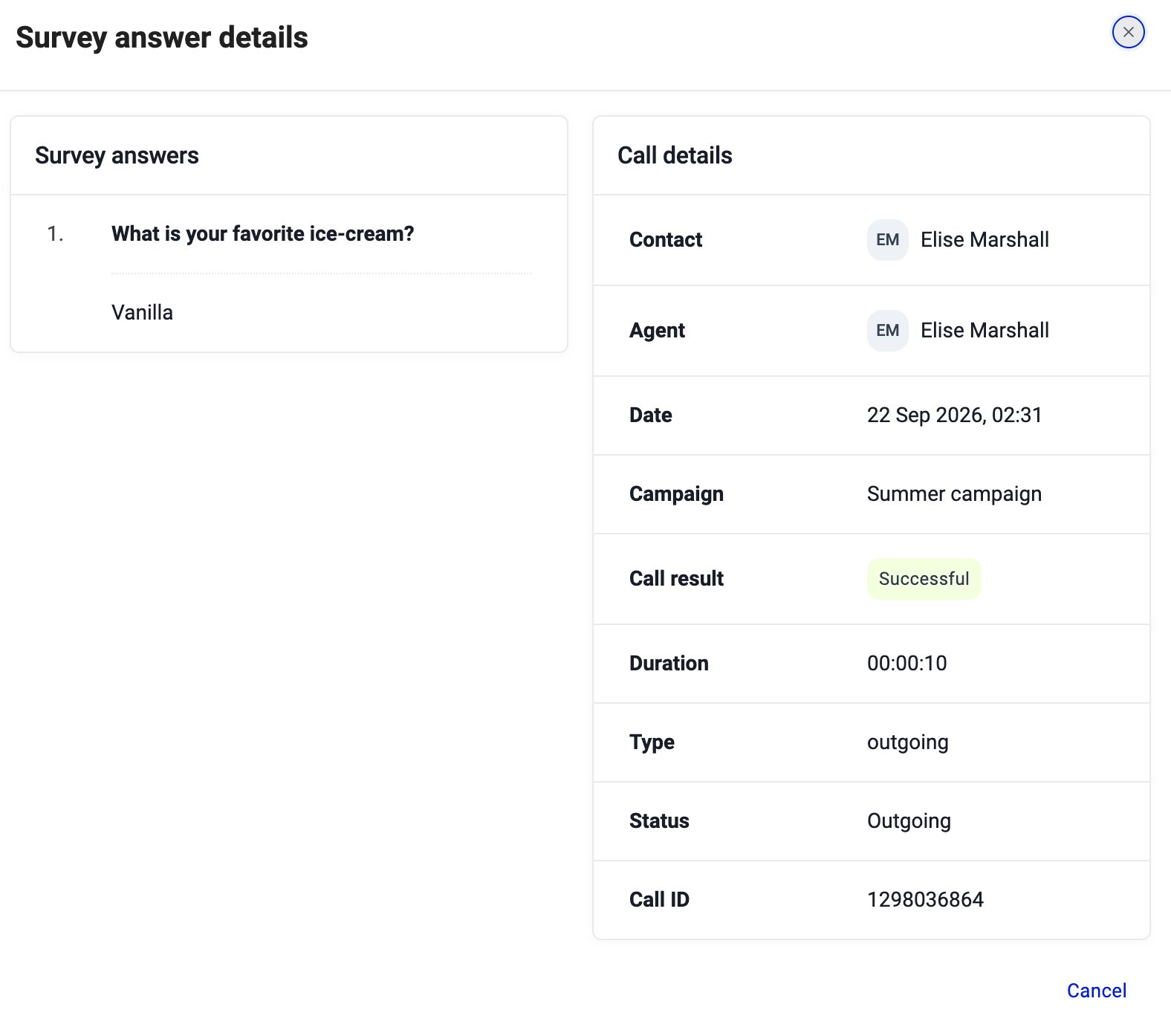
Survey responses are stored on the campaign and can be reviewed once calls have been made.- Go to Dialer (new) > Campaigns and open the campaign.
- Open the Survey Answers tab.
- To export all responses, click Download.
Need help or have a question? Just reach out through our Support portal — we’re here for you.