

In this article, you will learn how to navigate the Billing page, understand each section, and manage your subscription, usage, and payment settings.
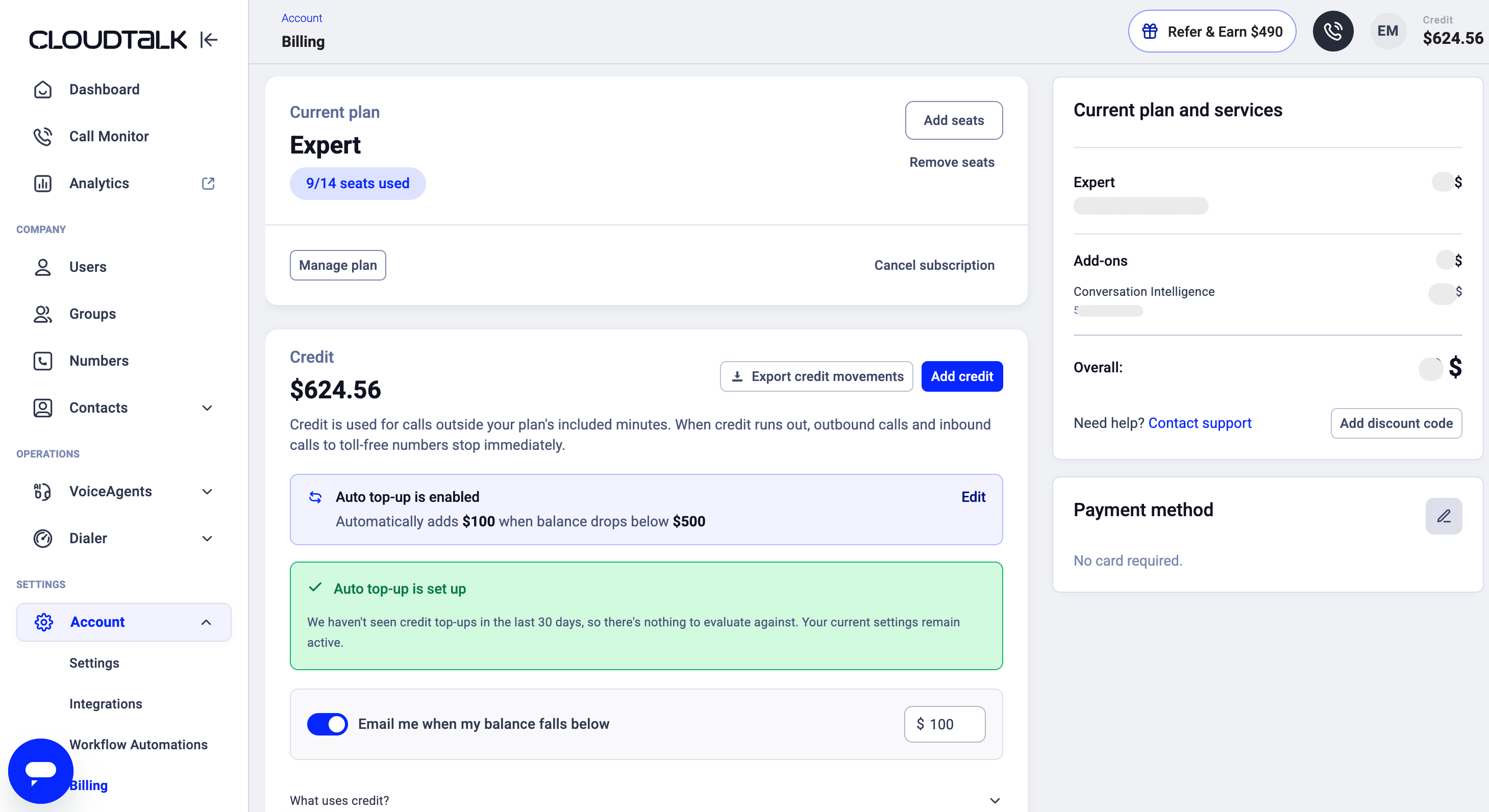
You can access the Billing page via Dashboard > Settings > Billing. This page is your central hub for managing subscriptions, monitoring usage, and updating payment details. It is divided into two main areas:
-
Left side: Billing details and settings
This section contains all configurable parts of your billing, including your subscription, credit, usage details, add-ons, and company information. -
Right side: Current plan and payment summary
This section shows a summary of your current plan, active services, total charges, and your payment method.
Subscription and seats
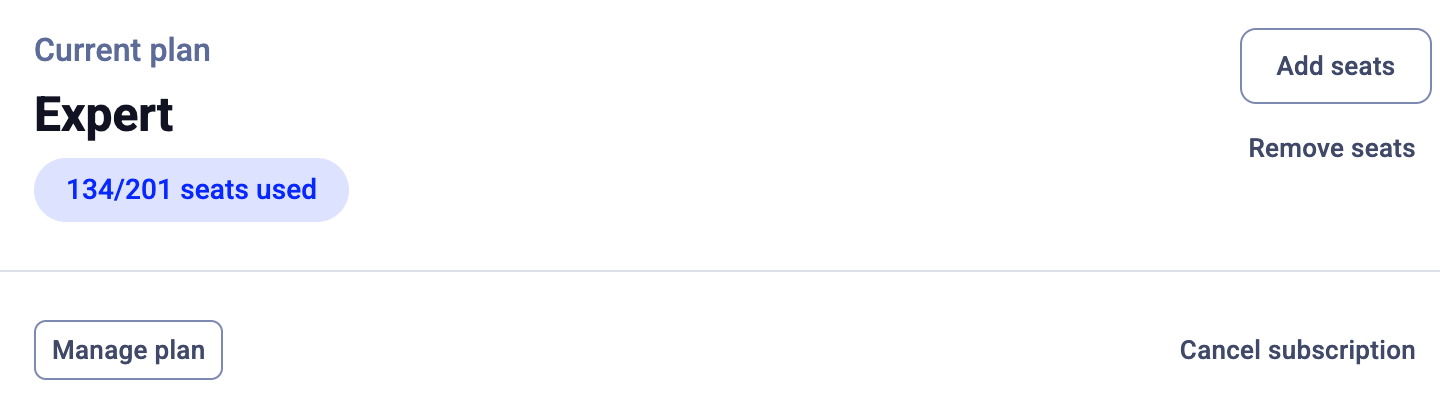
- View your current plan
- See how many seats are used
- Add or remove seats
- Manage or cancel your subscription
Credit and auto top-up
The Credit section shows your current balance and how your account handles usage outside your plan.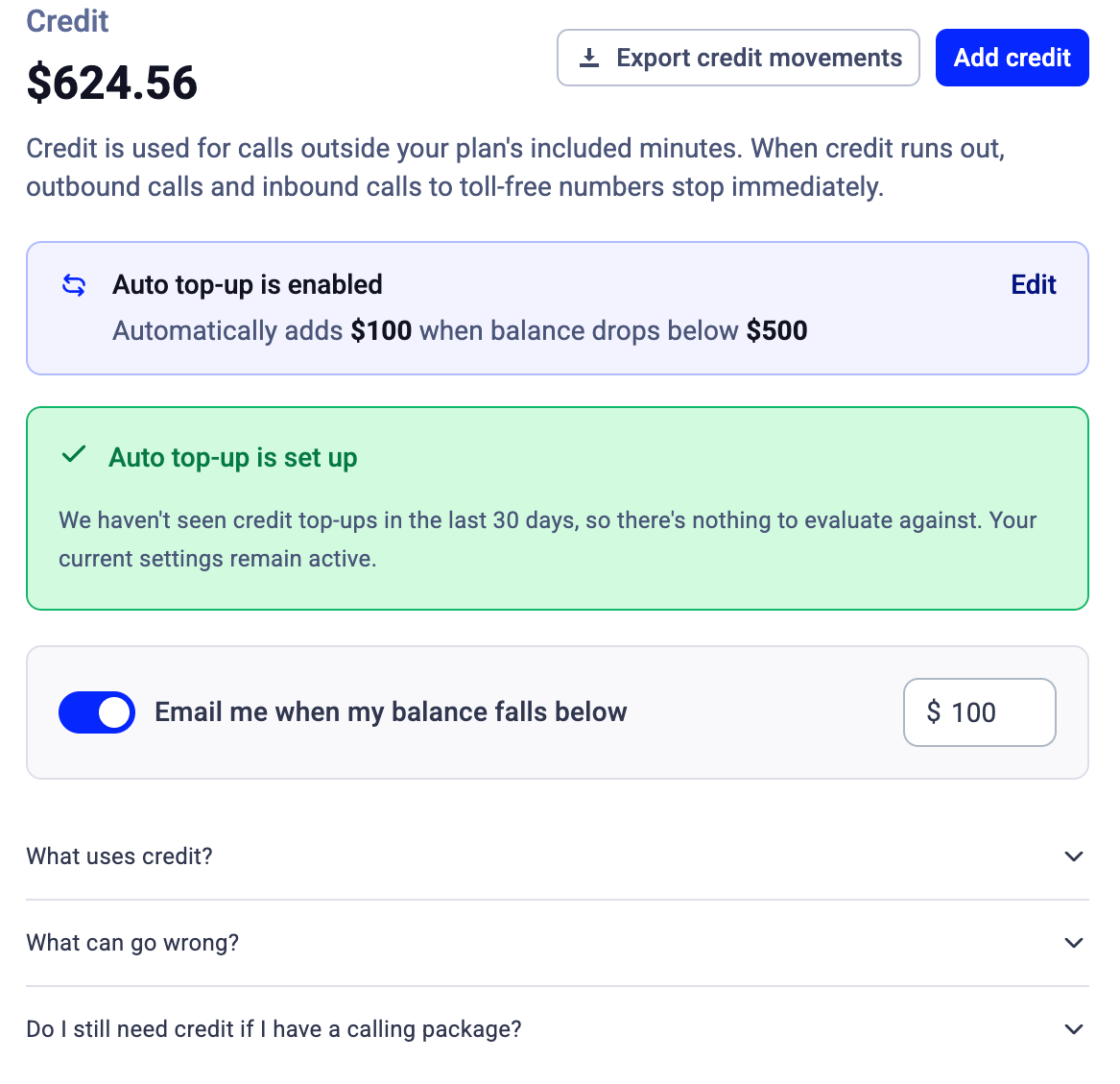
- View your current credit balance
- Manually add credit
- Enable or disable automatic top-ups
-
Set:
- the balance threshold that triggers a top-up
- the amount to add each time
- Export your credit movements as a CSV file
- Set a custom low-balance alert threshold to receive an email notification when your balance drops below an amount you choose. See Credit balance alert emails for details.
Usage and overages details
Included in your plan
This section shows what is covered by your subscription.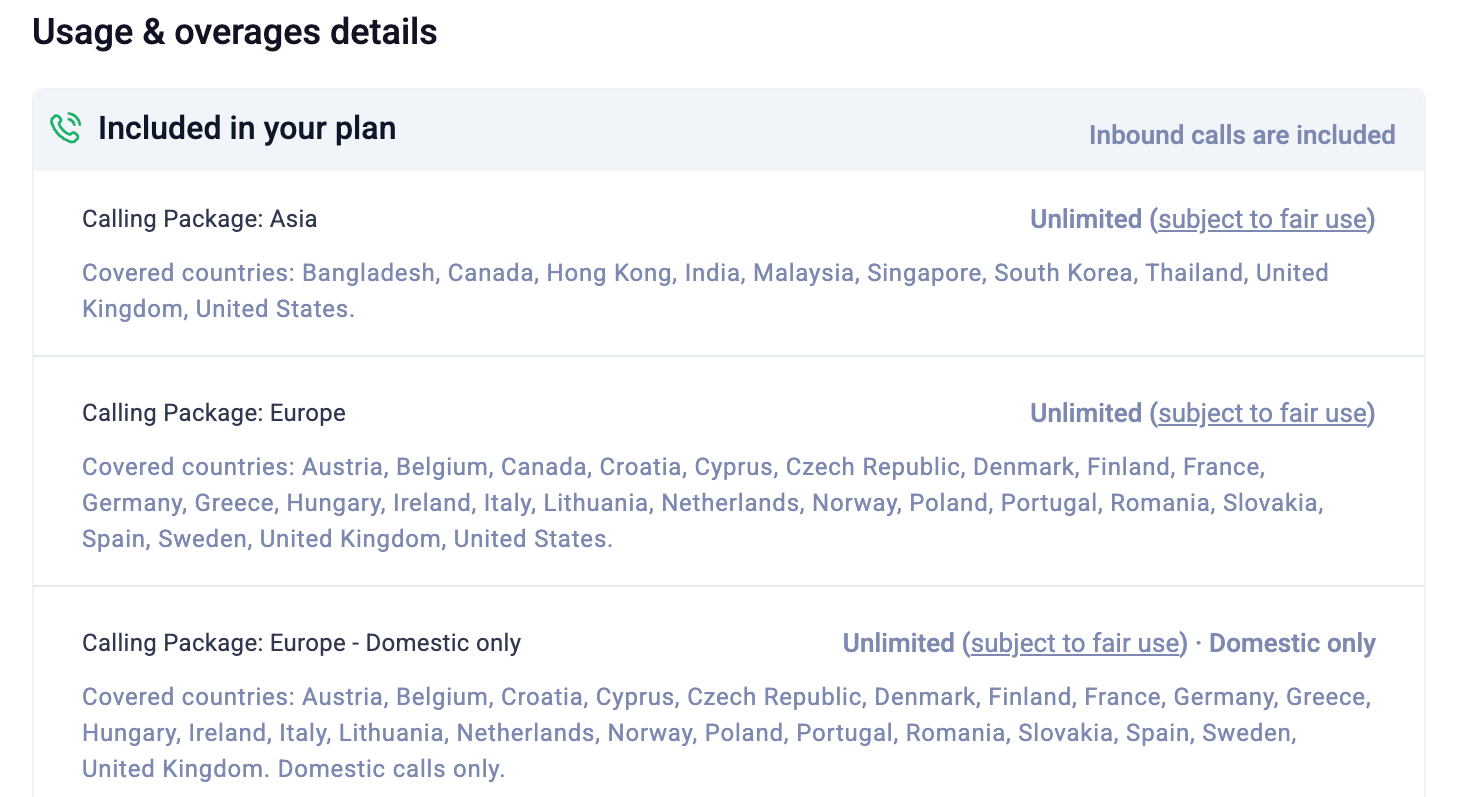
- Your calling packages (for example, Europe or Asia)
- Covered countries
- Whether usage is unlimited (subject to fair use)
- Whether the package is domestic-only or includes international calls
Not included in your plan
This section lists services that are billed separately, such as usage outside your package or premium destinations.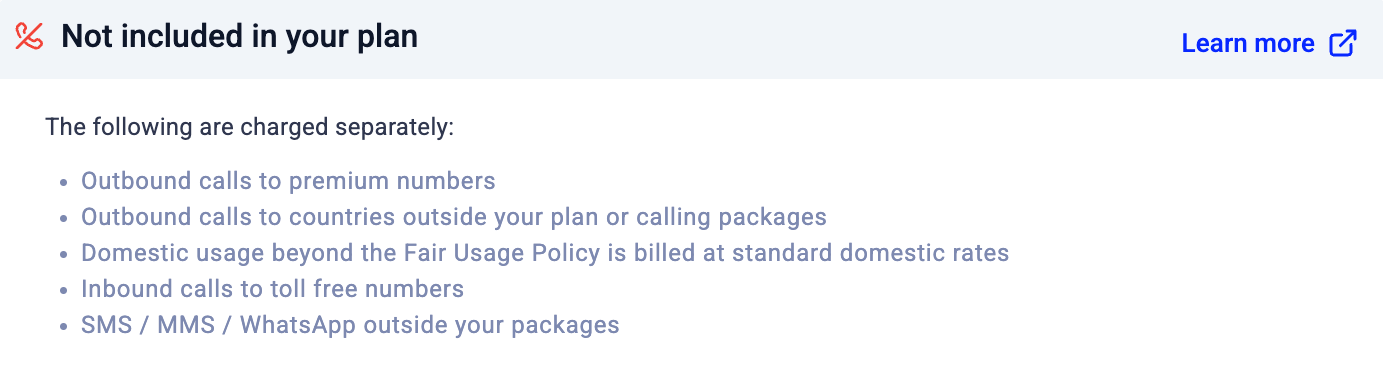
Add-ons and additional services
This section lists all active add-ons and services in your account.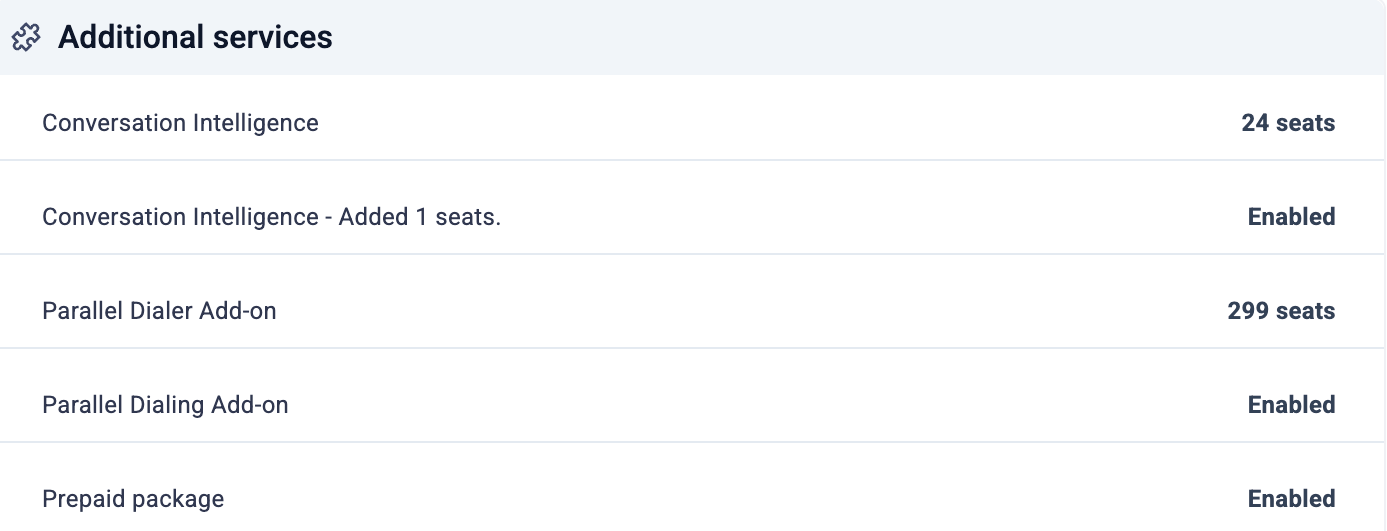
- Conversation Intelligence
- Dialer add-ons
- Voice Agents packages
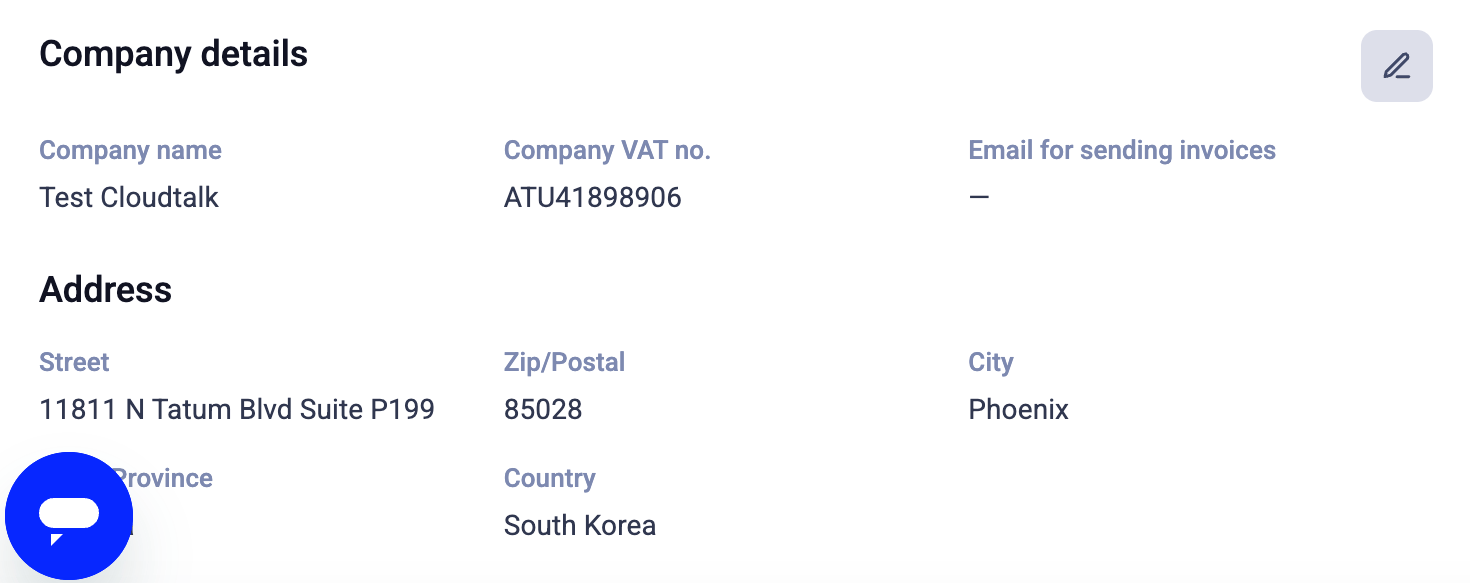
Company billing details
This section contains your company information used for billing and invoices. You can view and update:- Company name
- VAT number
- Invoice email address
- Address details (street, city, postal code, country)
Current plan and services summary
On the right side, you can see a summary of your current plan, services, and total charges, along with your payment method. These include:-
Numbers
Monthly charges for your phone numbers, including type (local, mobile, toll-free) and any recent changes.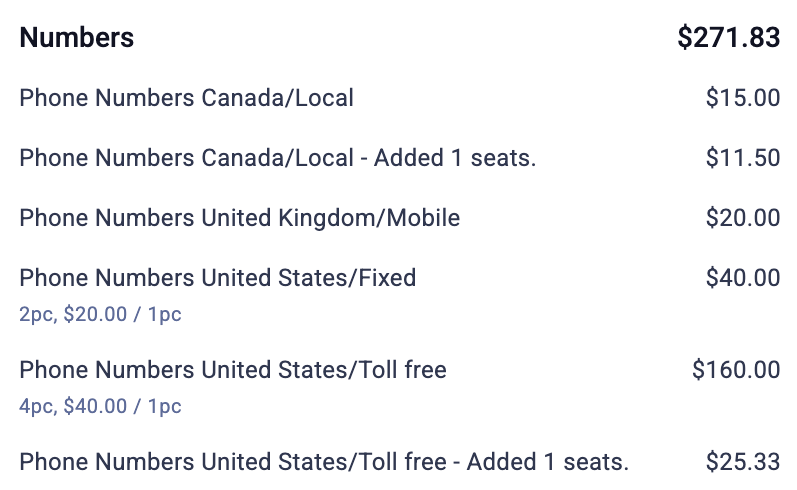
-
Calls and SMS
Usage-based charges for calls and messages, including calling packages and prepaid minutes.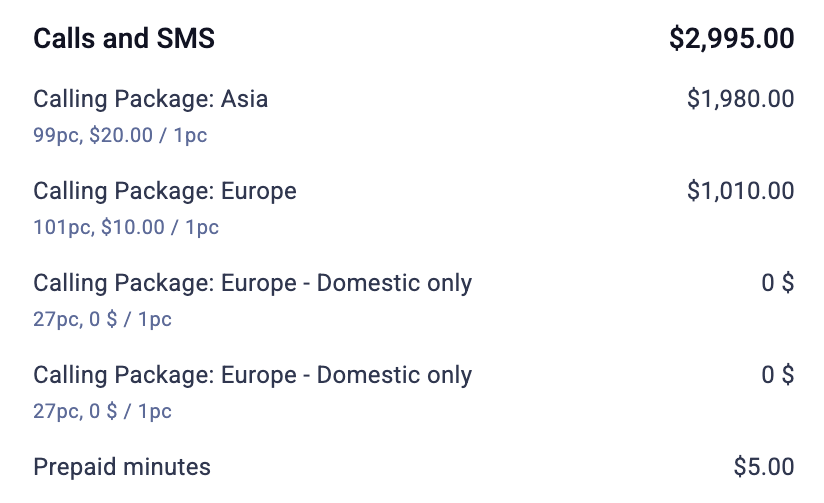
-
Add-ons
Additional features such as Conversation Intelligence, Dialer add-ons, or Voice Agents packages.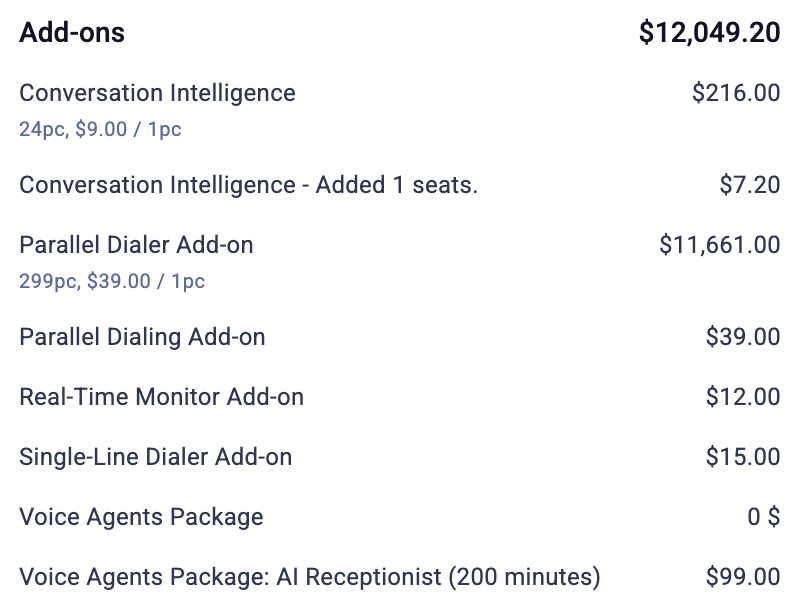
- Individual items
- Quantity (for example, number of seats or units)
- Price per unit
- Total cost per item
Payment method
This section shows the payment method currently used for your subscription and charges. You can see:- The payment provider (for example, PayPal or card)
- The account or email associated with the payment method

FAQs
Why can’t I remove seats? If the option to remove a seat is greyed out or unavailable, there are two common reasons:- The seat may still be assigned to a user. A seat that a user still occupies can’t be removed, delete the user first (go to Users, select the user, and delete them), then reduce your seat count on the Billing page.
- Or you may be at your plan’s minimum number of seats. Each plan has a minimum: Starter and Essential require at least 1, and Expert requires at least 3. If you’re already at your plan’s minimum, you’ll need to switch to a lower-tier plan before you can reduce further. Go to Settings > Billing, click Manage plan, and select a plan with a lower minimum.
Need help or have a question? Just reach out through our Support portal — we’re here for you.