

Call insight cards show your agents the context they need during a call, such as who the caller is, their open deals or their call history, without leaving CloudTalk. This article explains how to create a card, choose when and to whom it shows, and turn it on.
How call insight cards work
You build a card in the Dashboard: you choose where its data comes from, which fields it shows, on which calls and to which agents. When the card is active, agents see it in CloudTalk during matching calls.- Sources: CloudTalk, and the integrations connected to your company: HubSpot, Salesforce, Zoho CRM, Pipedrive, Zendesk, Attio, GoHighLevel or monday.com. One card can combine several sources.
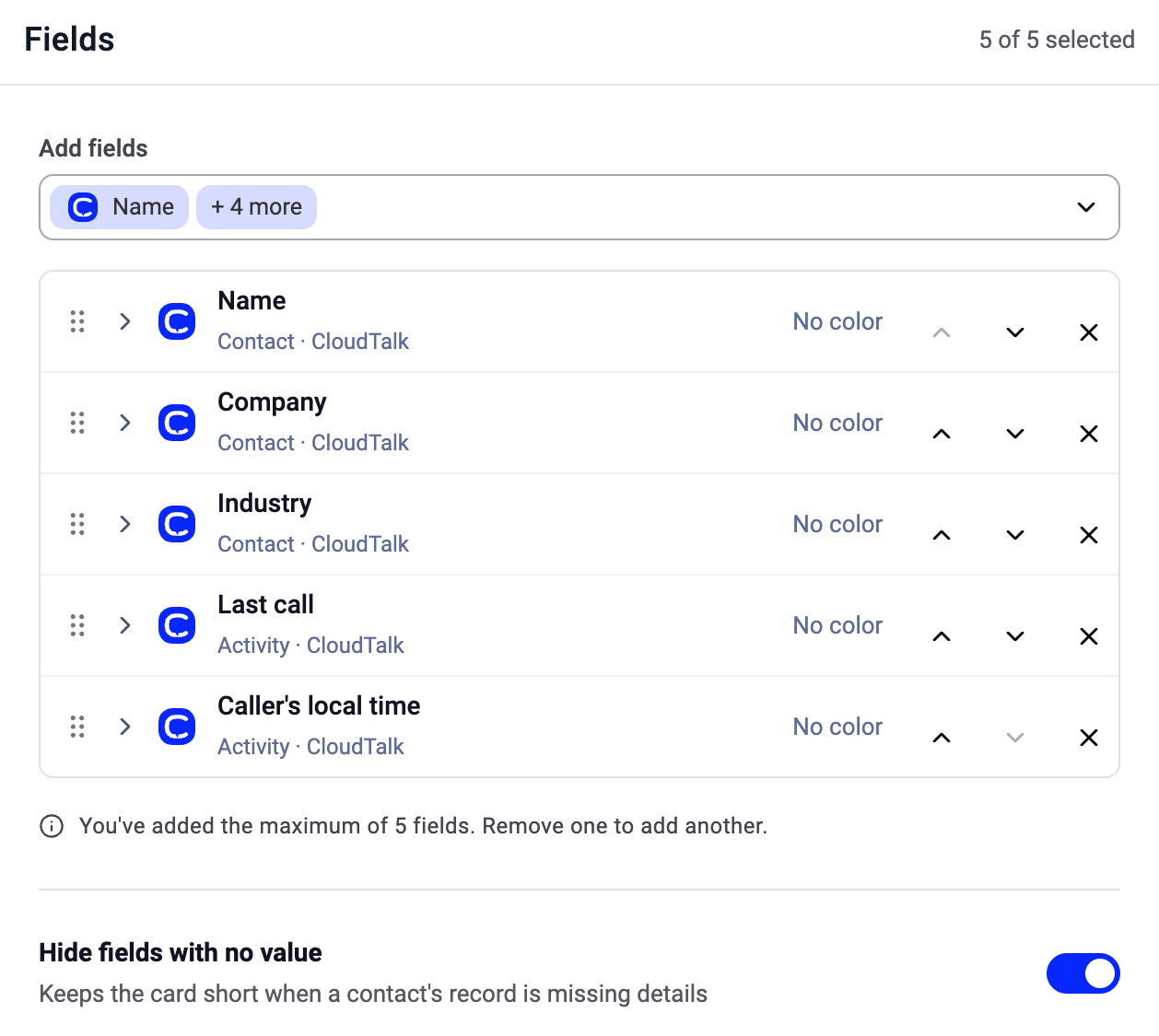
- Fields: up to 5 per card.
- Order: agents see cards in the order you set, top first.
Call insight cards don’t need any setup outside CloudTalk. To show data from your own system through the API, see Cue Cards.
Find your cards
In the Dashboard, go to Settings > Calls > Call Insight Cards. The page lists your cards with their Status, Source, Direction and when they were Last updated (and by whom). You can search by name and filter the list.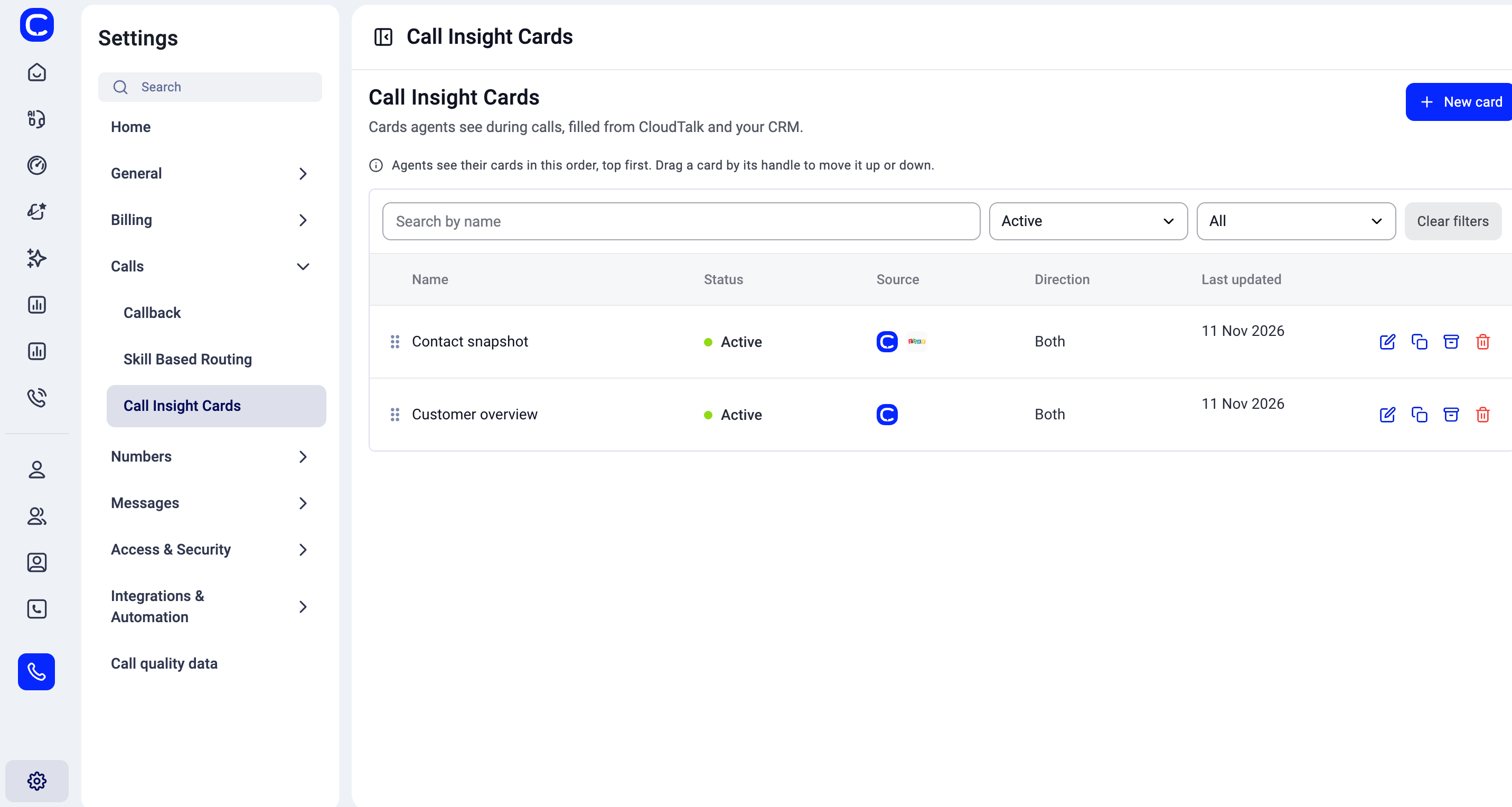
- Edit it (pencil icon)
- Duplicate it (copy icon)
- Archive it (box icon)
- Delete it (bin icon)
Create a card
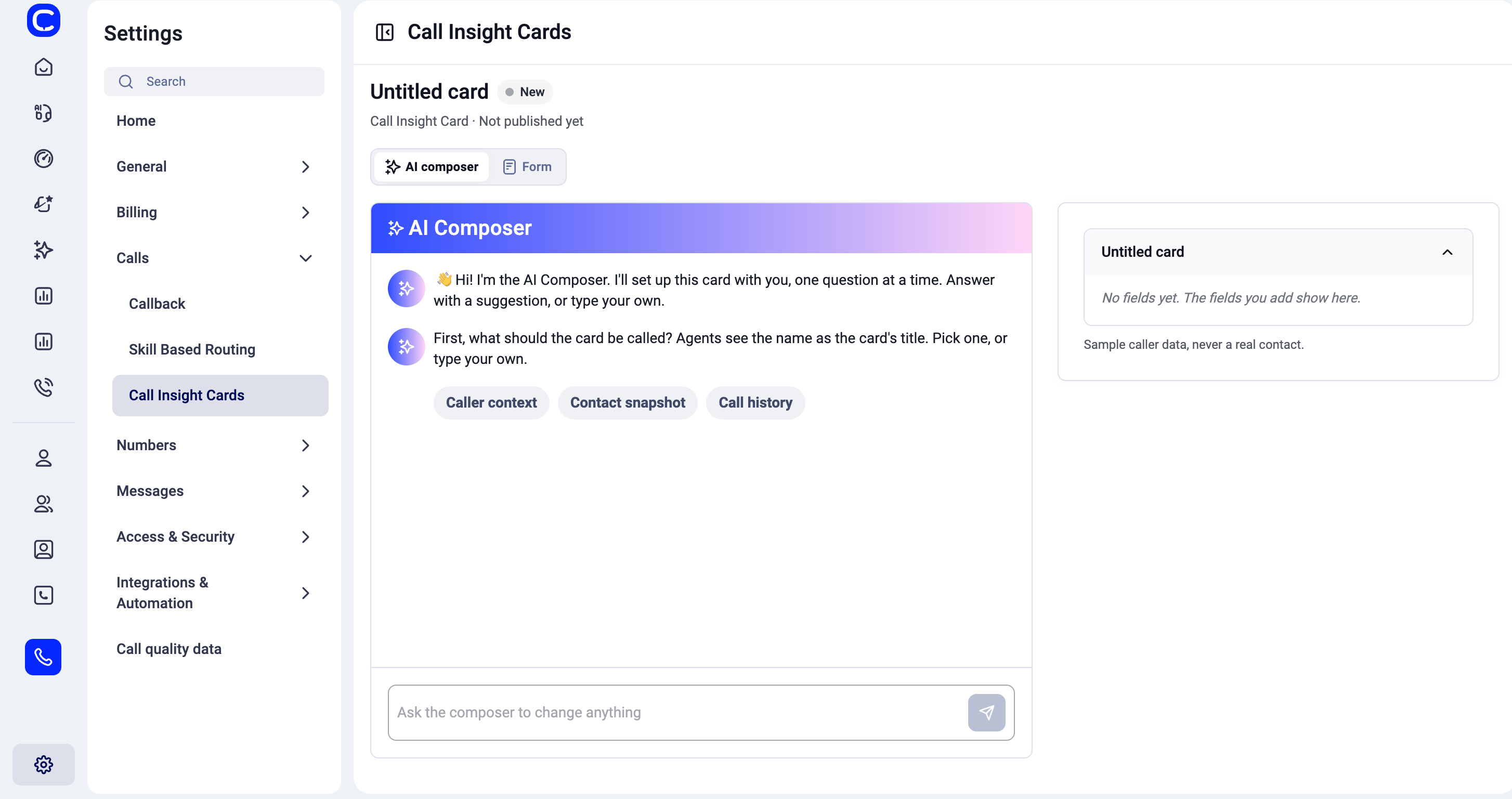
Click+ New card. You can build the card in two ways, using the tabs at the top:
- AI composer: answer a few questions in a chat, and the composer sets up the card for you.
- Form: fill in the settings yourself.
Build it with the AI composer
Build it with the form
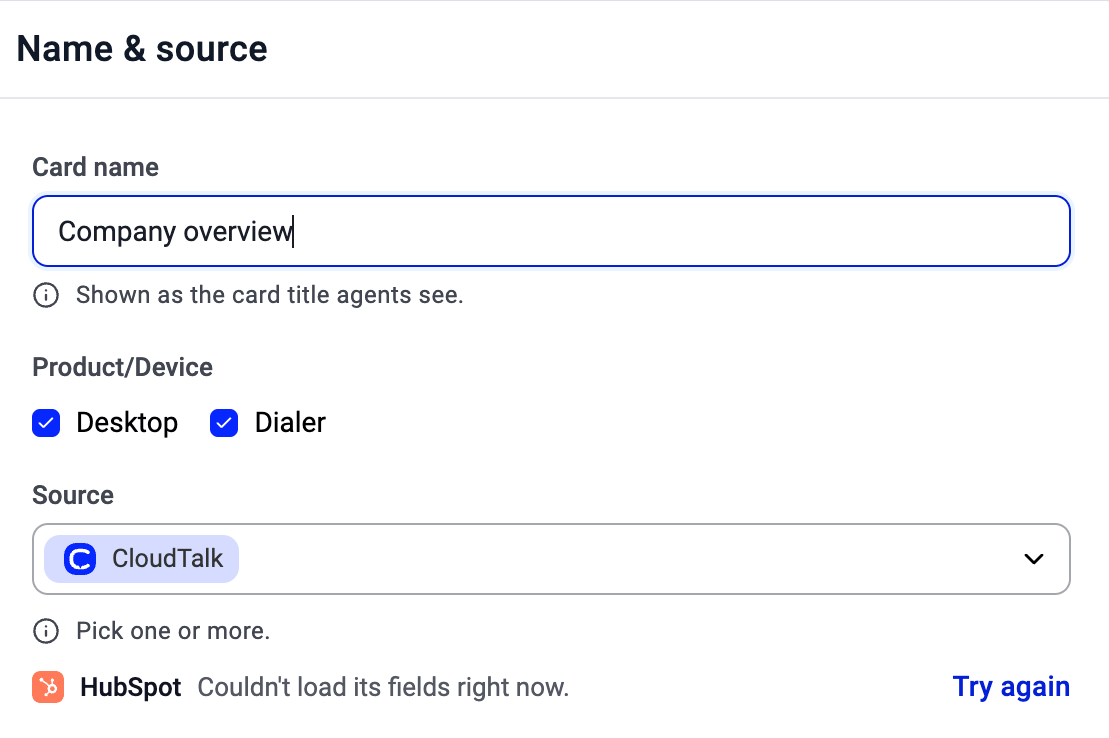
Name & source- Card name: agents see it as the card’s title.
- Product/Device: where the card shows: Desktop, Dialer, or both.
- Source: pick one or more sources. CloudTalk is always available. HubSpot, Salesforce, Zoho CRM and Pipedrive appear greyed out until you connect that integration to your company. Zendesk, Attio, GoHighLevel and monday.com appear in the list only after you connect them.
- Use Add fields to choose up to 5 fields from your sources. The list is grouped by source, and you can search it.
- Drag fields to change their order on the card.
- Hide fields with no value (on by default) keeps the card short when a contact’s record is missing details.
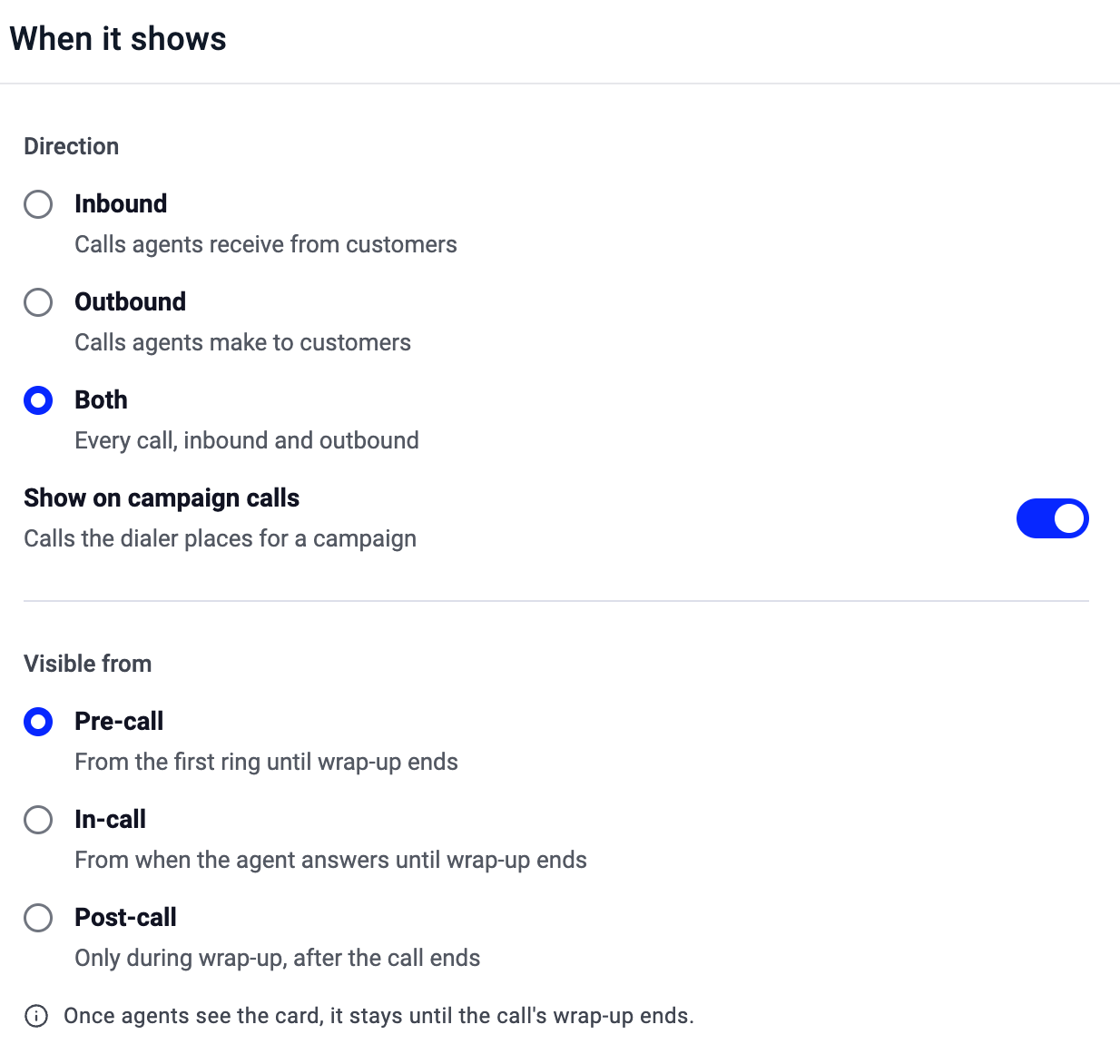
- Direction: Inbound (calls agents receive), Outbound (calls agents make) or Both.
- Show on campaign calls: also shows the card on calls the dialer places for a campaign.
- Visible from:
- Pre-call: from the first ring until wrap-up ends.
- In-call: from when the agent answers until wrap-up ends.
- Post-call: only during wrap-up, after the call ends.
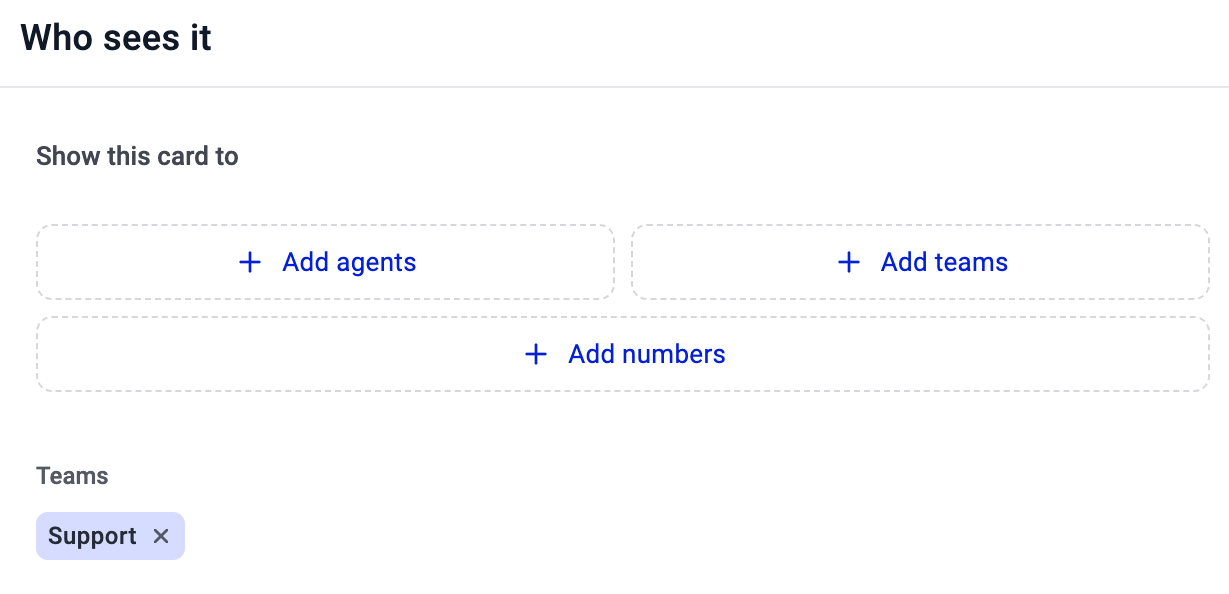

CloudTalk fields you can show
With CloudTalk as a source, you can choose from these fields:
Contact fields come from the caller’s contact in CloudTalk. See Managing contacts.
For a connected integration, the fields available depend on that integration and the data in your account.
Change the order of cards
On the Call Insight Cards page, drag a card by its handle to move it up or down. Agents see their cards in this order, top first.What agents see
During a matching call, agents see the active cards with the details for that caller, in the order you set. If Hide fields with no value is on, fields without data are left out.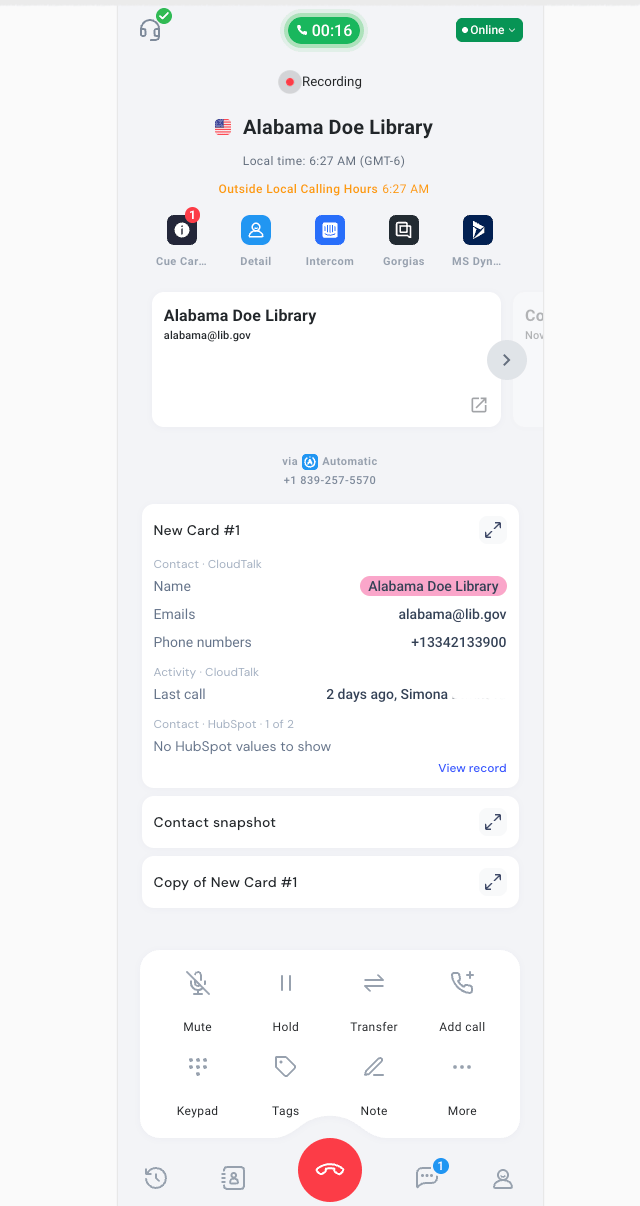
Need help or have a question? Just reach out through our Support portal — we’re here for you.