

In this article, you’ll learn how to access the dashboard, what each section shows, and how to use the data to diagnose and resolve call quality problems on your own.
The Call Quality Dashboard gives you a single view of how your calls are performing, both overall and per agent. You can see whether quality issues come from your own network, a specific agent’s setup, or something else entirely. The Call Quality Dashboard is useful when:
- Agents report choppy audio, dropped calls, or one-sided conversations
- You want to track call quality trends over time instead of reacting to individual complaints
- You need to determine whether a problem is on your network side or somewhere else
- You want to identify which agents are consistently experiencing poor call quality
- You need to share quality data with your support team to speed up issue resolution
How to Access the Call Quality Dashboard
- Log in to CloudTalk
- In the left sidebar, scroll down to Settings
- Click Account
- Select Call quality
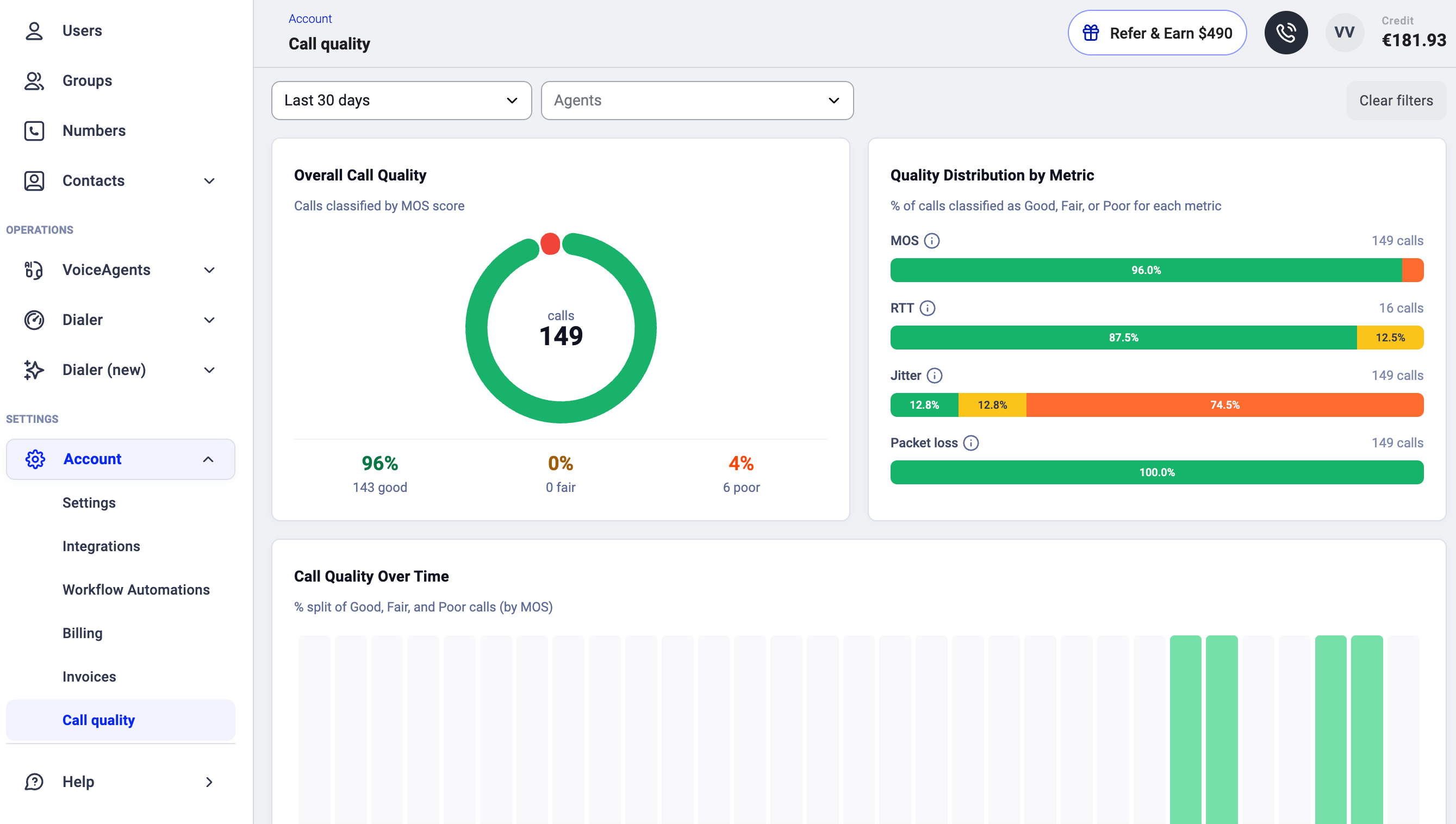
- Time range lets you choose the period to analyze (e.g. Last 30 days)
- Agents lets you narrow the view to one or more specific agents

Call Quality Dashboard Breakdown
Overall Call Quality
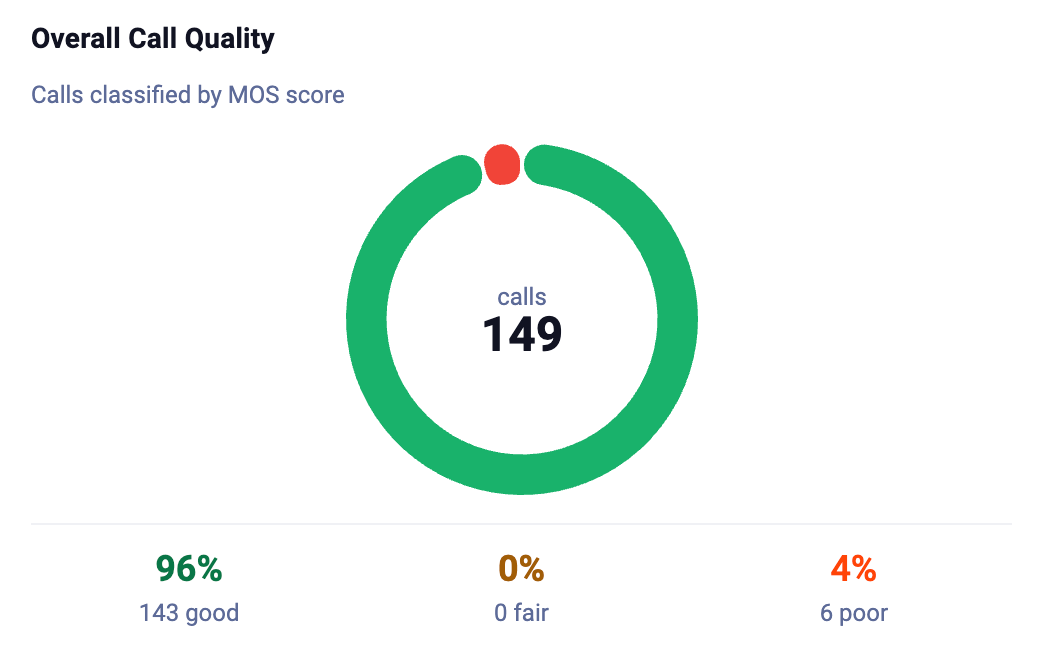
The first panel shows a donut chart with the total number of calls in the selected time range, classified by their MOS (Mean Opinion Score). MOS is a standard measure of voice quality on a scale of 1 to 5, where higher is better. Each call is placed into one of three categories:- Good (green): MOS above 4.0. Audio was clear with no noticeable issues.
- Fair (yellow): MOS between 3.5 and 4.0. Some quality degradation may have been noticeable.
- Poor (red/orange): MOS below 3.5. Significant audio problems like distortion, delays, or dropouts.
Quality Distribution by Metric
This panel breaks quality down by the four key network metrics that affect voice calls. For each metric, you can see what percentage of calls were Good, Fair, or Poor.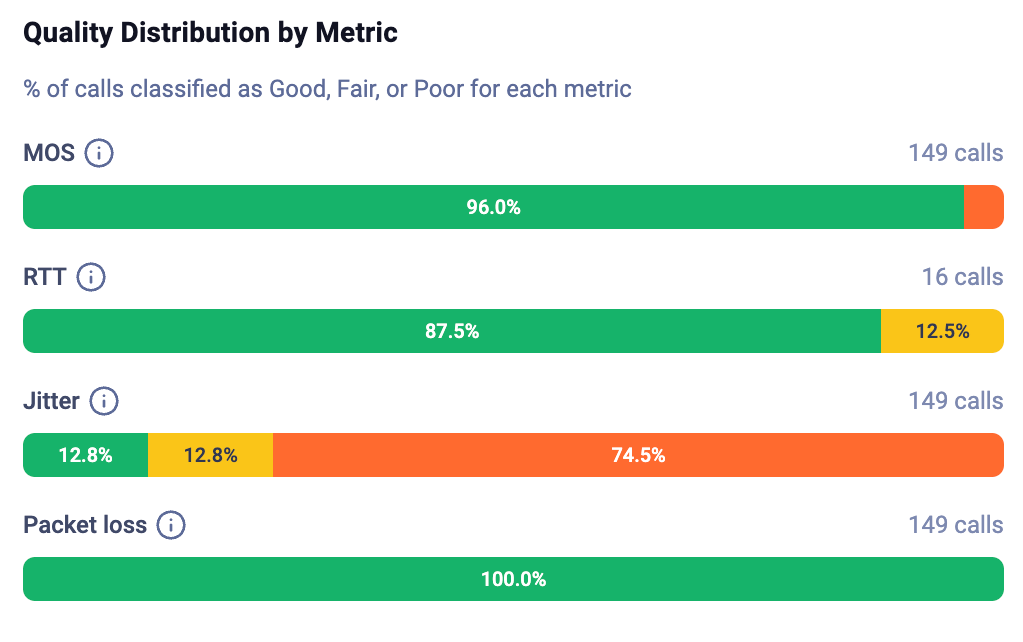
Call Quality Over Time
This stacked bar chart shows the Good/Fair/Poor split (by MOS) for each day in the selected time range.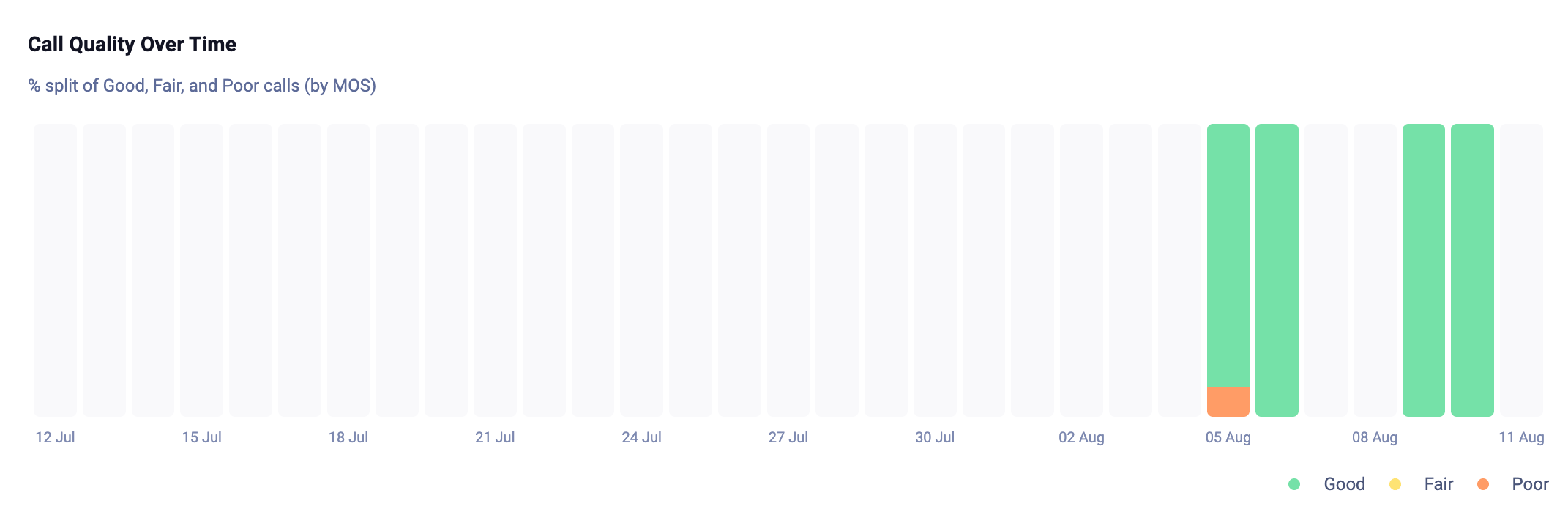
- Is quality getting better or worse over time?
- Did a specific date have a spike in poor calls?
- Did a network change or office move improve things?
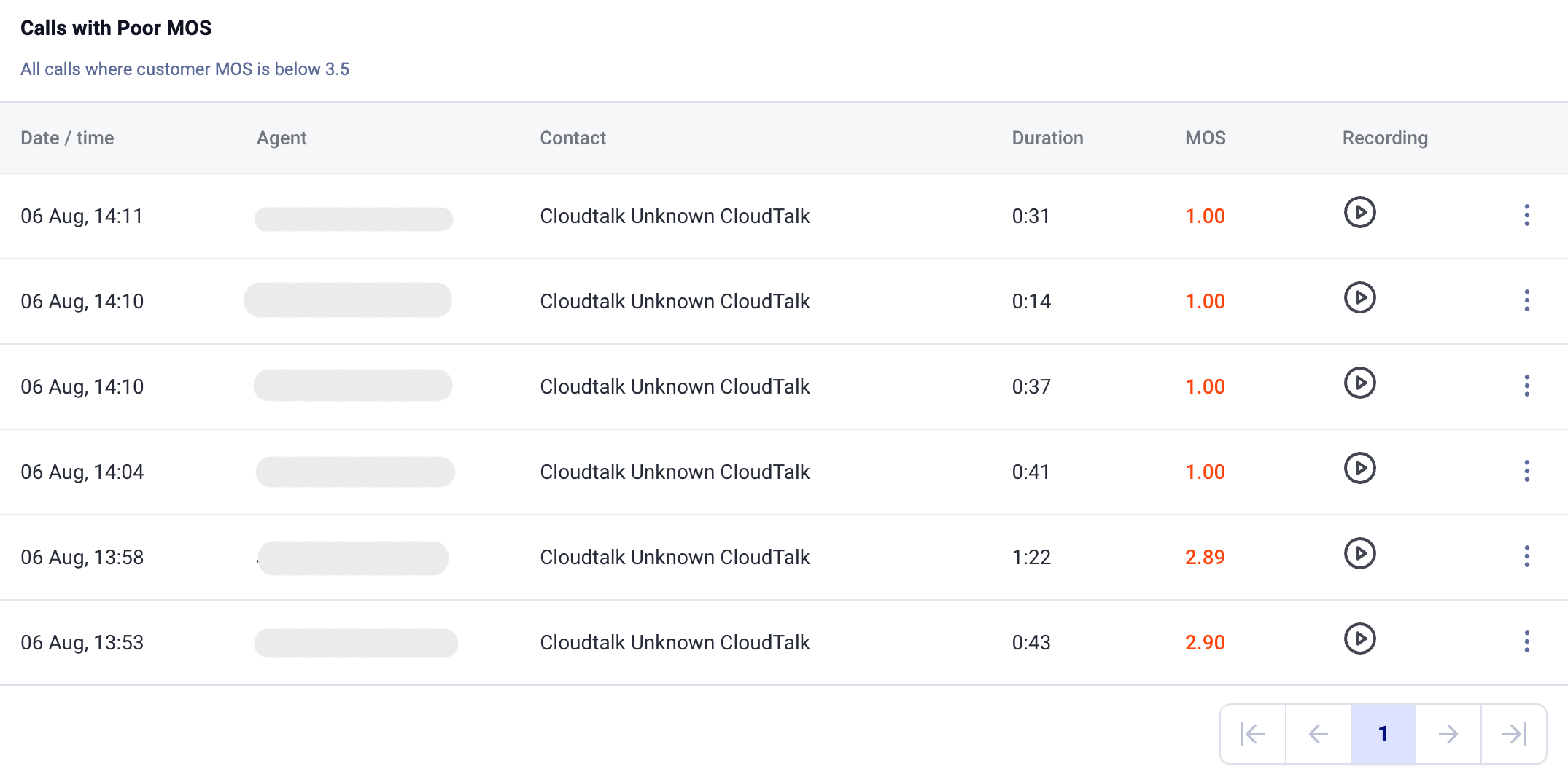
Calls with Poor MOS
This table lists every call where the customer-side MOS score fell below 3.5. For each call, you can see:- Date / time of the call
- Agent who handled it
- Contact information
- Duration of the call
- MOS score (highlighted in red when especially low)
- Recording playback, so you can listen and confirm the quality issue
Quality per Agent
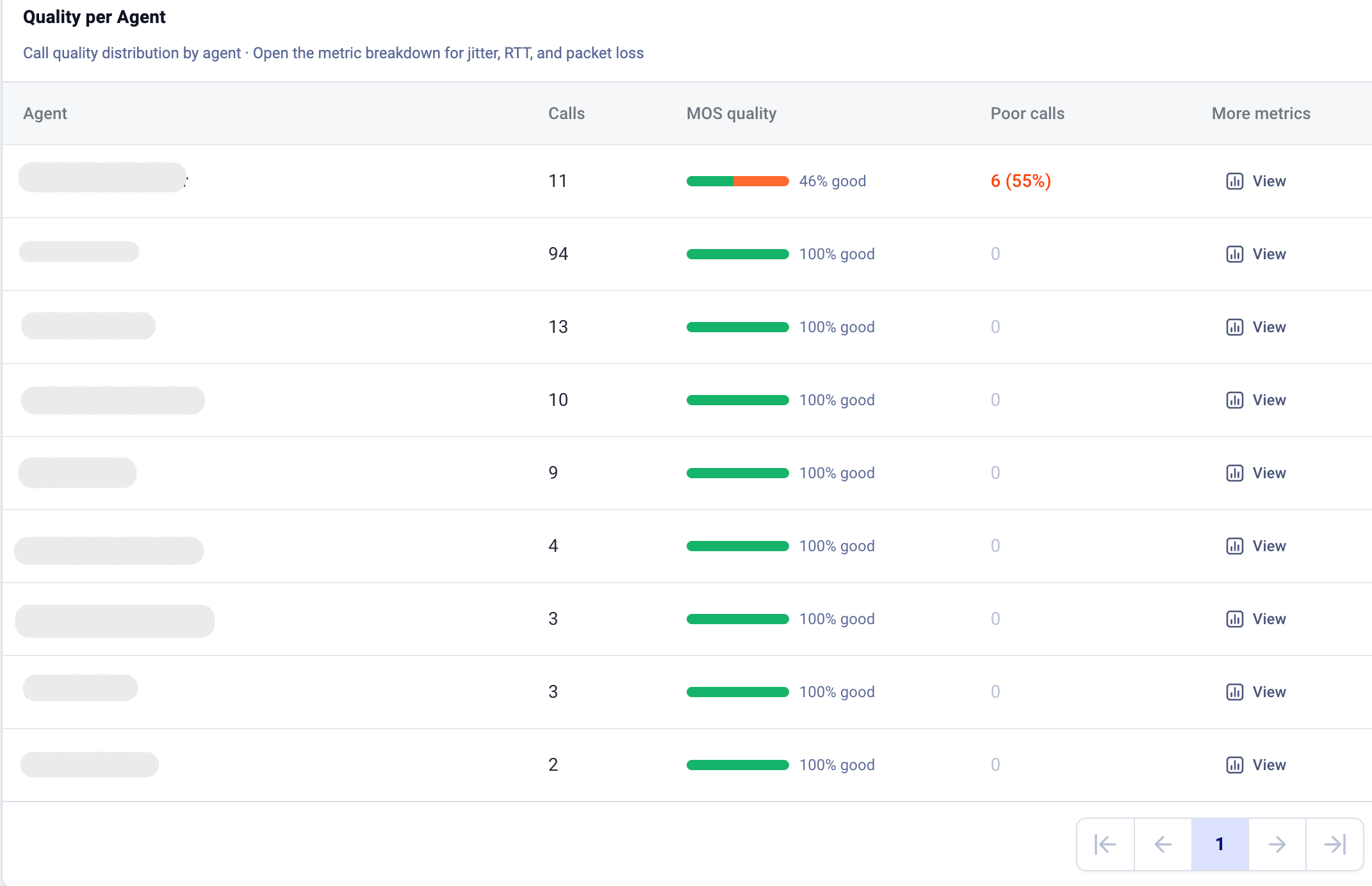
The final section shows call quality broken down by individual agent. For each agent, you’ll see:- Calls: total number of calls in the selected period
- MOS quality: a visual bar showing the proportion of good vs. poor calls
- Poor calls: the count and percentage of calls that scored below the threshold
- More metrics: click View to open the detailed metric breakdown (jitter, RTT, and packet loss) for that agent
What to Do When You Spot Issues
If the dashboard reveals quality problems, here are practical next steps:- Single agent with poor quality: Check their internet connection, switch from Wi-Fi to wired if possible, and verify their headset is working properly. See our Fix Call Quality article for step-by-step guidance.
- Multiple agents affected at the same time: This usually points to a shared network issue. Have your agents run a speed test to confirm their connection is working as expected. If the results look fine and the dashboard still shows poor quality across multiple agents, contact our support team immediately, as the issue may be on our side. Check whether your office bandwidth is sufficient during peak hours and consider setting up Quality of Service (QoS) to prioritize voice traffic.
- Ongoing issues you can’t resolve: When contacting support, have a few specific Call IDs ready from the affected calls. You can find them in the dashboard’s “Calls with Poor MOS” table. Sharing Call IDs (along with the agent name, date/time, and MOS scores) lets our team pinpoint the problem much faster. For details on where to find your Call ID, see Report Call Issues.
- You can also use Network Diagnostics in the desktop app to check an agent’s connection in real time during a call.
Need help or have a question? Just reach out through our Support portal — we’re here for you.