

On 19 October 2026, the CloudTalk Dashboard gets a new menu. Every page you use today is still there. The menu around it is simpler: one column on the left with everything in it, and a second column that opens with the pages of the area you’re in.
Nothing changes in how calls, numbers, agents, or integrations work. Your settings stay exactly as they are. Only where they sit in the menu has changed.
The new menu in 30 seconds
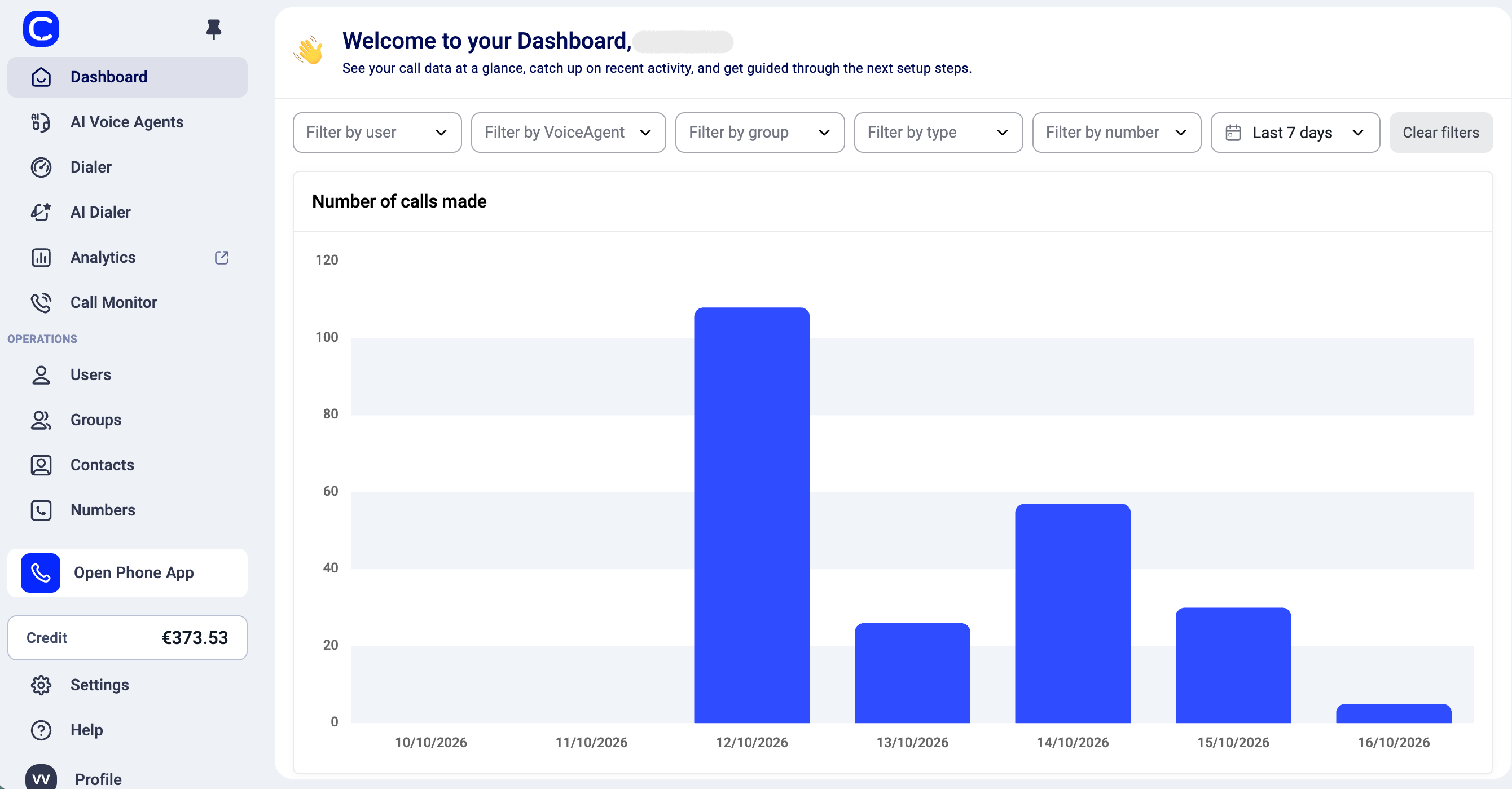
- Main menu on the left. Dashboard, AI Voice Agents, Dialer, AI Dialer, Analytics, and Call Monitor at the top. Users, Groups, Contacts, and Numbers below, under Operations.
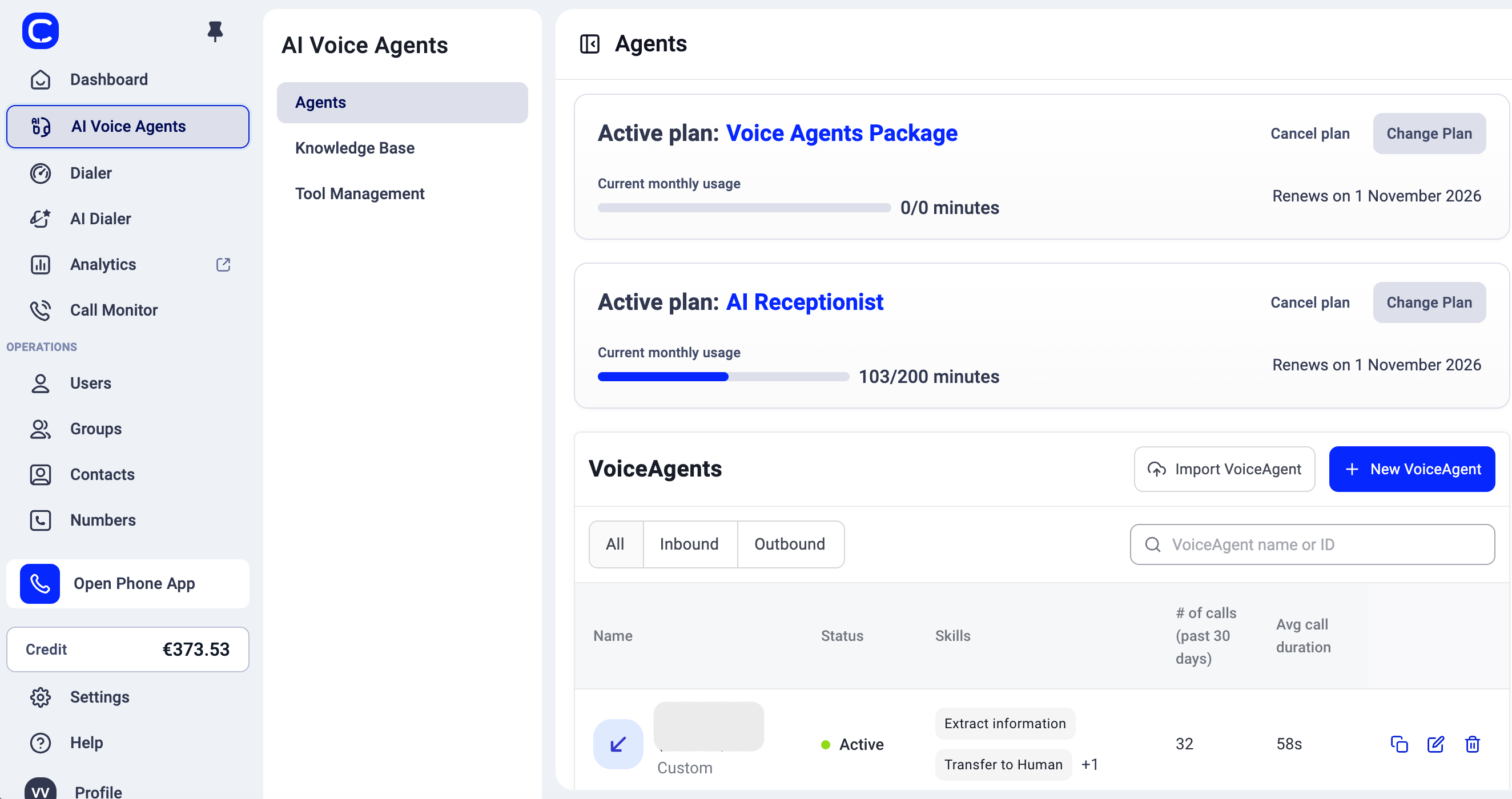
- A second column per area. Click AI Voice Agents and its pages open next to the menu: Agents, Knowledge Base, and Tool Management.
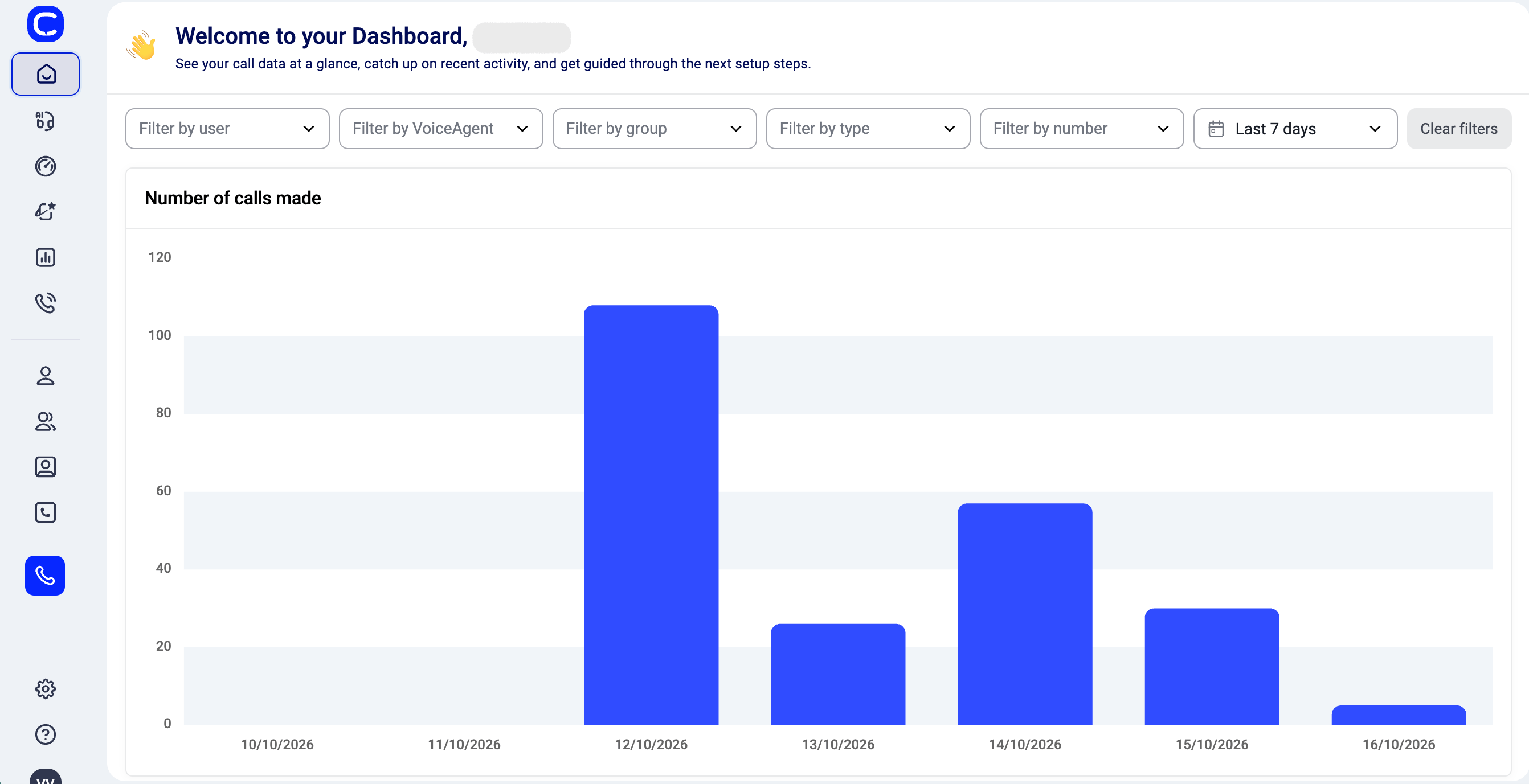
- Pin or unpin the menu. Use the pin icon at the top. Unpinned, the menu shrinks to icons and opens when you hover over it.
- Hide the second column. Use the button next to the page title when you need more room.
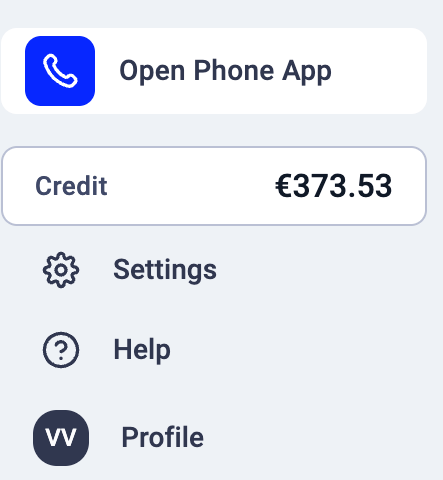
- Everything from the top right now sits at the bottom of the menu: Open Phone App, Credit, Settings, Help, and your Profile.
Where everything moved
Finding a setting fast
Open Settings and type in the search box at the top of the second column. Settings Home also lists every setting as a card, with one line on what it does.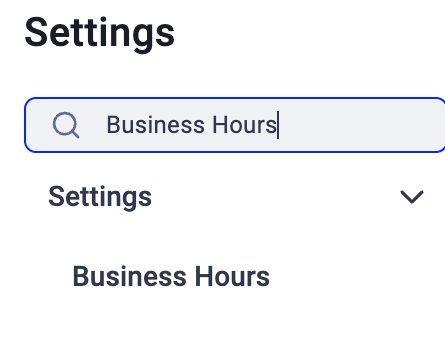
Saving changes in Settings
When you change something on a settings page, a bar appears at the bottom with Discard and Save changes. It replaces the Save button.
FAQ
- Can I switch back to the old menu?
No. The new menu replaces the old one for everyone. - Did any of my settings change?
No. Only where they sit in the menu changed. - Does the CloudTalk Phone app change?
No. Only the Dashboard menu changes. - Can’t find something?
Use the search in Settings, or ask us through Help > Chat with us.
Need help or have a question? Just reach out through our Support portal. We’re here for you.