

Messages may fail to send or deliver in CloudTalk’s WhatsApp integration for several reasons. This guide explains the most common causes and how to resolve them.
Symptoms
You may experience one or more of the following issues:- Outbound WhatsApp messages do not send
- Inbound WhatsApp messages do not appear in CloudTalk
- Templates do not show in the message window
- Only templates are available and freeform messaging is blocked
- Error 63018 (daily message limit reached)
- Media does not display or download
- A WhatsApp number appears as inactive or unverified
- Templates remain in “pending” status for too long
Root Causes
⚠️ Number activation and prerequisites
- WhatsApp number was not activated in the Dashboard
- Meta Business Manager ID is missing or incorrect
- Number is not part of CloudTalk’s approved WhatsApp inventory
- Pre-registration form was not submitted
⚠️ Template issues
- No approved template available
- Templates were submitted but are still pending
- Template rejected by Meta
- Template category not allowed for the destination (for example, Marketing templates to US recipients may be blocked by Meta or local carriers)
- Authentication templates are not supported in CloudTalk
- Template variables contain unsupported content
⚠️ 24-hour customer response window
- The customer has not replied within the last 24 hours
- Agent tries to send freeform text outside the allowed window
⚠️ Daily messaging limits
- The business reached the Meta daily outbound cap
- Error 63018 appears in CloudTalk
⚠️ Meta Business Verification
- Required for outbound messaging
- Required for more than two WhatsApp numbers
- Verification can take up to 14 business days
- If verification is incomplete, templates cannot be approved
⚠️ Media limitations
- File exceeds 16MB
- Unsupported file type
- WhatsApp media permissions not granted
⚠️ Meta-side restrictions
- Template is paused due to low rating
- Meta blocked the message due to content rules
- Template approval delays
Step-by-Step Fixes
- Confirm that your WhatsApp number is fully activated
Your number must be activated through the Meta popup in the Dashboard before messaging can work.
How to check
- Go to Dashboard > Settings > WhatsApp
- If your number appears in this list, activation completed successfully.
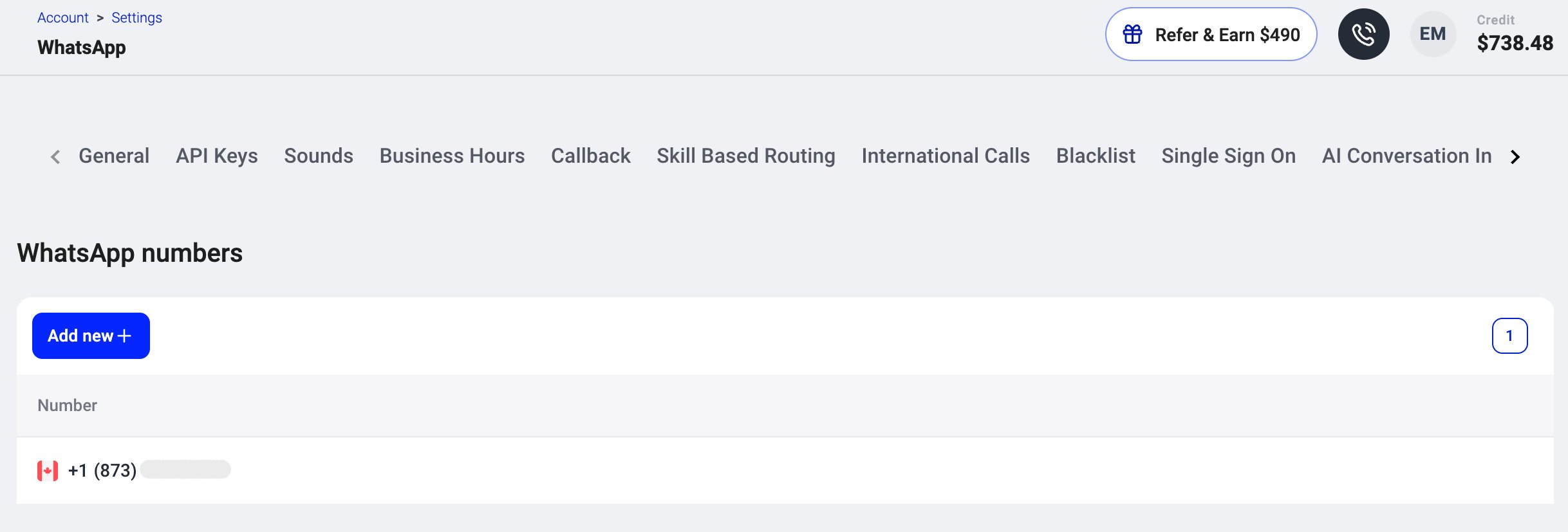
How to fix activation issues
If your number does not appear:- Make sure your company submitted the WhatsApp Integration Pre-Registration Form
- Click Add new in the WhatsApp section
- Complete the Meta popup (log into Meta Business Manager)
- Select the correct WhatsApp Business Account. This must be the WhatsApp Business Account created during this setup flow for the CloudTalk integration.
- Approve permissions
- Confirm the activation flow
- Check approved templates
Outbound messages require approved templates, unless you are in an active 24-hour session.
How to check template availability
- Open the Desktop Phone App
- Go to Messages
-
Click the
+, then choose WhatsApp - Select a contact
- Look for available templates in the list
- The customer’s templates might still be pending
- Templates may have been rejected
- The account may not be verified by Meta
- The number may not be activated correctly
How to fix
- Confirm that your company submitted the Outbound Template Submission Form
- Customers can check template status inside their Meta Business Manager > WhatsApp Manager > Message Templates
-
If the template status shows Rejected:
- Adjust content and resubmit
-
Make sure your template category is allowed:
- Marketing templates to US numbers are blocked by Meta
- Authentication templates are not supported by CloudTalk
- Check the 24-hour session window
Freeform messaging only works if the customer has replied within the last 24 hours.
How to check
- Open the conversation in the Desktop Phone
- If the “freeform message” field is disabled and only templates are shown, the window has expired
Why this matters
The 24-hour messaging rule is enforced by Meta. If the customer hasn’t responded in more than 24 hours, the agent must:- Use an approved template to re-open the conversation
- Wait for the customer to reply
- Once the customer responds, the agent can send freeform messages again
- Check for daily messaging limits (error 63018)
Meta assigns each WhatsApp Business number a messaging tier, which determines how many conversation starts you can initiate per day. These limits are controlled entirely by Meta and depend on your account’s quality score, recent activity, and customer feedback.
CloudTalk cannot see or change your Meta messaging tier.
How to identify this issue
If your outbound WhatsApp messages suddenly stop sending or fail without a clear reason, your business may have reached the daily messaging limit set by Meta. Behind the scenes, Meta returns an error such as 63018 (messaging limit reached), but this error is not currently displayed in the CloudTalk app.
- Confirm Meta Business Verification
Business Verification affects how many WhatsApp numbers you can use and how your templates are approved.
Business Verification is required for:
- Using more than two WhatsApp numbers
- Scaling outbound messaging
- Raising your messaging tier
- Ensuring template approvals are not delayed
How to check
In your Meta Business Manager:- Ensure your business shows as Verified,
- Or check for any pending documents or required steps.
- Validate template variables
If template variables use content that Meta does not allow, templates can be rejected or fail to send.
Allowed content:
- Text variables (recommended to keep under 250 characters for reliable delivery)
- URLs (up to 2000 characters)
- Buttons
- Calls to action
- Media inside variables
- Non-text elements
- Very long variable strings that exceed WhatsApp’s total message limits
- Fix media issues
WhatsApp supports various file types, but CloudTalk currently limits what can be sent vs received.
CloudTalk supports receiving:
- Images: JPG, JPEG, PNG
- Audio: MP3, OGG, AMR
- Video: MP4
- Documents: PDF
- Contacts: vCard
- Up to 16 MB per file
- Images only (JPG, JPEG, PNG)
- Files larger than 16 MB
- Unsupported formats
- Videos, audio, documents for outbound sending
- Broken URLs or corrupted files
- Check for Meta blocks
Meta may silently block messages if:
- The template rating dropped too low
- The template violated content rules
- It was a Marketing template sent to a US recipient
- The business is temporarily rate-limited
- Re-activate the sender ID if needed
If activation was interrupted or did not complete correctly, the number may be in a partial state.
How to fix
- Go to Settings > WhatsApp
- Start activation again
- Complete the full Meta popup flow
- Confirm number appears as Active
When to Contact Support
Contact CloudTalk Support if:- The activation popup fails or never appears
- Templates remain pending for more than 72 hours
- Messages still do not send after activation
- Inbound messages do not appear despite active sender
- Media fails to download despite meeting requirements
- Outbound messages fail with no visible error
- Affected WhatsApp number
- Business Manager ID
- Time and date of failed messages
- Screenshot of template approval status
- Any error messages shown in CloudTalk
Need help or have a question? Just reach out through our Support portal — we’re here for you.