

Switch to Carrier Network helps you maintain stable, reliable calls by automatically switching to your mobile carrier whenever your internet connection becomes unstable. This guide explains how Switch to Carrier Network works and how to enable it in the CloudTalk Mobile App.
What is Switch to Carrier Network
The Switch to Carrier Network feature makes sure your calls stay connected, even if your Wi-Fi or data signal drops.When a VoIP call fails, CloudTalk automatically reconnects it through your mobile carrier (GSM), so you can continue the conversation without redialing. It’s a simple way to reduce dropped calls and make your calling experience more reliable.
Why use Switch to Carrier Network
If you’re often on the move or working somewhere with unstable Wi-Fi or mobile data, dropped calls can be frustrating. Switch to Carrier Network helps prevent that by automatically keeping your calls connected through your mobile carrier whenever the internet signal gets weak. This feature gives you:- A reliable backup when a VoIP transfer fails
- Consistent performance even with poor Wi-Fi or LTE
- Smooth, uninterrupted conversations for agents working remotely or on the go
How to enable it
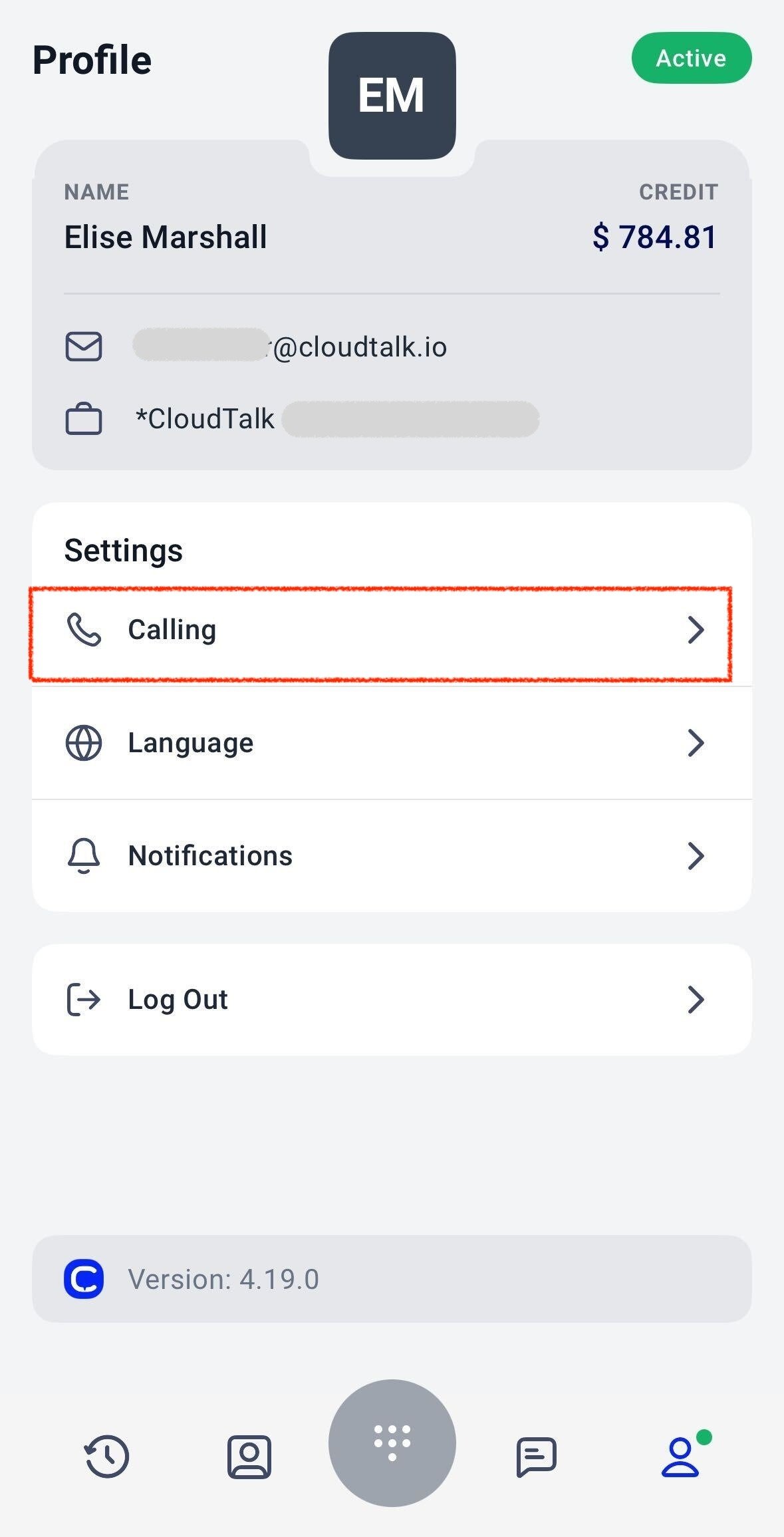
You can turn on the feature directly from the CloudTalk Mobile App.- Open the app and tap your Profile icon in the bottom menu.
-
Select Calling from the Settings list.
-
Under Link carrier network, tap to add your mobile number.
You can use your own mobile number or another one where you’d like to receive fallback calls.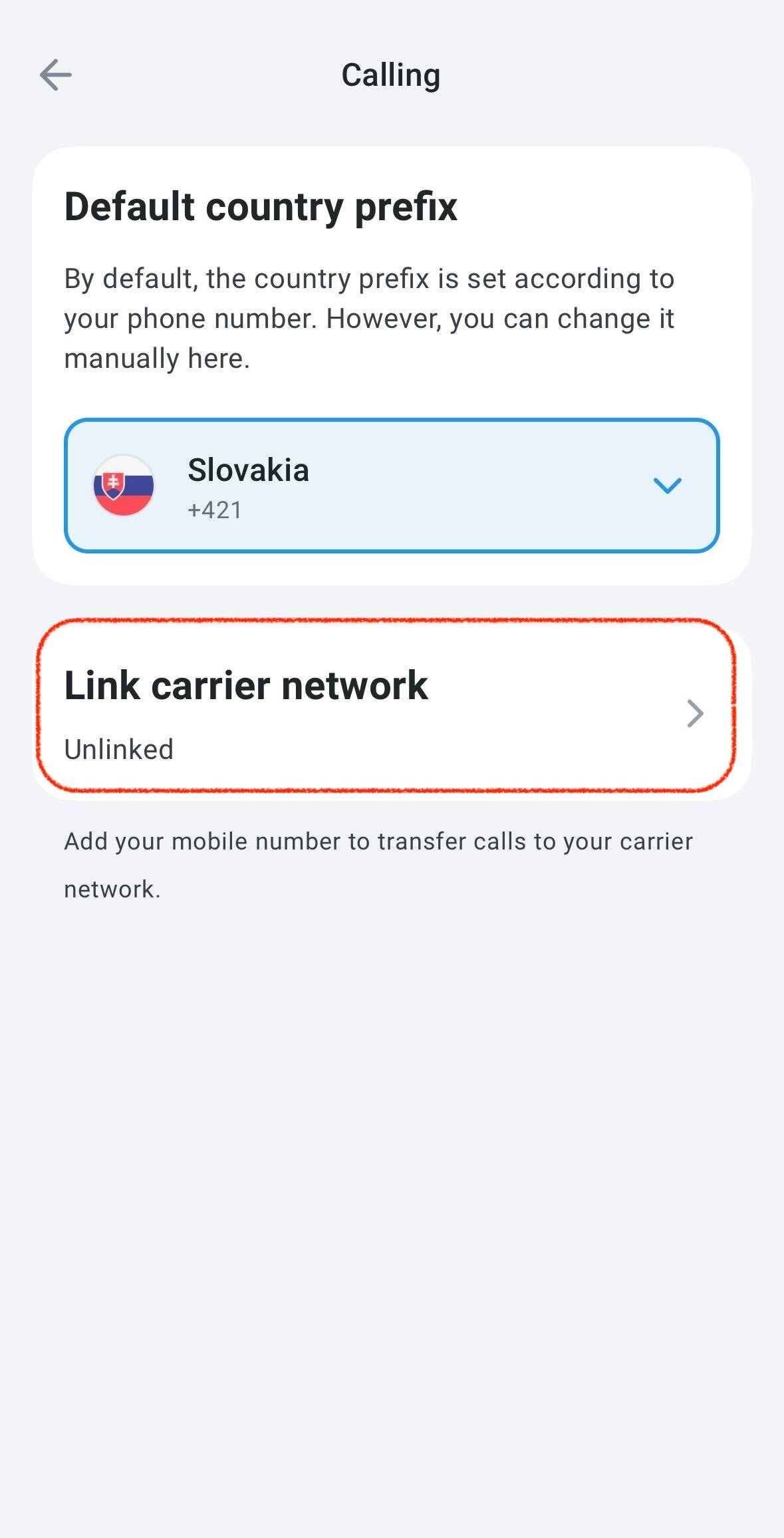
-
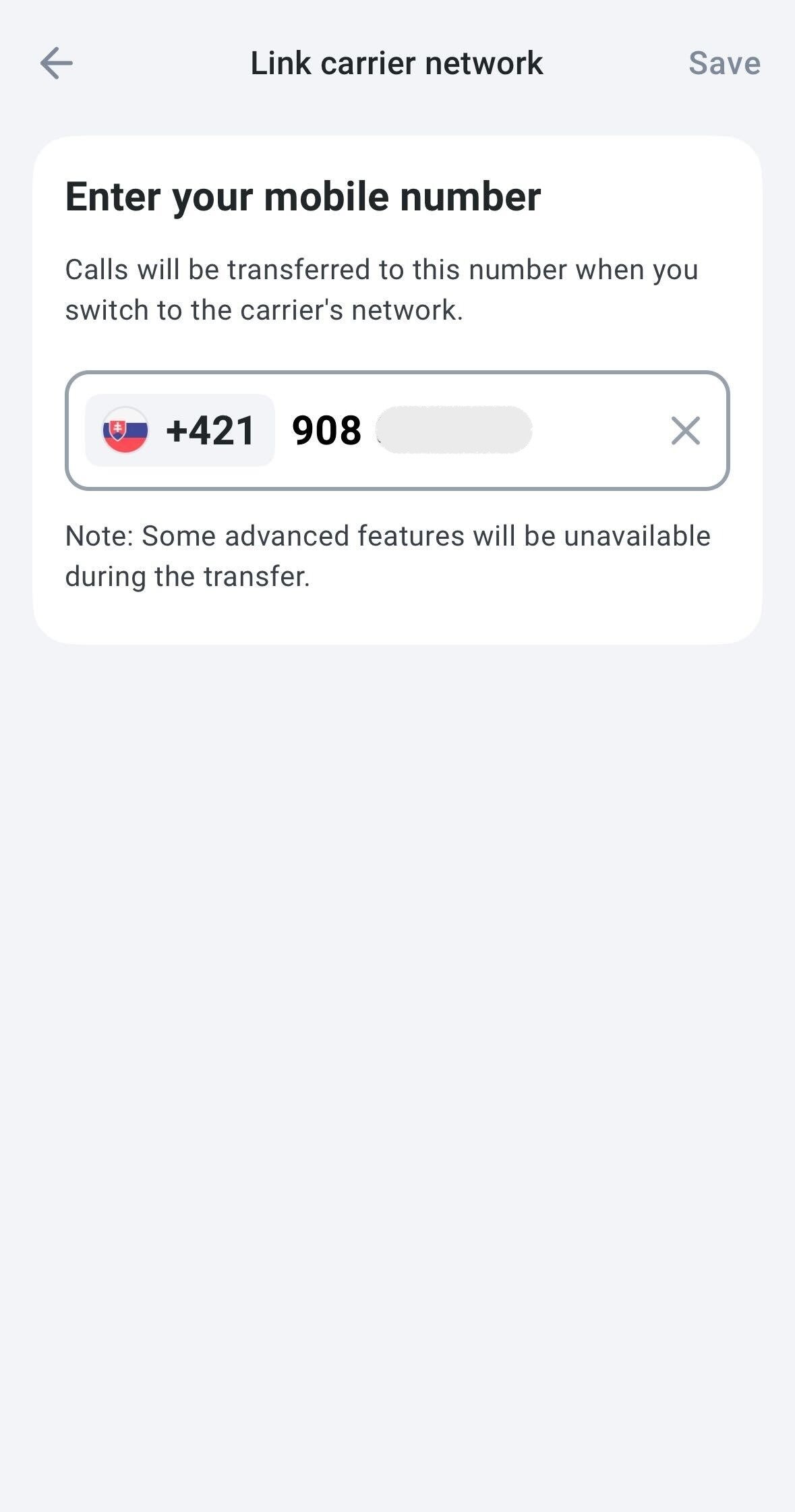
Enter the number you want to use for fallback and tap Save.
-
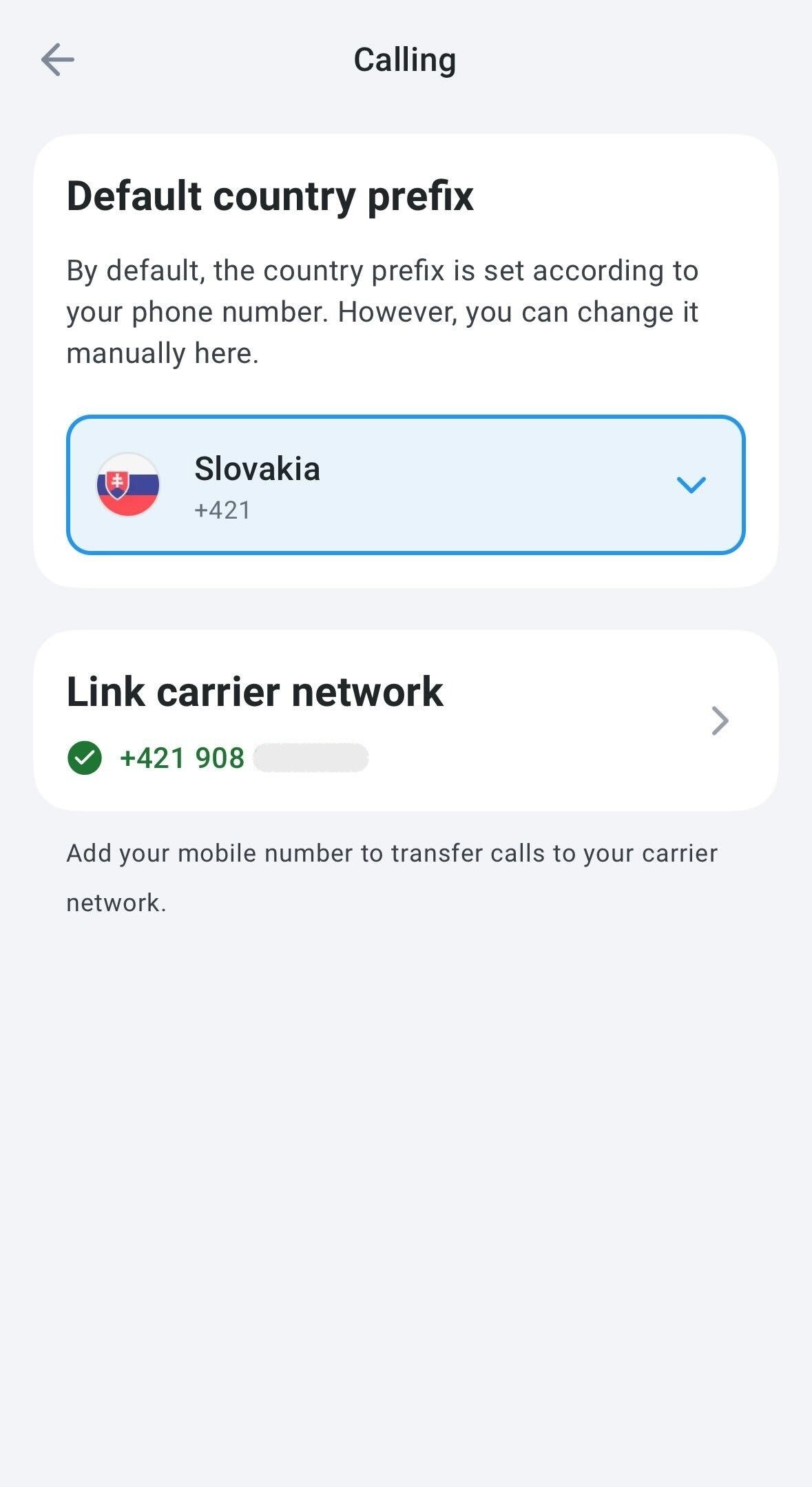
Once linked, you’ll see your mobile number displayed under Link carrier network with a green checkmark.
How to use Switch to Carrier Network during a call
Once you’ve linked your mobile number, you can switch to your carrier network directly during a live call.From the call screen
If CloudTalk detects an unstable connection, a banner will appear at the top of your screen saying “Unstable connection” with a Switch to carrier button.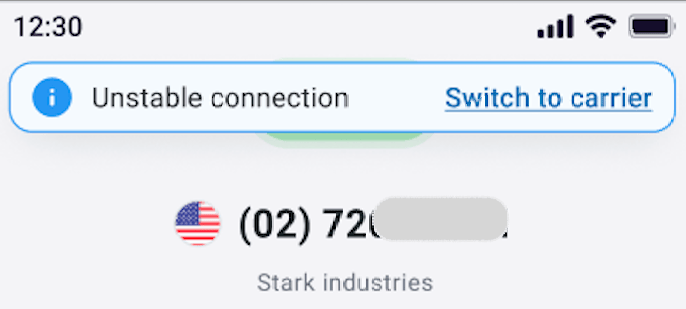
- Tap Switch to carrier to continue the call through your mobile network.
- The call will instantly reconnect via GSM using your linked mobile number.
From the Transfer menu
You can also manually switch networks at any time during a call:-
Tap Transfer in the call controls.

-
Select Switch to carrier network at the top of the screen.
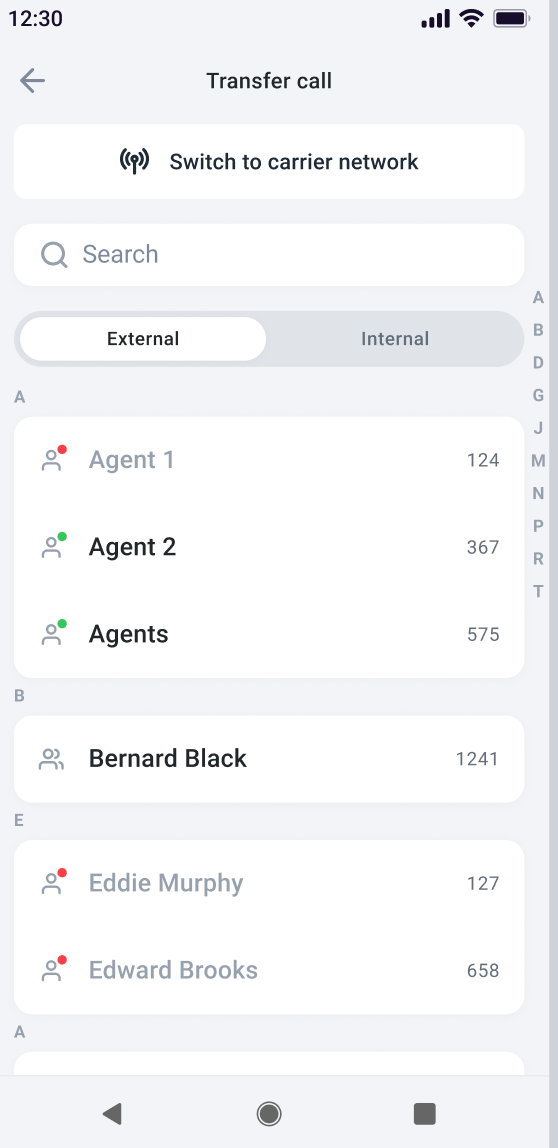
- The call will reconnect using your carrier network.
Troubleshooting tips
If the call doesn’t switch as expected:- Make sure Switch to Carrier Network is turned on in your Mobile App
- Confirm that your mobile number is verified and active
- Update to the latest version of the CloudTalk Mobile App
Need help or have a question? Just reach out through our Support portal — we’re here for you.