

The CloudTalk mobile app lets you stay connected with customers wherever you are. You can make and receive calls, send messages, manage contacts, and access your call history directly from your iOS or Android device.This article provides an overview of the main features available in the CloudTalk mobile app and how to use them.
Install the CloudTalk Mobile App
You can download and install the app on your phone from the official app stores:- For iPhone (iOS):
Open the App Store and search for CloudTalk or go here.
- For Android:
Open Google Play, search for CloudTalk and install the app. For Android setup details, see: CloudTalk Go for Android: Requirements and Setup.
What You Can Do in the Mobile App
With the CloudTalk mobile app, you can:- Make and receive calls
- Send and manage SMS messages
- View and manage contacts
- Access recent calls and conversations
- Monitor unread messages
- Adjust call and notification settings
- Assign or update contact details
Dialpad

The Dialpad allows you to manually enter a phone number and place an outbound call. As soon as you start typing a new number, two quick action buttons appear at the top of the screen:- Send message
- Add contact
Send a Message
Tap Send message to start a new message to the number you entered.The recipient field is automatically filled in, so you can begin typing right away.
Add the Number to Contacts
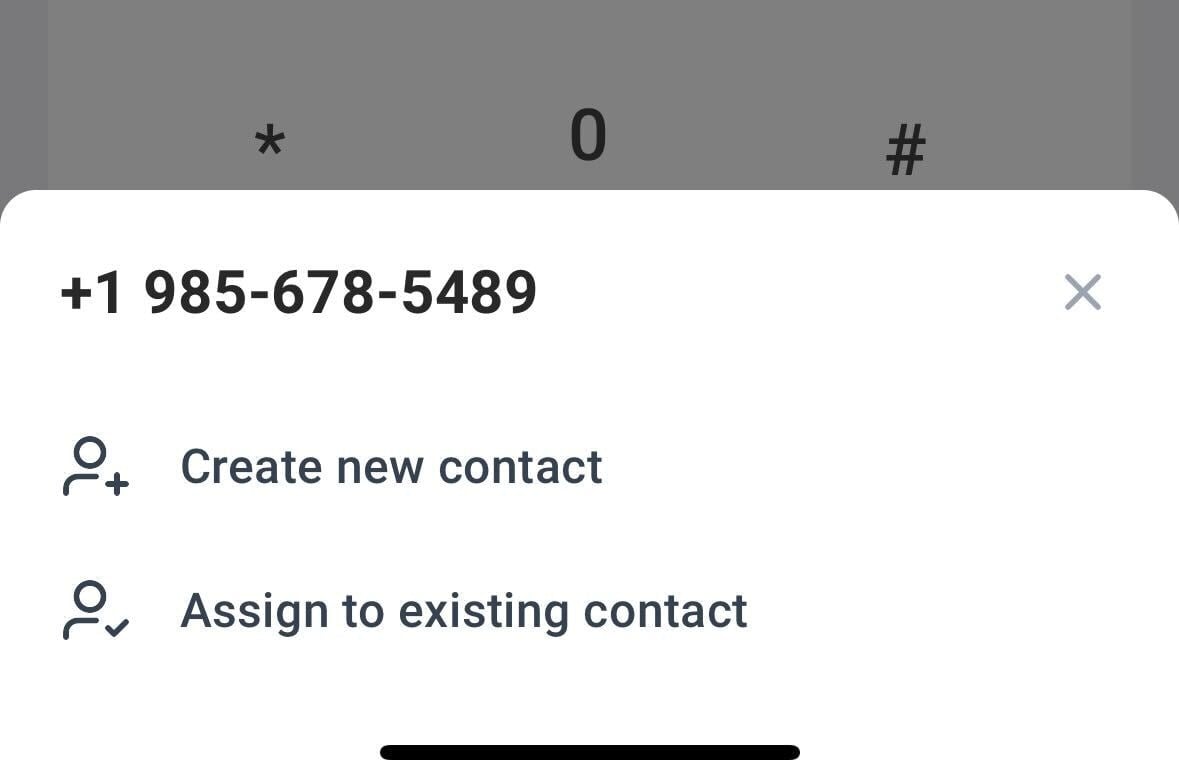
If the number is not yet saved, tap Add contact. You will then be able to choose between:- Create new contact
- Assign to existing contact
Call History
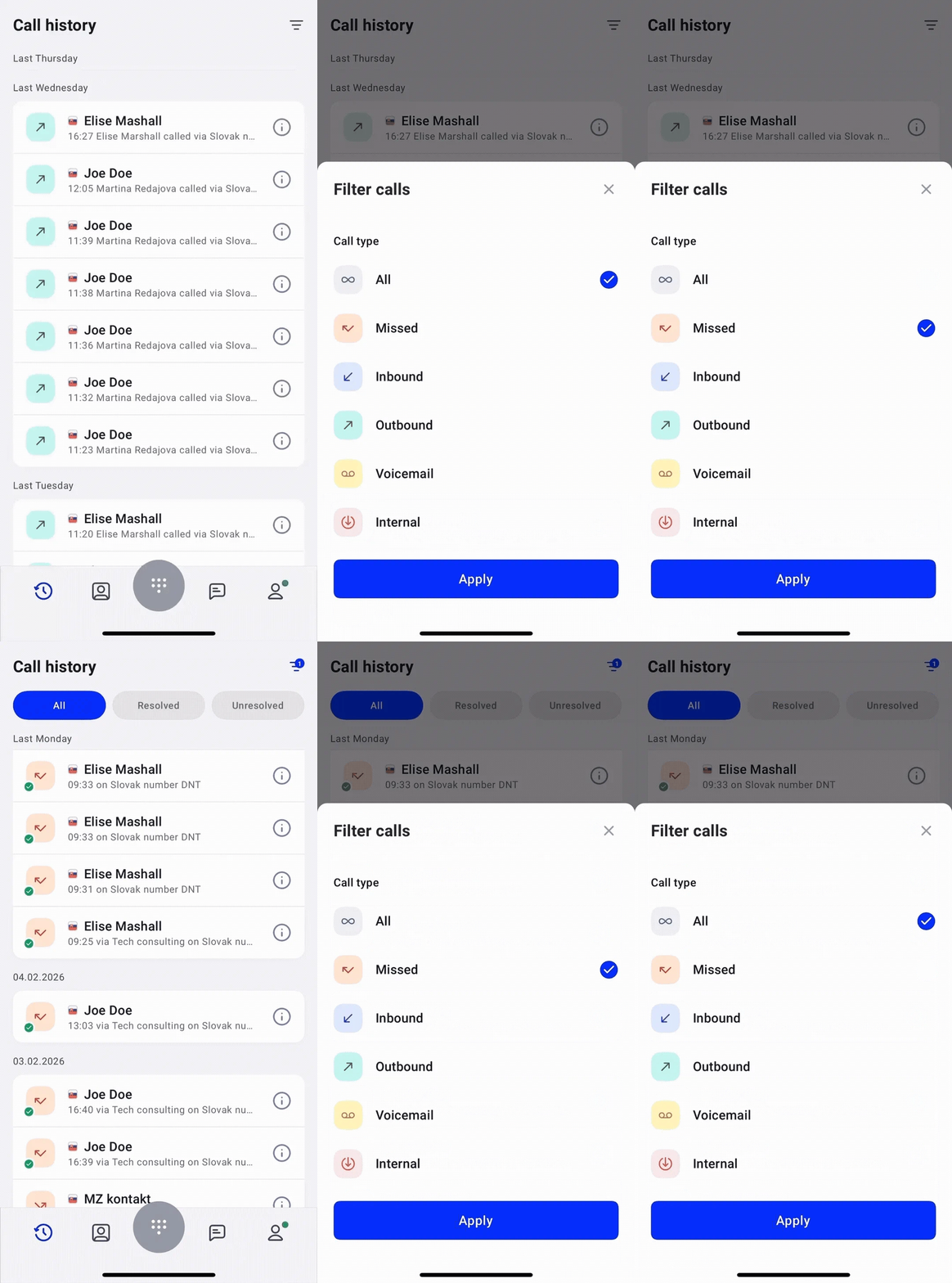
Tap History to view your recent calls. Each entry shows:- Contact name or phone number
- Call direction
- Call type such as inbound, outbound, missed, voicemail, or internal
- Time and date
Filter Calls
Tap the triangle icon in the top-right corner to filter calls:- All
- Missed
- Inbound
- Outbound
- Voicemail
- Internal
Call Details
To see more information about a call, tap the info icon next to the call entry.
- Recording – Play and navigate the call recording (if available).
- Tags – View or edit call tags.
- Rating – Rate the call.
- Note – Add or edit a note.
- Agent – See who handled the call.
- Call ID – View the unique call reference number.
- Assign to existing contact – Link the number to a saved contact.
- Send message
- Call back

Contacts
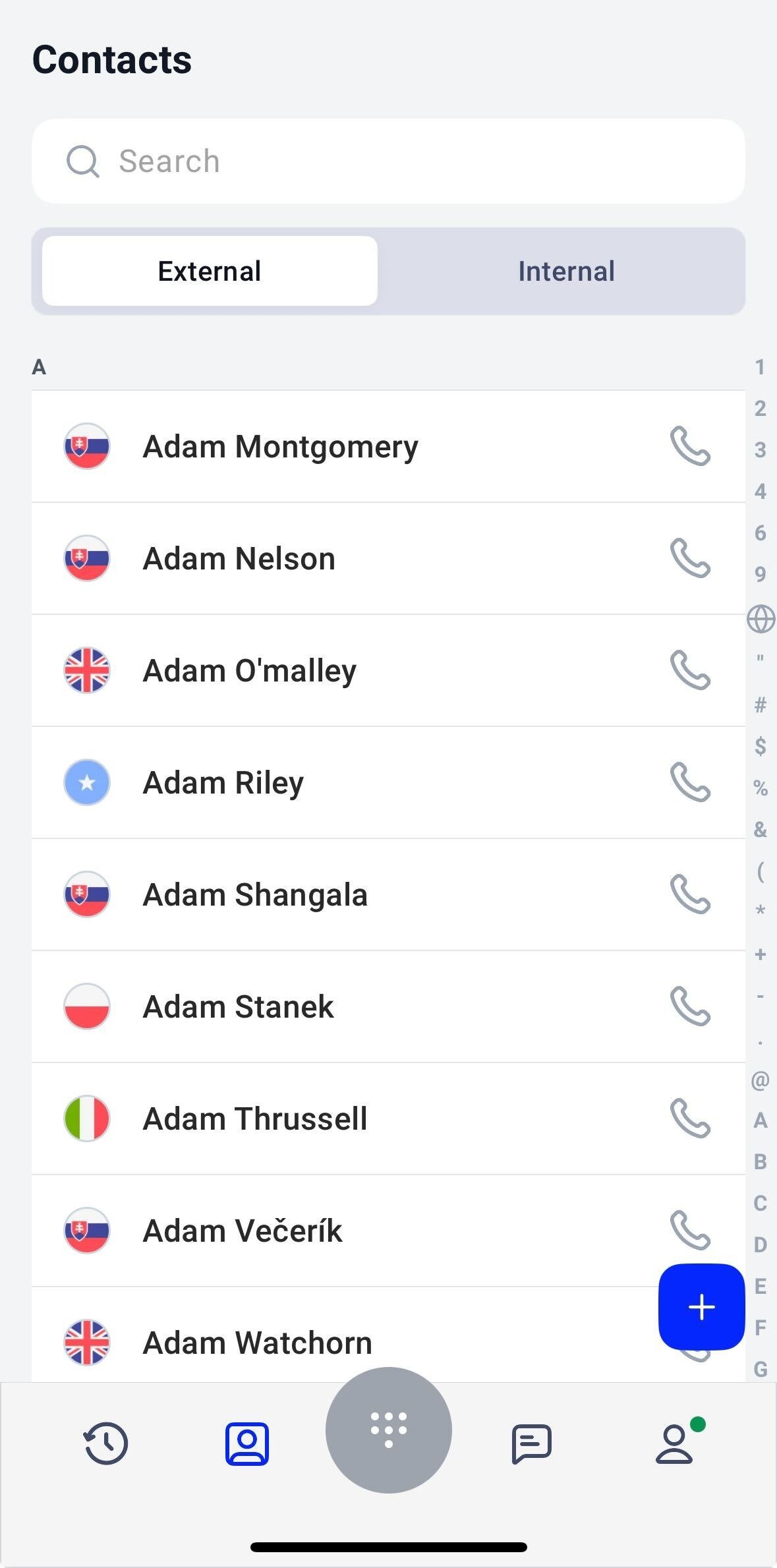
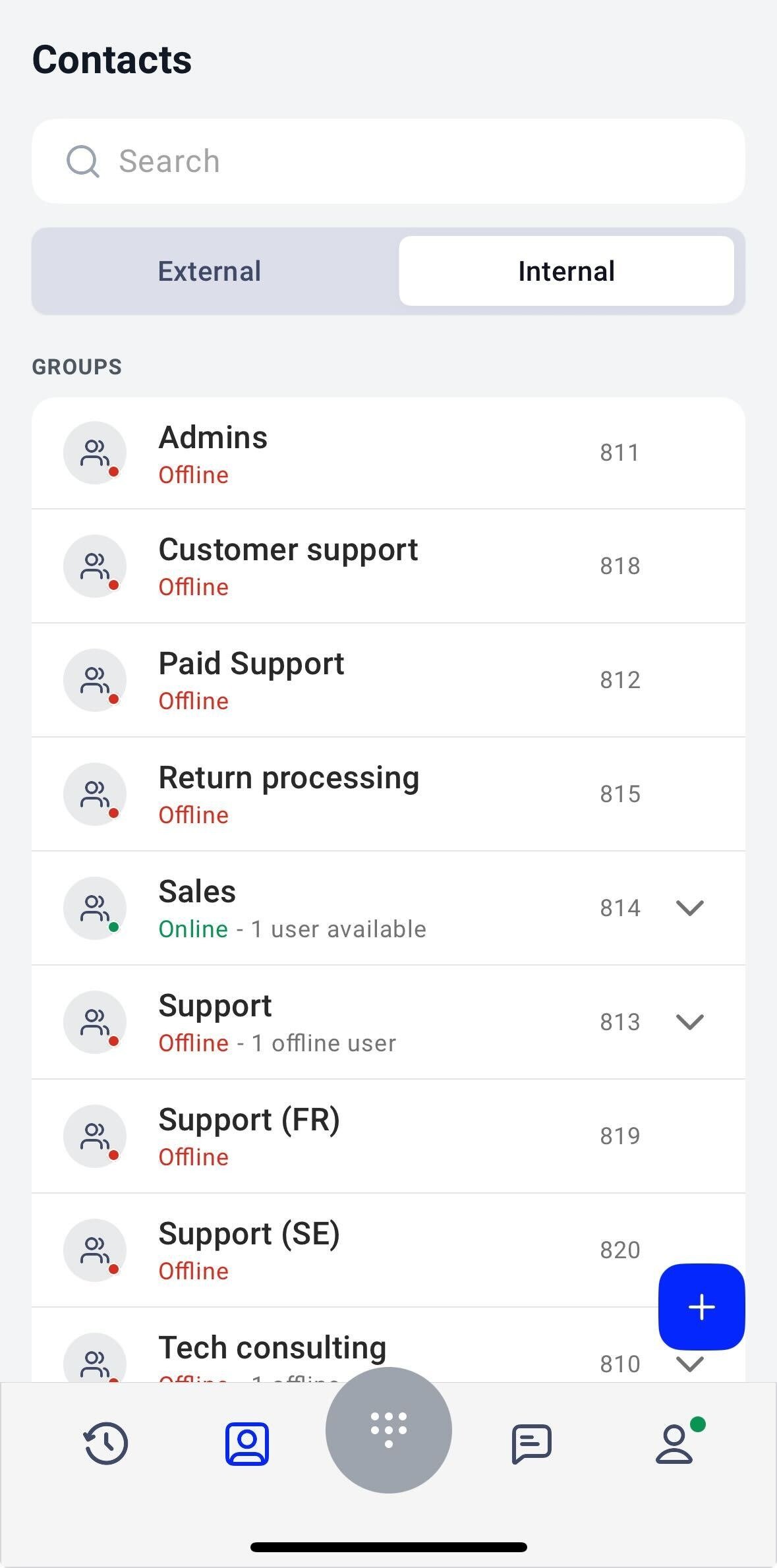
The Contacts section allows you to manage both external and internal contacts. At the top of the screen, you can switch between:- External
- Internal
External Contacts
Here you can:- Search for contacts
- View uncategorized contacts
- Call contacts directly
-
Add a new contact using the
+button
Internal Contacts
Internal contacts are organized into groups such as departments or teams. You can see:- Group names
- Extension numbers
- Availability status
Messages
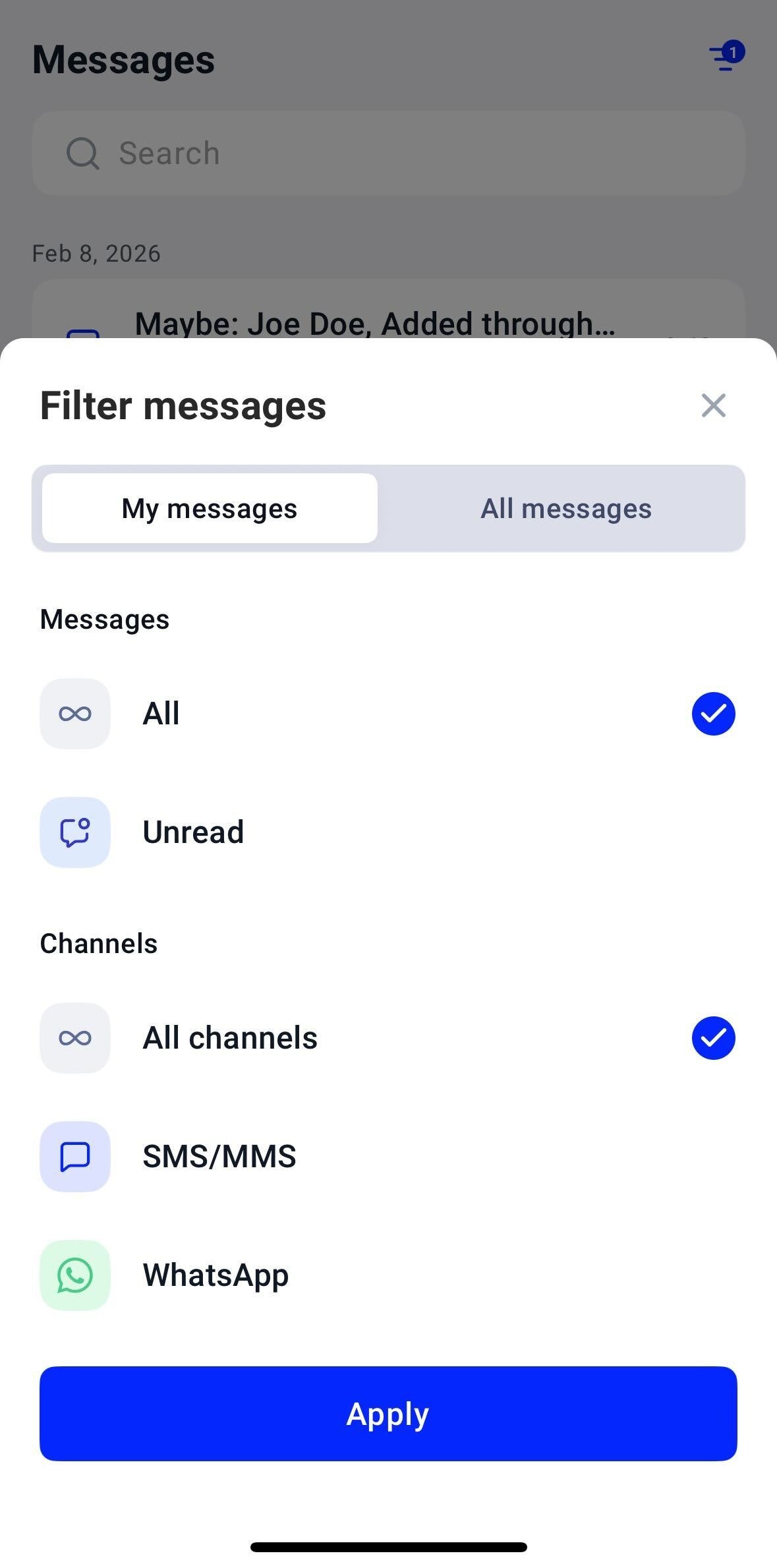
In the Messages tab, you can view and manage your SMS, MMS, and WhatsApp conversations. To filter your messages:- Tap the filter icon in the top-right corner.
-
Select:
- My messages or All messages
- Message status: All or Unread
- Channel: All channels, SMS/MMS, or WhatsApp
- Tap Apply
Settings
You can access Settings from the Profile tab. Here you can manage how the app handles calls, notifications, and device-level behavior.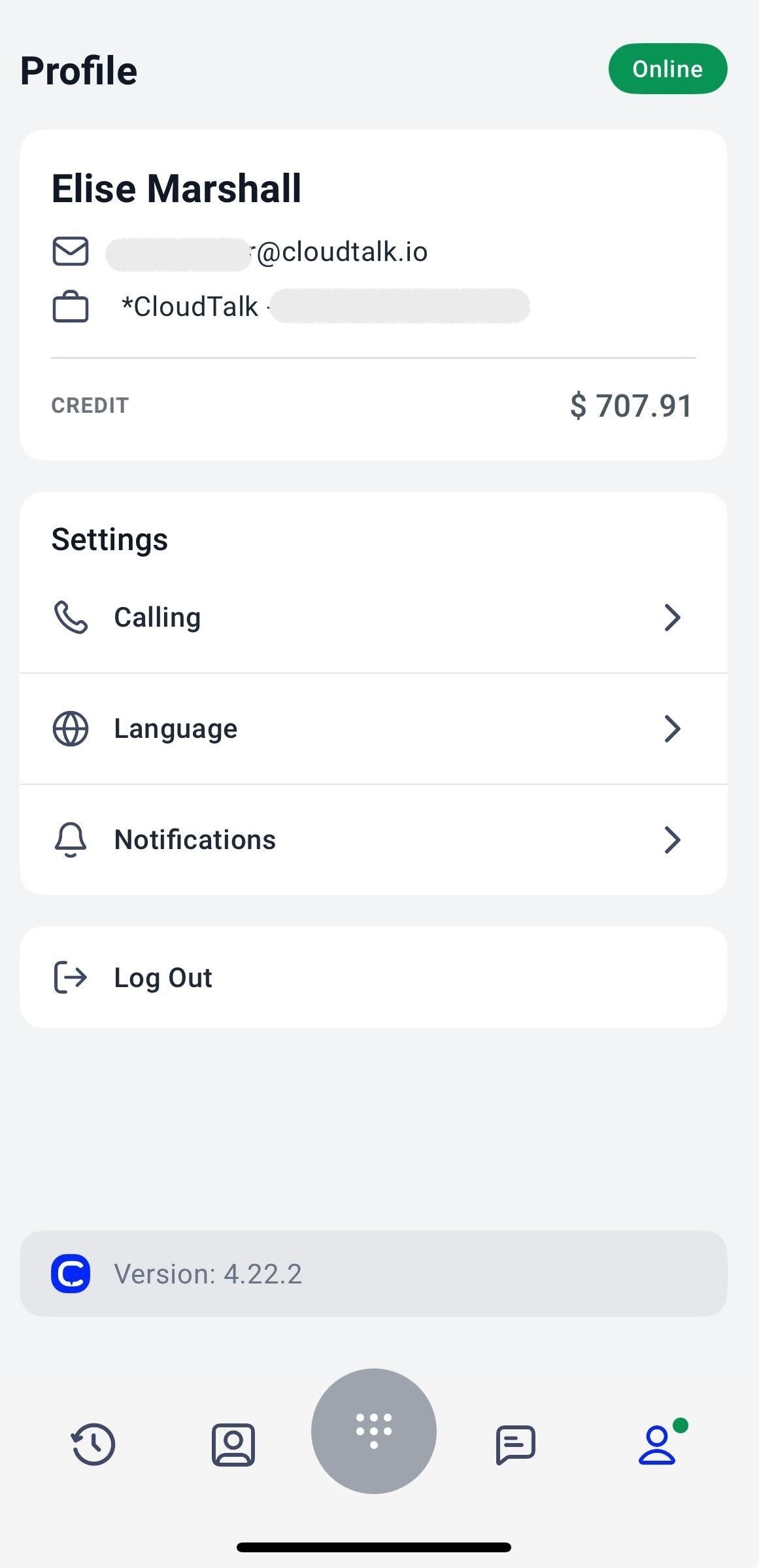
Calling
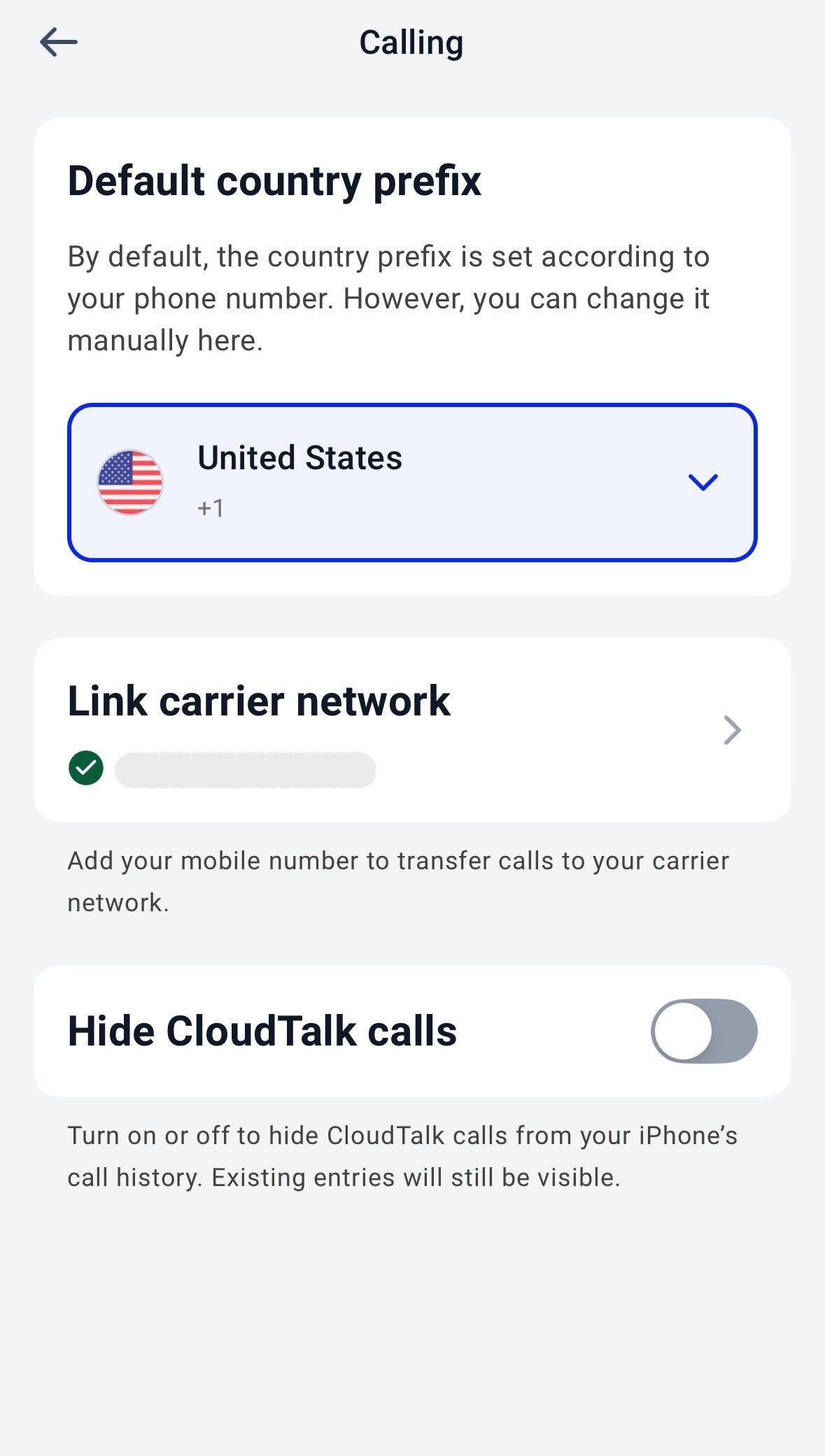
These settings control how calls are placed and displayed on your device.Default Country Prefix
The app automatically selects a country prefix based on your assigned number. You can change it manually if needed.Switch to Carrier Network
Transfer calls to your mobile carrier instead of using internet data. This is useful if your mobile data connection is unstable or if you prefer to continue calls through your network provider.For detailed setup instructions, see: Switch to Carrier Network in CloudTalk Go
Hide CloudTalk Calls (iOS)
iPhone users can control whether CloudTalk calls appear in the device’s native call history. Use the toggle:- When turned on, CloudTalk calls will not appear in the iPhone Recents list.
- When turned off, CloudTalk calls will appear alongside regular phone calls.
Language
You can change the app language directly from the Language section. The change applies immediately and updates the language of the CloudTalk app.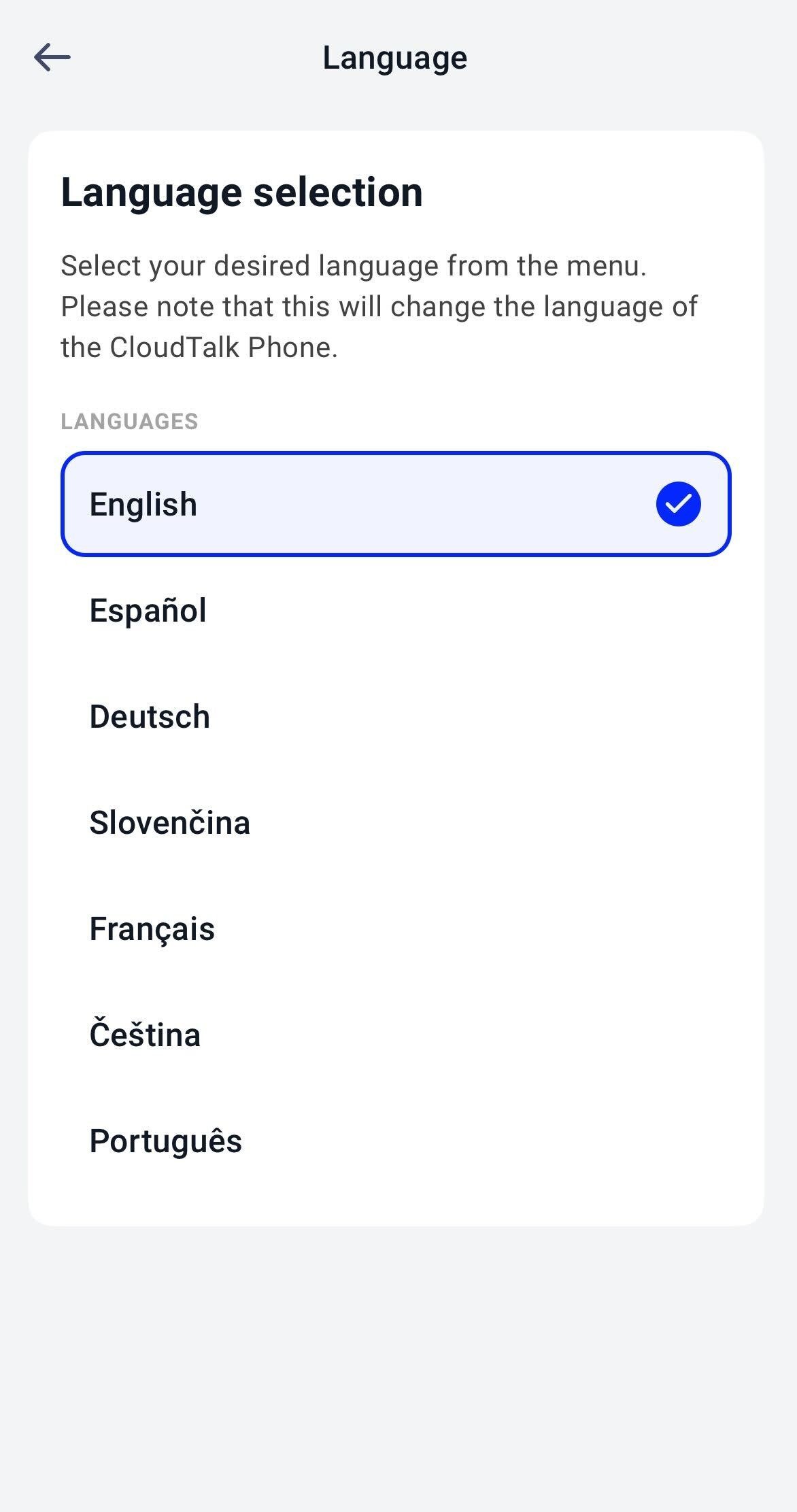
Appearance
Choose how CloudTalk Go looks. The app can follow your phone’s light or dark display setting, or stay on the theme you pick. To change it:- Open the Profile tab and tap Appearance under Settings.
- Choose System, Light, or Dark.

- System (default): matches your phone’s display setting, including any automatic day/night schedule.
- Light: keeps the app light, whatever your phone is set to.
- Dark: keeps the app dark, whatever your phone is set to.
Notifications
Manage how you receive mobile notifications. If needed, you can temporarily pause notifications directly from the app.For step-by-step instructions, see: Pause Mobile Notifications.
Use CloudTalk Go as Your Default Calling App (iOS)
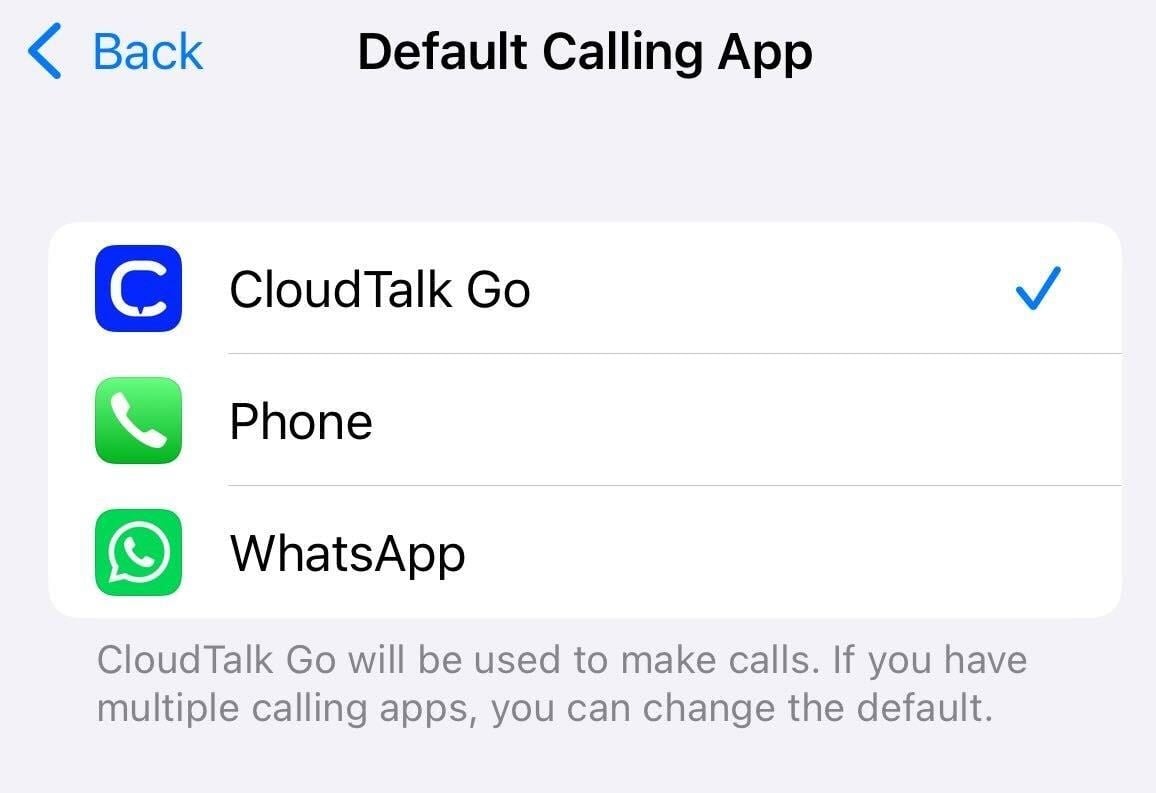
iPhone users can set CloudTalk as their default calling app. When enabled, tapping a phone number anywhere on your device routes the call through CloudTalk instead of the native Phone app. This works across apps like Contacts, Safari, Messages, and more. To set this up:- Open your iPhone Settings
- Tap Apps
- Tap Default Apps
- Tap Calling
- Select CloudTalk Go
- When you tap a phone number, CloudTalk opens automatically
- iOS may show a confirmation before placing the call
- If no confirmation appears, the number is pre-filled and ready to call
- If you are logged out, you will be asked to log in first. The number will be ready after login
- If a call is already in progress, the active call screen will be shown instead of starting a new call
Make and Receive Calls
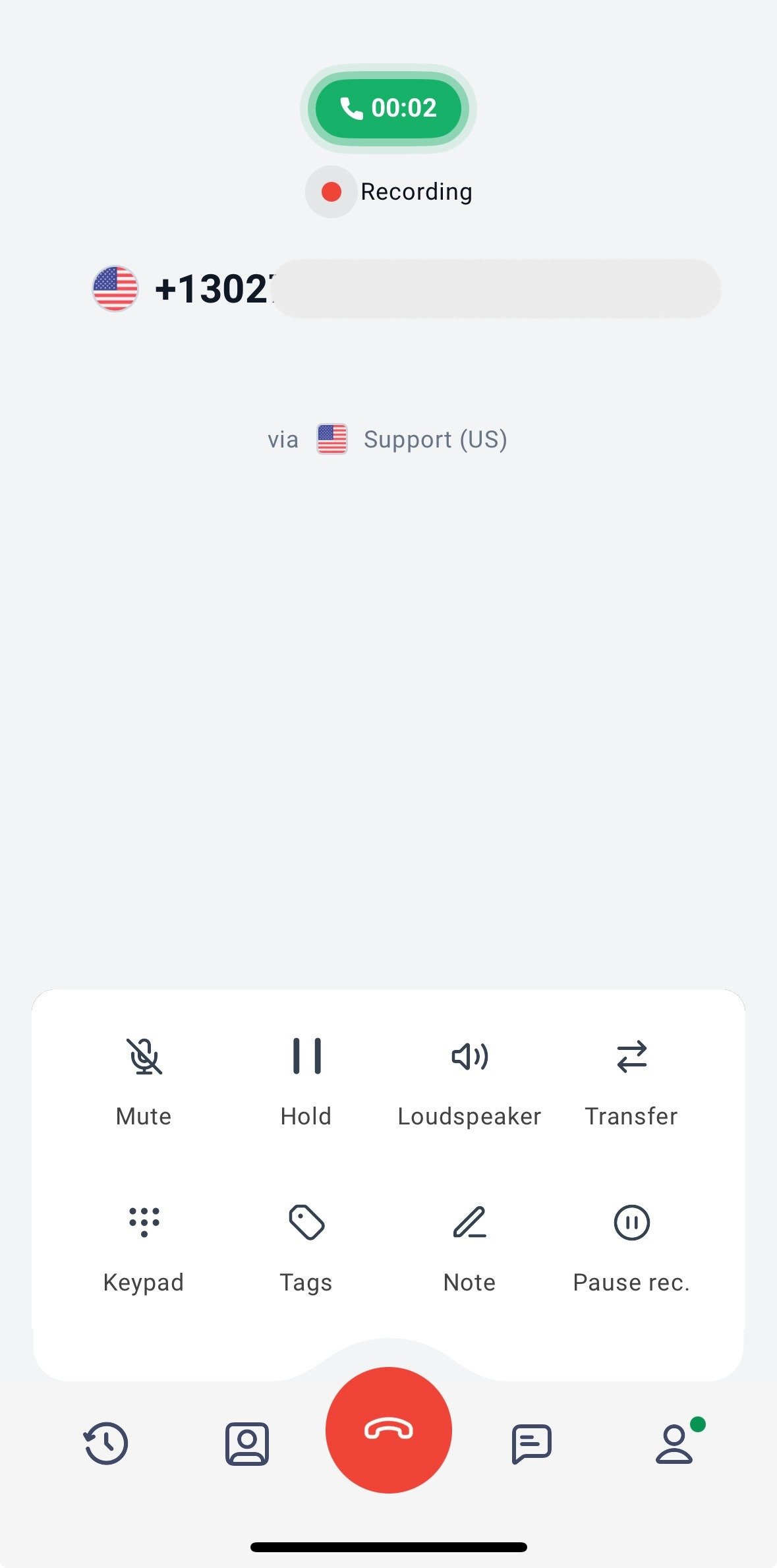
You can place calls directly from the Dialpad, Contacts, or Call History.- Use the Dialpad to enter a number manually and tap Call.
- Call a saved contact from the Contacts tab.
- Tap Call back from a previous entry in History.
Incoming Call Alerts
To learn how incoming call notifications appear on your device and how to manage them, see Incoming Call Notifications in CloudTalk Go
To learn how incoming call notifications appear on your device and how to manage them, see Incoming Call Notifications in CloudTalk Go
Need help or have a question? Just reach out through our Support portal — we’re here for you.