

Learn how parallel mode dials up to 5 contacts at once, how voicemail detection and multi-number dialing work, and how to set it up.
Parallel mode calls several contacts at once and connects your agent to the first person who answers, dropping the other attempts. It maximizes talk time on large lists.
Setting up parallel mode
You enable parallel calling in Step 2: Contact when creating (or editing) a campaign:- Go to AI Dialer > Campaigns and click + Add campaign.
- Complete Step 1 (name).
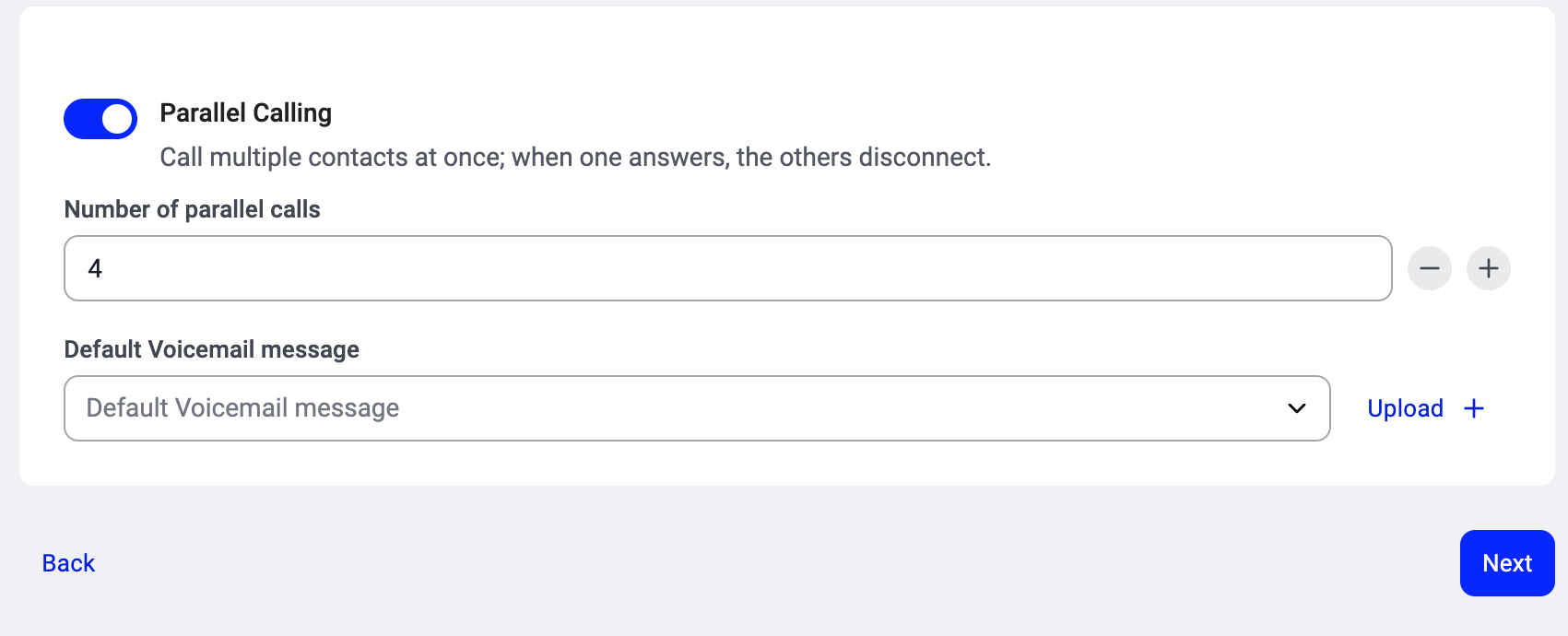
- In Step 2: Contact, add your contacts and turn the Parallel Calling toggle ON.
- Set the Number of parallel calls (minimum 2, maximum 5). This is how many contacts the dialer calls simultaneously per batch. Need more than 5? Up to 10 parallel calls can be enabled on request for some accounts. See How many lines to use below.
- Finish the remaining steps and create the campaign. See Setting up a campaign in the AI Sales Dialer for the full walkthrough.
How it works
- The dialer places up to 5 simultaneous calls on your behalf.
- Voicemail detection runs on each leg. Calls that reach an answering machine are identified automatically and never connected to you.
- The first contact who answers is connected to you. The other ringing legs are dropped.
- You talk, then set a disposition. The next batch dials.
Voicemail detection
When parallel mode dials multiple contacts, each leg runs through voicemail detection before being connected to you:- A human answer connects you immediately.
- A machine answer (voicemail, IVR, automated screener) is dropped automatically. If the campaign has a voicemail-drop recording configured, the message is left on the machine. If not, the call is simply ended.
Multi-number contacts
If a contact has more than one phone number and Rotate through a contact’s phone numbers is ON in the campaign’s Calling setup (Step 3), parallel mode works through each contact’s numbers one at a time. With the setting OFF, the dialer only ever dials the primary number.- Each contact gets its own lane. The dialer runs several contacts at the same time, and each one is worked independently. One contact working through its numbers never holds up the rest.
- Within a lane, numbers are tried one at a time, not all at once. The dialer rings number 1. If there’s no answer, it moves to number 2, and so on down that contact’s list.
- One answer ends the search. As soon as one of a contact’s numbers is answered, the dialer stops dialing that contact’s remaining numbers and connects you to the call.
- Voicemail closes the contact. If a call is picked up by voicemail or an answering machine, that closes the contact. The dialer doesn’t then try their other numbers.
- Retries resume, they don’t restart. A contact keeps going down its list until it either connects or runs out of numbers. If it isn’t reached and gets retried later, it resumes from the next untried number, not from the top.
What’s different from sequential mode
When to use parallel mode
Parallel mode works best when:- Your list is large and the goal is to maximize conversations per hour.
- Many calls go to voicemail or ring out, so dialing one at a time would waste most of the agent’s shift.
- Your team is comfortable with the faster pace (contact details appear when someone answers, not before).
How many lines to use
For most teams, 5 lines (sometimes 3) gets the most live conversations per agent. We recommend starting at 5 and going higher only if your results show it helps.-
When up to 10 lines makes sense. All of these are true:
- Few people pick up (cold lists, hard-to-reach markets or timezones, lots of voicemail and no-answer).
- You have a large list to get through.
- You have few agents for the size of that list.
- Your data is clean and compliant.
- When more lines hurts. If people pick up regularly, more lines means several people answer at once with no agent free, so those calls are dropped. That frustrates your contacts, raises your abandoned-call rate, and can get your numbers flagged as spam by carriers. More lines also won’t fix a weak list. It just gets through it faster.
- Why 10 isn’t on by default. Every line is a live call on our voice network. We enable 10 lines per account to keep call quality high for everyone.
Good to know
- Skip, remove, and reorder controls are disabled for the entire duration of a parallel dialing batch, not just for the contact being called. They become available again between batches, so that changing the queue can’t interfere with calls in flight.
- If two contacts answer at nearly the same time, the dialer connects the first and drops the second. Your agent is never connected to two live calls at once.
- Contacts whose calls ring out or fail without connecting are returned to the queue and follow the campaign’s normal retry rules. No attempt is counted for a leg that never reached the server.
- The number of parallel lines (up to 5) is set by your admin in the campaign’s setup.
Need help or have a question? Just reach out through our Support portal — we’re here for you.