

Here’s how to access your messages and send a reply in your Phone app.
Messages
On your CloudTalk phone app, you can get to the Messages screen by tapping the chat bubble icon in the bottom border. Messages are marked by type (WhatsApp or SMS/MMS) and organized by time, from most recent to oldest. Unread messages have a blue dot. You can also use inbox filters to boost your messages. If the last message in a chat failed to send, the chat shows a red mark in the Messages list, with the reason underneath. You can spot problems without opening every chat. The mark clears when the customer replies. To resend, open the chat and tap the failed message (see Drafts and Failed Messages below). If you don’t have permission to view contacts, chats show Hidden Contact instead of the customer’s details, both in the Messages list and inside the chat. To control which numbers and channels notify you about new messages, see Message Notifications and Controls.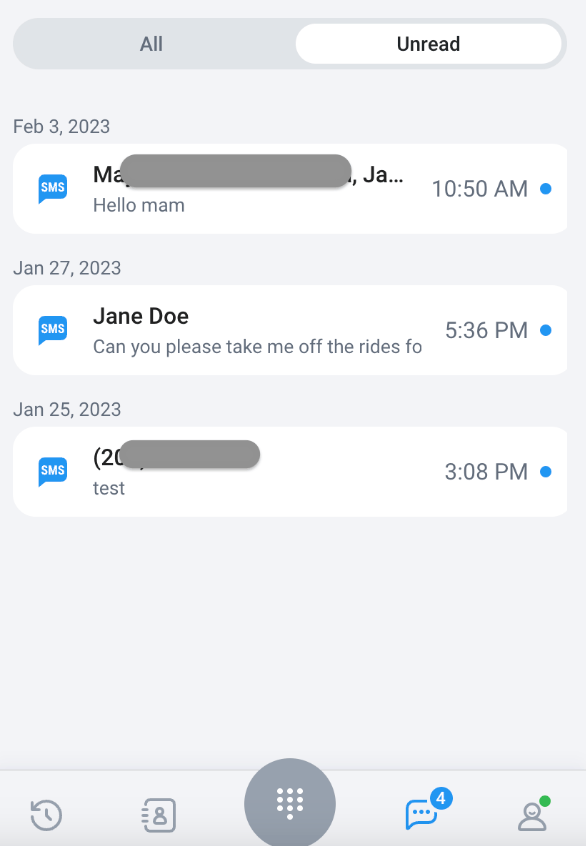
Reply in a Chat
- From the Messages screen, tap the chat you want to reply to. This opens the chat history with that contact.
- Type your message into the text bar or use a template, and tap the arrow icon to send.
Send a New Message
-
From the Messages screen, you can select the
+icon to start a new chat.
- Search and select the desired contact.
- Choose the contact number, if there is more than one.
-
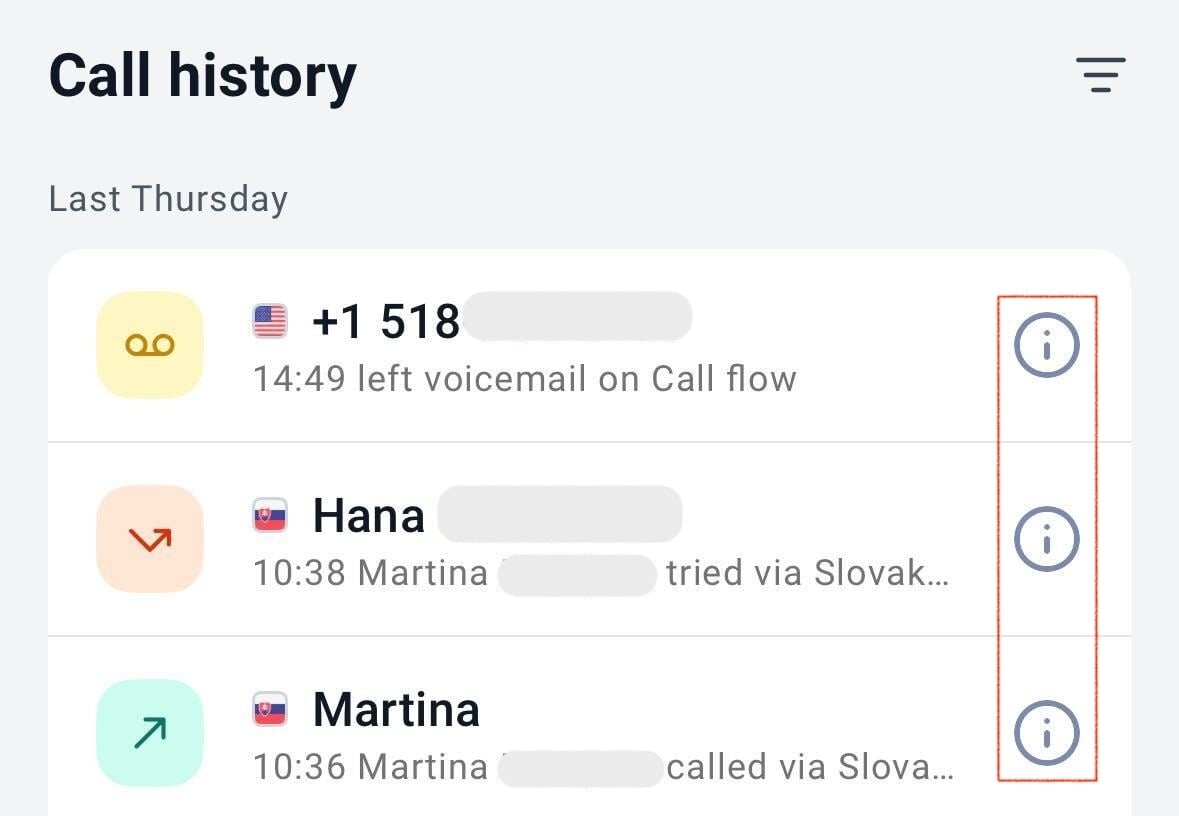
You can also send a message from the Call History screen.
- On desktop, tap the chat icon while hovering over a contact.
-
On mobile, select the info icon for the desired contact. Scroll down and select Send message.
-
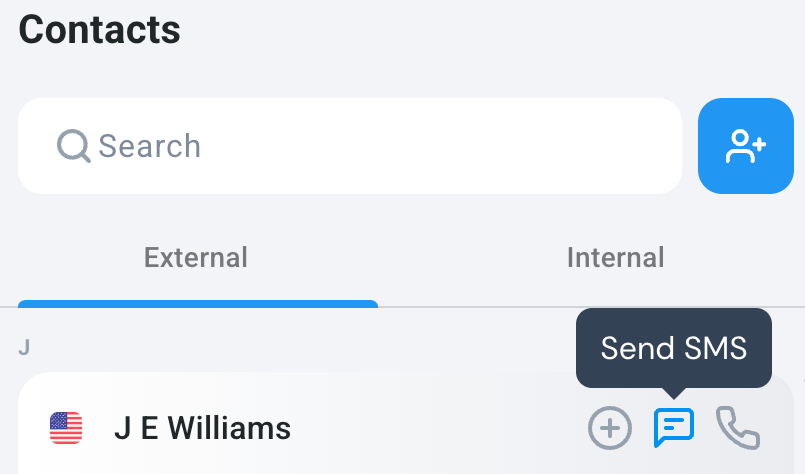
On desktop, you can additionally send a message from the Contacts screen.
-
Tap the chat icon while hovering over a contact.
-
Tap the chat icon while hovering over a contact.
-
When there is no chat history, you will be prompted to
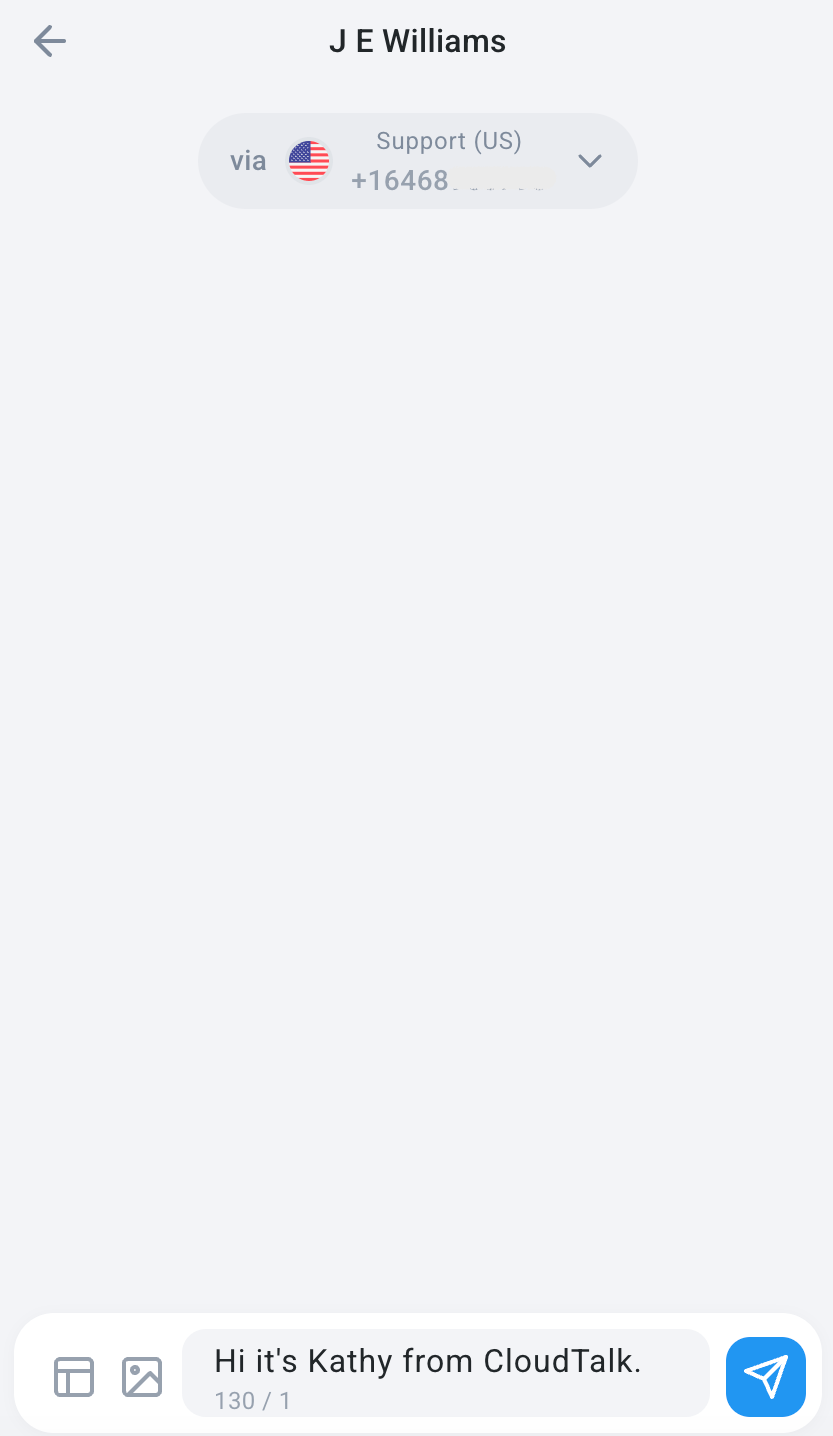
Start new conversation. - Type your message into the text bar or use a template, and tap the arrow icon to send.
Tip: searching for a contact with a common or duplicate nameThe recipient search list shows contact names only. If you have multiple contacts with the same or similar name, you may not be able to tell them apart from the list alone.Instead of searching by name, type the phone number directly (including the country code, e.g. +1 415 555 0100) into the To field. CloudTalk will automatically link the message to the matching contact.
Message Length
As you type, a counter under the message box shows how much room you have left. One SMS fits up to 160 standard characters, or 70 if your message uses emojis or accented characters. Longer messages are split into several parts (fragments) and put back together on the customer’s phone. Some countries don’t put split messages back together, so keep important messages short. See Cannot Send or Receive SMS for more.Check if a Message Was Delivered
Every message you send shows a small status icon next to the text, so you know whether it reached the customer without waiting for them to reply. On desktop, hover over the icon to see the status.Drafts and Failed Messages
Started a reply and got pulled away? Your draft saves as you type, so it’s still in the chat after you refresh the app, switch to another screen, or take an incoming call. Open the chat again and pick up where you left off. If a message fails to send, it stays in the chat as a retry bubble instead of disappearing. Tap the bubble to send it again. The message goes out once, so nothing is lost and the customer never gets a duplicate. This works for SMS and WhatsApp chats, on desktop and mobile.Use SMS Templates (Desktop)
From the desktop app, you can add and use templates to make outbound messaging more convenient.-
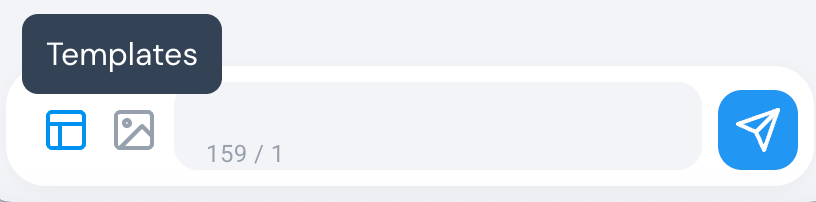
While in a an SMS chat, tap the bottom left icon to access templates.
-
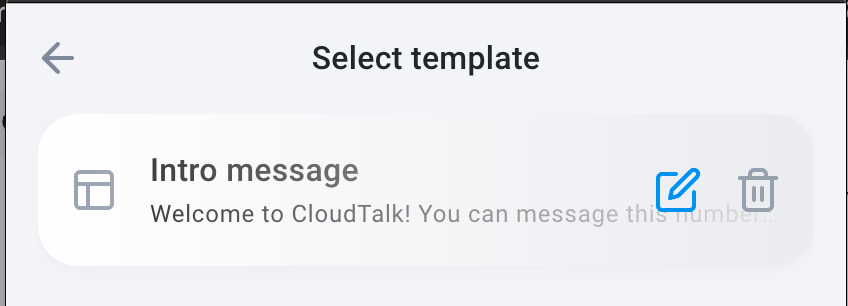
Select, edit, or delete from existing templates.
-
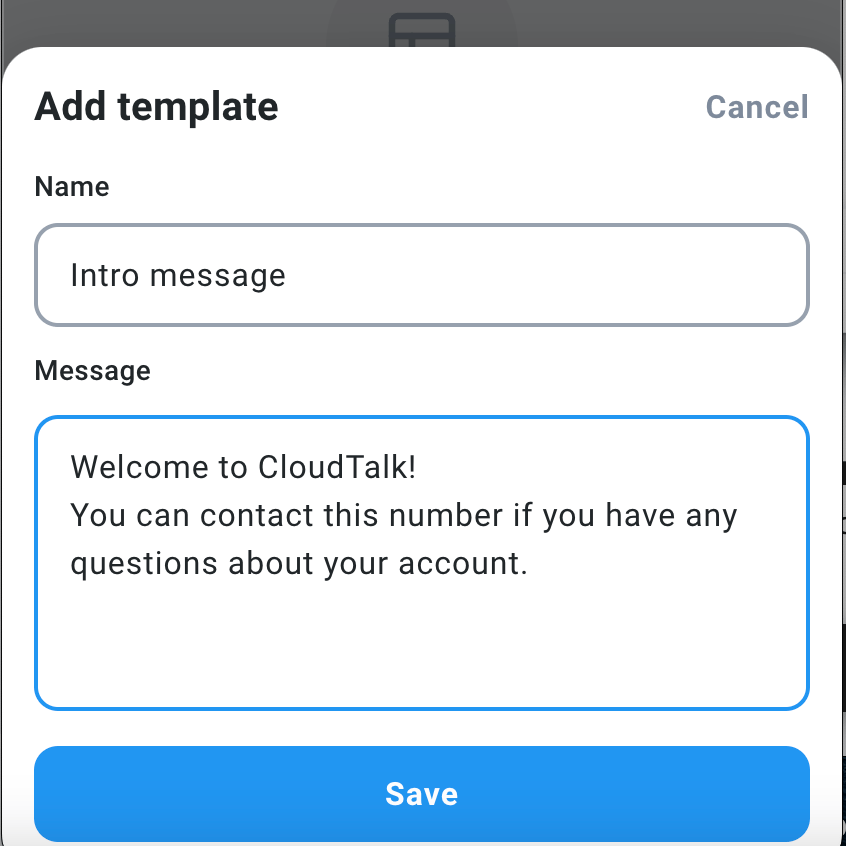
To create a new template, select
Add new.-
Write your template and give it a name. Save.
-
Write your template and give it a name. Save.
-
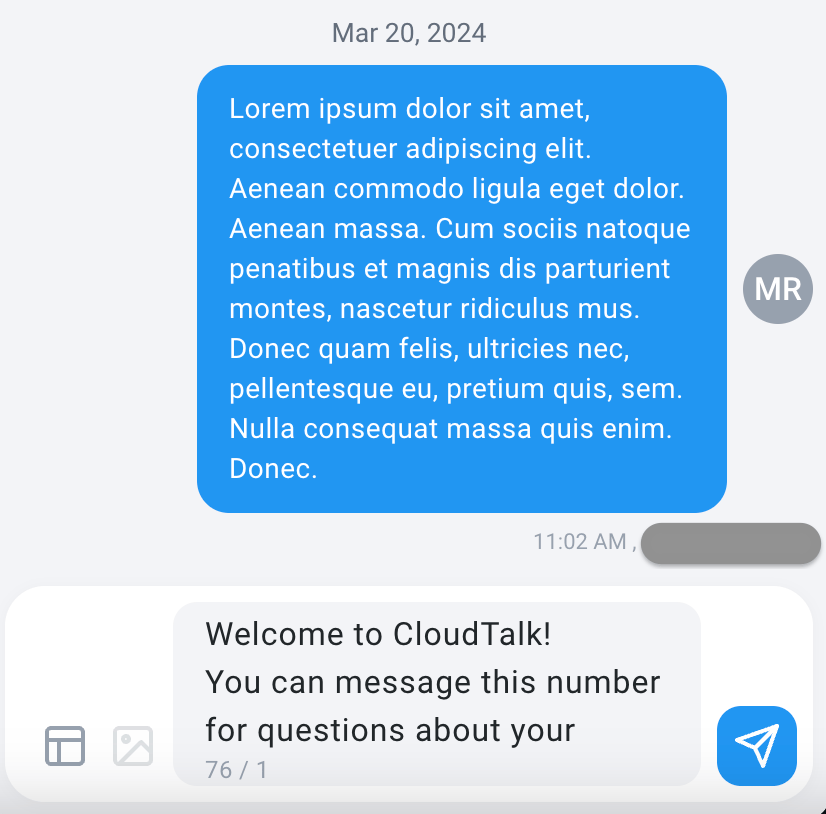
Once you select a template, it will paste into the text box so you can review it and make adjustments before sending.
Need help or have a question? Just reach out through our Support portal — we’re here for you.