

CloudTalk notifies you when a customer replies by SMS or WhatsApp, so you don’t miss messages on shared numbers. You choose which numbers and channels are allowed to notify you.
New message notifications
When a customer sends you an SMS or WhatsApp message, you get a notification on your desktop. Click it to open the chat.- You get one notification per message, even if you have CloudTalk open in more than one place (for example, the desktop app and a browser tab).
- On mobile, new messages arrive as push notifications.
- Make sure notifications are allowed for CloudTalk in your computer’s settings, and in your browser if you use CloudTalk Phone on the web.
Choose which numbers notify you
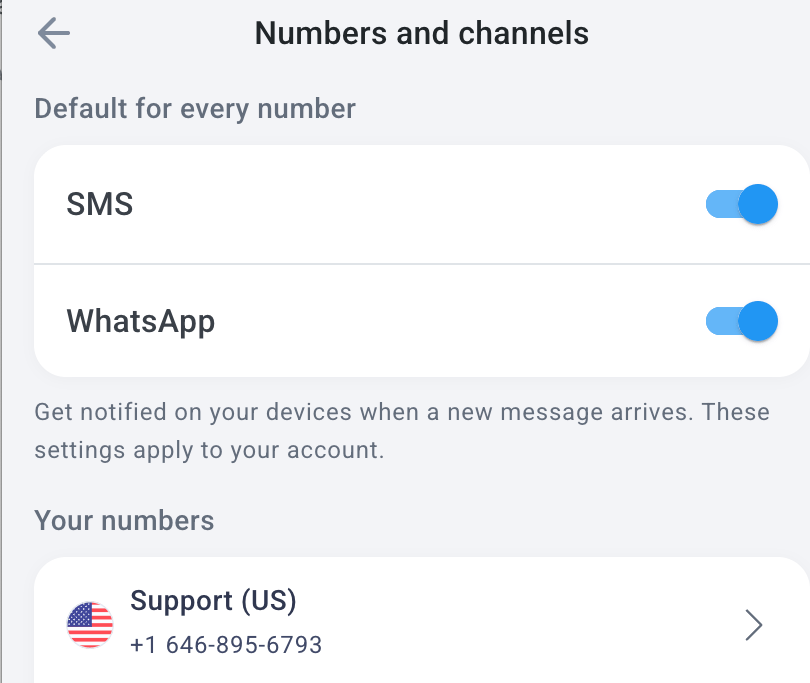
If you’re on several shared numbers, you probably don’t need an alert from all of them. You can mute the ones that aren’t yours to answer.- In the CloudTalk Phone app, go to Settings > Notifications > Numbers and channels.
- Use the main toggle to turn all message notifications on or off.
- Set the defaults for SMS and WhatsApp.
- To make an exception for one number, change its setting in the list of numbers. The number’s setting overrides the default.
I’m not getting notifications
Check that:- the main toggle and the channel (SMS or WhatsApp) are turned on in Settings > Notifications > Numbers and channels
- the number isn’t muted
- notifications are allowed for CloudTalk on your computer or phone
Need help or have a question? Just reach out through our Support portal. We’re here for you.