

In this article, you will learn how to make and receive calls and use CloudTalk features directly within Microsoft Teams.
Integrating CloudTalk phone features into your MS Teams workplace can reduce clutter in your workflows with a simplified dialing process that consolidates the apps agents need to use to communicate with clients. Our Teams integration offers Microsoft users an in-app experience of CloudTalk Phone’s essential functionalities.
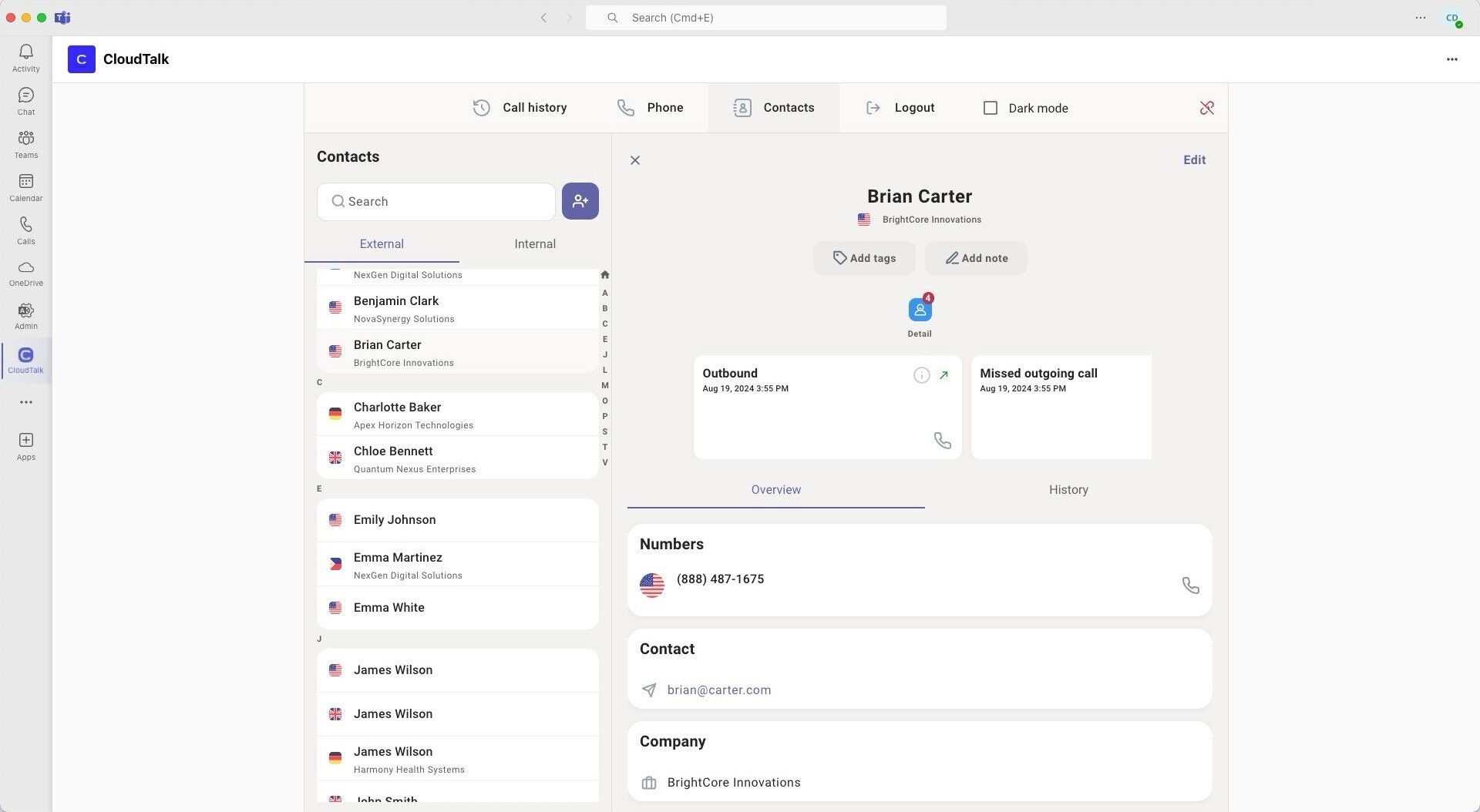
CloudTalk Phone CTI
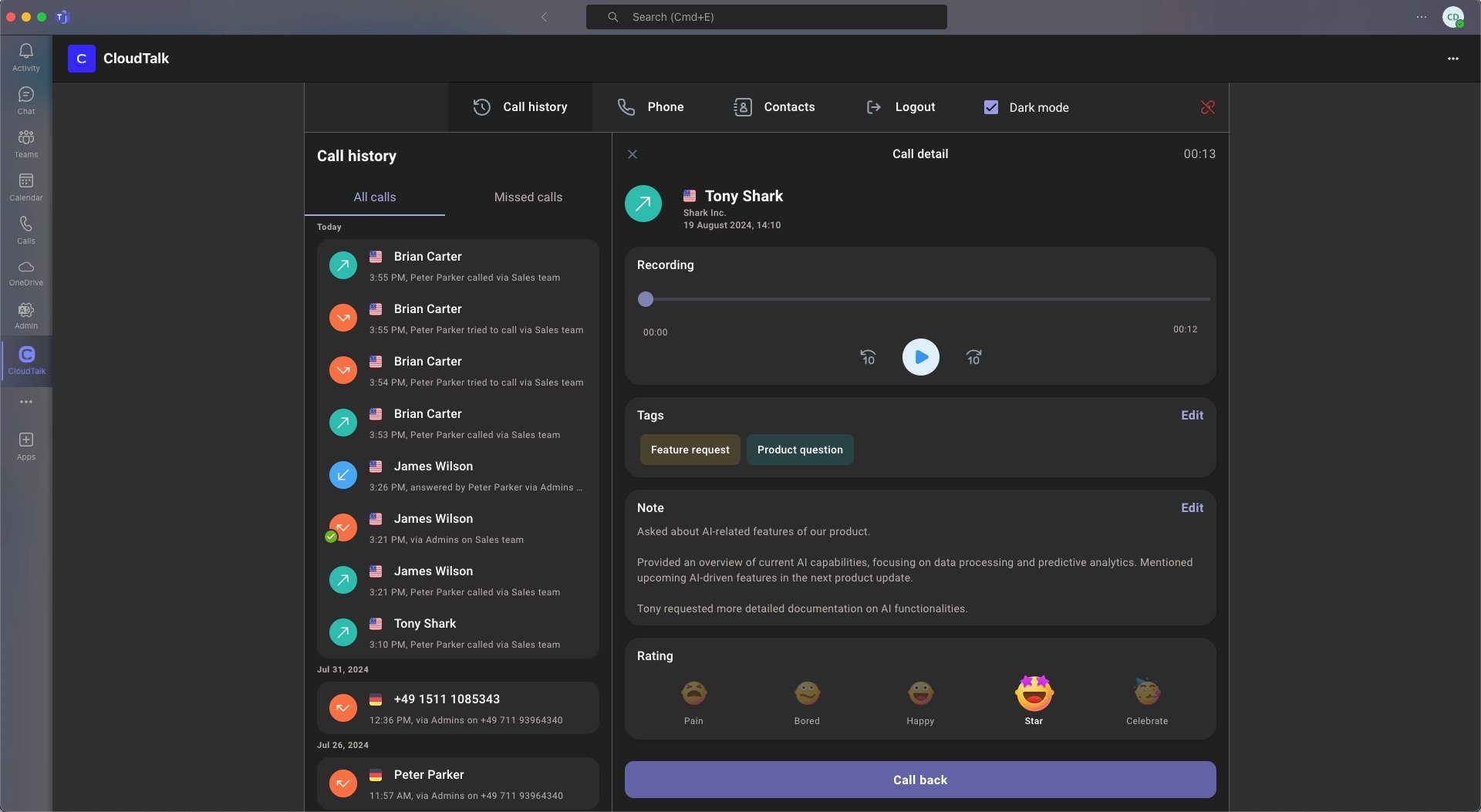
Once you’ve added the CloudTalk app for MS Teams, you can access the following features directly from your Teams sidebar:- Call history & details: review past calls and their metadata
- Contact management: view and edit contact information in-app
- Outbound calls: launch calls from Teams (requires the CloudTalk Desktop app running in the background)
- Dial pad: select outbound numbers or place anonymous calls
- Messaging: send and receive SMS messages through the Messages section of the CTI
- Two-way status sync: keep agent status aligned in Teams and CloudTalk Phone
- Azure SSO login: sign in securely with Microsoft credentials
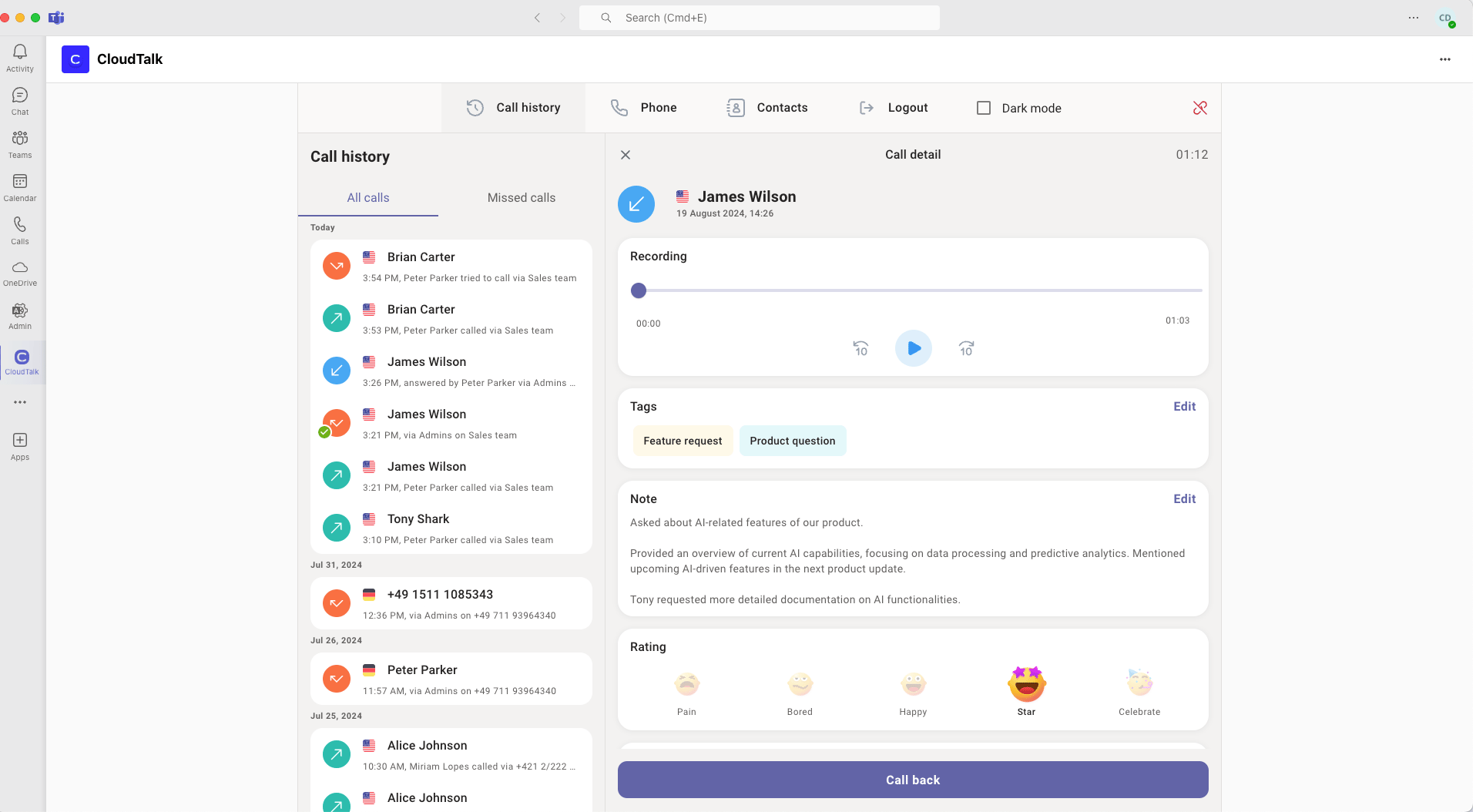
Status synchronization
CloudTalk’s CTI integration keeps your agent’s presence consistent across MS Teams and CloudTalk Phone. Status updates are synchronized both ways: Status mapping
Sync rules
- From CloudTalk → Teams: When logged into the CloudTalk Desktop app, changing your status (Online / Idle / Offline) updates your MS Teams status.
- From Teams → CloudTalk: When logged into Teams, changing your status (Available / Be Right Back / Away / Appear Offline) updates your CloudTalk Phone status.
Need help or have a question? Just reach out through our Support portal — we’re here for you.