

This guide explains how to configure the Microsoft Teams integration with CloudTalk so you can access calling features directly from your Teams workspace.
Before You Start
To integrate MS Teams with CloudTalk, you need to:- Be on the Expert plan or higher
- Have Azure Single Sign-On (SSO) enabled
- Keep the CloudTalk Phone desktop application running in the background while making calls in MS Teams
Configure MS Teams
From your MS Teams dashboard, you can access our CTI just like any other app added to your Microsoft account:- In the left-hand sidebar, click Apps (located at the bottom of the sidebar)
- Search for CloudTalk in the Microsoft apps marketplace.
- Locate the CloudTalk app for MS Teams and click Get it now.
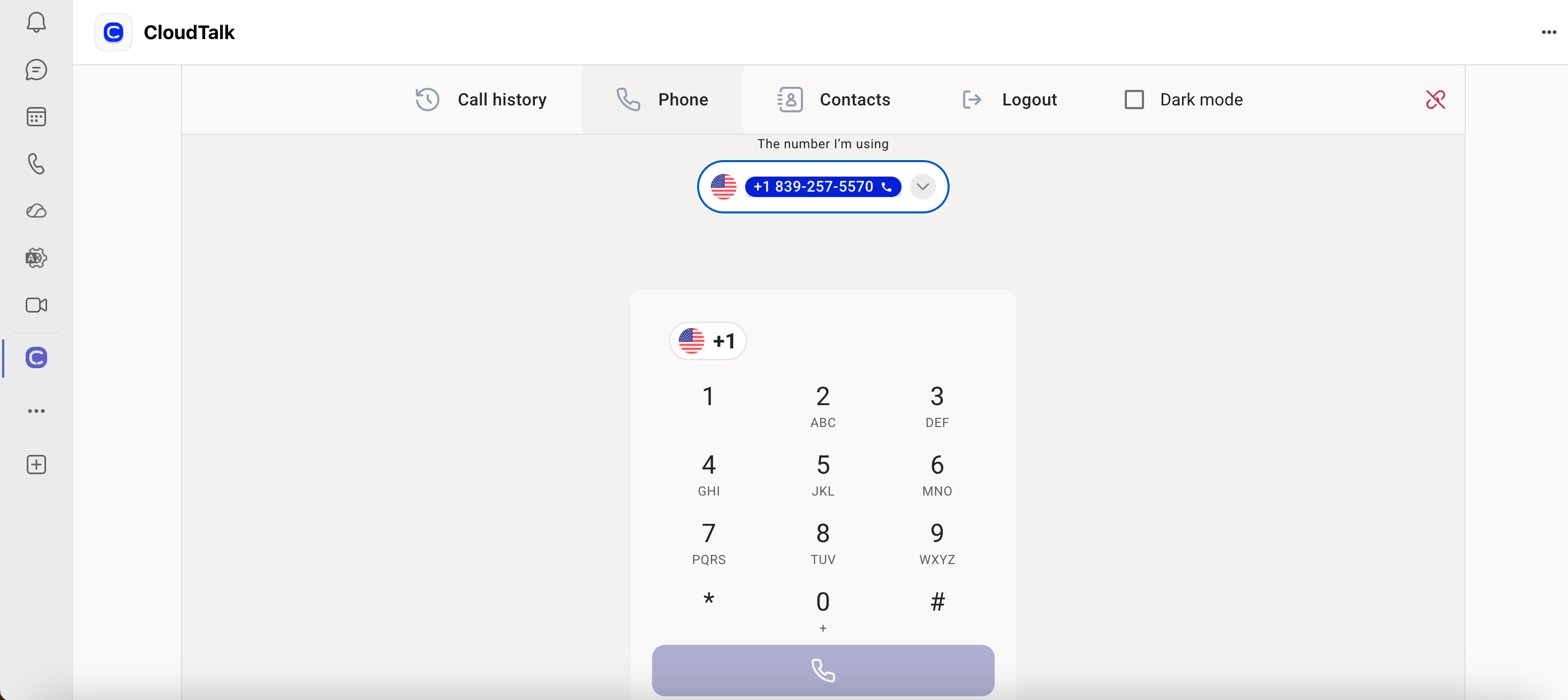
- Select the app from the sidebar to access CloudTalk Phone features within Teams.
- Ensure Azure SSO is set up in the Dashboard for login.
- Keep the CloudTalk desktop app open on the same device while making calls.
Remove CloudTalk from MS Teams
- Open Microsoft Teams
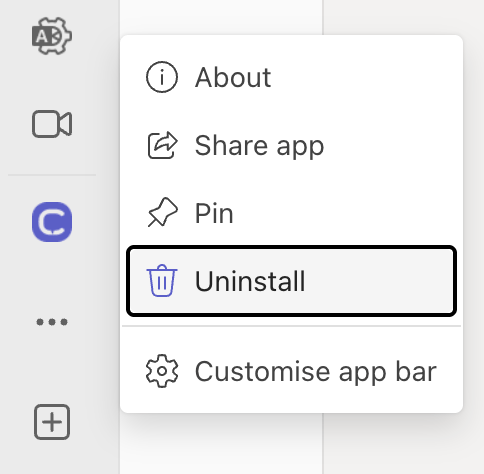
- In the left sidebar, locate the CloudTalk app
- Right-click on the CloudTalk icon
- Select Uninstall, then Remove.
Need help or have a question? Just reach out through our Support portal — we’re here for you.