

This guide walks you through the steps to set up and configure the Zapier integration with CloudTalk. You’ll learn how to connect both platforms and create Zaps tailored to your workflows.
Prerequisites
Before starting, ensure you have:- CloudTalk Account with Admin privileges
- Zapier Account (review Zapier’s pricing plans if you plan to use the Filter feature, as it requires a paid Zapier subscription)
- CloudTalk API Key pair ready to use. You can generate one in your CloudTalk dashboard under Settings > API Keys
What is Zapier
Zapier is a self-service tool which can automate processes between two or more apps. On the Zapier interface, apps can include four different features, known as Triggers, Actions, Filters, and Searches. These features are combined to create something called a Zap, which is comparable to CloudTalk’s Workflow Automation. In addition to CloudTalk, Zapier connects to over 3,000 other apps, including:- 800+ Sales apps and CRMs
- 600+ Marketing and Campaign apps
- 350+ Productivity apps
- 150+ eCommerce apps
- 100+ Support apps
- 70+ Talent Acquisition & HR apps

Add CloudTalk to “My Apps”
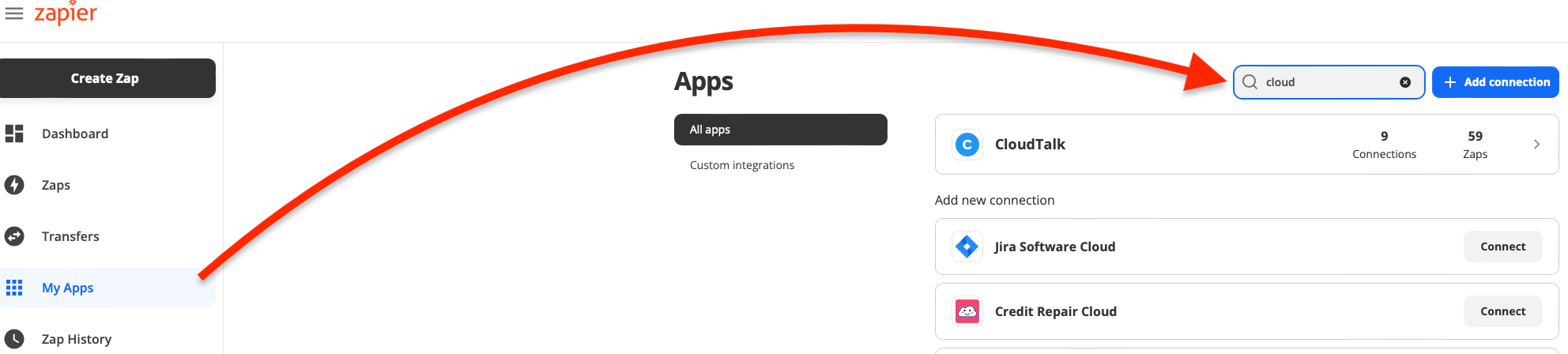
Log into Zapier and from the Dashboard, navigate to My Apps and searchCloudTalk, clicking the blue button to Connect the app. You can follow this link directly to connect CloudTalk through your Zapier account.
Create & Authorize Zaps
-
For new Zaps, you can click the black button in the top left corner to
Create Zap. View or edit existing apps by navigating to the Zaps tab first.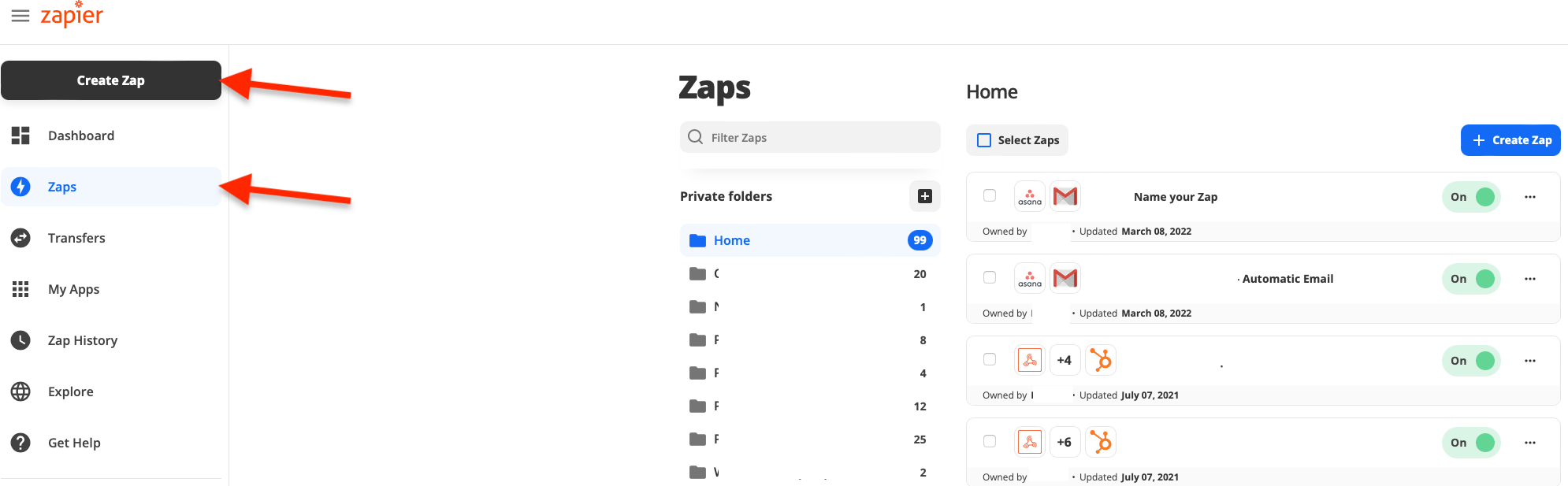
-
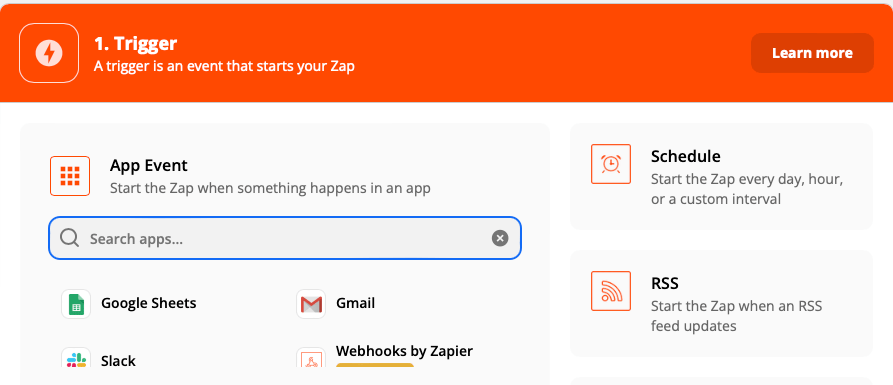
The first element of a Zap to decide on is the Trigger (detailed in the next section of this article). Search the app you would like to trigger the automation—in this case, CloudTalk.
-
There will be different Trigger Event options depending on the app chosen. For CloudTalk, we can choose:
New Contact,New Call, orNew SMS.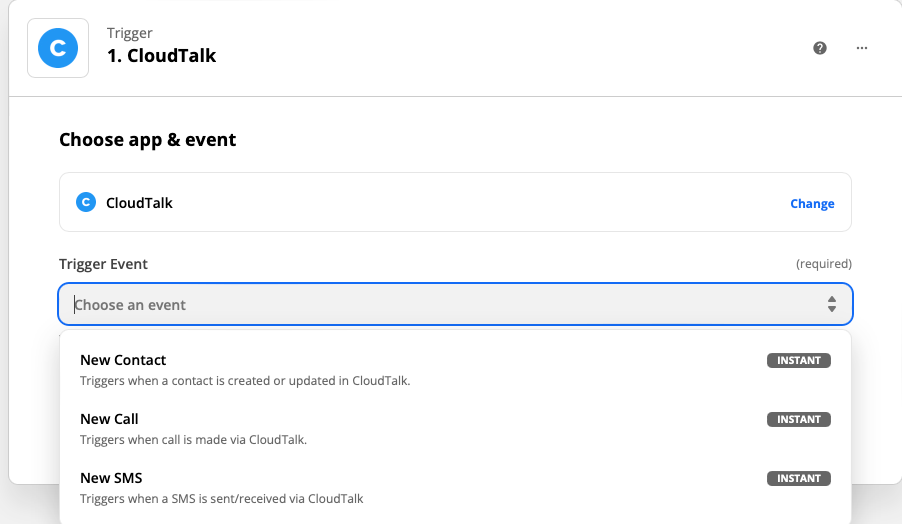
-
The first time CloudTalk is requested for use within a Zap, you will need to connect and authorize a CloudTalk account. In order to do this, open a separate tab or window and log into the dashboard of the CloudTalk account you wish to link. Navigate to Settings > API Keys in the lefthand menu. From here, generate a new set of API Keys by clicking the
+ Add API Keybutton. This pairing of an Access Key ID and Access Key Secret is what you will copy and paste into Zapier’s authentication prompt within Zap setup. -
Back on the Zapier tab, continue your Zap creation by choosing a CloudTalk account or adding a new one. Be sure it is the same account from which you just retrieved the API Keys.
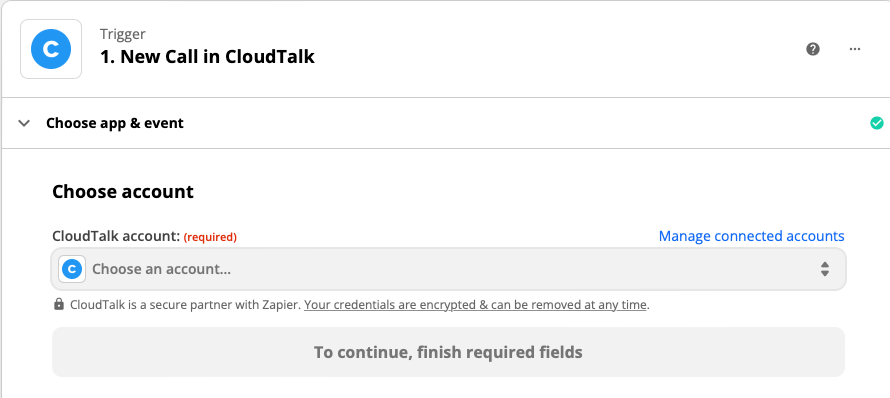
-
Copy/Paste the Access Key ID and Access Key Secret from the CloudTalk tab, and click
Yes, Continue.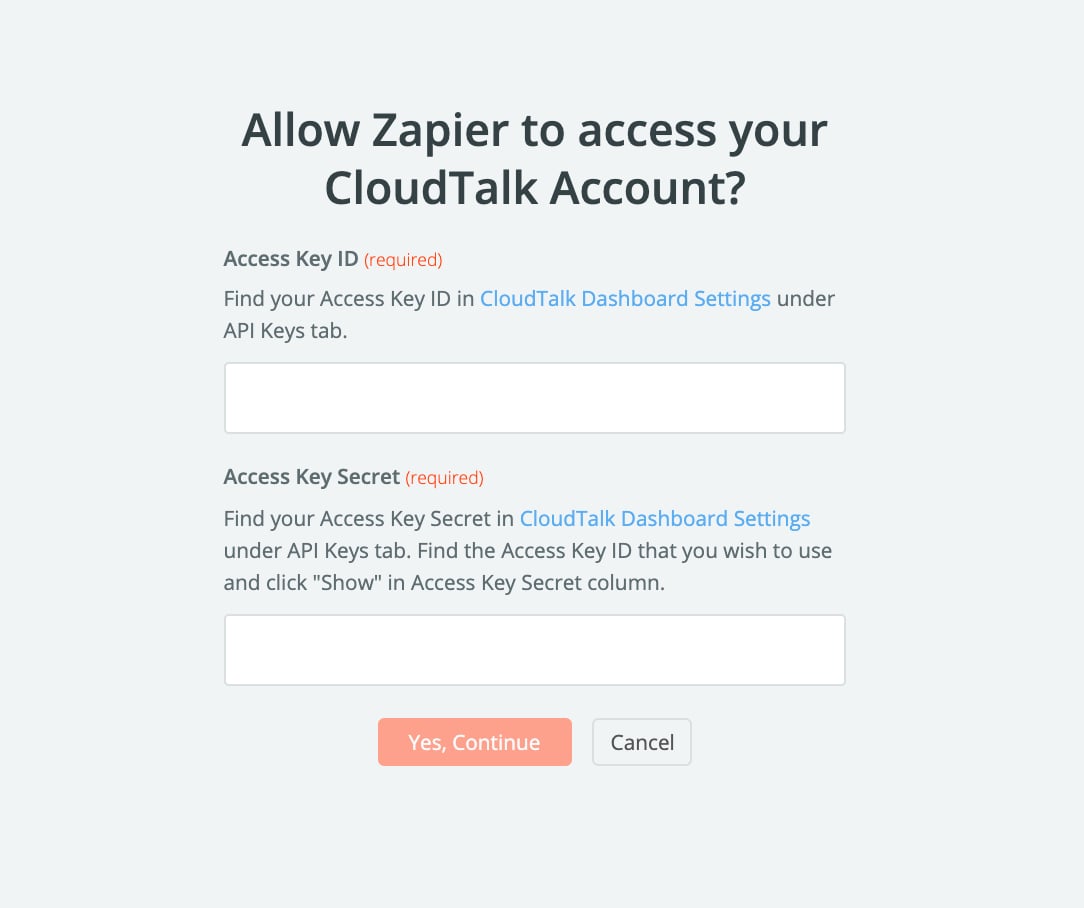
- From this point, you can continue customizing your Zap in the Action step, detailed in the next section of this article. The linked CloudTalk account should pull up in the dropdown list for future Zaps so that you don’t need to retrieve authentication keys each time.
Parts of a Zap
Triggers are always the first step in a Zap, and serve as an inciting incident for the automation. A Zap will receive information from the Trigger’s connected app which will be used in the following steps. For example, aNew Call could trigger a Zap each time a new call was registered in your linked CloudTalk account, and from each new call, all relevant information would be forwarded to Zapier.
⚠️Test Trigger
Be aware that our triggers will only show example data when tested, not real company data.
Zaps will not run immediately unless the Trigger Event is instant. All CloudTalk Trigger Events are instant, but this is not the case for all Zapier apps.
New SMS - info shared:
New Contact
- example use case: Synchronize CloudTalk contacts to a 3rd party system.
- info shared:
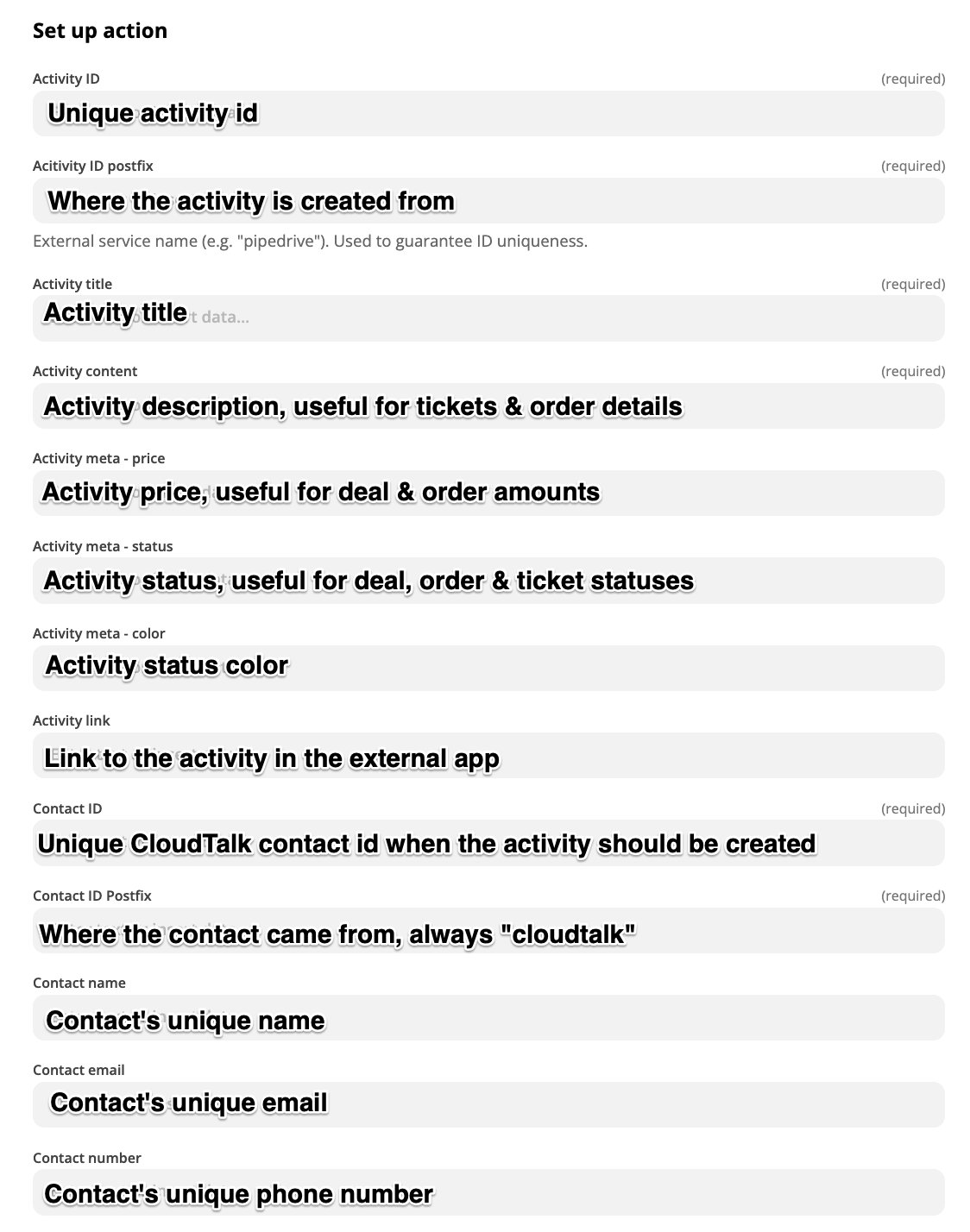
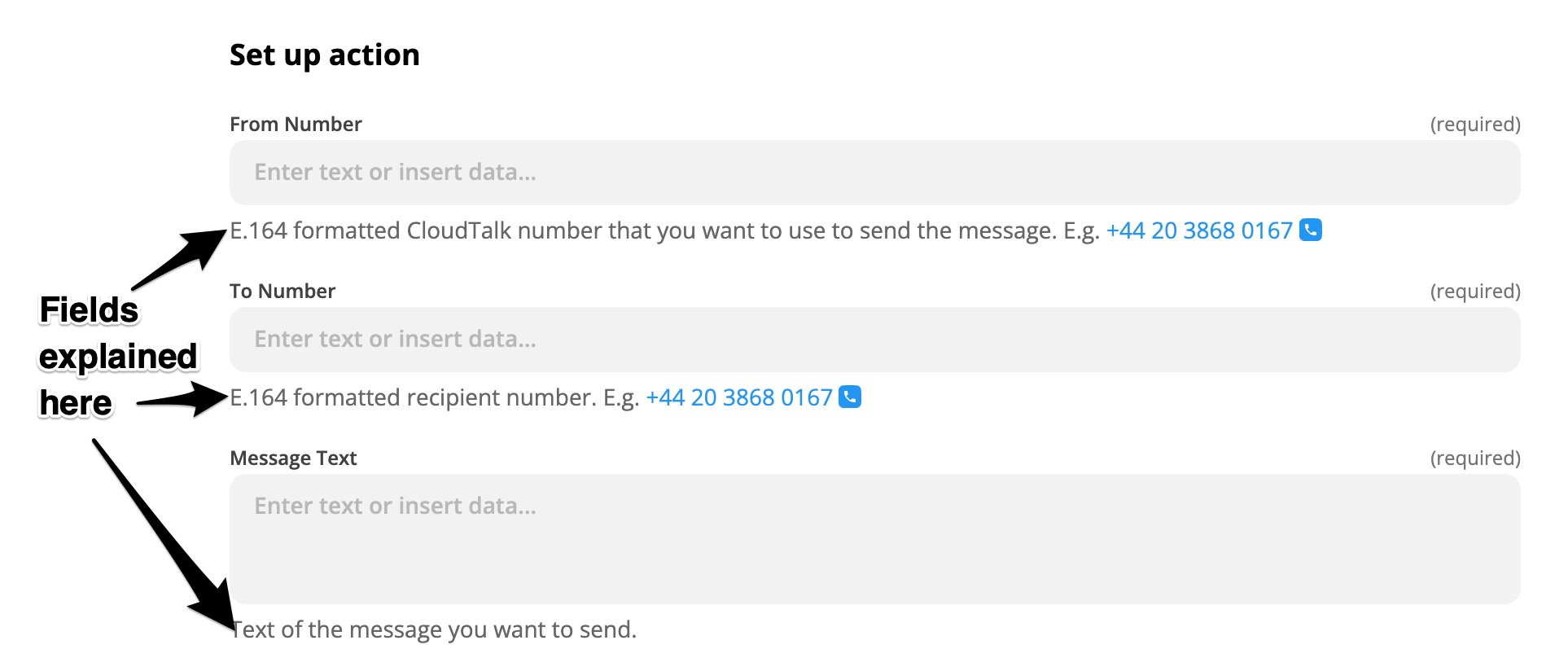
Actions are the subsequent step in a Zap. Once an automation has been triggered, the Action represents the process which will take place in a connected app. For example, after a Trigger Event takes place in a CRM app, a contact could be updated in CloudTalk. The following Zapier Action types are connected to the CloudTalk app:
Create or Update Contact
Create a new CloudTalk contact or update an existing one.
- example use case_:_ Synchronize contacts from a 3rd party system into CloudTalk.
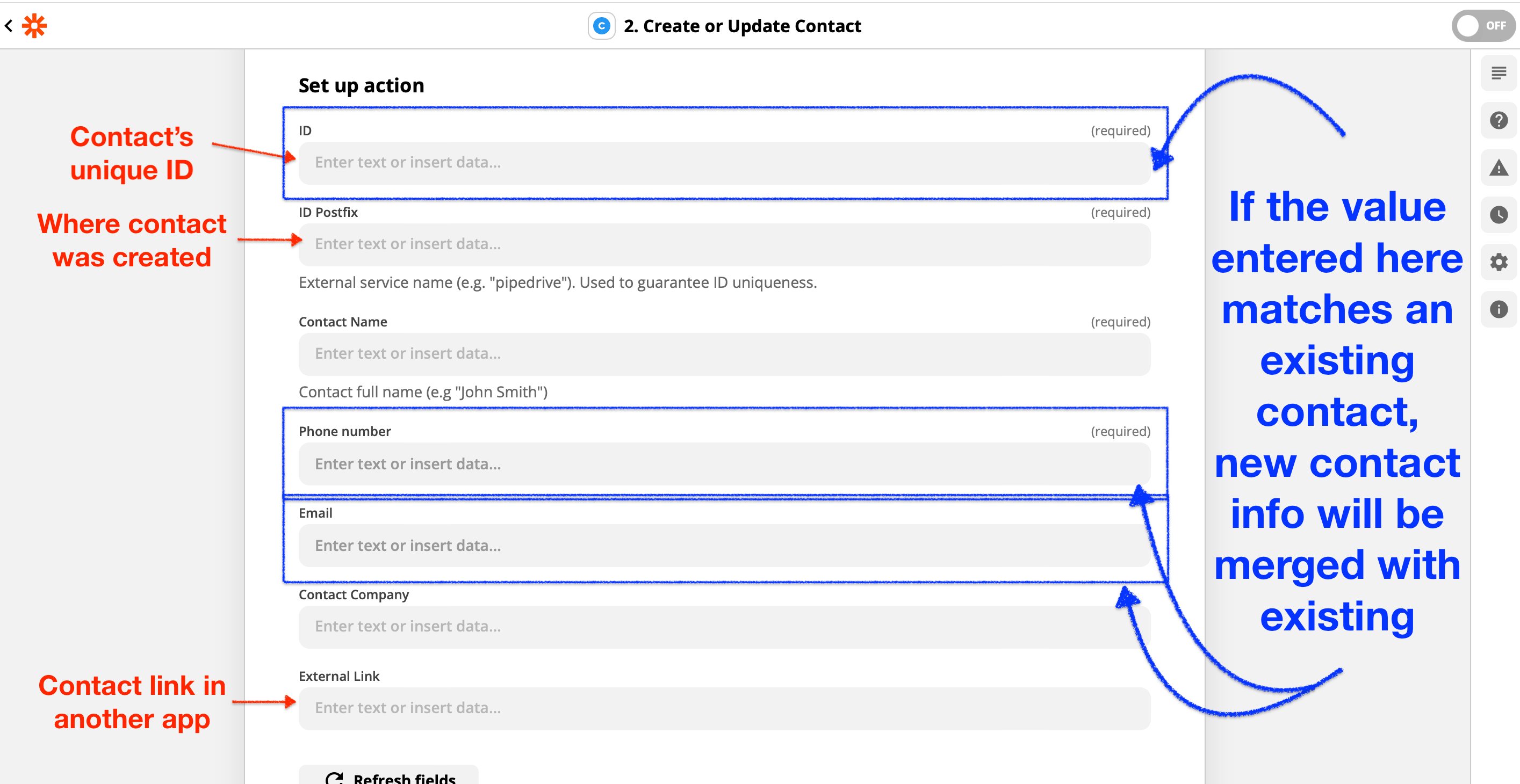
For all actions, sending a recognized activity/contact id willupdate the matching activity/contact for each Zap run, rather thancreating new activities or contacts each time.
Need help or have a question? Just reach out through our Support portal — we’re here for you.