

Learn how to copy an existing campaign’s settings into a new one, and what is and isn’t carried over.
When you want to reuse a campaign’s setup without building it from scratch, duplicate it. This copies the configuration into a new campaign so you can adjust what you need and start fresh.
How to duplicate a campaign
- Go to AI Dialer > Campaigns.
-
Hover over the campaign row and click the Duplicate campaign icon (the copy icon).

-
A new campaign opens with the name “Copy of [original name]” and all settings from the original.
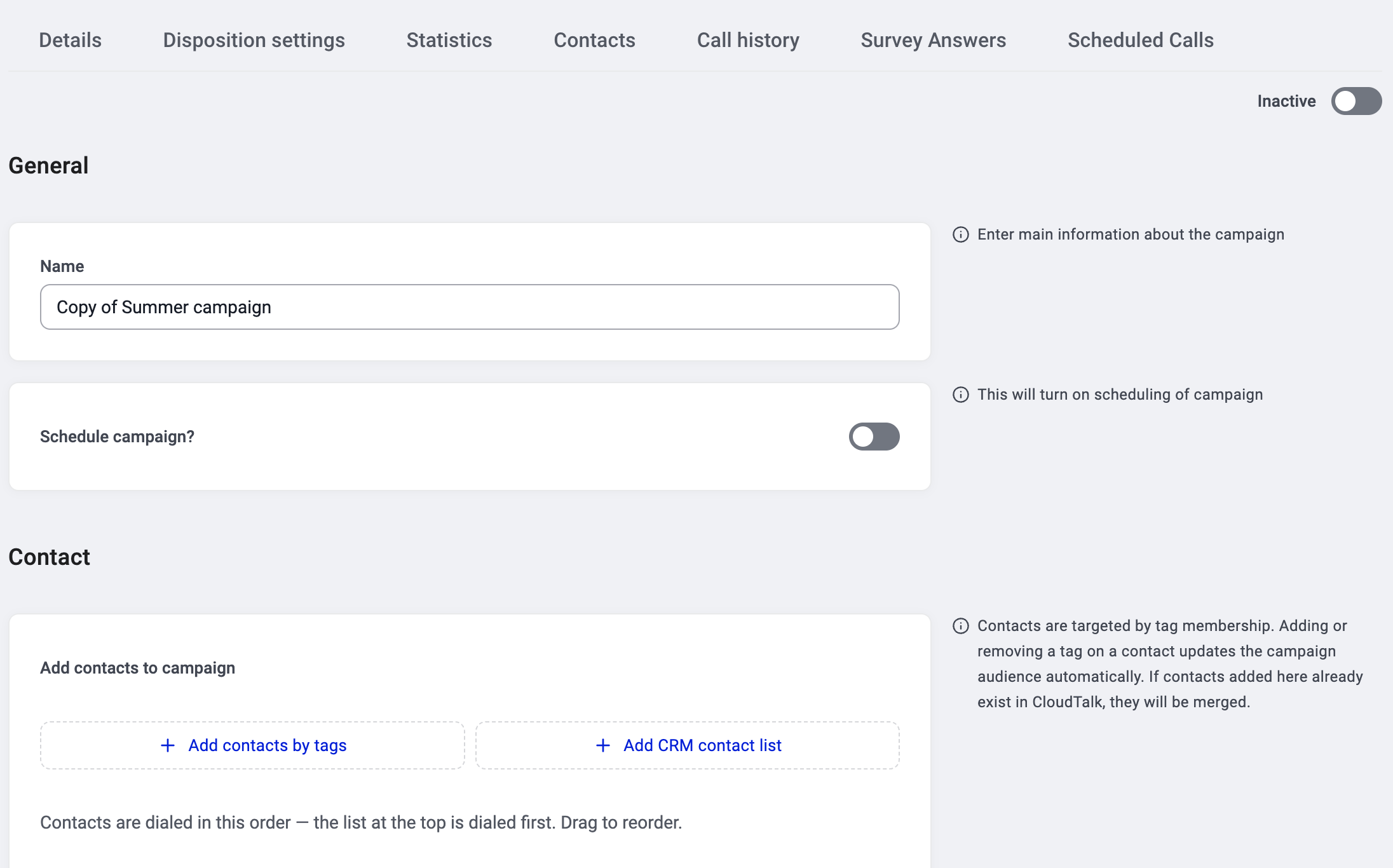
- The campaign starts as Inactive. Review and edit anything you want to change.
- Toggle to Active when you’re ready to start dialing.
What gets copied
When to use duplicate
- Running the same setup on a new audience. Duplicate it, add different tags, and go.
- Seasonal repeats. Duplicate last quarter’s campaign, update the name and contacts.
- A/B testing. Duplicate a campaign, change one setting (e.g., a different script or dispositions), and compare results.
- Template campaigns. Set up one “master” campaign with your standard settings and duplicate it whenever you launch something new.
Good to know
- The duplicate starts as Inactive. It won’t dial until you toggle it to Active.
- Statistics start at zero. The duplicate has no history.
- You can edit everything after duplicating. Nothing is locked.
- Contact priority is set by drag order. After adding your tags and CRM lists, drag them to set the dial priority. The list at the top is dialed first. See How contacts are prioritized.
Need help or have a question? Just reach out through our Support portal — we’re here for you.