

Learn how to schedule, pin, reschedule, and cancel callbacks, and when they come back to your queue.
When a contact asks you to call back later, schedule it and the AI Sales Dialer brings them back to your queue at the right time.
Scheduling a callback
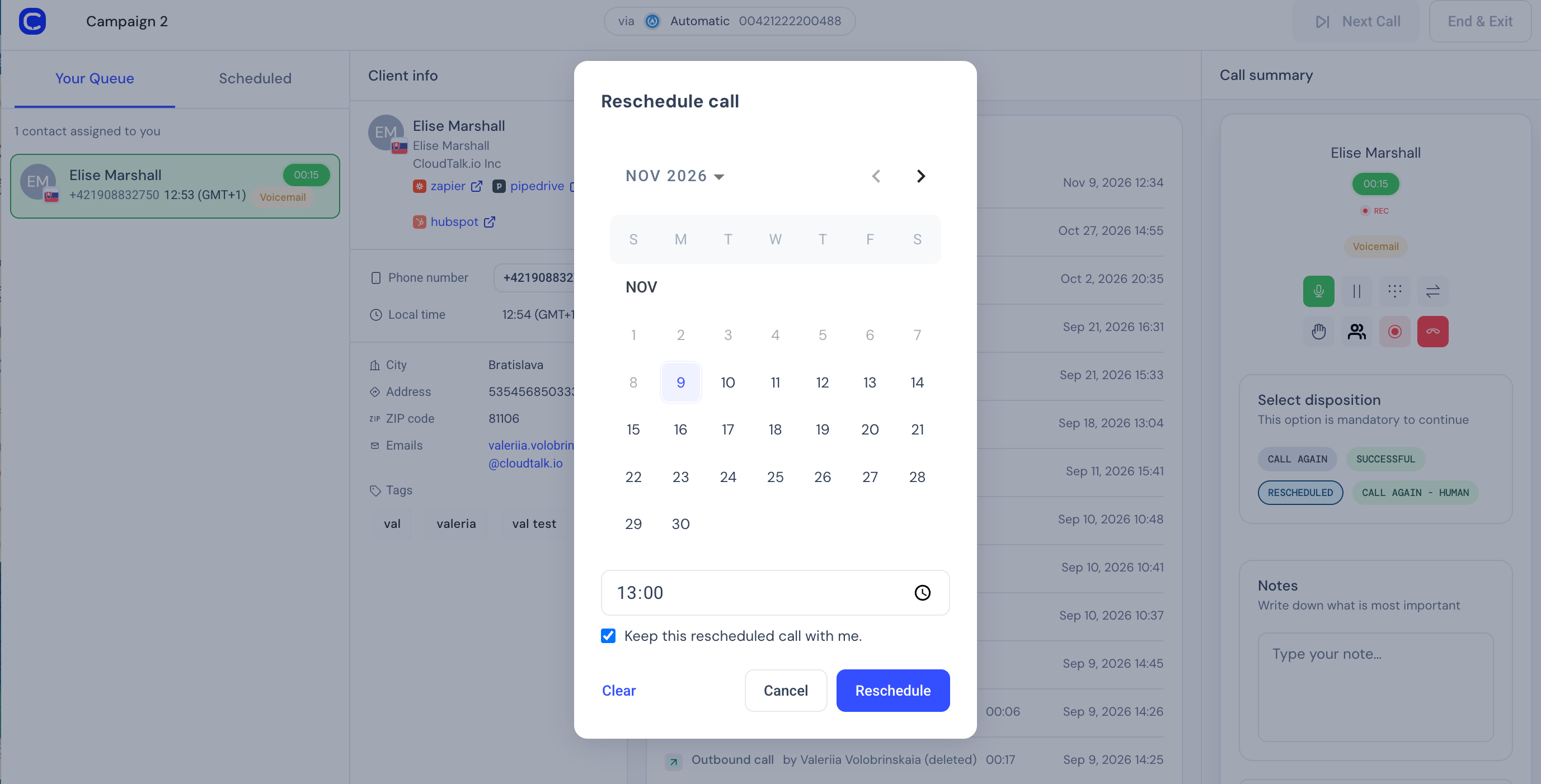
- After a call, choose the Reschedule disposition (or whichever disposition your campaign uses for callbacks).
- The schedule modal opens. Pick a date and time (time is required).
- Optionally check Keep this rescheduled call with me to pin the callback to yourself. If left unchecked, any agent on the campaign can pick it up when it’s due.
- Confirm.
How callbacks are prioritized
Due callbacks jump ahead of retry and fresh contacts in the queue. The dialer’s priority order is:- Rescheduled contacts whose callback time has arrived
- Retry contacts (already called, cooldown elapsed)
- Fresh contacts (never called)
Pinned vs. open callbacks
Pinned (Keep this rescheduled call with me). Only you see this callback in your queue when it’s due. Use this when the contact asked for you specifically or when context matters. If you’re not in a session and the callback goes about 30 minutes past its scheduled time, it opens up to any agent on the campaign so the contact isn’t left waiting. Open (not assigned). Any agent on the campaign can pick it up when the time arrives. Use this when it doesn’t matter who calls back, just that someone does.When a callback comes due
The callback surfaces in the agent’s queue when its scheduled time arrives. There is no push notification or pop-up; the contact appears in the queue as part of the normal dialing flow and is prioritized ahead of fresh contacts.If the assigned agent isn’t in an active session when a pinned callback comes due, the contact waits for them for about 30 minutes. After that, the callback becomes available to any agent on the campaign. Open callbacks are available to everyone from the moment they’re due.
Rescheduling a callback
To change a callback’s date or time, open the Scheduled tab in your queue and click the clock icon next to the callback. Pick the new date and time, and click Reschedule. The same callback is updated, so no duplicate is created. Its note stays attached, and you can change it in the same step. If you pinned the callback with Keep this rescheduled call with me, it stays pinned. You can’t pick a time in the past.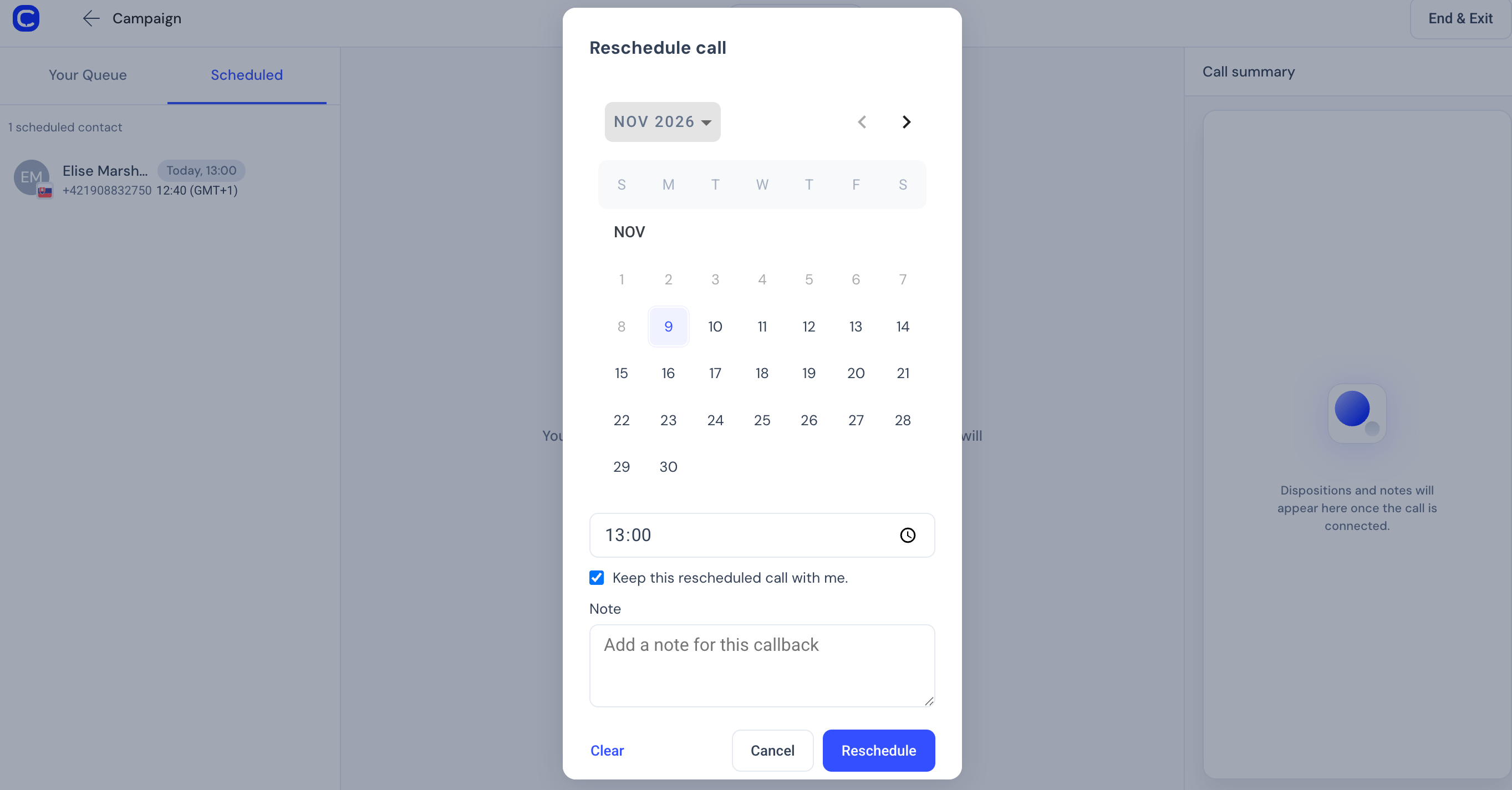
Canceling a callback
To cancel a callback, click the bin icon next to it in the Scheduled tab. The contact goes back to the campaign queue and follows the campaign’s normal rules.Good to know
- The note persists. Whatever you write in the callback note is attached to the contact and shown in the Client info panel, under Callback note, the next time they’re served, so the agent picking up the callback has context.
- No callback is lost. If a callback’s scheduled time passes while nobody is in a session (e.g., overnight), it surfaces as overdue at the next session start and is served immediately: for the pinned agent first, then for anyone on the campaign once the 30-minute hold has passed.
- Callbacks count as an attempt. When the callback is dialed, it uses one of the campaign’s configured retry attempts like any other call.
- Scheduling works in both sequential and parallel mode. The callback itself is always served as a single contact, not as part of a parallel batch.
- See and manage every callback in the campaign. In the Dashboard, open the campaign’s Scheduled Calls tab to see each callback’s contact, agent, status and scheduled time, including callbacks other agents scheduled. Filter by user to see one agent’s callbacks. You can also change a callback’s date, time or note there, or cancel it. The assigned agent stays the same.
- Callbacks stay in their campaign. A callback is served only in the campaign where it was scheduled. If the campaign is set to Inactive, its callbacks wait and are served again when you reactivate it.
Need help or have a question? Just reach out through our Support portal — we’re here for you.