

In this article, you’ll learn how to set up and configure the Gong integration in CloudTalk, including how to connect your account, customize call logging and transcription settings, and control which numbers are synced.
Prerequisites
- A CloudTalk account with admin access
- A Gong account with admin access
- Your Gong login credentials
- The email address you use in CloudTalk must match exactly with the email address in your Gong account. If the emails do not match, synchronization will not work correctly.
Configure Gong
- From your Dashboard, navigate to Account > Integrations.
-
From the list of integrations, hover over Gong and select
+Add. -
You will be redirected to a Gong login to enter your credentials. Allow to grant permissions and continue.
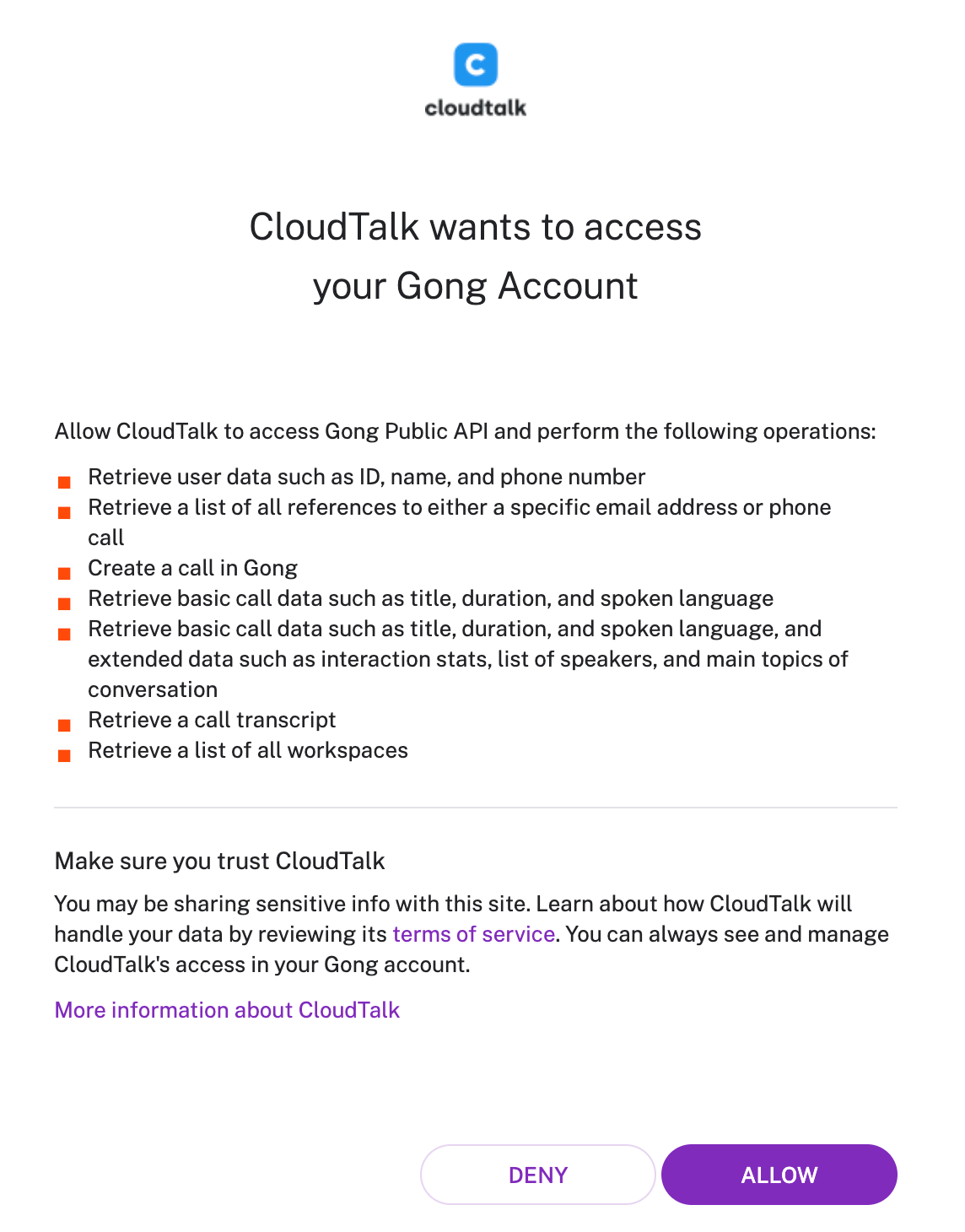
- After a successful authentication process, you will be redirected back to the CloudTalk dashboard, where you can customize your integration.
-
Save to enact these changes and activate the integration.
- You can set your integration to Inactive at any time using the toggle at the top.
Integration customization
All answered external calls are automatically sent to Gong for transcription and analysis.
- Choose whether internal calls are sent to Gong. By enabling this setting, internal calls will be included for Gong to analyze.

- Decide whether calls should be logged in Gong for unassociated numbers.

- Choose to only link activity from certain numbers to your Gong integration by using the Connected Numbers sections. If this section is left blank, data associated with all company numbers will be synched.

Disconnect or Remove Integration
You have two options if you no longer want to use the integration:- Deactivate: In your CloudTalk Dashboard, go to Settings > Integrations > Gong and toggle the status to inactive. This pauses syncing but keeps your settings.
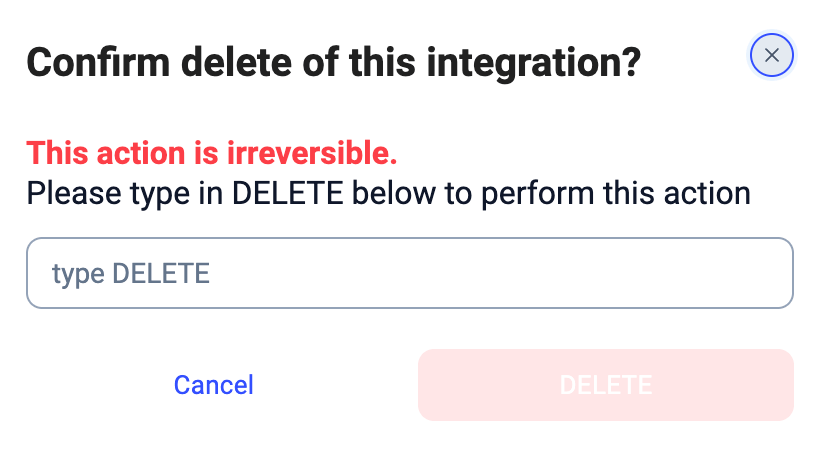
- Remove: To remove the integration completely, go to Configure > Delete Integration, type DELETE, and confirm.
Need help or have a question? Just reach out through our Support portal — we’re here for you.