

Learn who needs a Parallel Calling seat, how to check seat status, and how to get more seats.
Parallel Calling is a paid add-on that lets agents dial multiple contacts at once. Each agent who runs parallel campaigns needs their own Parallel Calling seat. See Parallel mode (2+ lines) for how parallel dialing works.
How seats work
A Parallel Calling seat is a per-agent license. It unlocks parallel mode for that specific agent. Without a seat, an agent can still run sequential campaigns but cannot join a parallel campaign. Key rules:- One seat per agent. Each agent running parallel campaigns needs their own seat.
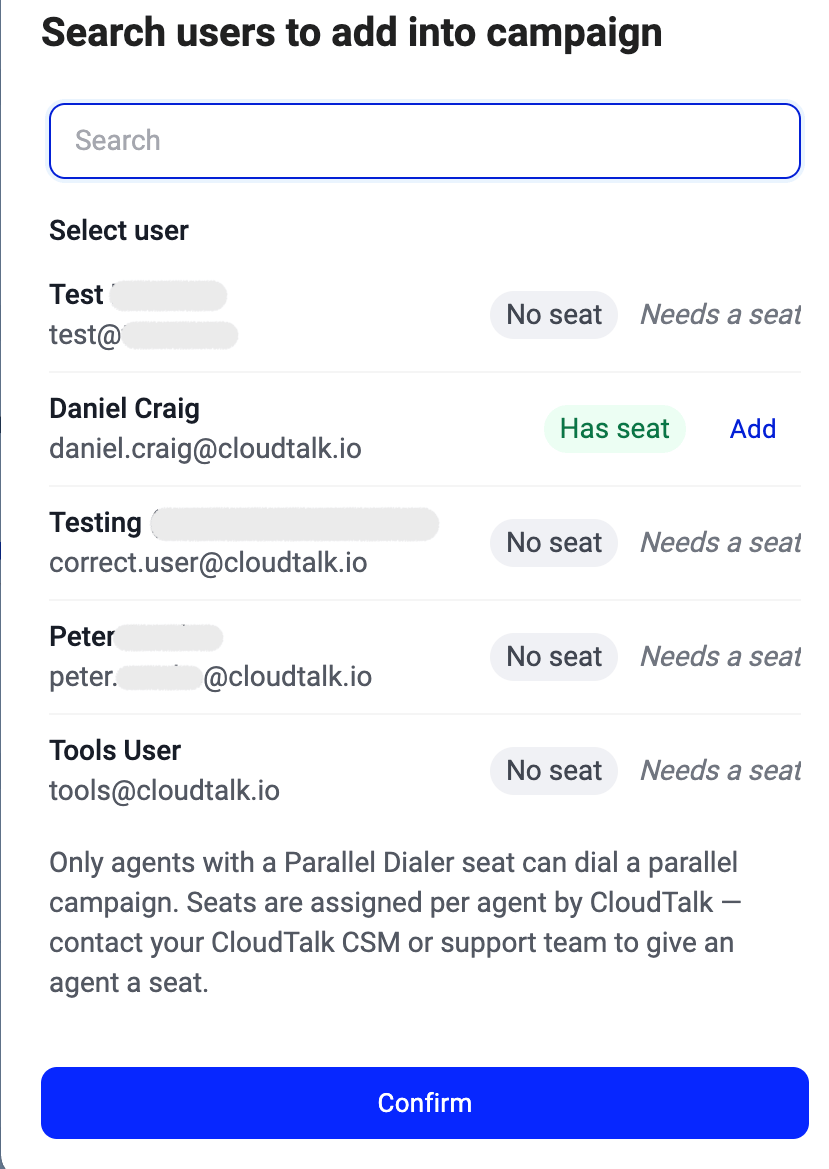
- Agents without a seat can’t be added to parallel campaigns. When you open the agent picker on a parallel campaign, each agent shows a Has seat or No seat badge. Agents marked “No seat” display a “Needs a seat” label and cannot be added until a seat is assigned to them.
- Queue groups skip the picker check. If a parallel campaign is staffed by a queue group instead of named agents, members without a seat are not flagged at assignment time. They are still blocked at runtime: they can’t open the campaign or dial from it.
- Admins need a seat to dial too. An admin can create and configure a parallel campaign without a seat, but needs one to start a session on it.
- Seats don’t affect sequential campaigns. Agents without a seat can run sequential campaigns normally.
How to see who has a seat
There are two places to check:-
In the agent picker (when adding users to a parallel campaign): agents with a seat show a green Has seat badge. Agents without one show a grey No seat badge and “Needs a seat” next to their name.
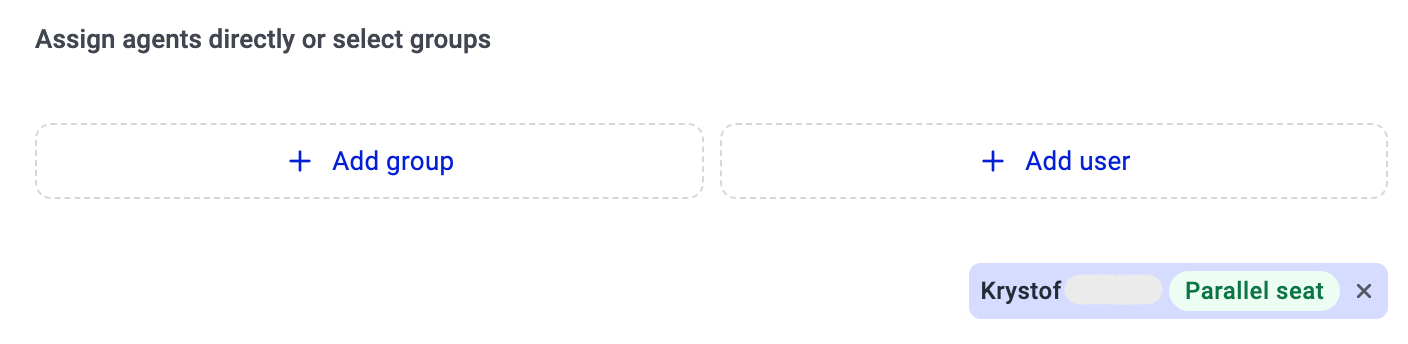
- In the campaign’s Assigned users section: agents with a parallel seat show a Parallel seat badge next to their name.
What happens when you need more seats
If you need to add an agent who doesn’t have a seat, contact your CloudTalk CSM or support team to purchase and assign additional seats. A new seat takes up to 2 minutes to take effect. After that, the agent’s badge in the campaign editor updates to “Has seat” and they can be added to parallel campaigns. If the badge hasn’t changed after a couple of minutes, contact support.Enforcement for existing accounts
Parallel Calling seat enforcement is being rolled out across all accounts. If your account had agents using parallel dialing without assigned seats, those agents are not removed from their campaigns. They stay on the roster, but without a seat they can no longer open or dial that parallel campaign: it’s hidden from them at runtime, they can’t start a session, and they are not served contacts.Good to know
- Seats are account-level, not campaign-level. Once an agent has a seat, they can join any parallel campaign on the account.
- Seat changes take up to 2 minutes. A newly assigned seat needs up to 2 minutes to apply, and a removed seat keeps working for about 2 minutes after removal.
- Removing a seat from an agent does not affect their completed calls or campaign history. It only prevents them from joining new parallel sessions. If the agent is mid-session, they see an on-screen notice that their Parallel Dialer seat was removed.
- Restoring a seat mid-session doesn’t re-enable it. If an agent’s seat is restored while they’re in a parallel session, that session stays blocked. They need to end it and start a new one.
- Sequential mode is always available regardless of seats.
Need help or have a question? Just reach out through our Support portal — we’re here for you.