

Learn how dispositions and outcome types work, how to add them to a campaign, and how they sync to your CRM.
A disposition is a special type of call tag that carries an outcome. It records what happened on a call (“Call Again,” “Successful,” “Reschedule”) and tells the system what to do next with the contact. Dispositions drive your campaign statistics, CRM sync, and retry logic, so getting them right matters. You manage dispositions in Settings > General > Dispositions. When setting up a campaign, you choose which dispositions are available to agents on that specific campaign and optionally map each one to a CRM outcome (see Setting up a campaign in the AI Sales Dialer, Step 3).
Dispositions are separate from tags. Tags are general-purpose labels you can add to any call for your own categorization. Dispositions are the mandatory call outcomes that determine what happens to the contact next (retried, completed, scheduled for callback, etc.).
Setting a disposition (agent)
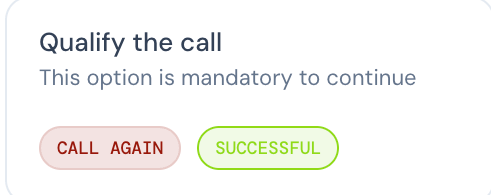
After every call, the Qualify the call section appears in the Call summary panel with the label “This option is mandatory to continue.”- Pick the outcome chip that matches what happened (e.g., CALL AGAIN, SUCCESSFUL).
- The dialer records it and moves you to the next contact.
How outcomes work
Each disposition carries an outcome type that tells the system what to do next with the contact. You choose the outcome type when creating a disposition in Settings:
The agent just picks the disposition label during a call; the outcome type you assigned in Settings handles the rest.
System dispositions
System dispositions are predefined by CloudTalk and cannot be edited. They are call outcomes applied automatically by the system.
System dispositions appear in your call history and statistics alongside agent-set dispositions.
Adding dispositions to a campaign
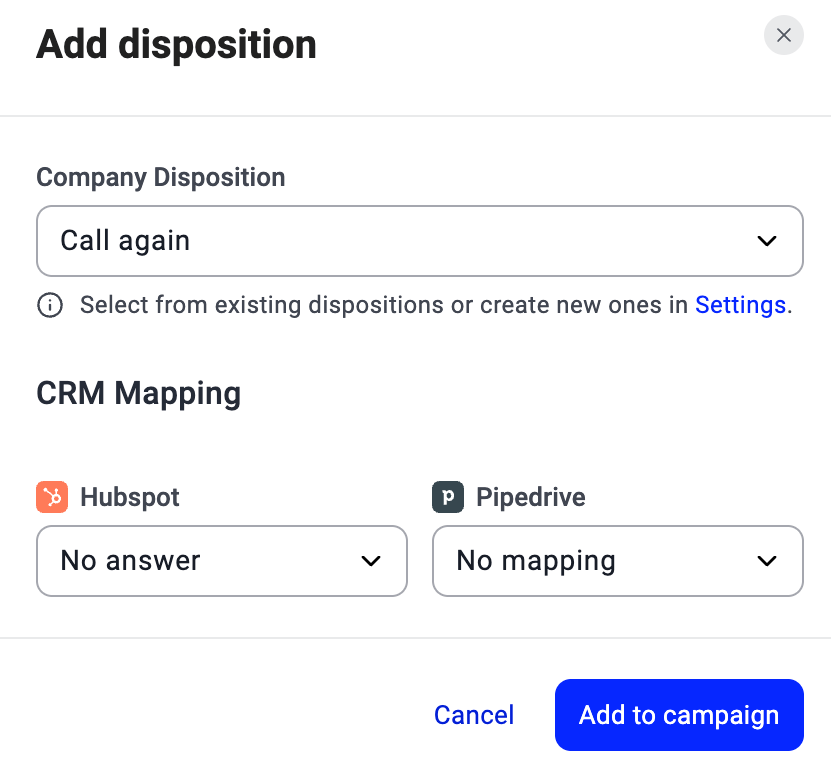
When you create a campaign, all your company’s dispositions are added automatically. You then customize the set for this campaign by removing the ones you don’t need: click the X on any disposition chip to remove it.
Importing dispositions from another campaign
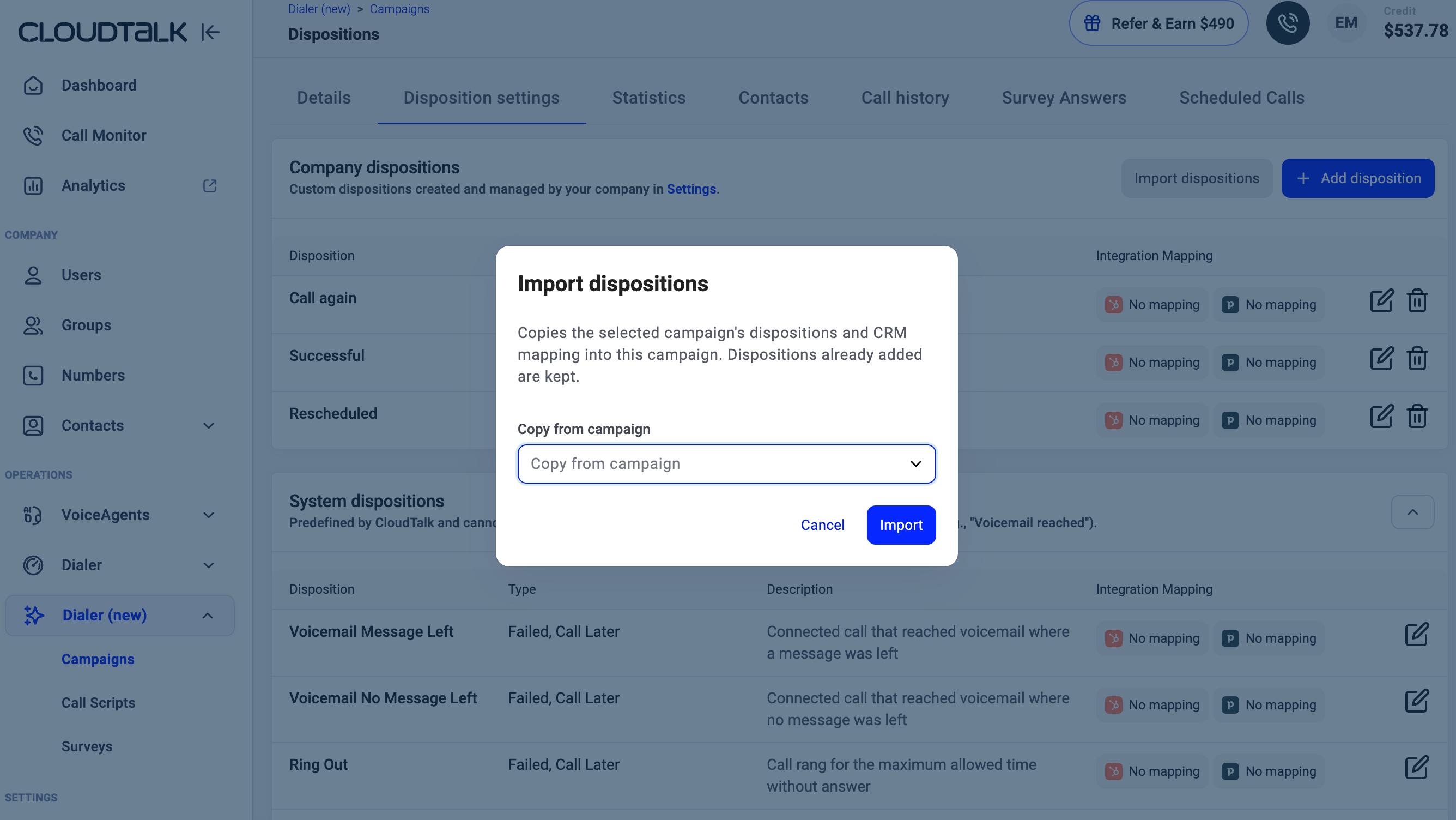
If you’ve already set up dispositions and CRM mappings on another campaign, you can copy them instead of adding one by one:- Open the campaign and go to the Disposition settings tab.
- Click Import dispositions.
- Choose the campaign to copy from in the Copy from campaign dropdown.
- Click Import. The selected campaign’s dispositions and CRM mappings are copied into this campaign. Dispositions already on this campaign are kept; nothing is overwritten or removed.
Managing dispositions on a campaign
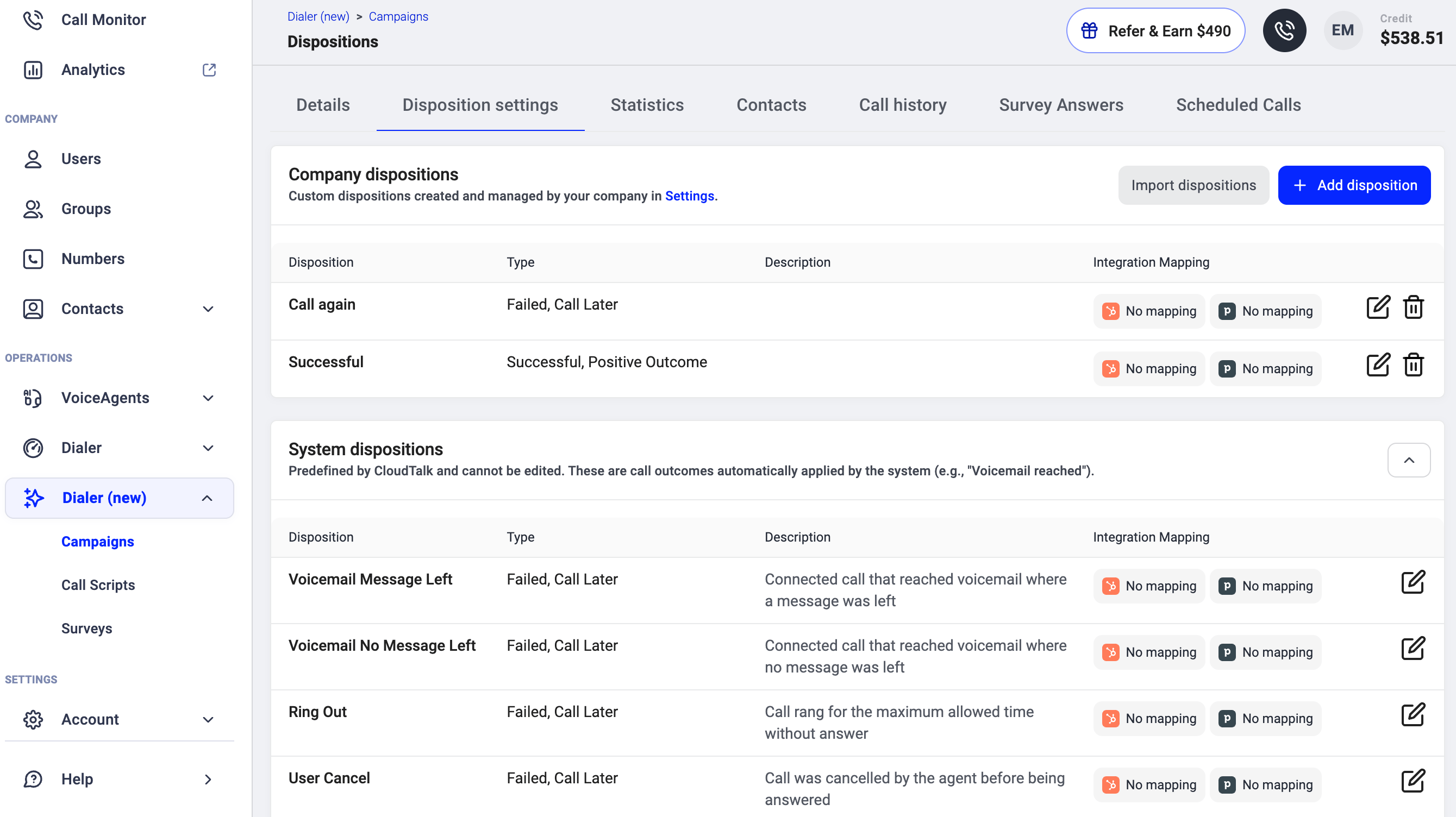
The Disposition settings tab shows two sections:- Company dispositions: the dispositions you’ve added to this campaign. Each row shows the disposition name, Integration Mapping (HubSpot, Salesforce, Pipedrive, Zoho), and edit/delete icons. Click the edit icon to change a disposition’s CRM mapping, or the delete icon to remove it from this campaign.
- System dispositions: predefined by CloudTalk and cannot be edited. These are applied automatically by the system (e.g., Voicemail, Ring Out, Line Busy).
Where dispositions show up
- Campaign statistics. The disposition breakdown shows how calls closed, by outcome. Conversion rate is calculated from positive outcomes divided by total dispositioned calls. See Campaign statistics, call history and exports.
- Call history. Every call in the history feed carries its disposition in the Outcome column.
- Your CRM. If you mapped a disposition to a CRM outcome during campaign setup, it syncs automatically. See the CRM-specific articles (HubSpot, Salesforce, Pipedrive, Zoho) for details.
Good to know
- One disposition per call. Each call carries exactly one disposition. You can change your pick before it saves, but once the disposition is saved it cannot be changed.
- Dispositions are per-campaign. Different campaigns can offer different disposition sets. The same disposition (e.g., “Successful”) can be used across multiple campaigns, but you control which ones appear on each.
- Do not call is permanent. A contact marked “Do not call” is never re-served on that campaign, even if their tag is removed and re-added later. This is by design for compliance. Do not call only applies to the campaign where it was set. It doesn’t stop other campaigns from calling the same contact, so if the contact appears in another campaign, you’ll need to exclude them there too.
Need help or have a question? Just reach out through our Support portal — we’re here for you.