

The After Hours AI Receptionist is a VoiceAgent configured to handle inbound calls outside business hours. It answers calls, responds to common questions from your Knowledge Base, and takes a structured message when it cannot help, so calls are handled and nothing is missed when your team is unavailable.This guide walks you through configuring the agent step by step, from the initial profile setup through to connecting it to your call flow.
Before you start
To set up an After Hours AI Receptionist, make sure you have:- An active AI Receptionist or AI Specialist package on your account
- Admin access to the CloudTalk Dashboard
- A Time Router configured (or ready to configure) in Call Flow Designer
- A CRM webhook endpoint if you want call data sent automatically
Configuring After Hours AI Receptionist
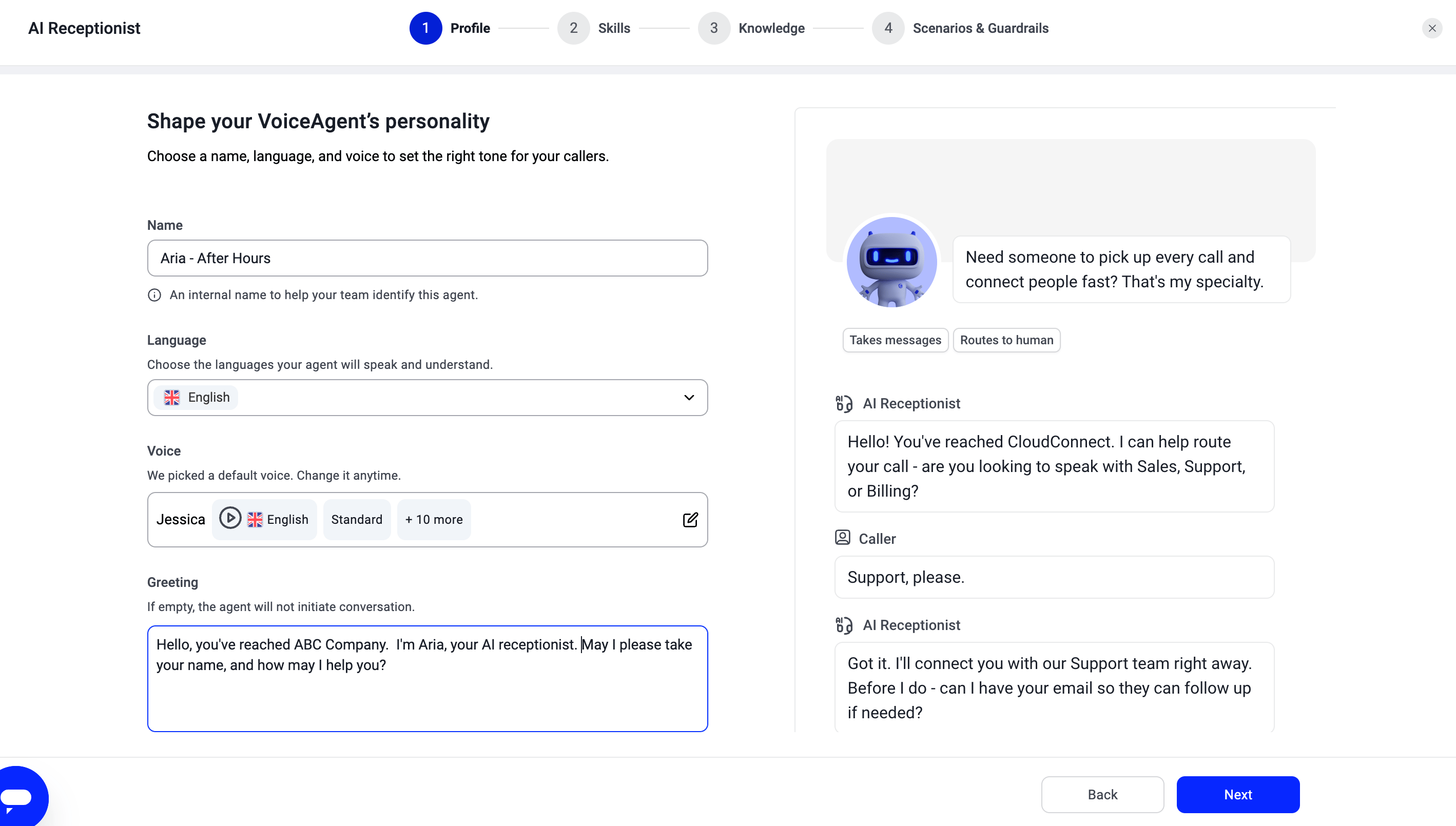
Step 1: Set up your agent profile
In AI Voice Agents > Agents, click + New VoiceAgent. In the template gallery, select After-Hours Message Taker from the Reception category to start with a pre-configured agent, or choose Receptionist under Manual setup to configure everything yourself. Either way, check the settings below.
Example greeting:
Step 2: Configure VoiceAgent skills
Skills define what the agent can do during a call. Each skill adds a specific capability (answering questions, transferring to a human, capturing data, or taking a message). You configure which skills are active and how each one behaves. For a full description of all available skills, see VoiceAgent Skills.Answer Questions (recommended)
Answer Questions is a fallback behaviour setting, not a routing skill. It tells the agent what to do when it cannot find an answer in the Knowledge Base. Callers always get a next step, even when the agent cannot find an answer. For after-hours, set the fallback to Be honest. The agent will say it doesn’t know and offer to take a message. Do not set this to “Hand over to a person” unless you have an on-call line that is reliably staffed.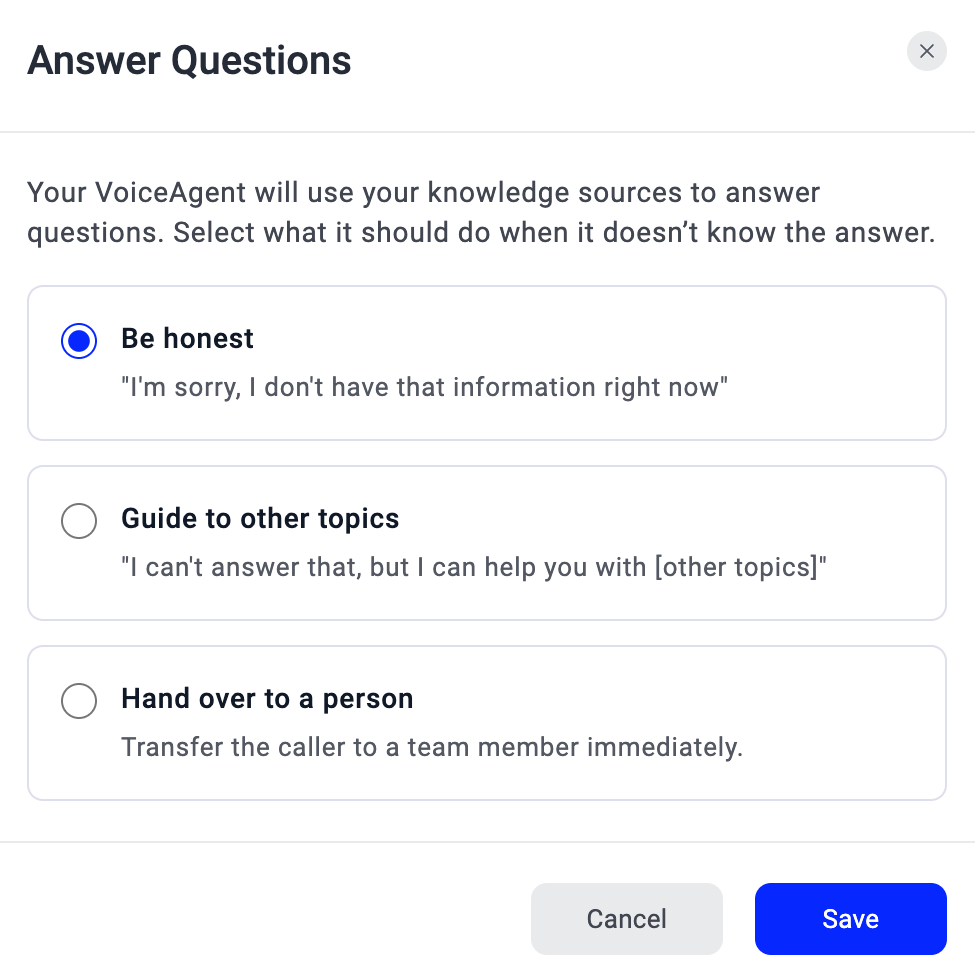
Take a Message (recommended)
Take a Message skill captures the caller’s name and message automatically. You configure the confirmation message shown after details are collected. No caller leaves without their details being recorded for follow-up. Confirmation message: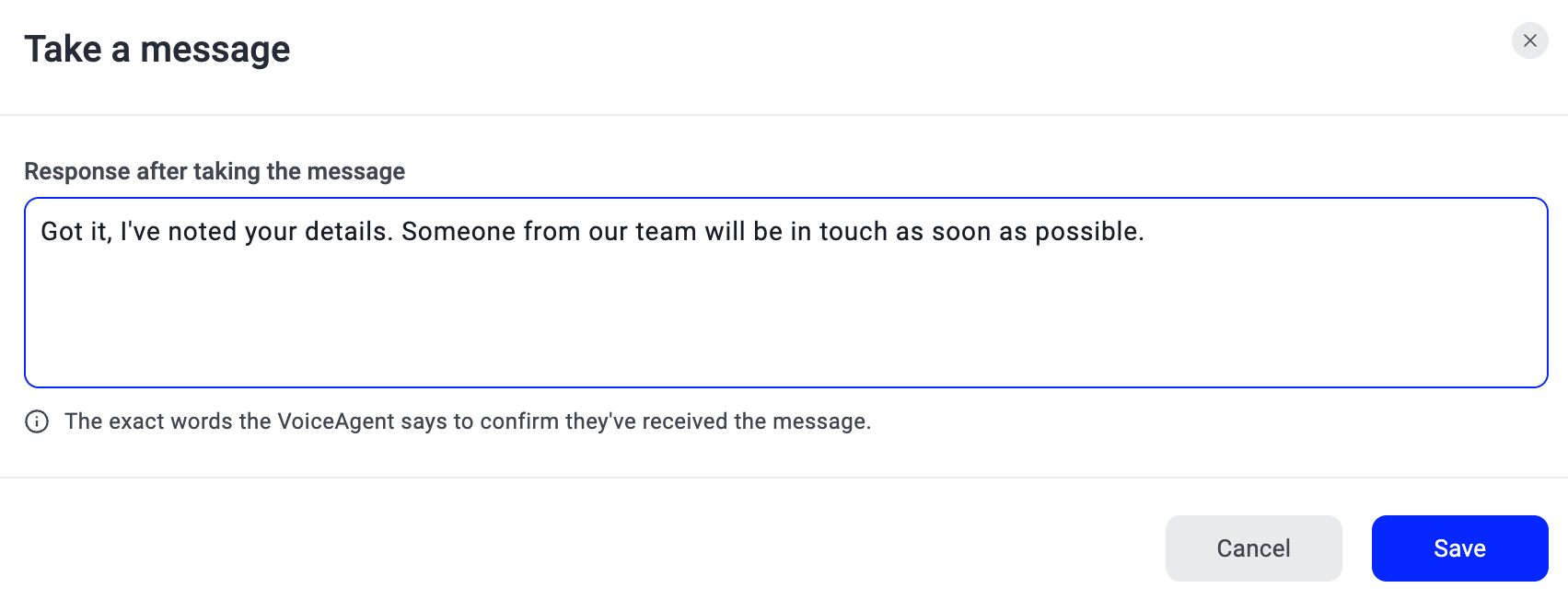
- Add a Scenario: “When you can’t answer, offer to take a message and collect the caller’s name and contact number.”
- Add a task-complete Scenario to close the call cleanly after the message is taken.
- Do not use this as a fallback for unanswered transfers. Use Transfer to Call Flow with a fallback branch for that.
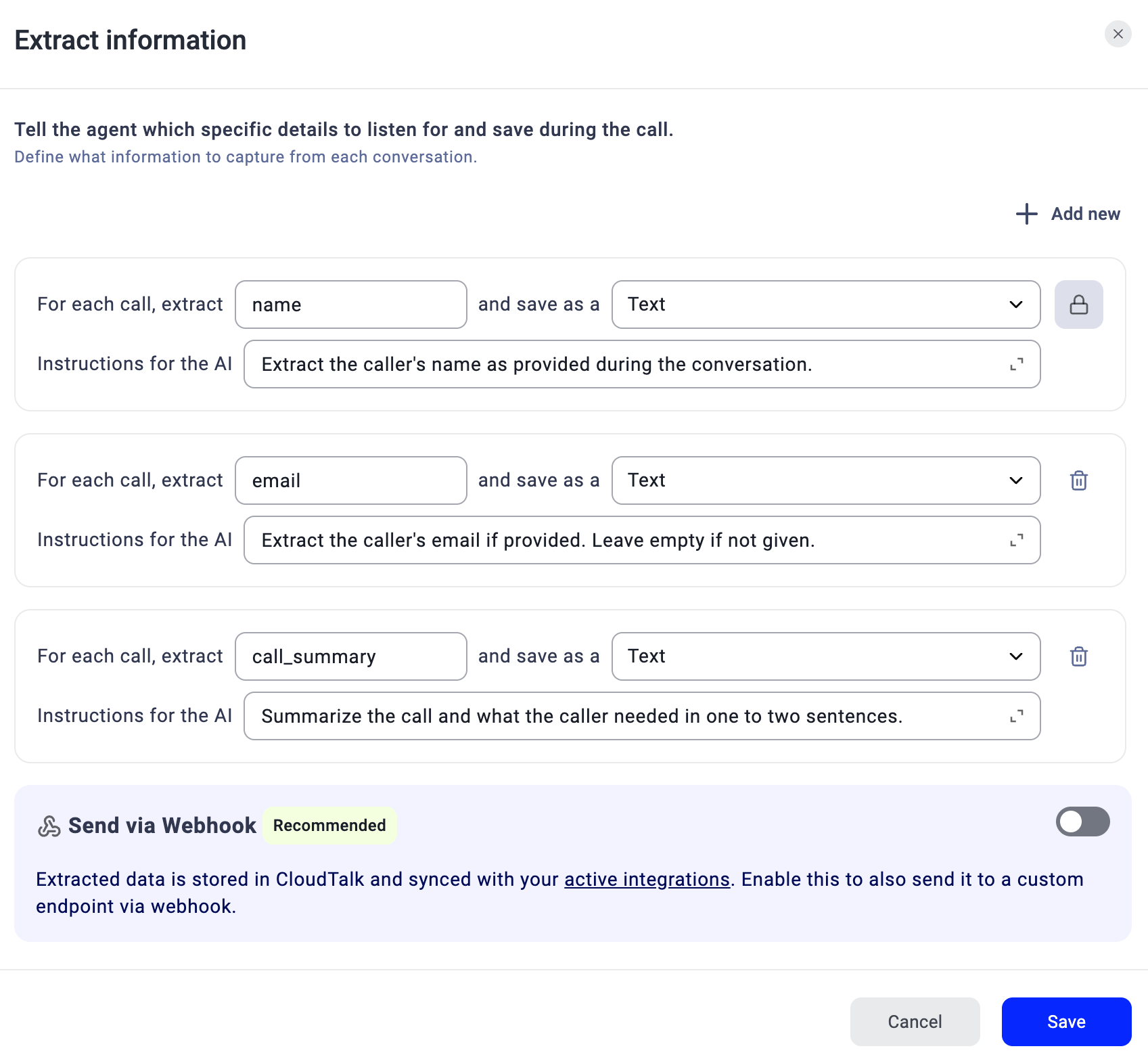
Extract Information (recommended)
Extract Information skill captures structured call data and sends it to your CRM or automation endpoint via webhook. Your team has full context on every call before they follow up.
Add a
phone_number field if your team needs to call back rather than email.
- Property names are case-sensitive. Do not rename them after setup, as they’re used to send data to your CRM.
- Test webhook output on several real calls before connecting your production CRM.
Transfer to Call Flow: emergency only (optional)
Only configure this if you have an on-call or emergency line with someone reliably available to answer. An unanswered transfer is a worse experience than taking a message. Use Transfer to Call Flow rather than Transfer to Human/Group so you can define a fallback branch for when the emergency line goes unanswered.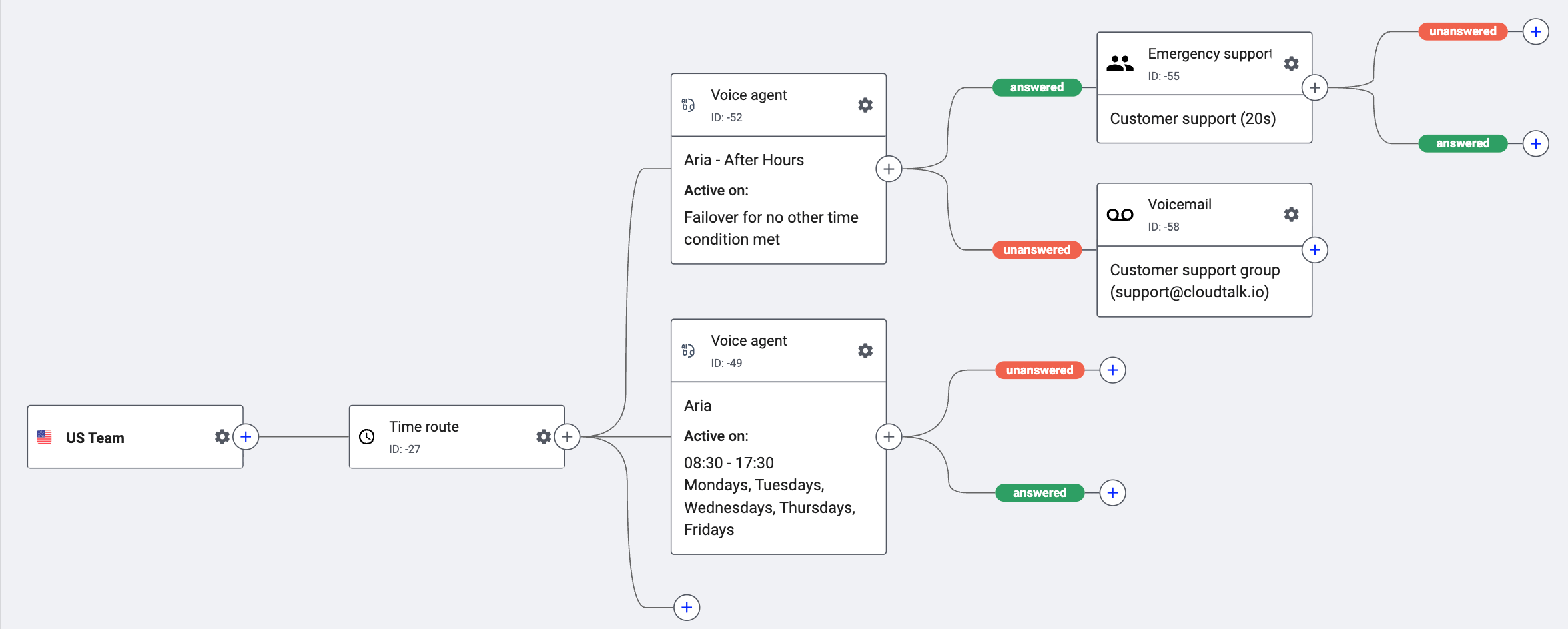
Step 3: Build your Knowledge Base
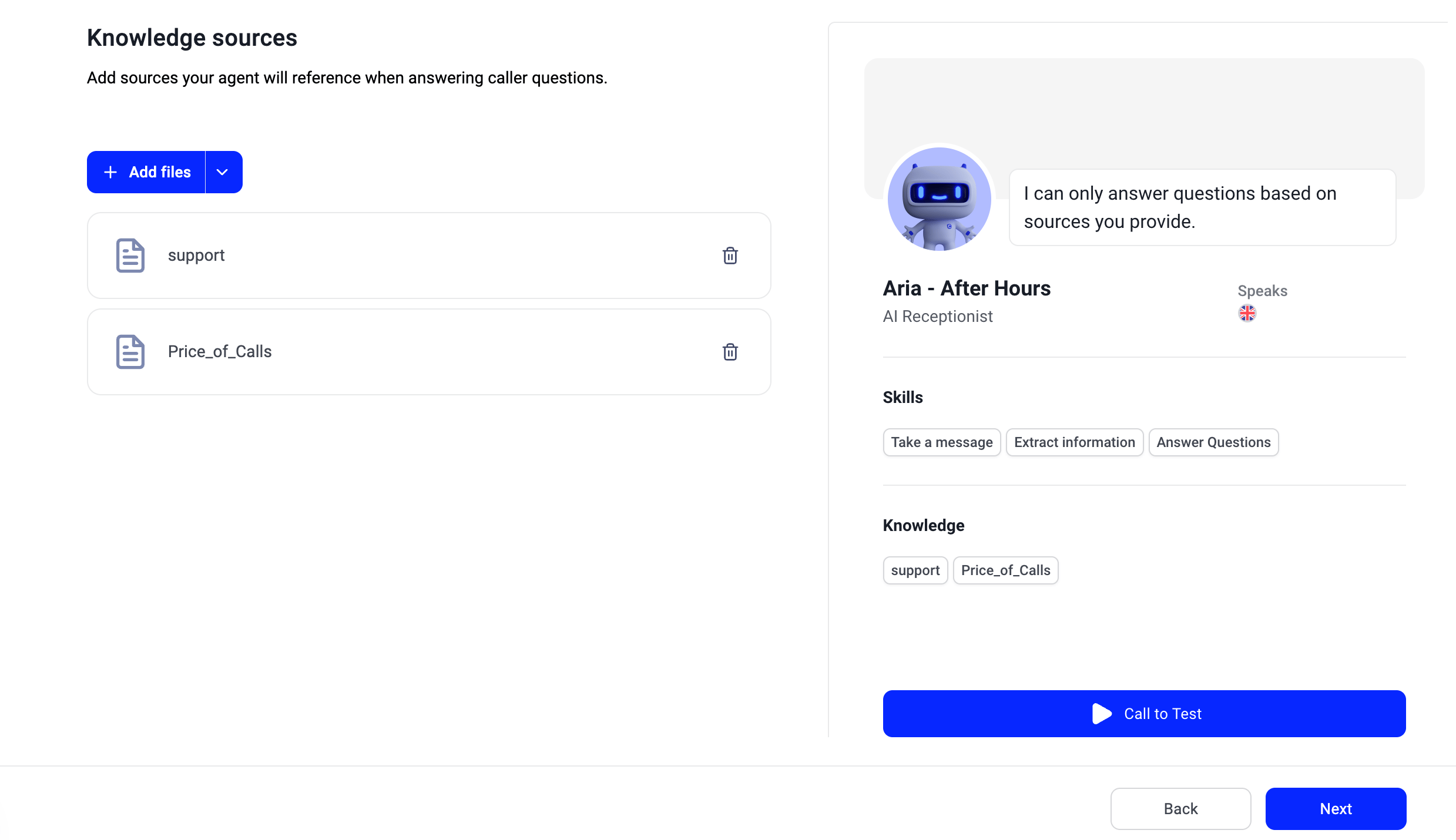
The agent only answers from the documents you upload. It will not use external knowledge or guess. For a full guide on setting up your Knowledge Base, see Knowledge Base for VoiceAgents. After-hours callers typically ask about opening hours, location, what to do in urgent situations, and when someone will call them back. Scope your Knowledge Base to those topics.- One source of truth per topic. If opening hours appear in multiple documents, consolidate them. Conflicting information produces inconsistent answers.
- Structured content. Use Q&A format or short paragraphs. Do not paste entire policy documents.
- Keep it current. Outdated information causes wrong answers. Update documents when things change.
- Scope it to after-hours queries. Do not upload your entire knowledge base.
-
File limits: 21MB per file. Accepted formats:
.pdf,.txt,.docx,.html,.epub. You can also add URLs pointing to FAQs or public help content.
Step 4: Set up scenarios
Scenarios define how the agent handles situations its normal behaviour cannot resolve. For a full guide, see VoiceAgent Scenarios & Guardrails. The after-hours setup requires a task-complete scenario to close calls cleanly after a message is taken.
Step 5: Connect to your call flow
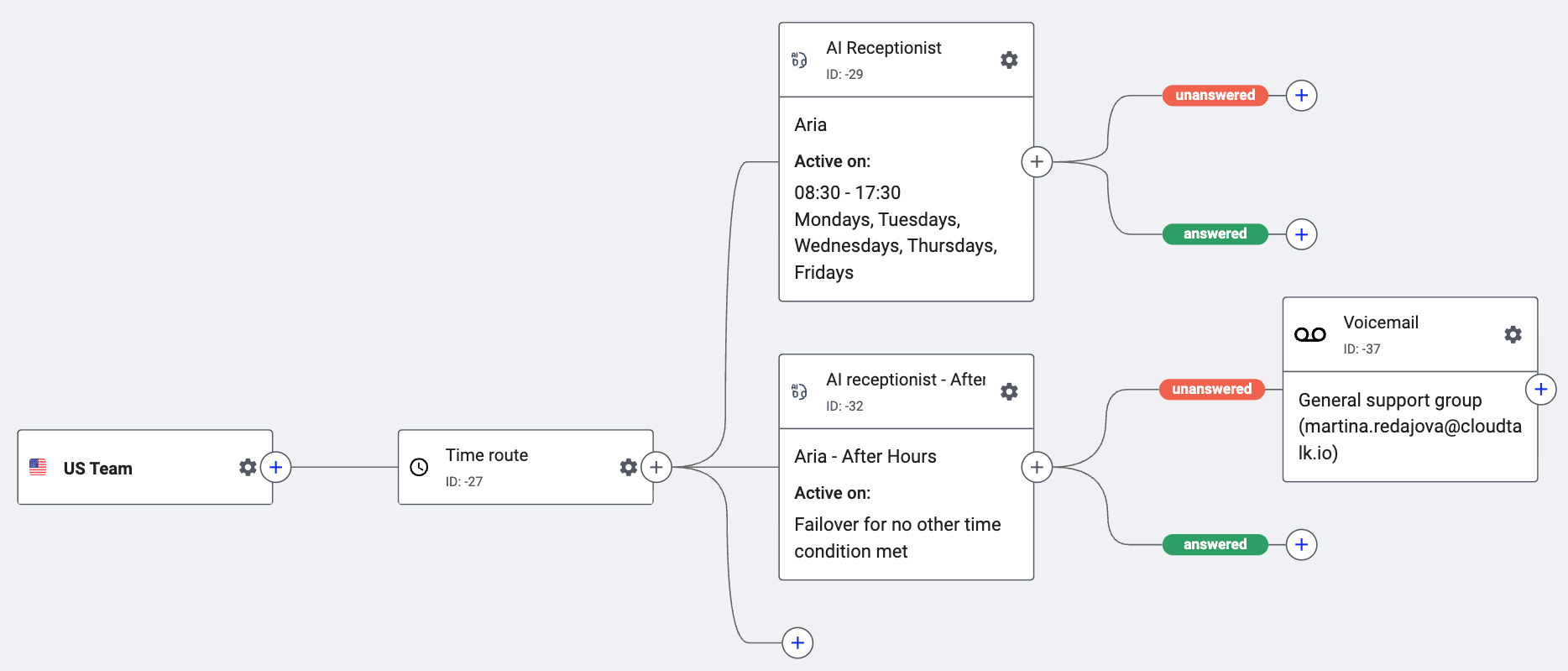
Connect the agent to your phone number using a Time Router to route after-hours calls to it.- Set the Time Router to your exact business hours and timezone.
- Test both the during-hours and after-hours branches before going live.
- Always add a fallback branch for the emergency transfer route.
After you go live
On your first morning, check:- What messages came in and whether the summaries are accurate
- Whether any questions fell outside the Knowledge Base (add answers if so)
- Whether the webhook is populating your CRM correctly
FAQs
- Do I need a separate agent for after hours, or can I reuse the during-hours one? You need separate agents. After-hours behaviour is different: there are no team transfers, message-taking is the primary output, and the tone should reflect that no one is available. Use a Time Router to direct calls to the right agent.
- The agent said we were open when we were actually closed. Why? The Time Router is likely not configured correctly, or the business hours and timezone settings do not match your actual hours. Check the Time Router settings in Call Flow Designer.
- Can I set up an emergency transfer? Yes, but only if someone is reliably available to answer. An unanswered transfer is a worse experience than taking a message. Use Transfer to Call Flow with a fallback branch so calls do not drop if no one picks up.
- How do I make sure overnight messages reach my team? Use the Extract Information skill with a webhook pointing to your CRM or automation tool. The structured data will be available when your team starts the day.
- What if a caller asks something the Knowledge Base doesn’t cover? The agent will tell the caller it doesn’t know and offer to take a message, as long as you have set the Answer Questions fallback to “Be honest” and added the appropriate Scenario.
Need help or have a question? Just reach out through our Support portal — we’re here for you.