

The Transfer to Human skill acts as the handoff point between your VoiceAgent and your live team, allowing you to route conversations to specific agents, groups or logic when intervention is required.In this article, you will learn how to configure precise transfer rules, share AI-generated context with your team and decide which routing method best fits your specific workflow.

How Transfer Rules Work
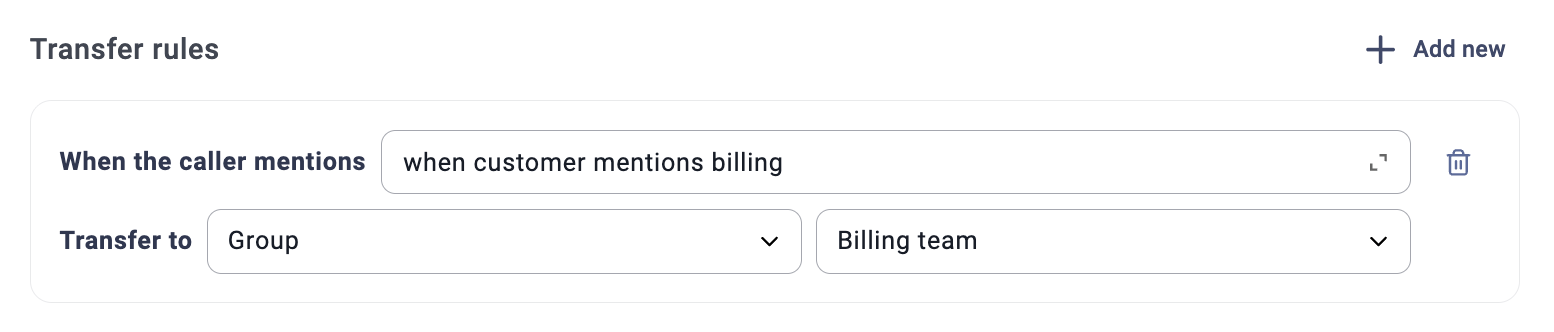
- A Condition: Defines when the transfer should trigger (e.g., the caller says “I want to speak to a manager” or mentions “technical support”).
-
A “Transfer to” Setting: Defines who receives the call. Available options for transfers are:
- Agent – Transfer the call to a specific individual from your team. When selected, you can choose the target agent from a dropdown list.
- Group – Route the call to a designated ring group (e.g., Support, Sales, Returns) for broader handling. When selected, you can choose the specific group from the available list.
- Call flow (Inbound VoiceAgents only) - Ends the call on the VoiceAgent’s side and continues to the Answered branch after the VoiceAgent step in the flow. Use this for advanced scenarios such as transfers to external numbers, complex multi-branch routing, or post-call surveys.
Transfer to Agent
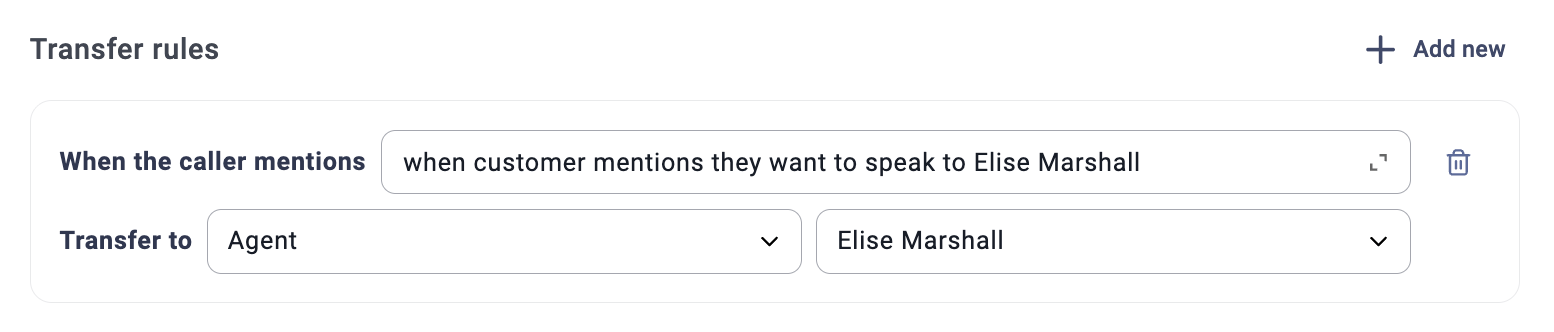
How it Works
When the VoiceAgent identifies that a transfer to a specific agent is required, it initiates a safe transfer:- The VoiceAgent keeps the caller on the line and places a second call to the selected agent.
- If the agent picks up, the VoiceAgent confirms the handoff with the caller, connects the two, and then disconnects itself.
- If the agent is offline or doesn’t pick up within the transfer timeout, the second call is cancelled and the caller stays in the conversation with the VoiceAgent. The VoiceAgent is aware the transfer failed and can naturally offer alternatives, taking a message, trying a different group, or continuing to help directly.
ℹ️ No configuration needed. Safe transfer behavior applies automatically to all agent transfers. You do not need to build fallback logic for the case where the agent doesn’t answer — the VoiceAgent handles it in the conversation. For advanced fallback routing (e.g., voicemail or external redirect), you can still use the Transfer to Call Flow option.
Transfer to Group
How it works
Group transfers are also safe transfers:- The VoiceAgent places a second call to the selected group’s queue while the caller remains on the line.
- If the queue can accept the call, the caller is transferred immediately and the VoiceAgent disconnects. The caller then waits in the queue following your standard Group Settings (ringing strategy, queue rules). No VoiceAgent minutes are consumed while the caller waits in the queue.
- If the queue is full or empty (no agents available in the group), the second call is cancelled and the caller stays with the VoiceAgent, which can offer alternatives such as taking a message or trying another group.
Transfer to Call flow (Inbound only)
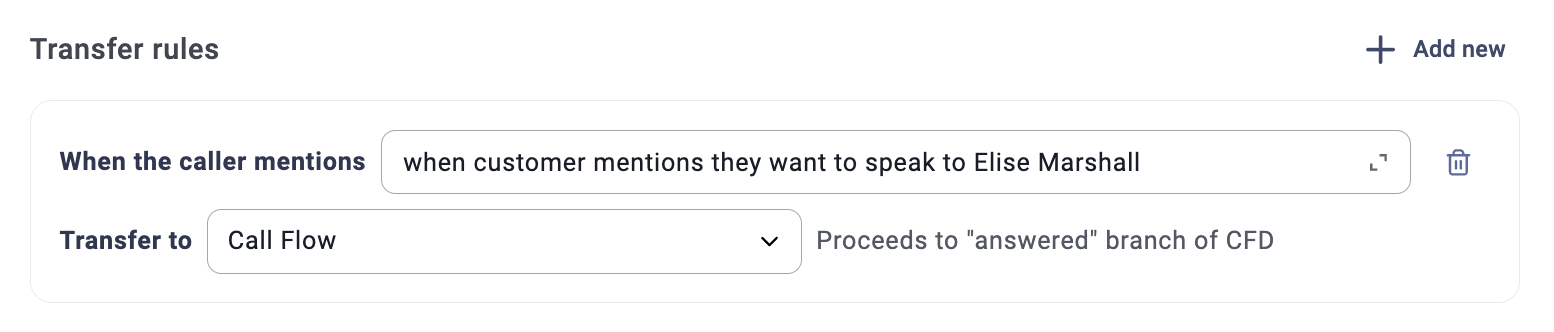
- Transfers to external numbers
- Complex multi-branch routing (e.g., many agents and queues with data-driven branching)
- Post-call steps such as CSAT surveys or Greeting messages
- IVR Menu / Jump to redirects
How it works?
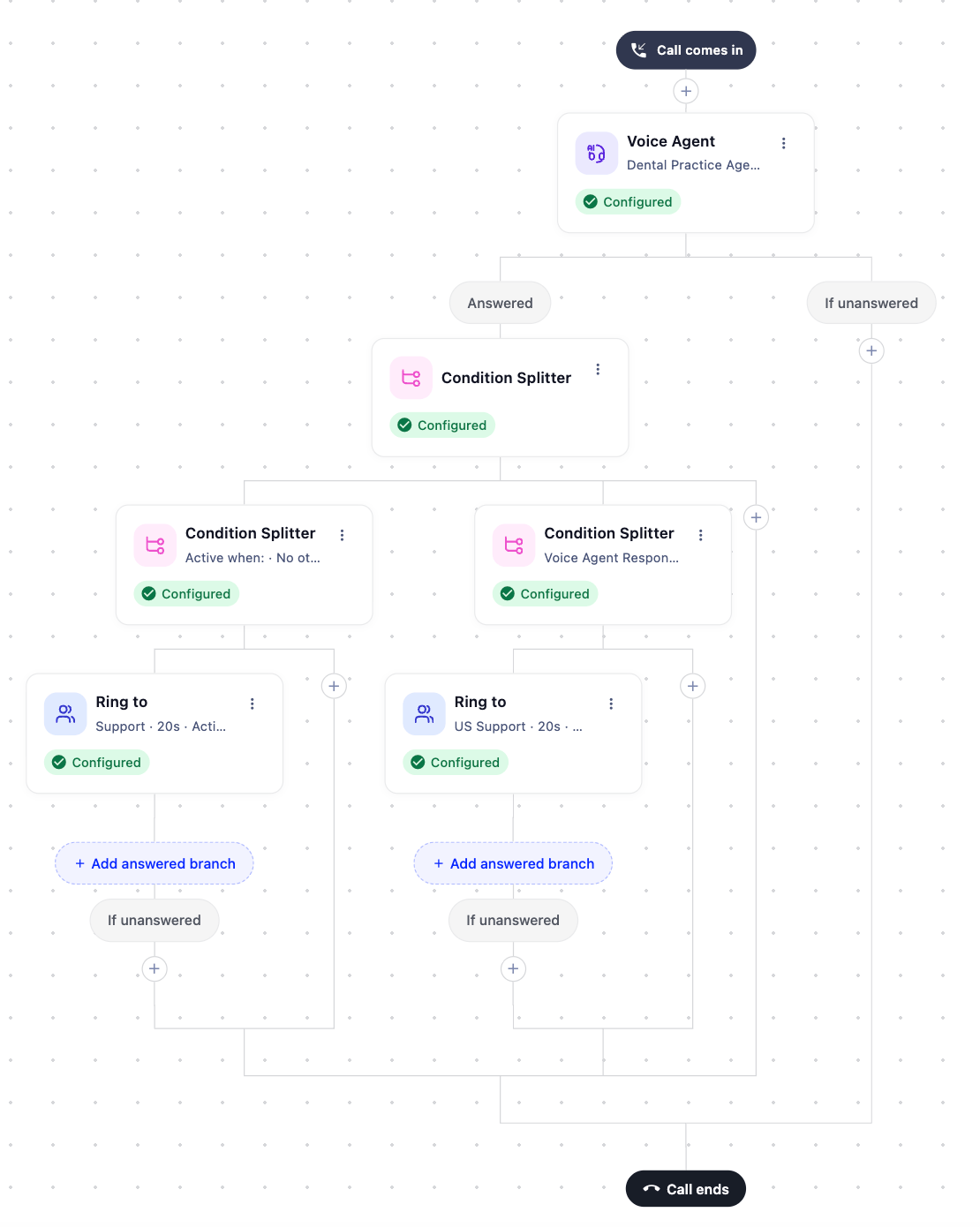
When a transfer to call flow is initiated The call ends on the VoiceAgent’s side and immediately continues in the Answered branch following the VoiceAgent step in your call flow. In the Answered branch, you can define any logic required using standard designer steps (e.g., Routing to Group, IVR Menu, or External Number). This method also lets you define explicit fallback branches in the flow itself. For example, if you route the call to a group and no one answers, you can trigger a voicemail or an external redirect.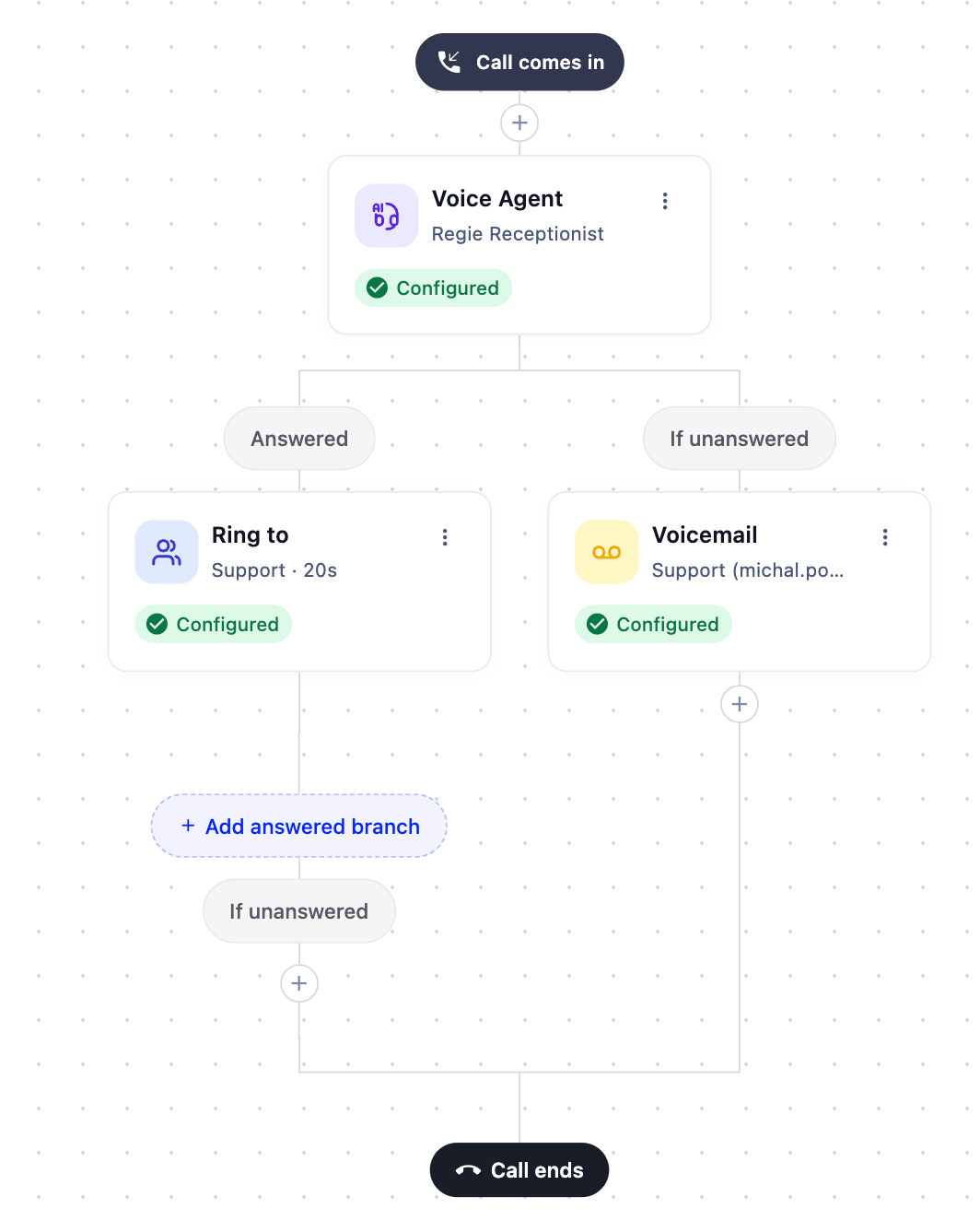
Data-Driven Routing
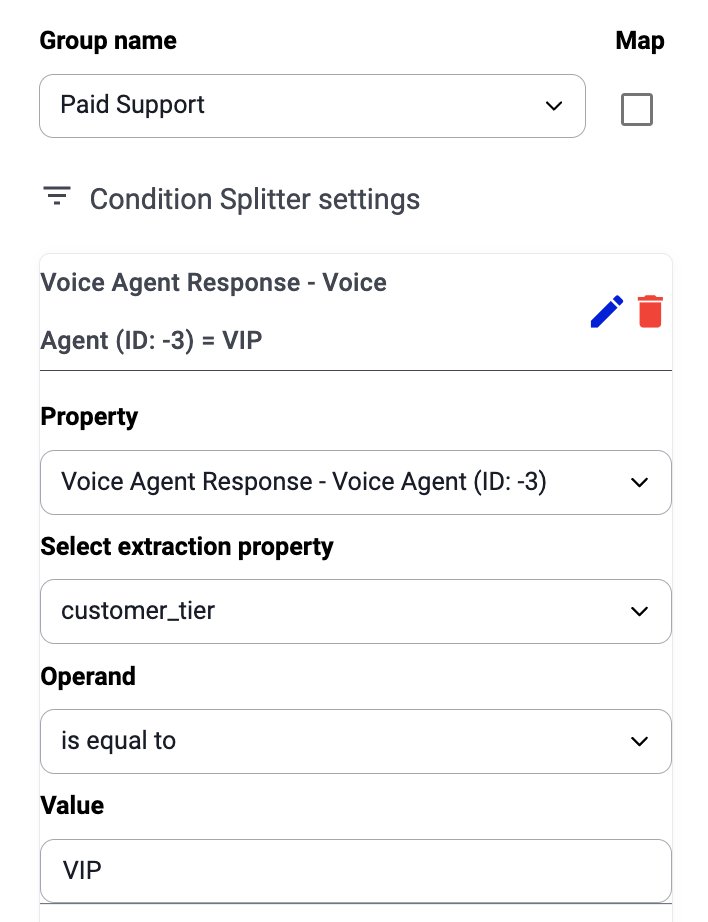
Information gathered by the VoiceAgent can be used to drive the logic of your call flow. Use Extract information skill during the VoiceAgent conversation to capture specific data points from the caller. Than, use the captured VoiceAgent data in subsequent Condition Splitter steps. This allows for elaborate branching Example: Routing by Customer Tier You can use AI-extracted data to prioritize high-value callers Configure the Extract information skill in your VoiceAgent to identify and capture the “customer tier” during the conversation.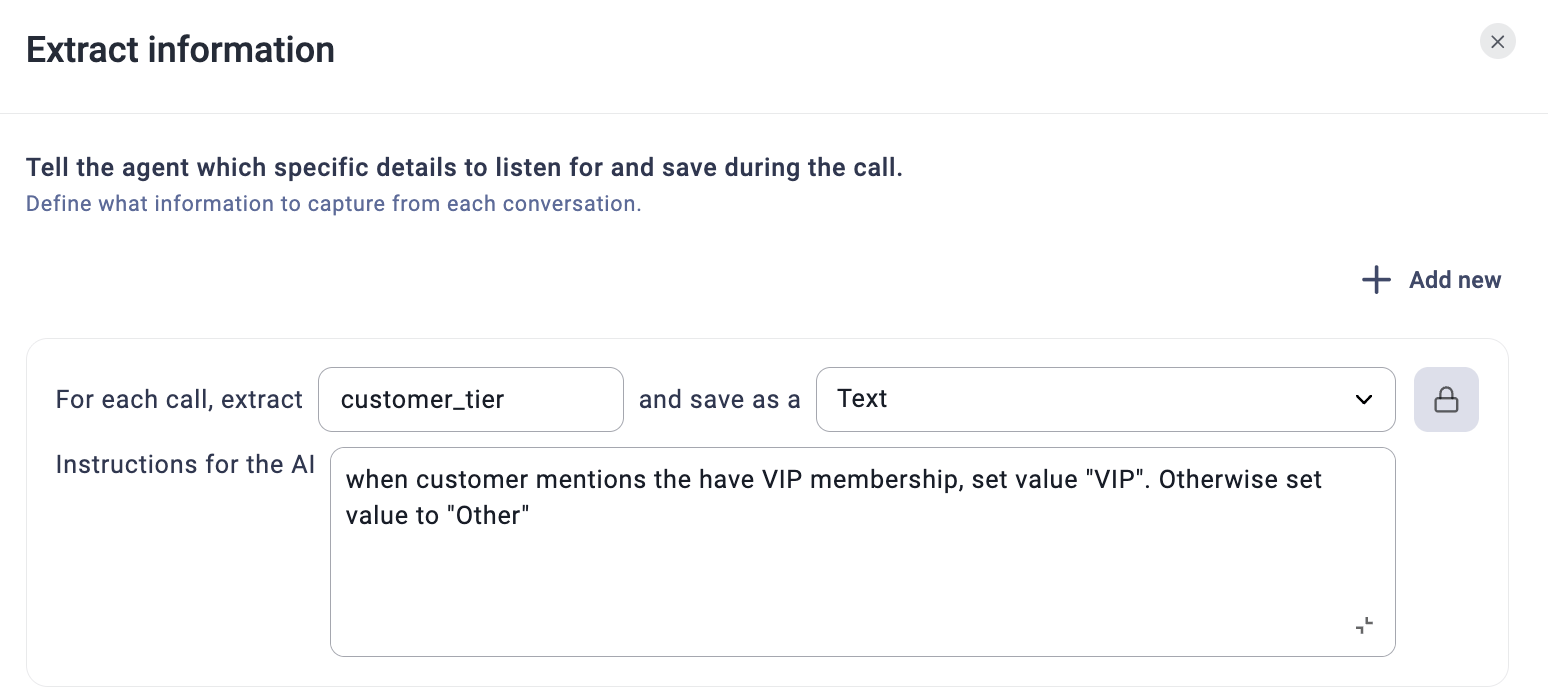
Transfer Settings
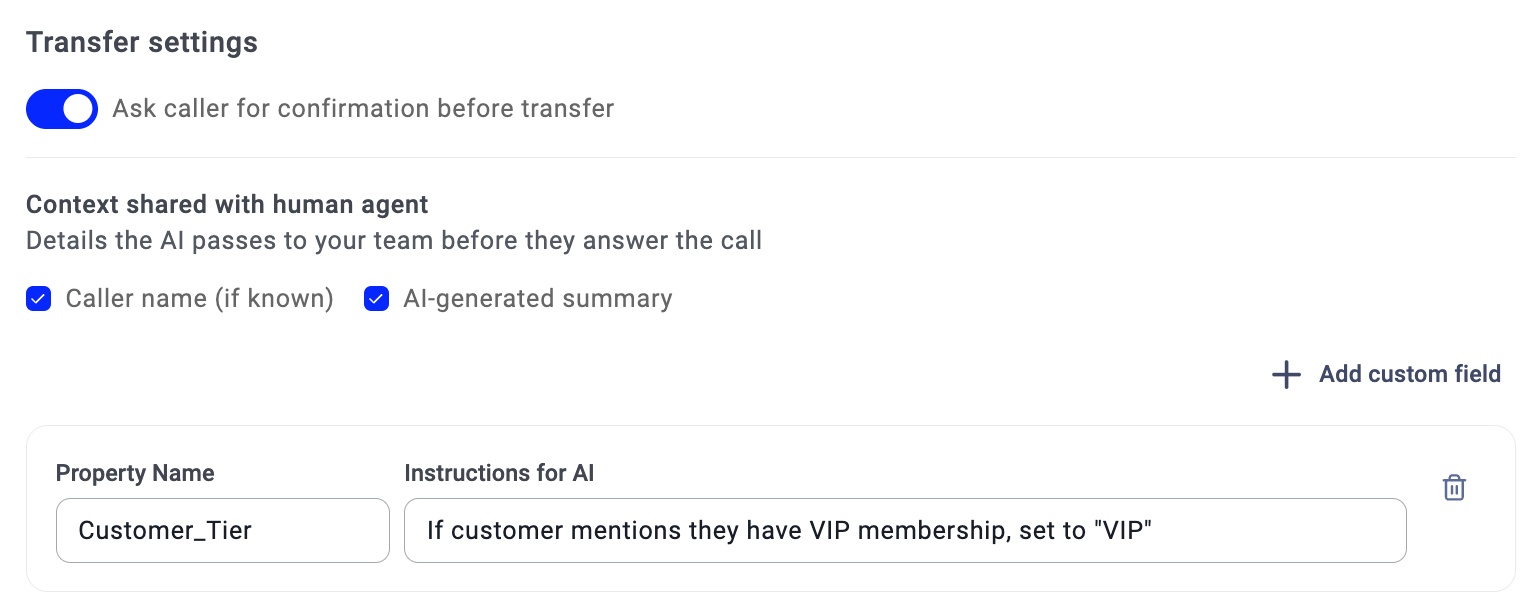
Context Shared with Human Agent
To ensure a warm handoff, you can define exactly what information the AI should pass to the team before they answer. This data appears in a Context Transfer Card within the CloudTalk desktop app.Standard Fields
- Caller Name**:** Shares the identified name of the contact.
- AI-generated Summary**:** Provides a concise recap of the conversation that took place with the VoiceAgent.
Custom Fields
Click +Add custom field to share specific data points gathered during the call. For each field, you must provide:- Property Name: The label the agent will see (e.g., “Account Number”).
- Instructions for AI: Guidance for the AI on which information from the transcript should fill this field (e.g., “Extract the 8-digit account number mentioned by the caller”).
The Agent Experience
When a transfer is initiated, the receiving agent will see a Context Transfer Card in their calling app.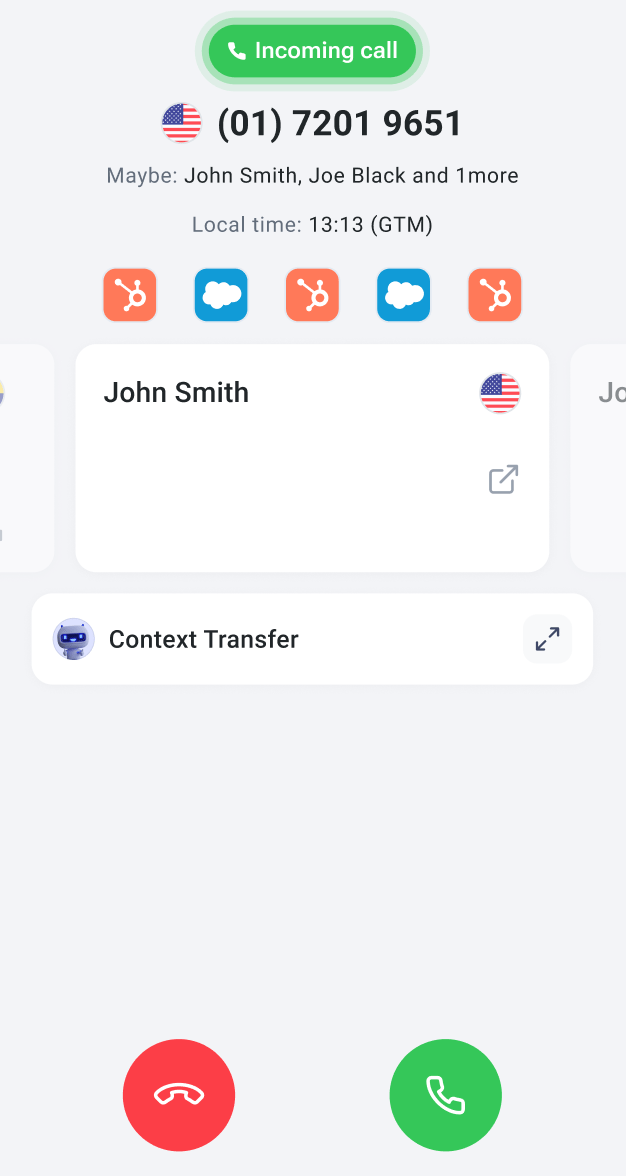
VoiceAgent Transferred Calls in Analytics & Dashboard
When a VoiceAgent transfers a call (whether inbound or outbound) the interaction is split into multiple call records and events that appear in your Analytics and Dashboard. Understanding how each transfer type is reflected helps you accurately interpret performance data and agent workload.Dashboard View
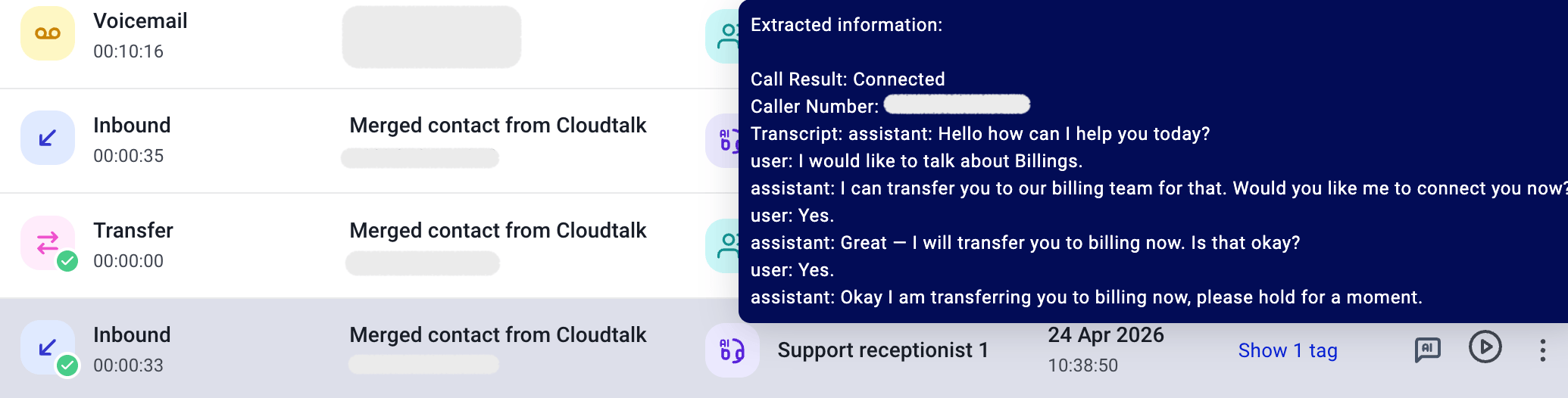
In the Dashboard call history, each VoiceAgent-transferred call appears as multiple separate records for the same contact. The exact records depend on the transfer type: Transfer to Agent generates two records:- Inbound/Outbound - the VoiceAgent interaction
- Transfer - the handoff moment, showing the receiving agent’s name

- Inbound/Outbound - the VoiceAgent interaction
- Transfer - the handoff moment, showing the receiving group’s name

- Inbound - the VoiceAgent interaction
- Transfer - the handoff moment (e.g., a second Inbound if routed to a group, a Voicemail if unanswered)
- Call Result: e.g., Connected
- Caller Number: the contact’s phone number
- Transcript: a condensed back-and-forth summary of the VoiceAgent conversation (assistant and user turns)
Analytics View
VoiceAgent transferred calls are reflected across several reports in Analytics:-
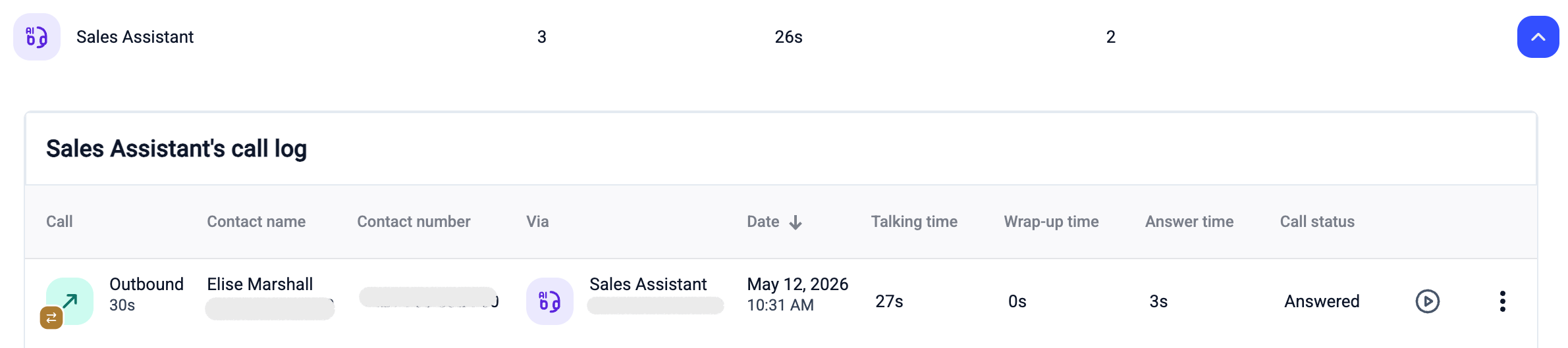
Voice Agent report: shows performance data per VoiceAgent, including call volumes and outcomes. Transferred calls are reflected here under the VoiceAgent that handled the interaction.
-
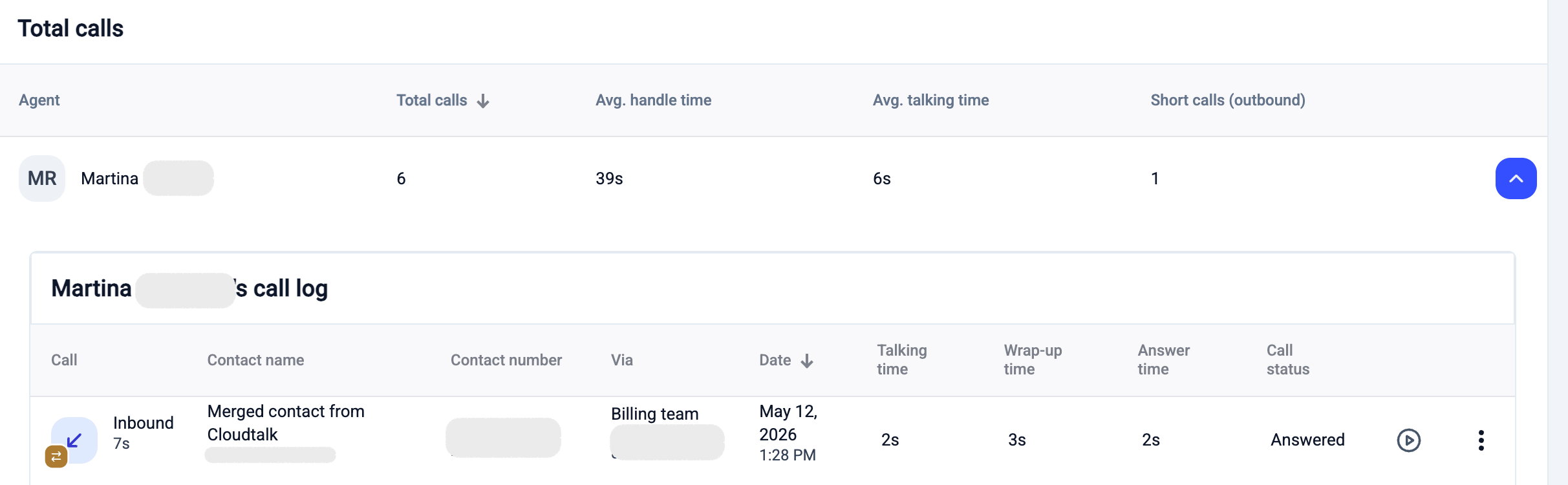
Agent report: when a transferred call is answered by a human agent (Transfer to Agent or Transfer to Group), that call is expected to appear in the receiving agent’s stats.
- Group report: calls transferred to a group and answered by an agent are expected to appear in the relevant group’s call volume and handling stats.
-
Call log: all individual call records (including the VoiceAgent leg, Transfer entry, and any subsequent legs) are visible in the Call log.


Need help or have a question? Just reach out through our Support portal — we’re here for you.