

Duplicate contacts can appear for several reasons depending on how your contacts are created or imported into CloudTalk. This guide explains how CloudTalk handles merges, which cases are supported, and what to expect when duplicates appear across integrations, CSV imports, the API, or manual creation.
Symptoms
You may experience one or more of the following:- Two or more contacts in CloudTalk share the same phone number or email.
- Contacts imported from an integration do not merge as expected.
- Contacts imported via CSV are merged differently than expected.
- Calls or SMS appear under a different contact than you expected.
- After importing via CSV, multiple records appear instead of one.
- Duplicate contacts appear after syncing with an integration.
- CloudTalk creates a new lead or contact when calling an existing record in your CRM.
Root Causes
This behavior is usually caused by one or more of the following:⚠️ Phone numbers missing the country code
Phone numbers in your CRM must be stored in full international format, starting with+ followed by the country code (e.g. +16475353151, not 6475353151). If the country code is missing or incorrect, CloudTalk cannot match the number to an existing contact and will create a new record instead.
This is one of the most common causes of unexpected duplicates. If you are seeing new leads created for contacts that already exist in your CRM, audit your CRM records to ensure all phone numbers include the correct country code in international format.
⚠️ Integration merge settings configuration
-
In Settings > General, merge rules for integrations may be set to:
- Phone number
- Phone number and/or email
- Don’t merge
- If “Don’t merge” is selected or matching is too strict, expected merges will not happen.
⚠️ Unsupported merge scenarios
CloudTalk does not merge when:- An already imported integration contact is updated inside CloudTalk.
- A user manually creates a contact that shares phone or email with an imported integration contact.
- Two existing contacts in an external tool are both already imported. CloudTalk does not auto-merge them; it only merges newly imported contacts or leads.
- A contact is created via the CloudTalk API.
- “Duplicate contacts created at separate times” is currently an unsupported use case.
⚠️ Specific merge rules for CSV import
- CSV merging is separate from integration settings.
-
CSV merge logic is:
- Match by phone number
- If no phone match, match by email
- The first match in that order is used. This can lead to merges that differ from what the customer expected.
⚠️ Call and SMS export behavior with and without merge
- When merging is disabled, CloudTalk keeps contacts separate and uses the external ID to export calls to the correct CRM record.
- When merging is enabled, the merged CT contact is linked to the most recently updated integration contact, so calls export to that one.
- If the CRM itself later merges records, call placement there depends on the CRM’s merge logic, not CloudTalk.
Step-by-Step Solution
Step 1: Review integration merge settings
If duplicates came from an integration:- Go to Dashboard > Settings > General.
-
Locate the section for merging:
- imported contacts with leads,
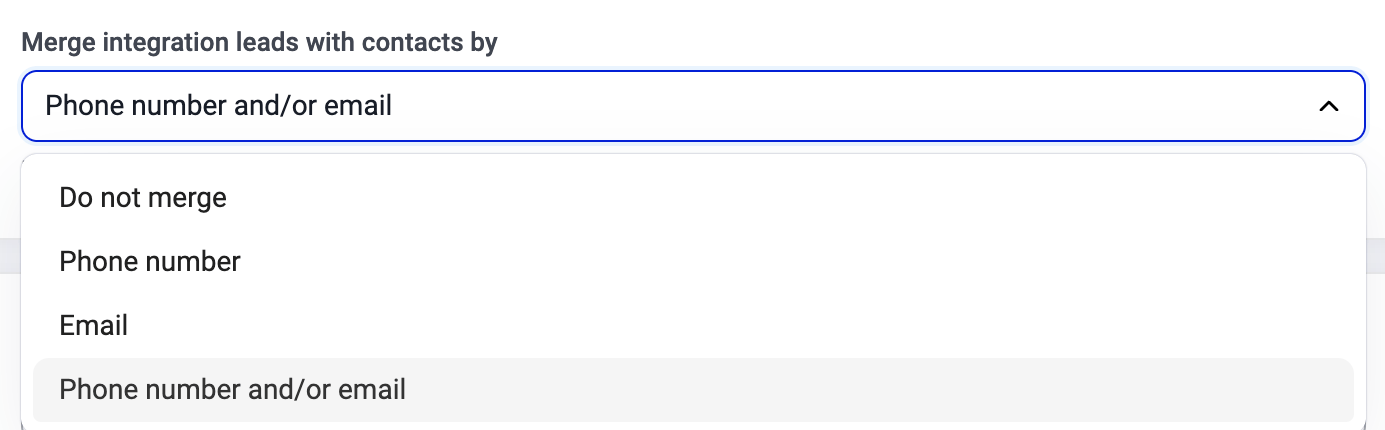
- imported contacts with other imported contacts.
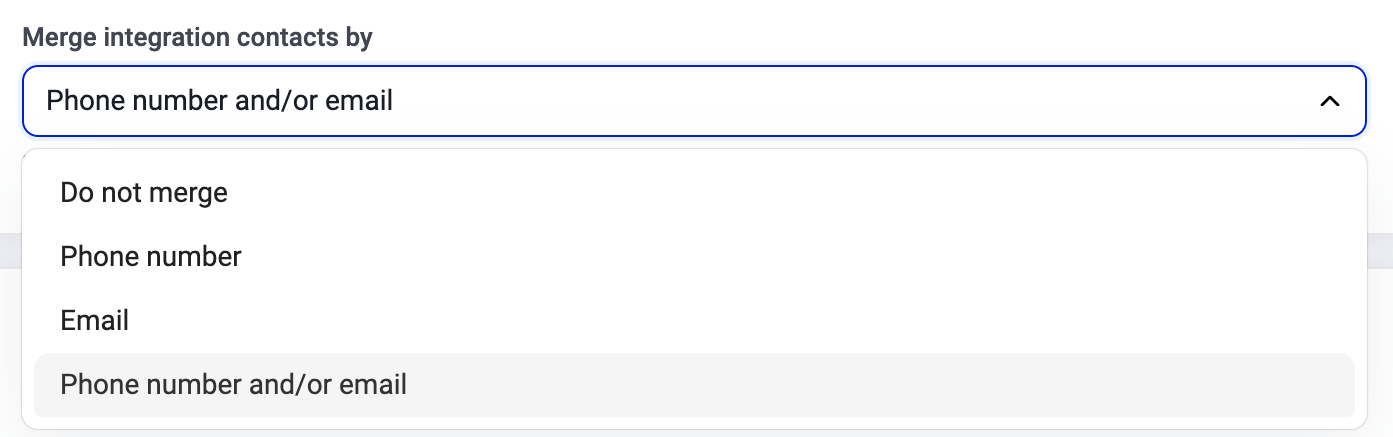
-
Check which matching rule is selected:
- Phone number
- Phone number and/or email
- Don’t merge
Step 2: Understand expected merge results
When CloudTalk merges two contacts, the final merged contact includes:- all phone numbers from both contacts
- all emails from both contacts
- the most recent value for all other attributes
Example:
Contact A- Phone: 101, 102
- Email: [email protected], [email protected]
- Name: Dana Smith
- Phone: 103
- Email: [email protected]
- Name: Dana S.
- Phone: 101, 102, 103
- Email: [email protected], [email protected]
- Name: Dana S. (newest value)
Step 3: Check whether your scenario is supported
CloudTalk does not merge contacts in the following cases:- An already imported integration contact is updated inside CloudTalk.
- A manually created CloudTalk contact uses the same phone or email as an integration contact.
- Two contacts already exist in the external system and are both imported.
- A contact is created via the CloudTalk API.
- Duplicate contacts were created at different times (this use case is currently not supported).
Step 4: Verify CSV merging logic
If duplicates appeared after CSV import:- Confirm that the CSV file follows the correct template.
-
Remember that CSV merging uses this order:
- match by phone number
- if no phone match, match by email
- The first match is always used.
- If both a phone number and an email match different contacts, CloudTalk merges with the phone match.
- Column names match custom attribute names exactly (case sensitive).
- Custom attributes exist in Settings > General > Contacts.
Step 5: Check call and SMS export behavior
Depending on your merge settings:- When merging is disabled CloudTalk keeps contacts separate and exports calls based on the external record ID.
- When merging is enabled The merged CloudTalk contact connects to the most recently updated integration contact, and calls and SMS are exported there.
When to Contact Support
Contact CloudTalk Support if:- Duplicates continue appearing despite correct merge settings.
- Expected merges do not occur.
- Calls or SMS export to the wrong CRM record.
- CSV imports behave inconsistently.
Need help or have a question? Just reach out through our Support portal — we’re here for you.